How to copy and paste on an iPhone, step by step for someone new to it
2026-10-10
This post contains affiliate links. As an Amazon Associate, ZAGO.TO earns from qualifying purchases.

Is the Paste button hiding, or did the copy never happen?
On an iPhone, it is usually one of those two.
This guide on how to copy and paste on an iPhone goes slowly, names what you should see on screen at each step, and works the same on an iPhone 13 through 17.
Contents
- Selecting the text
- Copy it
- Paste it
- The three-finger shortcut
- When the paste button is not showing
- When the paste has to land on another device
1. How to copy and paste on iPhone starts with selecting

▲ The first try often lets go too early. That is normal
Find the text you want. It can be in a message, an email, a web page or a note.
Press one finger on a word and hold it for about a second. Do not tap. A tap only moves things around.
What you should see: the word gets a colored background, and a small handle appears at each end of it. On most iPhones the color is blue.
Now drag one handle with your finger to stretch the selection. The colored part grows as you drag.
A few shortcuts help once the basics feel easy:
- Double tap a word to select just that word
- Triple tap inside a paragraph you are typing to select the whole paragraph
- Select All appears in the menu when you want everything in a box
2. Copy it: the small menu above your selection
When you lift your finger, a small dark menu pops up above the selected text.
It shows words like Copy, Look Up, Translate or Share. If you do not see Copy, tap the small arrow at the end of the menu to see more.
Tap Copy. Nothing dramatic happens. The menu simply closes.
The text is now held in the clipboard, a short-term memory that keeps the last thing you copied.
If the idea is new, What is a clipboard explains it in plain words.
Copying a whole text message works a little differently. Press and hold the message bubble itself, then pick Copy from the list. That copies the entire message at once.
3. How to paste on iPhone: tap the box, then tap again
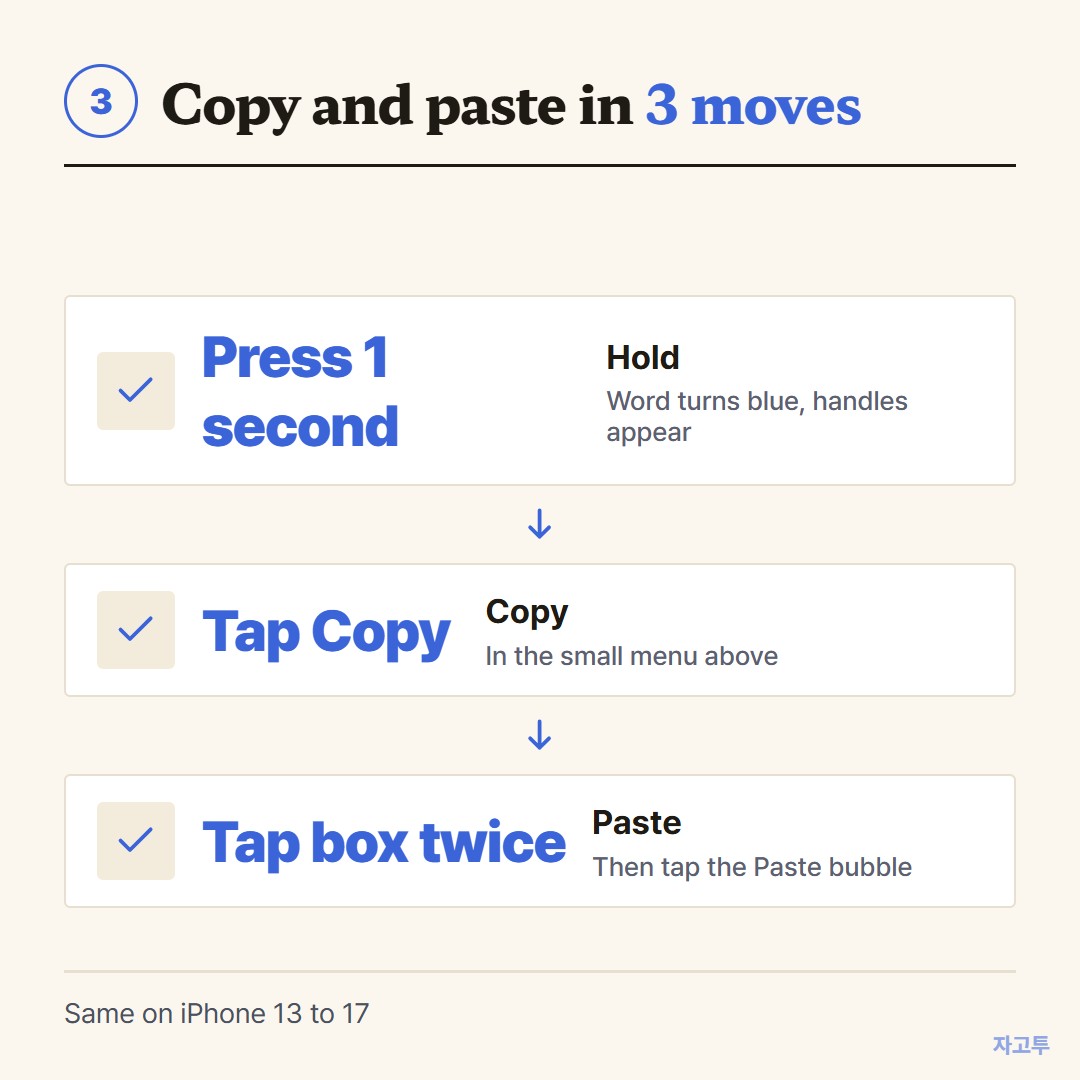
▲ Hold, Copy, then tap twice in the empty box for Paste
Open the place where the text should go. A search bar, a form, a new note or a reply box.
- Tap once inside the box. A blinking line, the cursor, appears.
- Tap the same spot again. A small bubble appears that says Paste.
- Tap Paste.
If the second tap selects a word instead, tap somewhere empty in the box and try again. Pressing and holding inside an empty box also brings up Paste.
4. The three-finger shortcut
Once you are comfortable, there is a faster way that skips the menus.
- Copy: pinch three fingers together over the selected text
- Paste: spread three fingers apart where the cursor is
- Undo: swipe left with three fingers if something goes wrong
A small label at the top of the screen confirms each one. Many people never use these, and that is fine.
5. When the paste button is not showing
Run through these in order.
- The copy did not happen. Go back and check that you actually tapped Copy, not just selected the text.
- The box is not a place you can type. You cannot paste into a page you are only reading. Look for an empty field with a cursor.
- The app is asking permission. Since iOS 16, an app may show "Allow Paste" the first time. Tap Allow Paste.
- The question keeps coming back. Open Settings, find that app, and set Paste from Other Apps to Allow.
- Something got stuck. Close the app and reopen it. If that fails, restart the iPhone.
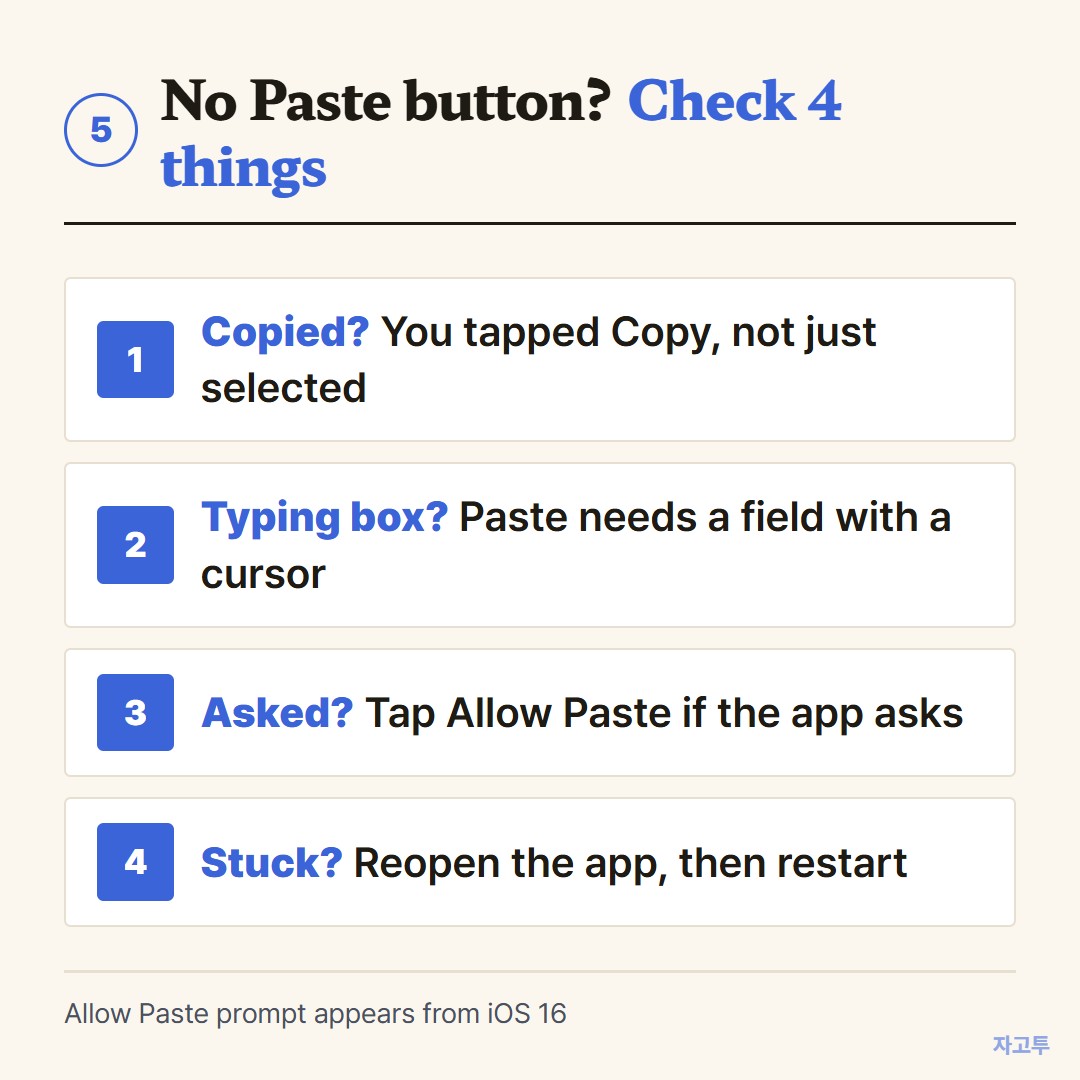
▲ The first two cover most cases
6. When the paste has to land on another device
The clipboard belongs to one phone. If you copy on the iPhone and want to paste on a Windows laptop or an Android phone, there is nothing to paste over there.
Apple devices share a clipboard with each other through Universal Clipboard, if they use the same Apple ID. Other brands do not get that.
A simple workaround is ZAGO.TO. Paste the text at zago.to on the iPhone and you get 4 digits. Type those digits at zago.to on the other device, and the text appears ready to copy.
It moves text only, up to 10,000 characters. Unopened text is deleted after 1 minute, and opened text 1 minute later, so you cannot come back for it.
Our server can read the text while it holds it, because there is no in-browser encryption yet. Keep passwords and card numbers out.
For a parent with an Android phone, How to copy and paste on an Android phone is the matching guide.
How to copy text from iPhone to Android covers mixed families.
In three lines
- Press and hold until the text turns blue, stretch the handles, tap Copy.
- Tap the empty box twice and tap Paste. Allow Paste if the app asks.
- To paste on a different device, ZAGO.TO carries the text with a 4-digit code.