Xbox web browser: how to open a website on Xbox and type the address without the controller
2026-10-14
This post contains affiliate links. As an Amazon Associate, ZAGO.TO earns from qualifying purchases.
Short answer: the Xbox web browser is Microsoft Edge, and it is already on your console. The hard part is not finding it, it is typing a long address with a controller.
Unlike some other consoles, the Xbox does not hide its browser. Edge sits in your apps list on Xbox Series X, Series S and Xbox One.
So the questions people actually ask are smaller and more practical. Where exactly is it, how do I keep it handy?
And how do I get a long link from my phone onto the TV without pressing a hundred buttons?
Where is the Xbox web browser?

▲ Edge is a normal app on Xbox, just not pinned by default
Press the Xbox button, go to My games & apps, then Apps, and open Microsoft Edge.
If it is not there, search for Edge in the Microsoft Store on the console. It is a free install.
To keep it handy, highlight Edge, press the menu button and choose Pin to Home. Next time it is one press away.
Is it the same Edge as on a PC?
Close to it. It is based on the same Chromium engine as Edge on a computer, so most sites load the way they do on a laptop, including many web games.
If you sign in to Edge with your Microsoft account, your favorites can sync from your PC. That is the cleanest way to have a set of sites ready on the console.
Some sites still treat the console like an unknown device, and video sites may push you toward their own Xbox app. When that happens, the app is usually the better experience.
How do I type a web address faster?
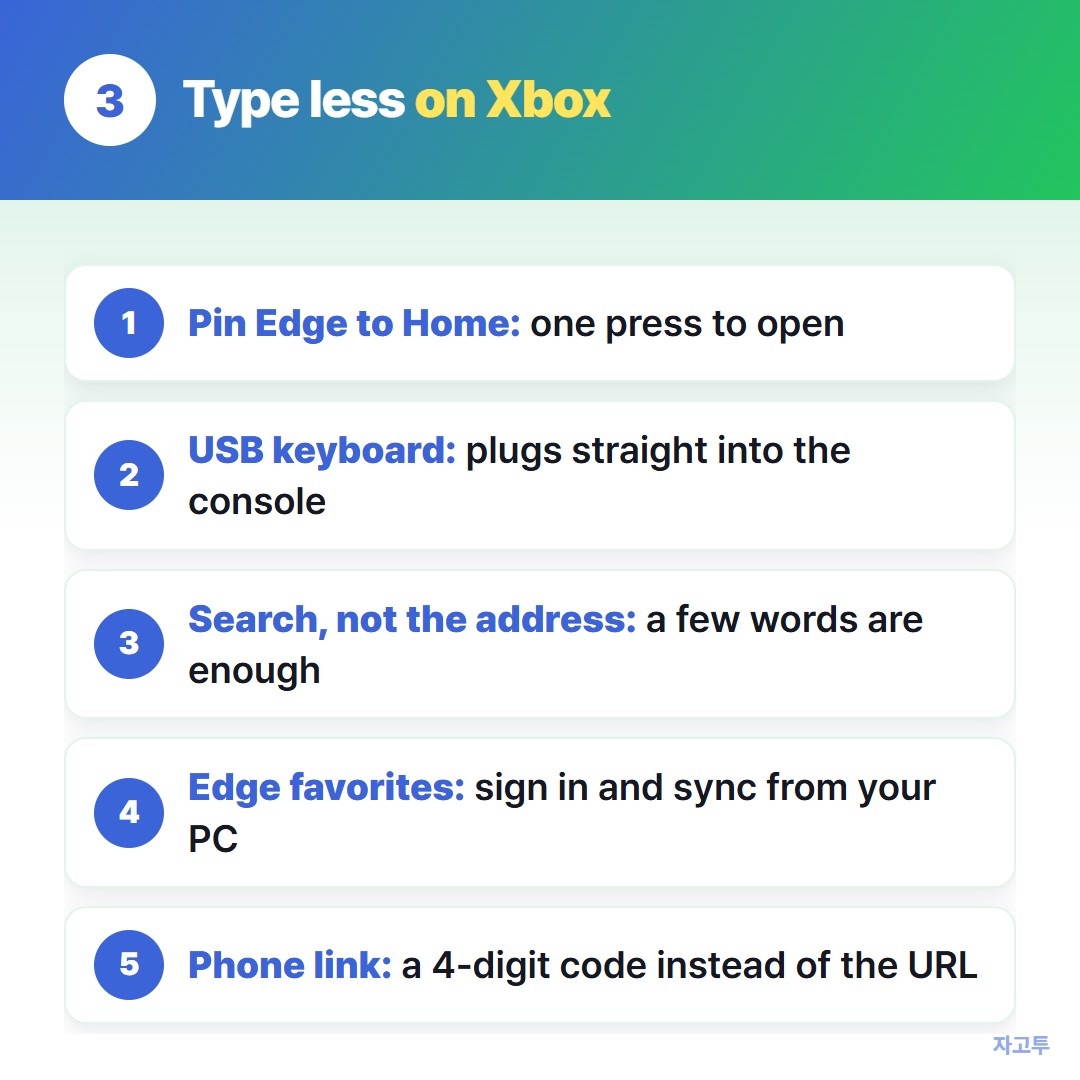
▲ The controller works, it is just slow for long addresses
The on-screen keyboard with a controller is fine for a short search. For anything longer, you have a few options.
- Plug in a USB keyboard. Xbox consoles accept a standard USB keyboard, and Edge takes typing from it like a PC.
- Use search instead of the address. Type a few words into the search box and pick the result.
- Sign in to Edge and use favorites saved on your computer.
A long link with random letters is where the controller really fails. One wrong character and the page is broken, which looks like the browser is broken.
What if the link is already on my phone?
This is the common case. A friend sent a link, it is on your phone, and you want it on the big screen.
ZAGO.TO is a shorter path for exactly that piece of text. On the phone, paste the link on zago.to and you get a 4-digit code.
In Edge on the Xbox, open zago.to and type those four digits with the controller.
The link appears, ready to select. Four digits and a short address are much easier with a controller than a long URL.
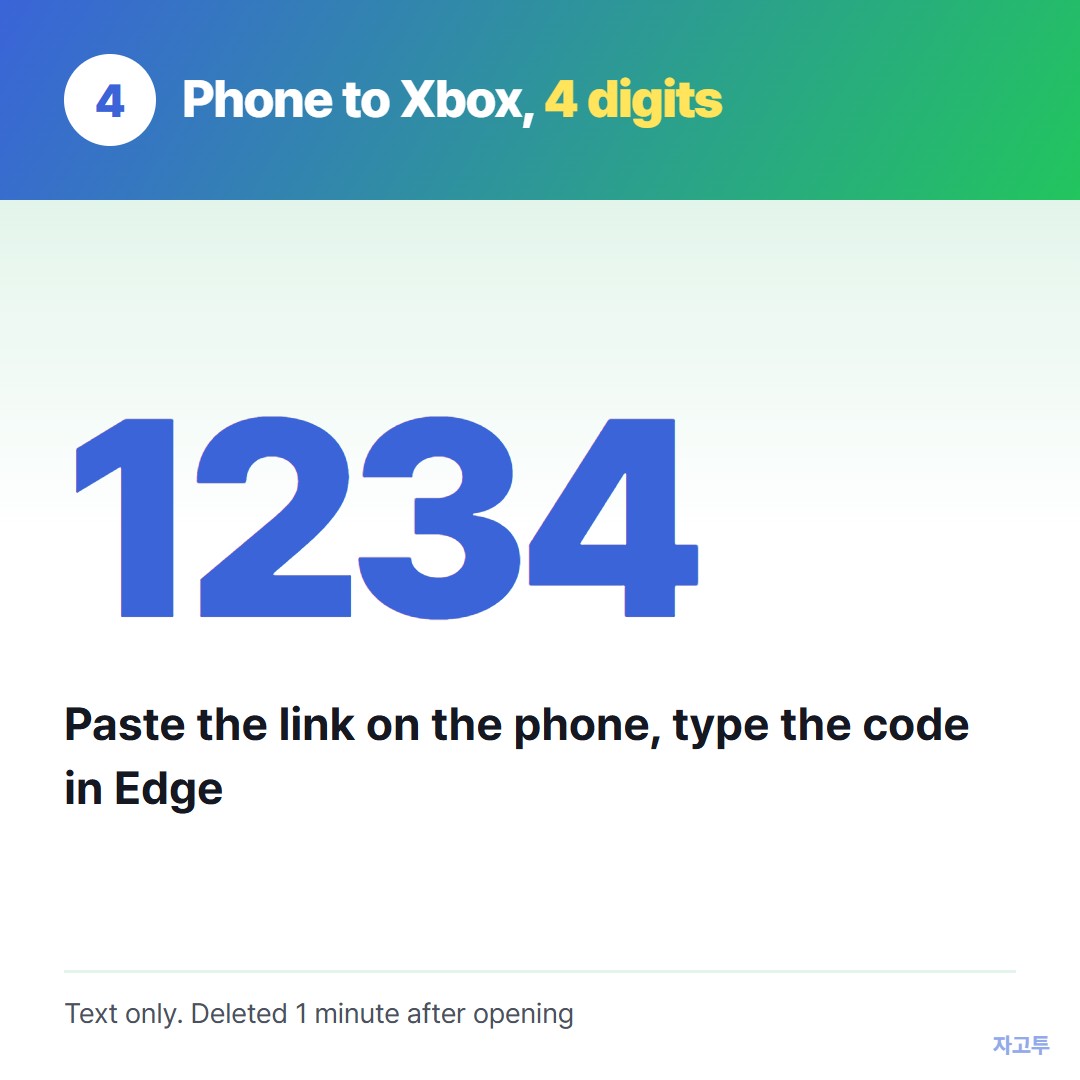
▲ An example code. Real codes are random
ZAGO.TO moves text only, up to 10,000 characters, so it will not send a photo or a video file.
Unopened text is deleted after 1 minute, opened text 1 minute after opening, and it cannot be opened twice.
There is no in-browser encryption yet, so our server can read what you send. A game guide link is fine.
Your account password is not something to send this way, and not something to type on a shared console either.
Other consoles are less generous. Sony and Nintendo do not offer a browser app at all, as how to open a website on PS5 explains.
For a TV with its own browser, see how to type on a smart TV without the remote.
Can I block ads or change the browser?
You cannot install Chrome or another desktop browser on an Xbox. Edge is the browser the console offers.
Edge on Xbox has its own tracking prevention settings, and some people point the console at a filtering DNS service.
Those are general network changes, so set them up only if you understand what they affect.
In short
The Xbox web browser is Microsoft Edge, found under My games & apps and worth pinning to Home. A USB keyboard or synced favorites save the most time.
For a link already on your phone, a 4-digit code typed with the controller is shorter than the whole address.