How to type on a smart TV without the remote, from a short search to a long address
2026-10-05
This post contains affiliate links. As an Amazon Associate, ZAGO.TO earns from qualifying purchases.
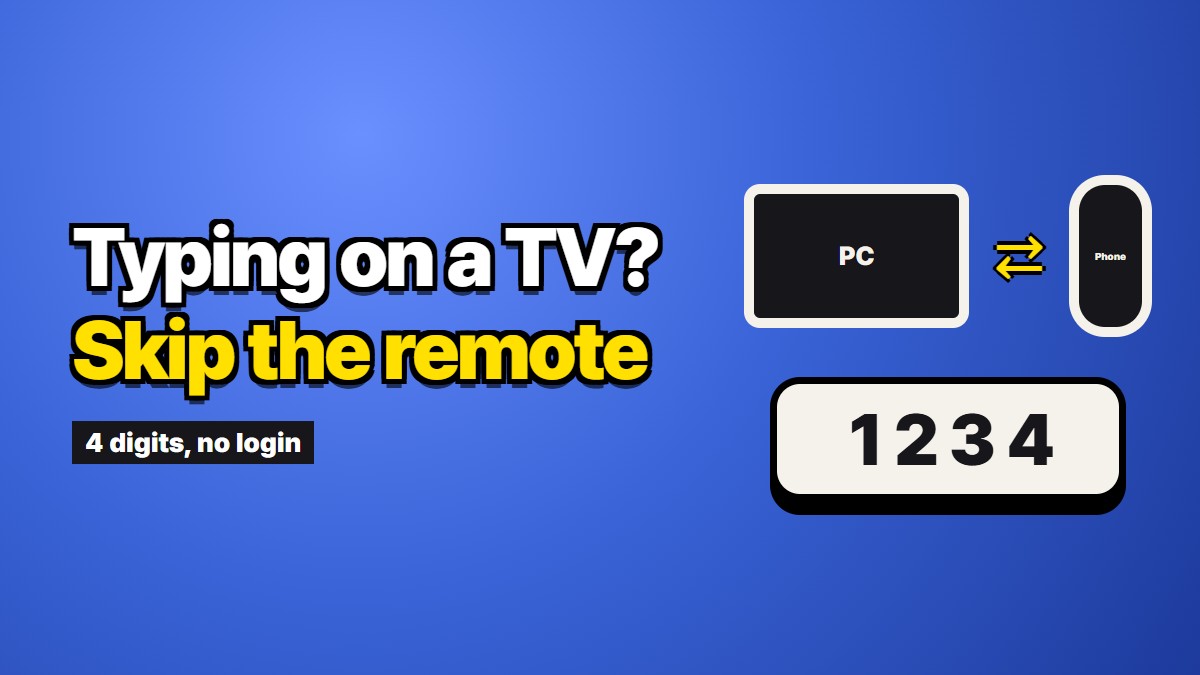
You want to search for one show, so you open the on-screen keyboard and start moving the cursor letter by letter with the arrow keys. Six letters take a minute. Then someone hands you a long web address to open on the TV and you put the remote down. This piece is about how to type on a smart TV in ways that do not involve walking a cursor around a grid, starting with the ones built into your TV and phone, and ending with the case of one long address.
The good news is that most TV makers solved this years ago. Most people simply never set it up.
Use your phone as the keyboard
This is the answer to most searches for how to type on a smart TV with a phone. Nearly every TV platform has a companion phone app with a remote inside it, and that remote usually includes a text box. When the TV shows its keyboard, you type on your phone instead, with your own keyboard, autocorrect and all.
The names change by brand, and menus move between versions, so treat this as a map rather than exact steps:
- Samsung. The SmartThings app can act as a remote for many Samsung TVs. Look for the keyboard or text input option while the TV's keyboard is on screen.
- LG. The LG ThinQ app does the same for many webOS TVs, with a remote and a keyboard.
- Google TV and Android TV. The Google TV app on your phone has a remote with a keyboard button. This also covers many Sony, TCL and Hisense sets that run Google TV.
- Roku. The Roku mobile app has a keyboard icon on its remote screen.
- Fire TV. The Fire TV app pairs with your stick and offers a keyboard.
- Apple TV. An iPhone on the same network usually offers a keyboard notification as soon as a text field appears on the TV.
All of these need the phone and the TV on the same Wi-Fi network, and the first pairing takes a few minutes. After that, typing on the TV feels like typing a message.
Use your voice for searches
The remote that came with a recent smart TV very likely has a microphone button. For finding a show, an app, or a song, voice search is faster than any keyboard. Hold the button, say the title, let go.
Voice works well for words and badly for anything that is not words. Usernames, codes, and web addresses come out wrong because speech recognition tries to turn them into a sentence. Keep voice for searches.
Plug in a real keyboard
If you type on the TV often, a physical keyboard is worth considering. Many smart TVs accept a USB keyboard plugged into a spare port, and many accept Bluetooth keyboards through the TV's device settings. Support varies more by model than by brand, so check your TV's manual or settings menu before buying anything.
A small wireless keyboard with a built-in touchpad doubles as a mouse for the TV's web browser, which makes a big difference if you browse on the TV at all.
When the smart TV keyboard is not showing
"Smart TV keyboard not showing" is a common follow-up search. A few things cause it more often than others:
- The text field is inside an app that uses its own keyboard, and the phone app does not see it. Try the TV's built-in keyboard in that app.
- On Google TV and Android TV, the keyboard app itself can get stuck after an update. Restarting the TV, or checking the keyboard settings under system settings, usually brings it back.
- The phone and TV are on different networks, for example the phone on mobile data or a guest network.
- The pairing expired. Open the phone app and reconnect.
A full power cycle, unplugging the TV for a minute, fixes more of these than any setting.
The one case all of this handles badly: a long address
Phone keyboards and voice handle short things well. A long web address is a different problem.
Say a friend sends you a link to a video page that is not on YouTube, or a museum's virtual tour, or a long address for a streaming event. It sits on your phone. You want it in the TV's web browser. Even with the phone keyboard, you would be retyping eighty characters of letters, numbers, slashes and question marks, copied by eye from one screen to another. Casting does not always help either, because many pages do not support it and some TVs only cast from specific apps.
For this case, there is a narrower trick. ZAGO.TO turns a piece of text into four digits. On the TV's web browser, you type a seven-character address, zago.to, and then four numbers, which the number keys on most remotes handle easily. On your phone, you paste the long link and get those four digits. Type them on the TV and the full link appears, ready to select.
Order matters. Open the site on the TV first, because typing even a short address on a TV takes time. Then make the code on the phone. Text that nobody opens is deleted after a minute, and once it is opened it is deleted a minute after that. A slow TV browser can eat into that minute, so get the page ready before the code exists.
There is more on long links specifically in Sending a long URL to your own phone, unshortened, which covers the opposite direction.
What this does not do on a TV
Being specific about the limits saves you a wasted evening.
- It needs a web browser on the TV. Samsung and LG sets usually have one. Many Google TV and Android TV devices do not ship with a browser, and some streaming sticks have none at all. No browser, no way to use this.
- It shows text in the browser, not inside other apps. You cannot paste the text into a streaming app's search box from there. For app searches, the phone keyboard above is the right tool.
- It carries text only. Up to 10,000 characters, never files or photos.
- It cannot be reopened. Once deleted, the code is dead. Make a new one.
- Our server can read the text. There is no scrambling in the browser yet, so the server can read the text for the minute or two it is held. A video link is fine. Do not send passwords, including Wi-Fi or streaming account passwords, this way. For signing into streaming apps on a TV, use the app's own activation code or QR sign-in, which exists for exactly that reason.
How to type on a smart TV, in order of effort
For everyday searches, set up your TV maker's phone app once and use its keyboard. For finding titles, use the voice button. If you browse on the TV often, add a small keyboard with a touchpad. And for the occasional long address that has to get from your phone into the TV's browser, open zago.to on the TV and type four digits instead of eighty characters.
Long text, in 4 digits.