VNC copy paste not working: the clipboard setting on each side
2026-10-14
This post contains affiliate links. As an Amazon Associate, ZAGO.TO earns from qualifying purchases.

Short answer: VNC copy paste not working almost always means one side is not passing the clipboard along.
>
The viewer has a setting, the server has a setting, and on Linux a small helper program has to be running. Check all three in that order.
You copy a long command on your own computer, click into the VNC window, press paste, and nothing arrives. Or something arrives, but it is the text you copied ten minutes ago.
VNC is older and simpler than most remote desktop tools, so the clipboard is not one switch. It is a short chain, and any link can be off.
1. Check the viewer setting

▲ The text has to leave your computer before the server can receive it
Start on your own machine. Most viewers, including RealVNC Viewer and TightVNC Viewer, have an option in their connection settings with the word clipboard in it.
It is usually called something like sharing or transferring the clipboard.
If it is off, nothing you copy leaves your computer. Turn it on, then disconnect and connect again, because some viewers only read this when the session starts.
2. Check the server setting
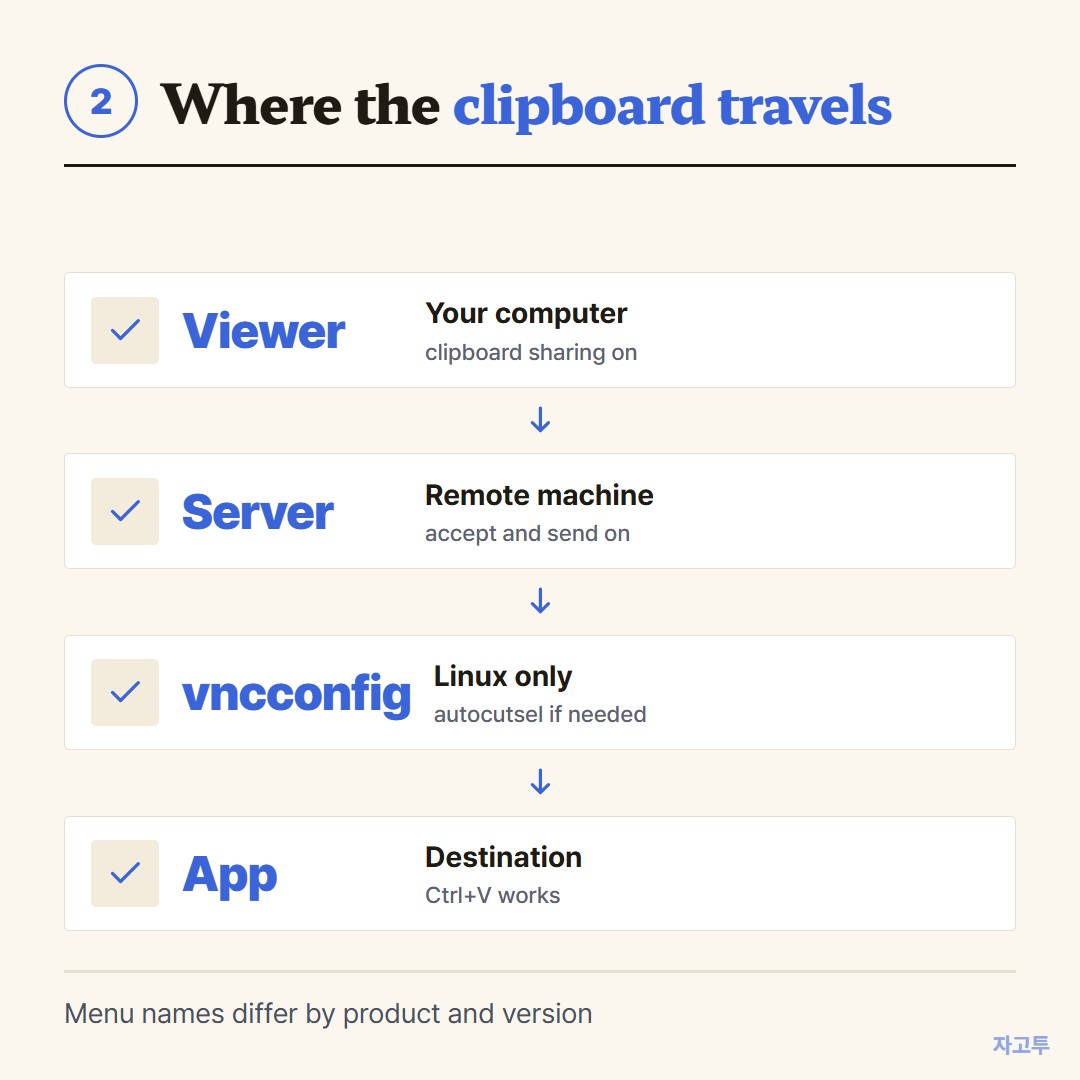
▲ Viewer, server and, on Linux, a helper each need to pass it on
Then the remote machine. On Windows, TightVNC Server has options in its configuration for accepting clipboard updates from clients and sending clipboard updates to them.
RealVNC Server has its own clipboard sharing option in its settings. Admins sometimes switch these off on purpose to stop text leaving a server.
If both directions fail, the server side is the usual suspect. If only one direction fails, look for the one-way setting.
3. On Linux, something has to carry the clipboard
This is where most "VNC copy paste not working on Linux" searches end up. A plain VNC server on Linux, such as the one in TigerVNC, does not pass the clipboard by itself.
The common fix is to run vncconfig inside the session, often with `vncconfig -nowin &` in the startup script.
Linux also has two clipboards, the selection you highlight and the one you copy with Ctrl and C.
A tool called autocutsel keeps the two in sync, which fixes the case where copy works in one app and not another.
4. When only some characters break, or it is a web console
Older parts of the VNC protocol carry only basic Latin text. Accented letters, emoji or Korean may turn into question marks or vanish while plain English goes through.
Newer viewers and servers handle more, so updating both sides helps.
Browser consoles like the one in Proxmox use noVNC. There, the clipboard usually works through a side panel.
You paste your text into the panel first, and it is sent to the remote machine from there.
Other tools have their own version of this: Copy paste not working in remote desktop and Citrix copy paste.
5. When the text is not on either machine
Sometimes the line you need is on your phone, or on a third computer outside the session. Fixing the VNC clipboard will not help there.
For that case, ZAGO.TO moves the text with a 4-digit code. You paste it on zago.to on the phone, open zago.to in a browser on the remote machine, type the code, and copy it there.
It is text only, up to 10,000 characters. Unopened text is deleted after 1 minute, opened text 1 minute after opening, and it cannot be opened again.
There is no in-browser encryption yet, so our server can read it, which makes it the wrong place for passwords or keys. For those, fixing the VNC clipboard is the better path than ZAGO.TO.
Summary in three lines
- Turn on clipboard sharing in the viewer, then reconnect.
- Check the server's clipboard options, both directions.
- On Linux, run vncconfig, and add autocutsel if one app still refuses.