Copy paste not working in Remote Desktop? Check these five things, in this order
2026-10-07
This post contains affiliate links. As an Amazon Associate, ZAGO.TO earns from qualifying purchases.
Why does copy and paste work for an hour in Remote Desktop and then quietly stop?
You copy an error message on the remote server, switch to your own laptop and paste. Nothing. Or worse, the text from ten minutes ago appears instead.
When copy paste is not working in Remote Desktop, the cause is usually one small process, one checkbox, or one policy.
This post goes through them from most likely to least likely, and says plainly where you should stop.
1. Restart the clipboard process inside the session

▲ It usually breaks in the middle of a long session, not at the start
Remote Desktop moves the clipboard with a small program called rdpclip.exe. It runs inside the remote session, and it is the part that breaks most often.
Restarting it takes about thirty seconds, and you do not lose your session.
- Inside the remote session, open Task Manager. Ctrl+Shift+Esc usually works, or Ctrl+Alt+End and pick Task Manager
- On the Details tab, find rdpclip.exe and end it
- Choose File, then Run new task, type `rdpclip.exe` and press Enter
Try copying again. If this fixes it, the problem will likely come back in a long session, so keep these three steps somewhere handy.
If you cannot open Task Manager on that machine, signing out of the session and connecting again restarts the same process. Closing the window is not enough, because the session keeps running.
2. Check the checkbox on your side
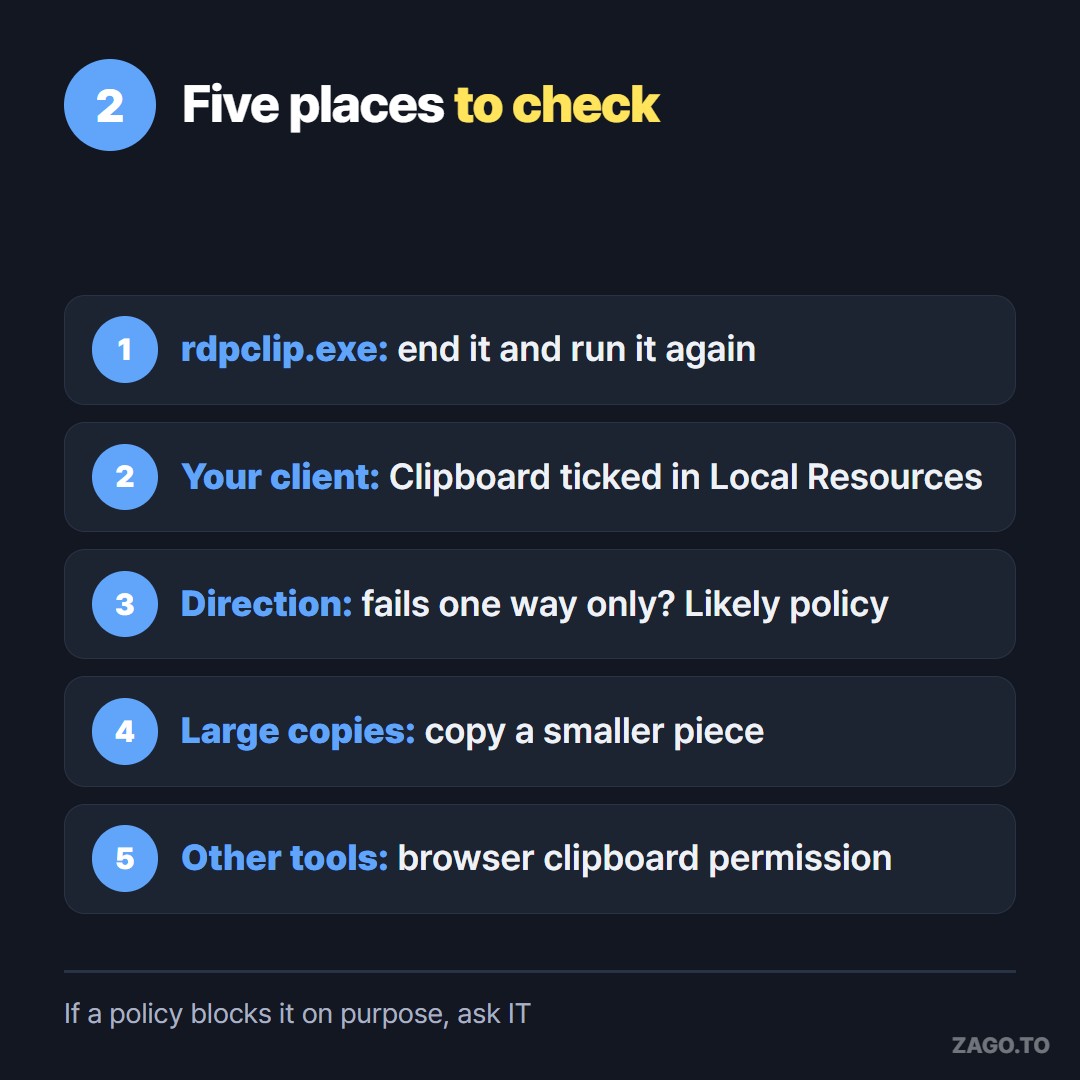
▲ Two are on your computer, three are on the remote one
The clipboard is shared only if your own Remote Desktop client asks for it.
In the classic Remote Desktop Connection window, click Show Options, open the Local Resources tab and make sure Clipboard is ticked. The change applies the next time you connect.
In the newer Windows App or the Microsoft Remote Desktop app, look in the connection's settings for clipboard redirection. Saved connections from a colleague often have it switched off.
On a Mac client, the same setting lives in the edit screen of the saved PC, under the devices and audio section in recent versions.
3. Copy paste not working from Remote Desktop to local
Sometimes it works one way only. You can paste into the remote machine, but not back out, or the other way around.
That is rarely a glitch.
Recent versions of Windows let administrators allow the clipboard in one direction and block the other. A company may let you paste a ticket number in, but not copy customer data out.
You can see this in the Group Policy editor on the remote machine, under Remote Desktop Session Host, then Device and Resource Redirection.
The setting Do not allow Clipboard redirection turns it off entirely. Newer entries restrict each direction separately.
If a policy is doing this on purpose, do not work around it. Ask the people who manage the server.
Copying around a policy can break the rules you work under, even when the text itself looks harmless.
4. Two less common causes
Large copies. Copying a huge block, such as thousands of spreadsheet rows, can freeze rdpclip for a while. Copy a smaller piece, or restart it as in step 1.
Other remote tools. Chrome Remote Desktop needs the browser's clipboard permission, and it asks once.
If you clicked Block at that moment, the clipboard will not sync until you allow it in the site settings.
5. While it is broken: moving one line without the clipboard
Sometimes you have tried everything, the policy allows it, and you still need one line moved now. The command, the path, the link.
Four digits can be typed across a broken clipboard.
Paste the line into ZAGO.TO in your local browser, get a code, then open zago.to in the remote session's browser and type the code. The text opens there.
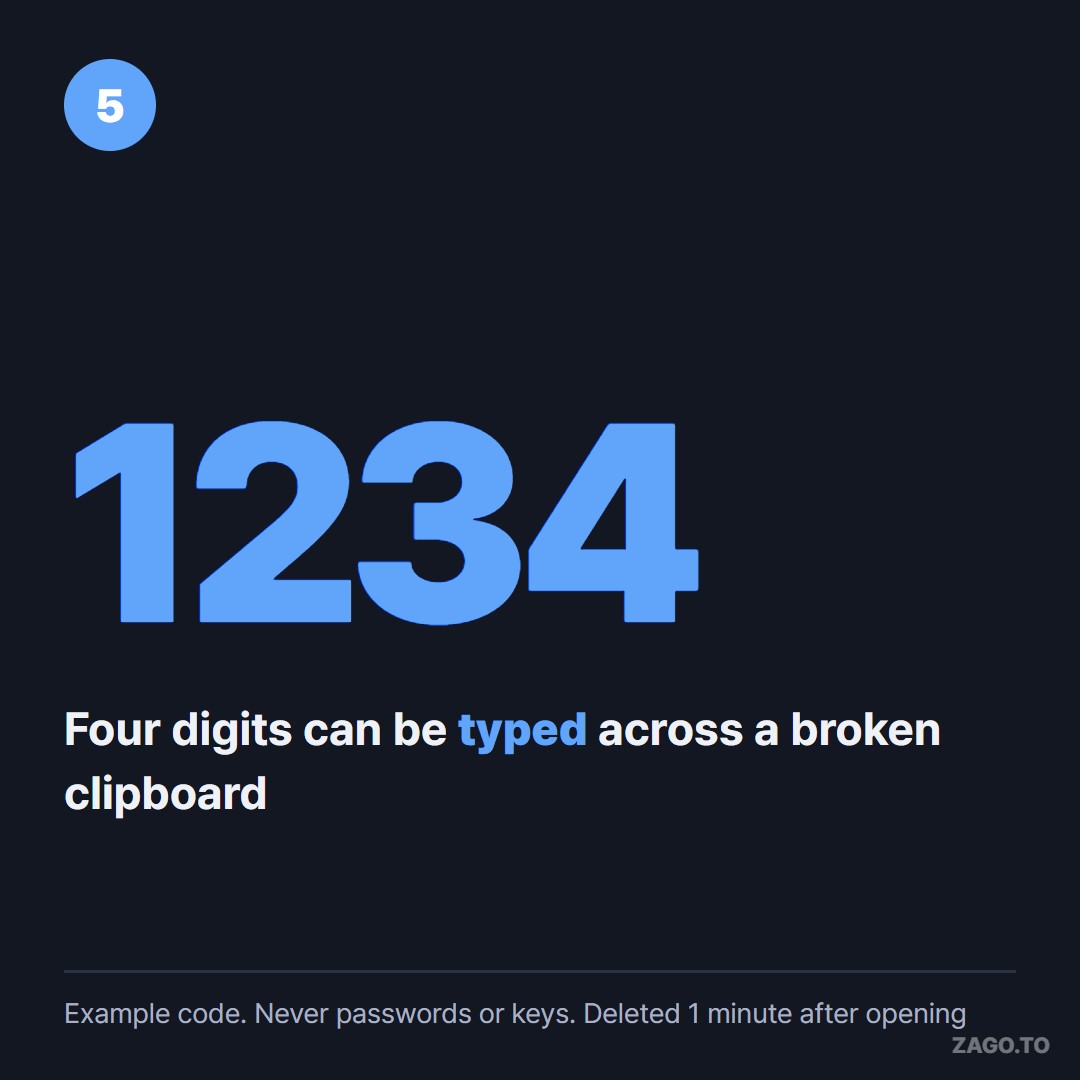
▲ An example code. A real one is new every time
It goes the other way as well. Make the code on the remote machine, and open it on your own laptop.
Be clear about what it is not for:
- Never move passwords, SSH keys or API tokens this way. We do not hide the text from our own server yet, so it can read the text for the up to 2 minutes it is held
- If it is not opened, it is deleted after 1 minute. Once opened, it stays for 1 minute and cannot be opened again
- Text only, up to 10,000 characters. It does not carry anything else
If the remote browser is blocked as well, that is the policy speaking. Stop there.
For copying on your own Windows machine, Windows clipboard history explains what Win + V keeps.
For moving text between your own phone and computer, see Copy and paste between devices online.
Quick checklist
- [ ] Restarted rdpclip.exe inside the session
- [ ] Clipboard ticked under Local Resources on your side
- [ ] Checked whether it fails in one direction only
- [ ] Asked IT before going around any clipboard policy
- [ ] Kept passwords and keys out of every clipboard path
Long text, in 4 digits.