Vizio TV keyboard: four ways to stop pecking at letters with the remote
2026-10-18
This post contains affiliate links. As an Amazon Associate, ZAGO.TO earns from qualifying purchases.
You open a streaming app on your Vizio and it wants an email address.
The on-screen grid appears, and you start the slow walk: right, right, down, OK. Twenty letters later you notice a typo near the start.
A Vizio TV keyboard problem is really a question of where your fingers should be.
Here are the four ways around the grid, from the one most people should try first to the one that only helps in odd cases.
1. Use the VIZIO Mobile app as your keyboard
▲ The phone keyboard does the typing, the TV just receives it
Vizio's free phone app (it used to be called SmartCast Mobile, now VIZIO Mobile) works as a remote on most SmartCast models.
Put your phone on the same Wi-Fi network as the TV, open the app, and pair it with the TV.
When a text box is selected on the TV, the app's remote screen offers a keyboard. Whatever you type on the phone shows up in the TV's box.
Because you are typing on the phone's own keyboard, you get autocorrect, a proper backspace and, in most cases, paste. That last one matters more than it sounds, as you will see below.
If the app cannot find your TV, check that the TV is not on a guest network and that both devices are on the same band of a dual-band router.
2. Skip typing with a sign-in code
Many streaming apps no longer expect you to type a password on a TV at all. Look for a line like "Sign in on your phone" or a QR code on the sign-in screen.
You visit the address on your phone, enter the short code shown on the TV, and sign in there with your saved password. The TV logs in a few seconds later.
This is the best answer for passwords. Your password manager fills it on the phone, and nothing secret is typed letter by letter on a large screen in the living room.
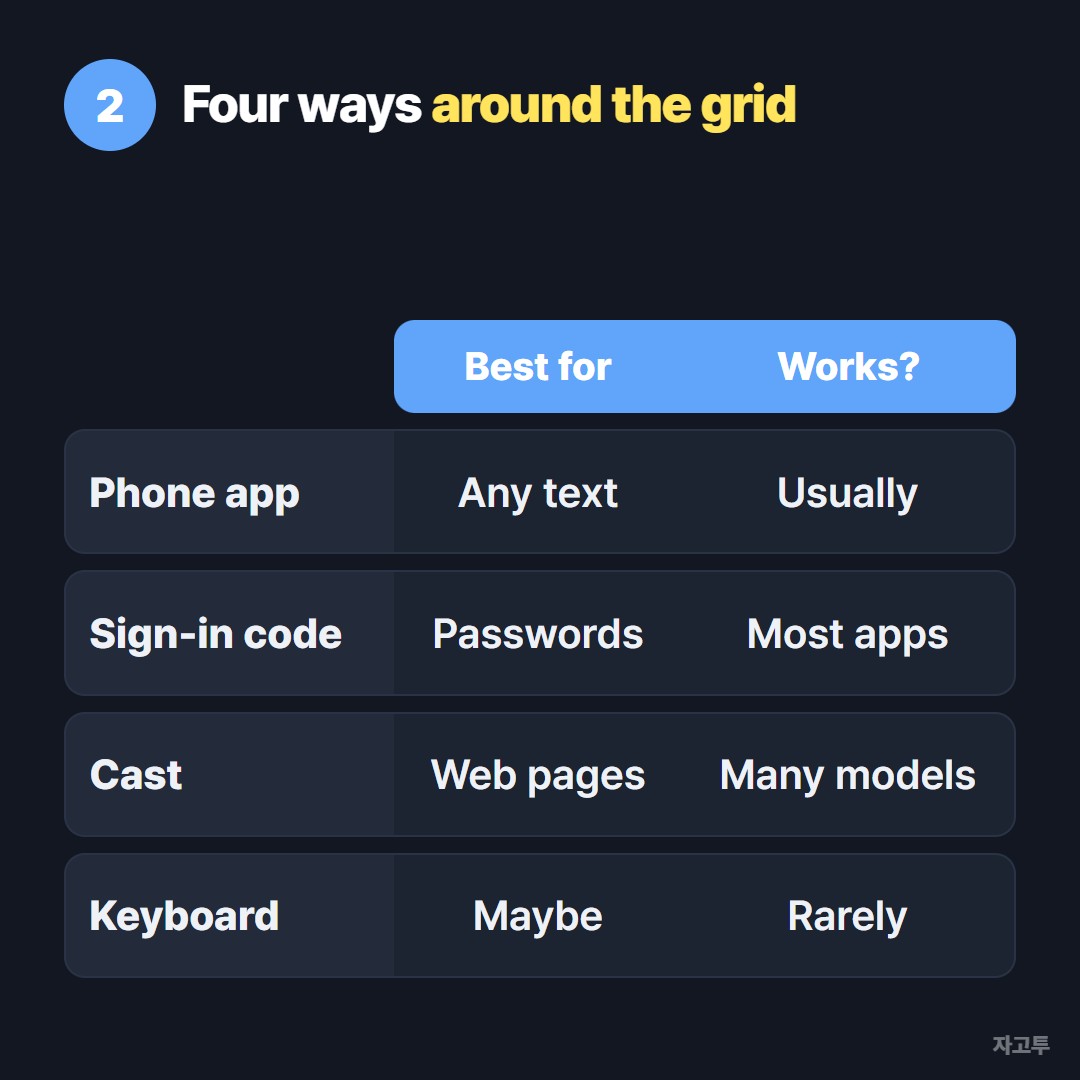
▲ Pick by what you are typing, not by what gadget you own
3. A physical keyboard, with low expectations
This is the answer people expect, and the one that works least often. Vizio does not list keyboard support for most SmartCast TVs.
Bluetooth keyboards generally will not pair for typing, since the Bluetooth on many models is meant for audio devices.
A wired USB keyboard is a mixed story. Some owners report it working in a few menus or apps, many report nothing at all, and the result depends on the model and software version.
So try one if it is already in a drawer. Do not buy one for this. The phone app above does the same job and is free.
4. Cast instead of typing
Most SmartCast TVs have no general web browser, so typing a long web address on the TV has nowhere to go.
The workaround is to open the page on your phone and send it with Chromecast built-in or AirPlay, which many Vizio models support.
The details of choosing between them are in Send link to TV from your phone.
If you have other brands in the house, How to type on a smart TV without the remote covers the general picture.
When the long text is on your laptop
Sometimes the text you need is not on your phone. It is a long search phrase, a playlist title or a web address sitting in a laptop tab, and the phone app only pastes what the phone has.
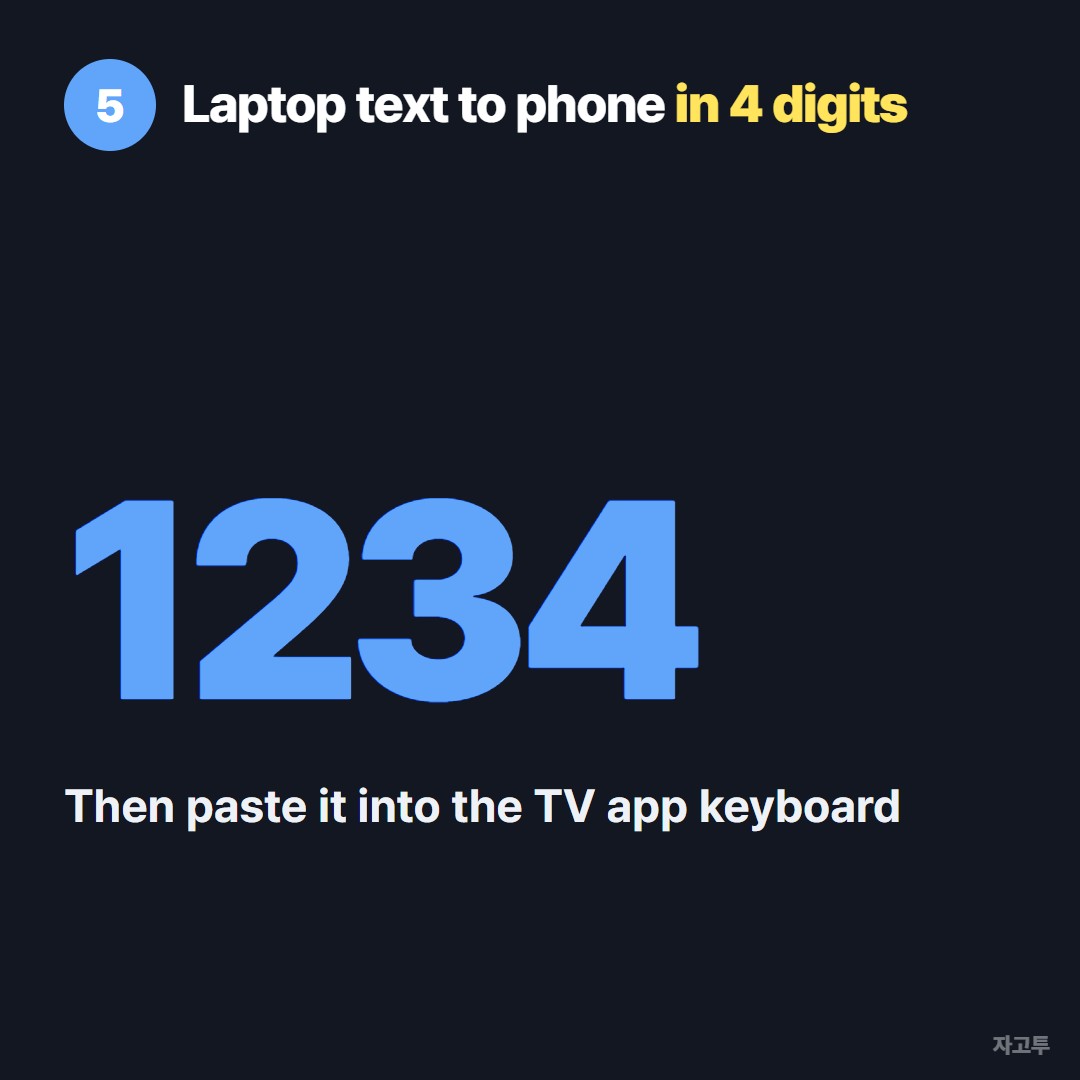
▲ Only the four digits get typed on the phone
ZAGO.TO covers that gap. Paste the text on the laptop, get a 4-digit code, open zago.to on your phone and type the four digits.
The text appears, ready to copy into the VIZIO Mobile keyboard or to open and cast.
ZAGO.TO cannot do everything here. It cannot open on the TV itself, because SmartCast has no browser to open it in.
It carries text only, up to 10,000 characters, and the text is deleted 1 minute after it is opened, or after 1 minute if nobody opens it. It cannot be opened twice.
There is no in-browser encryption yet, so the server can read what you send. Keep it to addresses and search text, and leave passwords to the sign-in code route above.
In short
Use the VIZIO Mobile app keyboard for anything you type. Use a sign-in code for passwords. Cast for web pages.
Treat a physical keyboard as a maybe, and move laptop text to your phone first when that is where it lives.