Send link to TV from your phone: pick the method by the kind of link
2026-10-06
This post contains affiliate links. As an Amazon Associate, ZAGO.TO earns from qualifying purchases.
Saturday morning. A cooking video is open on your phone, and four people in the kitchen want to follow it on the TV.
Search for send link to TV and you get a dozen methods. The right one depends on what is behind the link.
Picking the wrong method is where most of the frustration comes from. So this post sorts it by link type. Start at the top, and stop at the first one that fits.
▲ A link on a phone, and a room that wants it on the big screen
1. YouTube, Netflix and other video apps: cast it
If the link opens in an app that also exists on the TV, the cast button is the right answer, and nothing else comes close.
Open the link on your phone and let it open in the app. Tap the cast icon, a rectangle with radio waves, and pick the TV.
The TV app takes over and plays it. Your phone becomes a remote, and you can lock it or answer messages while the video keeps going.
This works for YouTube on almost every smart TV and streaming stick, and for many streaming services on Chromecast and Google TV devices.
Apple TV and AirPlay-compatible TVs do the same thing with the AirPlay icon from an iPhone.
2. Photos and slideshows: cast from the photo app
Google Photos can cast to Chromecast and Google TV devices, and iPhones can AirPlay photos to compatible TVs.
If the link is to a shared album, open it in the photo app first rather than the browser. The app is what knows how to cast.
3. Any other web page: mirroring works, with a cost
For a page that has no app and no cast button, a recipe site or a news article or a school portal, you can mirror your whole phone screen.
Samsung calls it Smart View. Android in general calls it Cast screen or Screen mirroring, and iPhones use Screen Mirroring with AirPlay TVs.
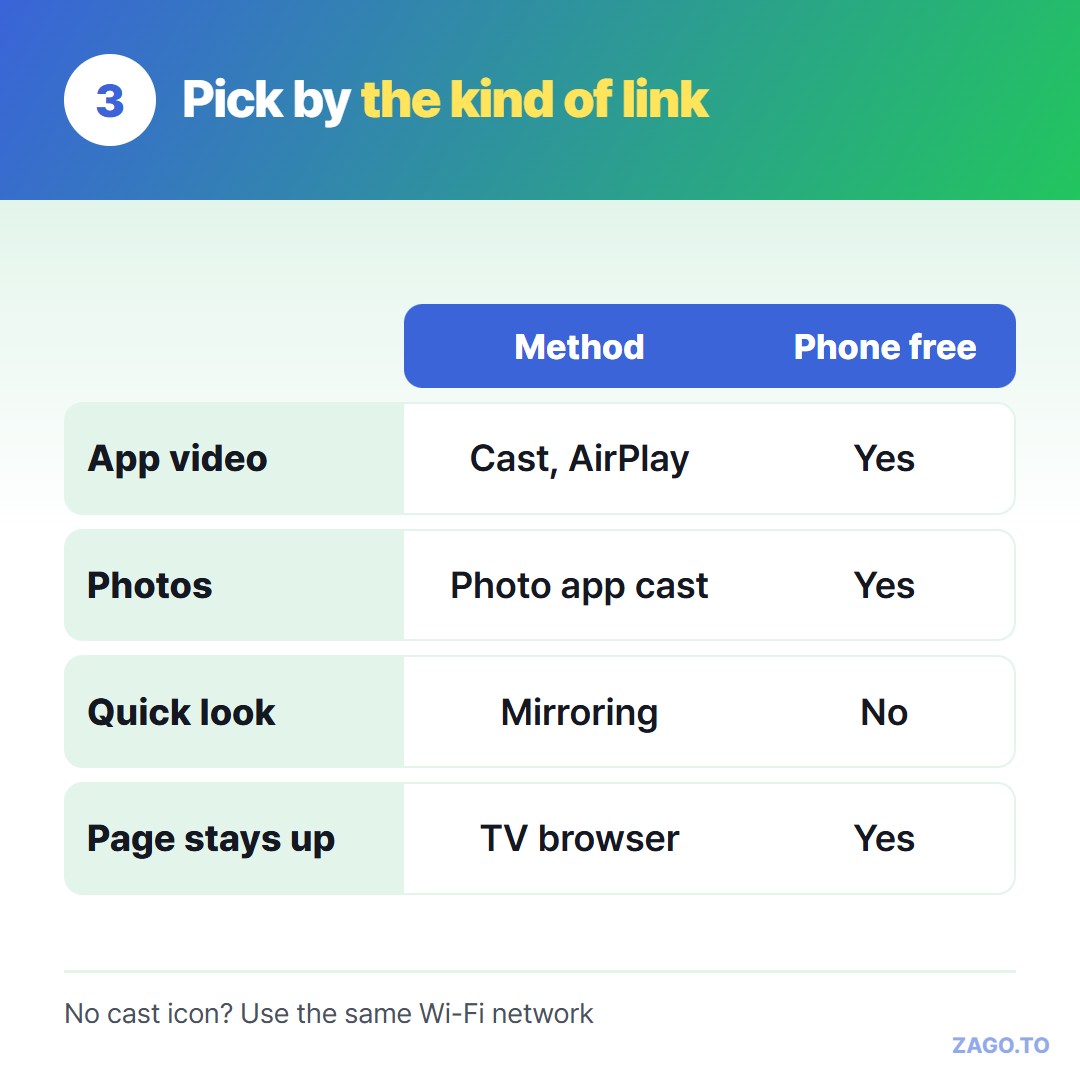
▲ Sort by what is behind the link, then pick the method
Mirroring gets the page up in seconds. The cost is that your phone is now the TV.
Every notification shows up for the room. The picture is phone-shaped with black bars on both sides, and if you lock the phone or switch apps, the TV follows.
For a quick look, that is fine. For a forty-minute live stream, it ties up your phone.
4. Opening the link in the TV's own browser
When you want the page to live on the TV by itself, the link needs to get into the TV's web browser.
That is where people usually give up, because typing a long address with a remote is miserable.
Here is a shortcut. Open ZAGO.TO in the TV browser first.
On your phone, paste the link there and you get a 4-digit code. Type those four digits on the TV with the remote's number keys, and the full link appears, ready to open.
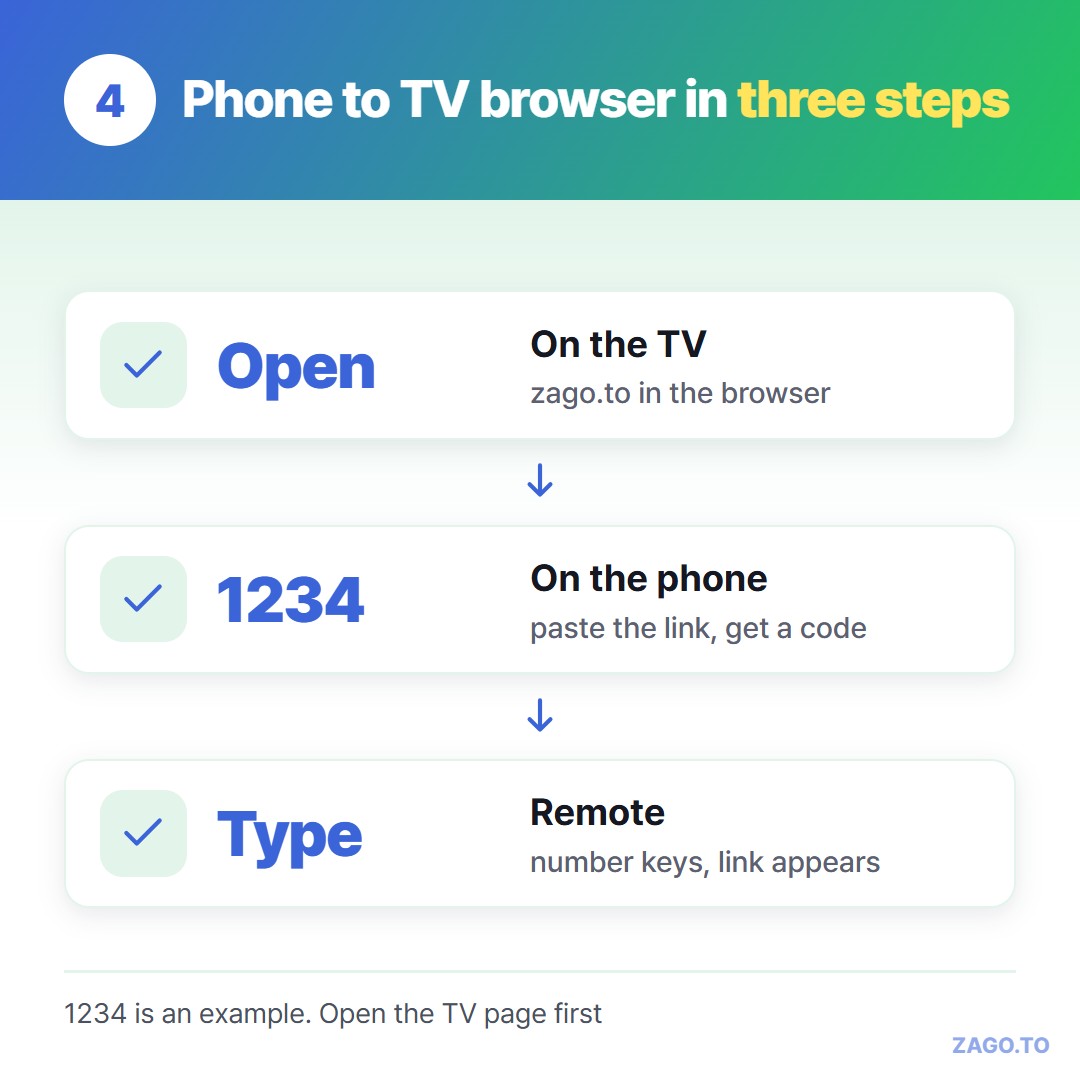
▲ 1234 is an example. Get the TV page ready before you make the code
Text nobody opens is deleted after 1 minute, and opened text is deleted 1 minute after that. That is why the TV page comes first.
The longer version of this, including TVs that have no browser at all, is in How to type on a smart TV without the remote, so I will not repeat it here.
A few honest limits:
- Needs a TV browser: many Google TV devices do not include one
- Text only: up to 10,000 characters, so no photos or videos
- One look: once deleted, a code cannot be opened again
- The server can read it: there is no browser-side encryption yet, for the minute or two the text is held
A link to a public page is fine. A streaming account password is not. Use the app's own sign-in code for that.
5. Quick answers
The cast icon does not show up. Why?
Usually the phone and the TV are on different Wi-Fi networks. A 5 GHz and a 2.4 GHz network with different names count as different, and so does a guest network. Put both on the same one.
Can I keep using my phone while the TV plays?
With cast or AirPlay from an app, yes. With screen mirroring, no. The TV shows whatever your phone shows.
What if the page should stay up for an hour?
Open it in the TV browser. Four digits get the address there without the on-screen keyboard.
Long text, in 4 digits.