Steam Deck web browser: getting one into Game Mode, and typing a long address with the controller
2026-10-17
This post contains affiliate links. As an Amazon Associate, ZAGO.TO earns from qualifying purchases.
You are on the couch with the Deck in your hands, and you want a guide page or a wiki open beside the game.
The Steam Deck web browser question sounds simple until you find out there is no browser icon in the library.
There is a way, and once it is set up it sits in Game Mode like any other game. The setup happens once, in Desktop Mode.
Is there a Steam Deck web browser built in?

▲ The browser lives in Desktop Mode until you bring it over
Not as a standalone app. Steam's own store and community pages open inside the client, but you cannot just type any address there.
What the Deck does have is a full Linux desktop. That means you can install a real browser, such as Chrome or Firefox, which is the big difference from a console.
On a PS5 you are stuck with workarounds, as How to open a website on PS5 shows.
How do I add a browser to Game Mode?
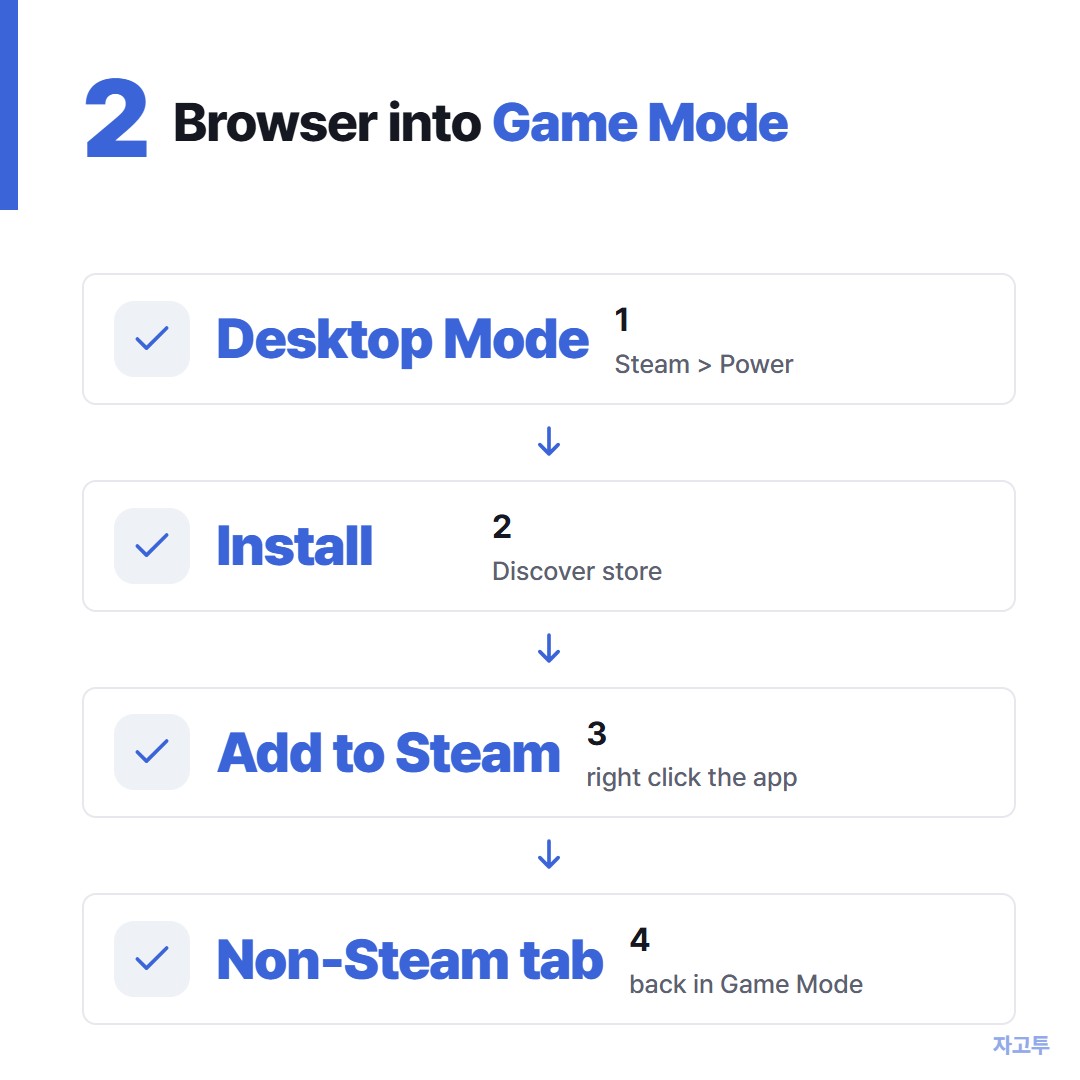
▲ Install in Desktop Mode, then hand it to Steam
- Switch to Desktop Mode. Press the Steam button, open Power, choose Switch to Desktop.
- Install a browser. Open the Discover store from the taskbar, search for Chrome or Firefox, and install it.
- Add it to Steam. Right click the browser in the app menu (the left trigger works as a right click) and choose Add to Steam.
- Return to Game Mode. Use the Return to Gaming Mode shortcut on the desktop.
The browser now shows up in your Library under the Non-Steam tab. Some Deck versions also offer a one tap button there to add Chrome, which skips most of the steps above.
If the browser opens but the sticks do nothing, change the controller layout.
In the controller settings for that shortcut, pick the Web Browser template, which maps the trackpad to the mouse and the triggers to clicks.
How do I type a long address with the controller?
Press Steam + X and the on-screen keyboard rises from the bottom. Tap letters with the touchscreen or aim with the right trackpad.
That is fine for a search. A link copied from a Discord message or a wiki footnote, full of slashes and random letters, is another story.
- Search the name. Type a few words and pick the site from the results.
- Plug in a keyboard. Any USB-C or Bluetooth keyboard works, and it is the best choice for long sessions.
- Bring the link over as text. If the address is already on your phone or PC, carry it across instead of retyping it.
For that last one, paste the link into ZAGO.TO on the device where it lives. You get four digits.
On the Deck, open zago.to in the browser, enter the digits with Steam + X, and the full link appears to tap.
It has limits worth knowing. It carries text only, up to 10,000 characters, no screenshots or save files.
Unopened, it disappears after 1 minute. Opened, it is gone 1 minute later and cannot be viewed again.
There is no in-browser encryption yet, so our server can read what you paste. Fine for a wiki link, never for your Steam password or a 2FA code.
TVs have the same typing problem, and How to type on a smart TV covers the tricks there.
Why is my Steam Deck browser not working?
- Black screen on launch: update the browser from Discover in Desktop Mode, then try again.
- No keyboard: Steam + X only works while Steam is running underneath, so launch the browser from Game Mode, not from a desktop shortcut.
- Logged in somewhere: the Deck may be shared. Log out of accounts before you hand it to someone.
The short version
Install the browser once in Desktop Mode, add it to Steam, set the Web Browser controller layout, and bring long links over as text instead of fighting the on-screen keyboard.