How to send text from a computer to a phone, yours or someone else's
2026-10-05
This post contains affiliate links. As an Amazon Associate, ZAGO.TO earns from qualifying purchases.
Are you trying to text a person, or trying to get a paragraph onto your own phone?
That is the first thing to settle when you search for how to send text from a computer to a phone. The tools for the two jobs barely overlap.
Contents
- Texting another person from your computer
- Getting a paragraph onto your own phone
- Four digits instead of an account
- What it cannot do
- Bottom line
1. Texting another person from your computer
If you want to text a friend from your laptop, the cleanest route goes through your own phone.
Your phone still sends the message. The computer just becomes its keyboard and screen.
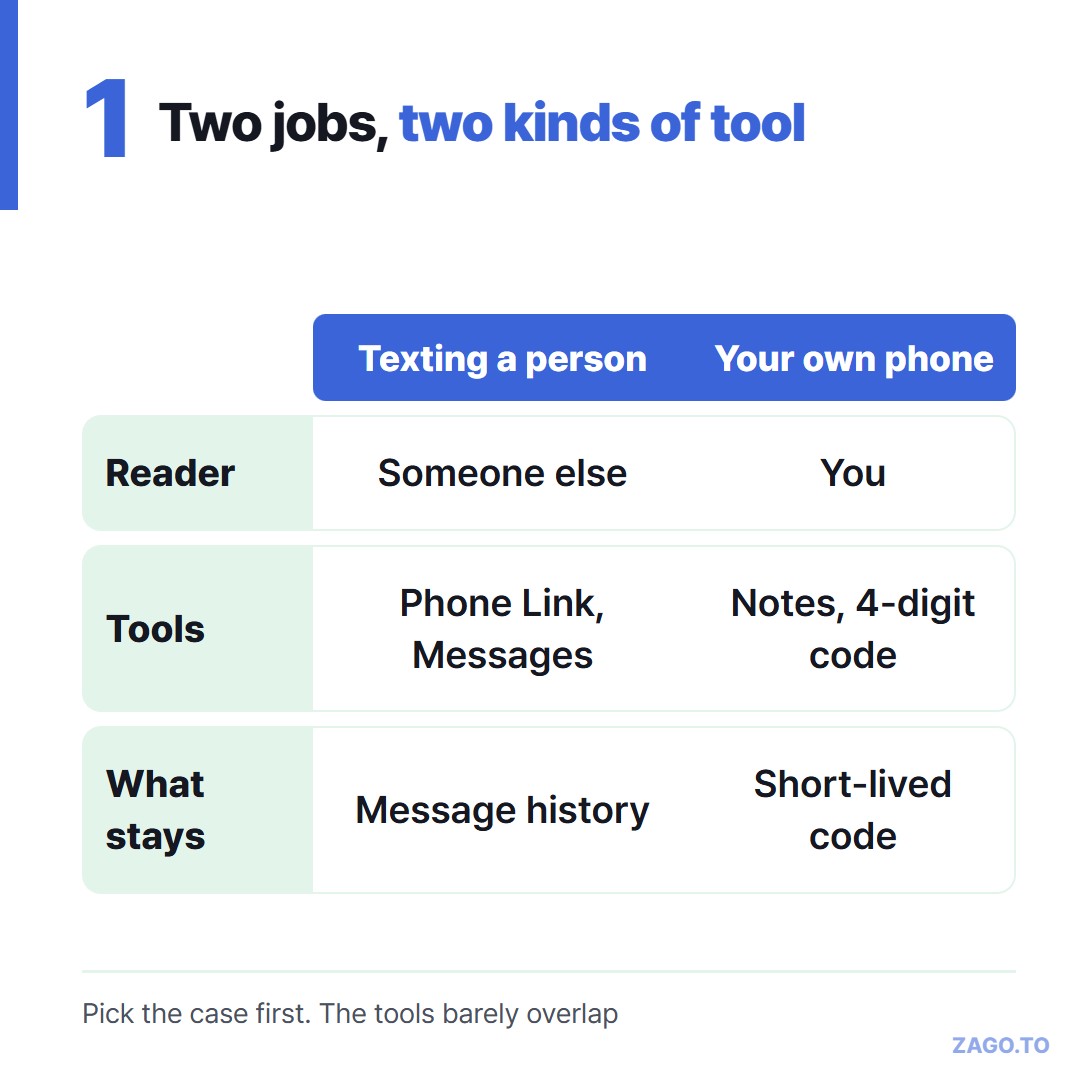
▲ Two jobs that share a search phrase and almost nothing else
- Phone Link on Windows: pairs the PC with your phone so you can read and send messages from the desktop
- Messages for web: with Google Messages on Android, open it in any browser, scan a QR code with the phone, and type
- Messages on a Mac: an iPhone can forward its text messages to the Mac once you turn that on in the phone's settings
Phone Link has worked with Android for years and now supports iPhones too, though the iPhone side can do less.
All three keep the conversation in your normal message history. That is exactly what you want when the text is for another person.
They also need a one-time pairing, and the phone has to be nearby and connected.
Free "send SMS from your computer" sites that ask for no phone at all are a different thing. Many are not a place to type your number, or a friend's.
2. Getting a paragraph onto your own phone
The second case looks smaller and is more common.
▲ The words are on the PC. The phone is where they are needed next
You found an address, a recipe, a long reference number or a block of instructions on the PC. You need it on your phone in the next minute.
You are not texting anyone. You just want the words to cross the desk.
Here the usual habits are messaging yourself, emailing yourself, or a notes app that syncs. They all work.
They also leave a copy behind in a chat or inbox you will never clean up.
And they assume the PC is signed into your account. On a work machine, a shared family laptop or a library computer, that is often where it stops.
Signing into your email on a library PC to send yourself one address is a lot of exposure for a few words. Forgetting to sign out is the usual way it goes wrong.
A notes app has the same problem in a different shape. It needs your account on both ends.
For long passages that a messaging app would cut short, we went into detail in Sending long text online when a message is too long.
If your phone runs Android, Copying text between an Android phone and a PC covers the built-in options.
3. Four digits instead of an account
ZAGO.TO was built for case two. Paste the text into zago.to on the computer and you get a 4-digit code.
Open zago.to on the phone, type the code, and the text appears, ready to copy. Nothing is installed and nobody signs in on either side.
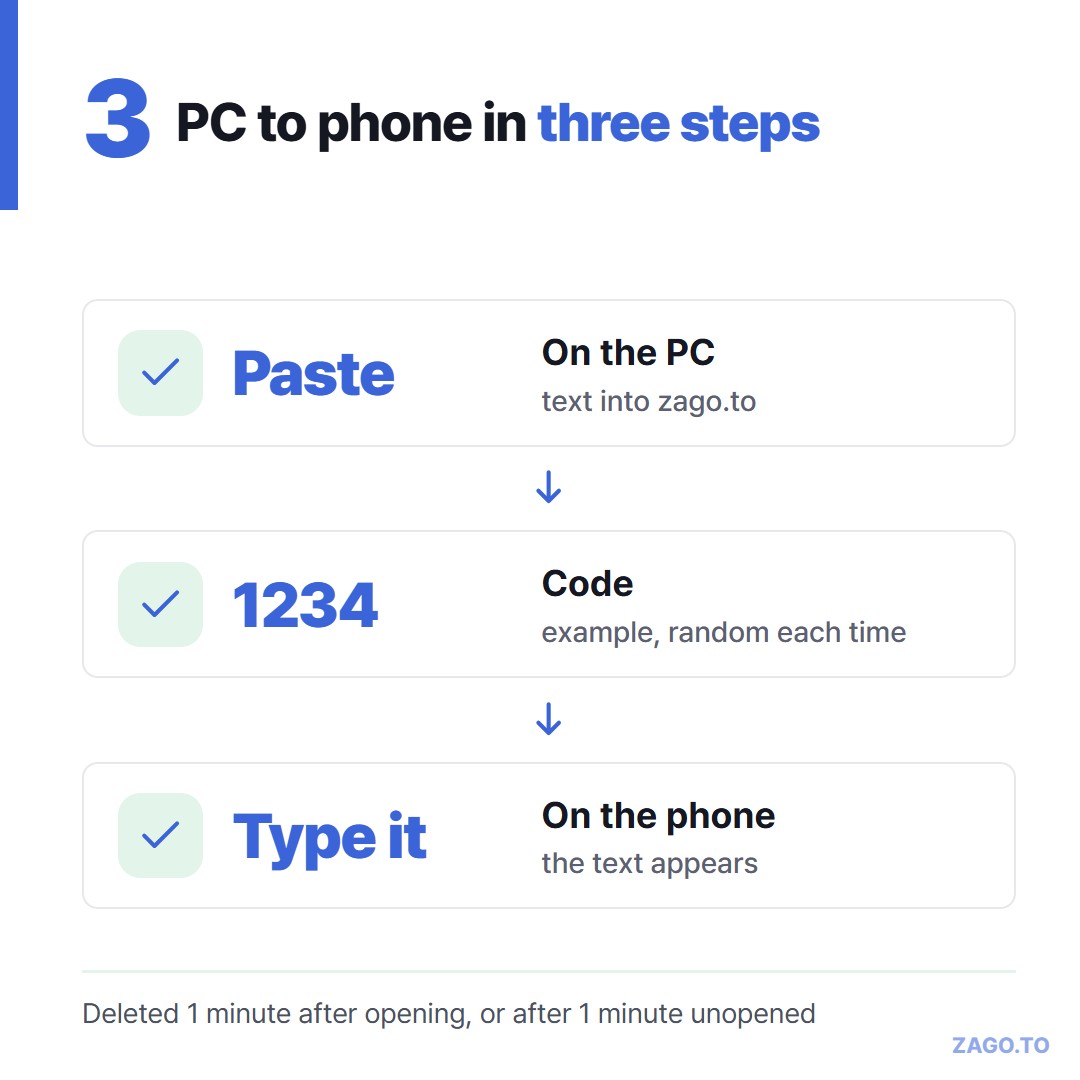
▲ 1234 is an example. The real code is random each time
It is deliberately short-lived. If nobody opens the text, it is deleted after 1 minute.
Once opened, it stays for 1 minute and is then deleted, and a deleted code is not reused for 5 minutes.
You can add an optional 4-digit PIN. Three wrong tries lock that code.
4. What it cannot do
It is not a way to text another person's phone number. The person on the other end has to open zago.to and type the code.
So it works for someone sitting next to you or on a call, not as SMS.
- No second look: once the text is deleted it cannot be opened again, so paste it somewhere right away
- Text only: up to 10,000 characters, never photos or documents
- The server can read it: there is no browser-side encryption yet, so do not move passwords or recovery phrases
5. Bottom line
Texting a friend from the keyboard, pair your phone with Phone Link, Messages for web or a Mac. Moving words to your own phone from a PC you would rather not sign into, use four digits.
Long text, in 4 digits.