Copying text between an Android phone and a PC
2026-09-28
This post contains affiliate links. As an Amazon Associate, ZAGO.TO earns from qualifying purchases.
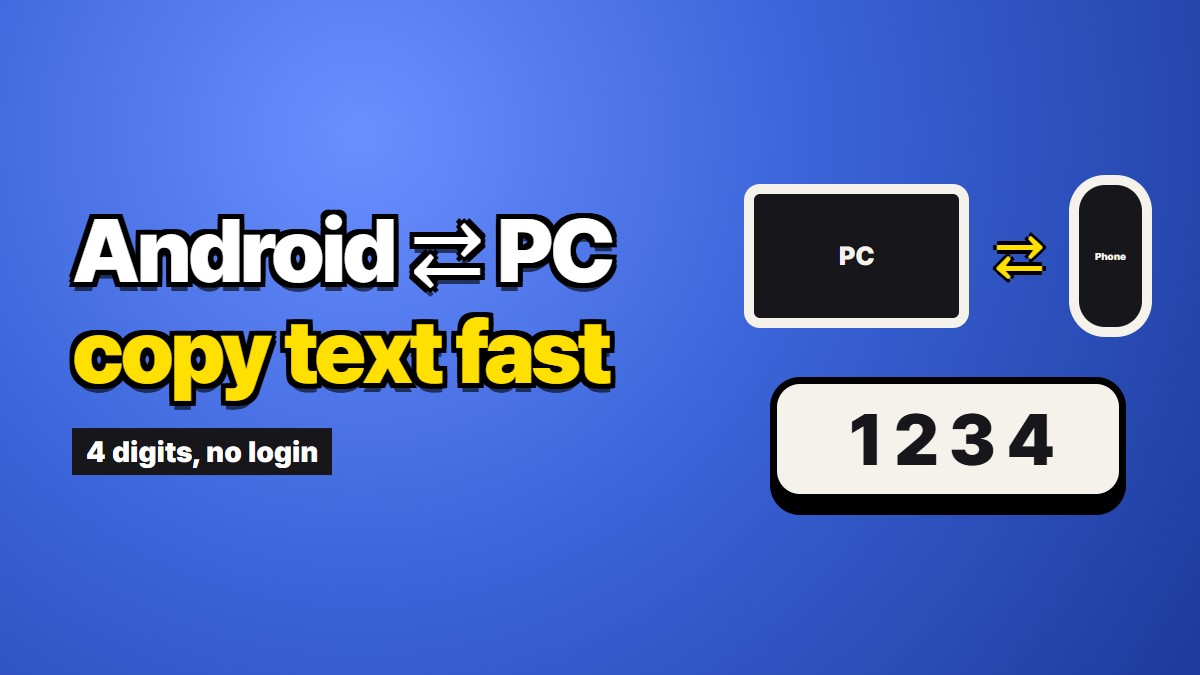
If you want to copy and paste text between an Android phone and a PC, Windows already has a built-in answer, and on the right phone it is very good. Start there. The rest of this piece is for when that answer is not available: the feature is not set up, your phone is not supported, or the PC belongs to someone else.
The first answer: Phone Link
Windows comes with an app called Phone Link. On the phone side it pairs with Link to Windows, which is preinstalled on most Samsung Galaxy phones and available from the Play Store for other Android phones.
Once the two are paired, Phone Link shows your messages, notifications and recent photos on the PC. On supported phones, mostly recent Samsung Galaxy models and a few others, it also offers cross-device copy and paste. You switch it on in the Phone Link settings on the PC, and from then on whatever you copy on the phone can be pasted on the computer, and the other way round.
When this is set up, it is the best option there is. Nothing to open, nothing to type. If you use the same phone and the same PC every day, spend the ten minutes to set it up.
A few things commonly get in the way:
- The phone is not on the supported list, so the clipboard setting never appears
- The phone and the PC are signed into different Microsoft accounts
- A battery saver on the phone keeps closing Link to Windows
- Bluetooth is off on one side
Other good options on your own PC
KDE Connect. Free and open source, with a Windows build. It shares the clipboard with any Android phone, not just supported models. It needs an app on both sides and a network that lets the two devices see each other.
Google Messages for web. If the text is already in an SMS or RCS conversation, open messages.google.com on the PC and pair it with the phone's QR code. You can copy straight out of the conversation.
Chrome's send to your devices. Signed into Chrome on both, you can send a page from the phone's share menu. It is built for links, not paragraphs.
When the PC is not yours
The situations where none of the above fits are ordinary ones. A work PC where IT does not allow Phone Link or new installs. A library or hotel computer. A friend's laptop. A shared family PC where you do not want your messages showing up for everyone.
On a machine like that, pairing your phone is the wrong move. Phone Link would pull your texts and notifications onto a screen you do not control, and it stays paired until someone removes it. We wrote more about borrowed machines in Using a library or hotel computer without signing into anything.
What you want there is something that runs in a browser, asks for no account, and does not linger. The common fallbacks all ask for one of those: webmail needs a sign-in, a chat app's web version needs a linked session, and a notes app needs your cloud account.
A browser and four digits
This is the gap ZAGO.TO was built for, and since it is our service, weigh it accordingly. On the Android phone you paste the text into the site and get four digits. On the PC you open the site and type the digits. The text appears, and it is deleted a minute after it is opened, or after a minute if nobody opens it. Nothing is paired, so there is nothing to unpair afterwards.
It is narrower than Phone Link, and that is deliberate. It is one message at a time, not a clipboard that follows you around. You cannot open the same message twice. It is text only, up to 10,000 characters, so photos and documents need a cable or Phone Link. And nothing is scrambled in the browser yet, which means the server can read the text while it is there, so keep passwords and recovery phrases out of it.
The same approach works in the other direction too, and between Android and a Mac, which we covered in Android to Mac, when you do not want to install anything.
Picking
Your own Samsung and your own PC: turn on cross-device copy and paste in Phone Link. Any Android and your own PC: KDE Connect. A PC that is not yours: use the browser, and choose something that forgets.