How to send a link from a PC to an iPhone, when there is no Handoff
2026-10-05
This post contains affiliate links. As an Amazon Associate, ZAGO.TO earns from qualifying purchases.
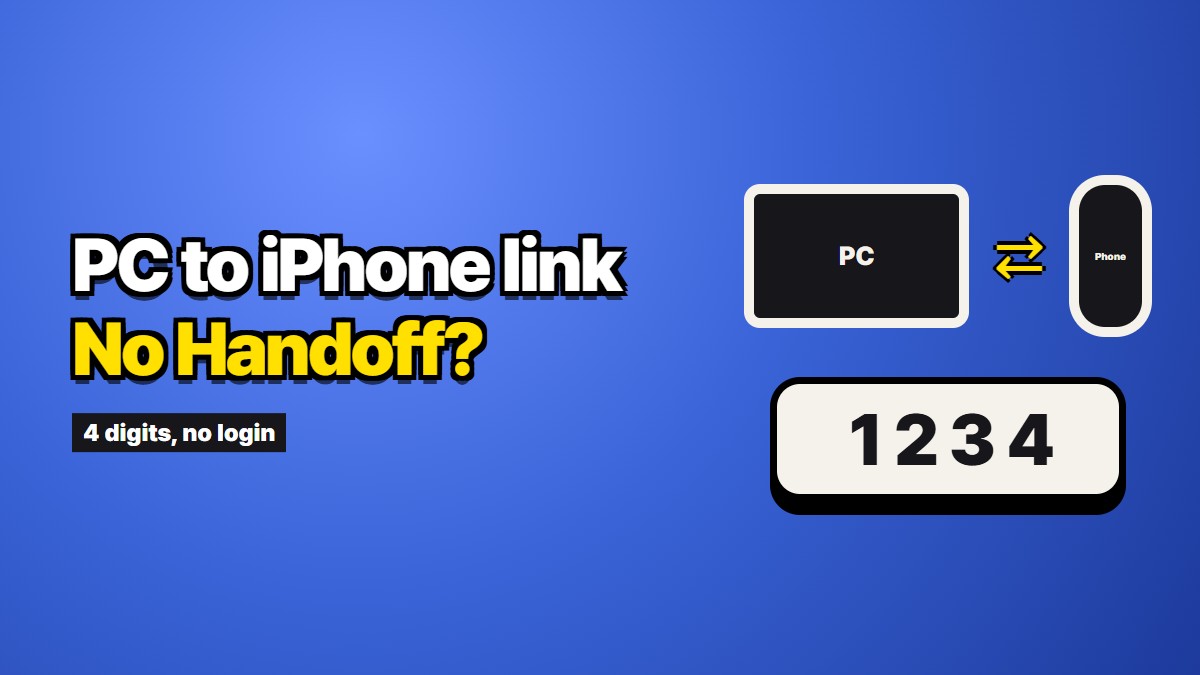
You found the page on your Windows laptop, and now you want it on your iPhone: a recipe for the kitchen, a ticket page for the train, a form you would rather fill in on the sofa. On a Mac this takes no thought, because Handoff and Universal Clipboard pass the link across. To send a link from a PC to an iPhone, there is no equivalent switch to flip, so you pick a route. For photos and documents, a cable or Microsoft's Phone Link is the right tool, and most videos on this topic cover exactly that. This piece is about the smaller job: one link, or a link and a few lines. Here are the ones that work, in the order most people should try them.
If you use Chrome on both
Chrome has a built-in way to send a tab. Right-click the tab, or open the share menu next to the address bar, and choose to send it to your devices. Your iPhone shows a notification, and the page opens in Chrome on the phone.
The catch is the setup. You need to be signed into the same Google account in Chrome on both devices, with sync on. If that is already your setup, stop reading, this is the best answer. If the PC is a work machine or someone else's, signing your personal account into its browser is the step you probably want to skip.
The QR code, for one link on a screen in front of you
Chrome and Edge can both turn the current page into a QR code. Look for the QR option in the share menu or by right-clicking the page. Point the iPhone camera at the screen and tap the banner.
For a single link on a computer you are sitting at, this is hard to beat. No accounts, nothing installed, nothing left in a chat. It only falls short when you have more than one link, or when the link is buried in a document rather than open as a page. It is also no help if the phone is in another room. QR codes and when a few digits fit better are compared in more detail in Sending a long URL to your own phone, unshortened.
Emailing or messaging yourself
The fallback almost everyone knows. It works on any PC where you can open your email, and the link arrives intact. The cost is clutter, and on a shared PC it means signing into email, which is the thing you then forget to sign out of.
A link plus a few lines, with no account
Sometimes it is not one clean page. It is three links and a note, or a long address copied out of a spreadsheet. For that, ZAGO.TO turns the text into a 4-digit code. Paste it on the PC, type the four digits on the iPhone, and the text appears with the links ready to tap. Nobody signs into anything.
What it cannot do matters as much. The text is gone a minute after you make the code if nobody opens it, and a minute after it is opened, so you cannot come back to it tomorrow. It moves text only, not files. And the server can read what you send, because there is no browser-side protection yet, so do not use it for passwords or anything private. For moving text the other way, from iPhone to PC, see Getting text from an iPhone onto a Windows PC without emailing yourself.
Picking
- Chrome signed in on both: send the tab.
- One link, phone in hand: QR code.
- Shared PC, several links, or a block of text: four digits.