Getting text from an iPhone onto a Windows PC without emailing yourself
2026-09-24
This post contains affiliate links. As an Amazon Associate, ZAGO.TO earns from qualifying purchases.
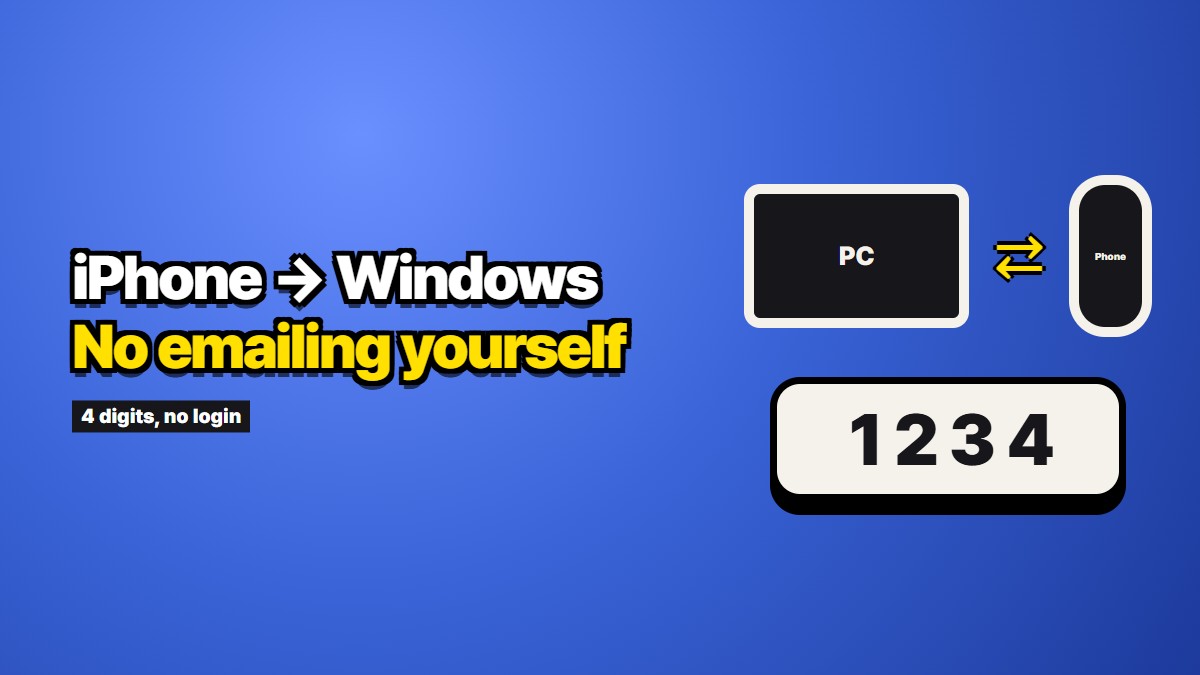
You have a paragraph on your phone. You need it on the Windows machine in front of you. So you open Mail, address it to yourself, paste, send, then switch to the laptop and wait for it to arrive.
It works. It has worked for fifteen years. It is also slightly ridiculous, and you know it, which is why you are reading this.
The awkwardness is not your fault. An iPhone and a Windows PC have almost no official path between them, because the two companies that built them had no reason to build one.
Why there is no switch to flip
If you use a Mac, this problem does not exist. Copy on the iPhone, paste on the Mac. Universal Clipboard handles it silently as long as both devices are signed into the same Apple account with Bluetooth and Wi-Fi on.
Windows has an equivalent. Phone Link does clipboard sharing, but only with Android, and in practice mostly with Samsung Galaxy devices. Point it at an iPhone and you get calls, messages and notifications, and that is where it stops.
Apple does not open the clipboard to third parties, so this is not a gap Microsoft can close. Waiting for an update will not fix it. There is no switch because nobody built one.
That leaves you assembling something out of parts, which is what everyone does.
The options, honestly
Email to yourself. Universally available, survives everything, and leaves the text sitting in two mailboxes forever. Fine for a draft. Poor for anything you would not want indexed and searchable years from now.
iCloud Notes in a browser. Type into Notes on the phone, open iCloud.com on the PC, read it there. No install needed, no length limit worth worrying about, and genuinely good for long documents you will keep editing.
The catch is the sign-in. Getting into iCloud.com means your Apple password plus two-factor, and your Apple account holds your photos, contacts and location history. On your own PC, fine. On a work machine or a borrowed one, that is a lot of account to open for one paragraph. Sync can also lag, so you refresh a few times while the thing you need sits three feet away on your phone.
A messaging app talking to itself. WhatsApp, Telegram, KakaoTalk. Fast, reliable, already logged in on both sides. Same downside as email, plus the desktop client downloads your history onto whatever computer you installed it on.
A cloud drive. Google Drive or OneDrive with one long scratch document. Best option when you are moving a lot of text back and forth over days.
A cable. Technically possible, genuinely miserable for plain text.
The same-network options
There is a category people forget about, and it is worth knowing when both devices are sitting on the same Wi-Fi.
LocalSend is an open source app that does AirDrop-style transfers across platforms, including iPhone to Windows. Nothing leaves your network, which is the appealing part. The cost is that it has to be installed on both ends and both ends have to be awake, on the same network, and not blocked by whatever the router or the corporate firewall is doing. On a home network it works well. On office Wi-Fi it often silently does not.
PairDrop is the same idea without the install. You open the same page in a browser on both devices, they find each other over the local network, and you send. For a one-off transfer with no software rights on the PC, this is a reasonable choice.
Both share one weakness: they need the two devices to be near each other in network terms. The moment the PC is somewhere else, in another building or behind a different network, they stop being an option. That is the case the email habit actually exists to solve, which is why the email habit survives.
Picking by what happens afterwards
The useful question is not which tool is best. It is what should happen to this text in a week.
If you want it later, use something that keeps it. Notes, a drive, a self-chat. The fact that it sticks around is the entire value.
If you want it gone, everything above is the wrong shape. They all keep it by default, and none of them will remind you to clean up. That is how people end up with a decade of passwords in a chat thread.
The second pile is bigger than most people realise: a Wi-Fi password, an address, a booking reference, a line of config, a verification string, anything you are pasting into a form once and never thinking about again.
What we built for the second pile
This is our own service, so weigh it accordingly.
ZAGO.TO takes text and gives you four digits. You type those four digits on the other device and the text appears. A minute after it is opened it is deleted from the server, and if nobody opens it, it goes after a minute anyway.
For the iPhone-to-Windows case specifically, the useful part is what you do not have to do. Nothing to install on the PC. No account on either side. No Apple password typed into a machine that is not yours. You open a browser, type four digits, copy what you need.
The limits matter as much as the pitch. You cannot open it again, so this is wrong for anything you want to keep. It moves text only, not files or photos. And there is no browser-side scrambling yet, which means our server can read what passes through, so treat it as readable and do not send secrets through it.
One small thing that helps regardless
Whatever you use, selecting a long passage on an iPhone is fiddly if you drag the handles. Tap a paragraph four times quickly and the whole paragraph is selected. From there, Select All grabs everything. Then pinch closed with three fingers to copy, and pinch open to paste.
That alone removes most of the frustration, because half the annoyance of moving text off a phone is the twenty seconds you spend trying to grab exactly the right text in the first place.
On the Windows side, the matching trick is the clipboard history. Press the Windows key and V, and you get the last several things you copied rather than only the most recent one. It is off by default and asks to be turned on the first time. Once it is on, you stop losing text by copying something else before you have pasted the first thing.
Worth knowing, though: clipboard history keeps what it collects until you clear it, and it can sync across your Microsoft devices if you let it. That makes it another quiet archive of everything you moved. If you use it, clear it when you are done with anything sensitive, and think twice before enabling the sync option on a machine you share.
In short
There is no official bridge between an iPhone and a Windows PC, and there is not going to be one. So the practical answer is to keep two habits instead of looking for one tool.
For text you want to keep, use whatever already syncs. For text you want gone, use something that forgets. The mistake is not picking the wrong tool. It is using the keeping tool for everything, and only noticing years later when you scroll up.