How to send a link from a PC to an Android phone, depending on whose phone it is
2026-10-09
This post contains affiliate links. As an Amazon Associate, ZAGO.TO earns from qualifying purchases.
You are at your desk with a long page open: a delivery tracking link, a sign-up form, a map pin for tonight.
You need it on the Android phone in your pocket, and you do not want to retype a URL full of slashes and random letters.
How to send a link from a PC to an Android phone mostly comes down to one thing. Are the PC and the phone both signed into your own accounts?
If they are, Android has two good built-in routes. If either one is not yours, those routes stop working, and you need something smaller.
1. Chrome on both: send the tab
▲ The page is on the big screen, but you need it on the move
If you use Chrome on the PC and the phone, signed into the same Google account with sync on, Chrome can push the open page across.
- Open the page on the PC
- Click the share icon or right-click the tab
- Choose Send to your devices
- Tap the notification on the phone
Chrome send to your devices not working is a common search, and the cause is usually setup.
The option is greyed out or missing when the PC browser is not signed in, when sync is off, or when the phone is not in the list yet.
Opening Chrome on the phone once, with the same account, often brings it in.
2. Phone Link: copy on the PC, paste on the phone
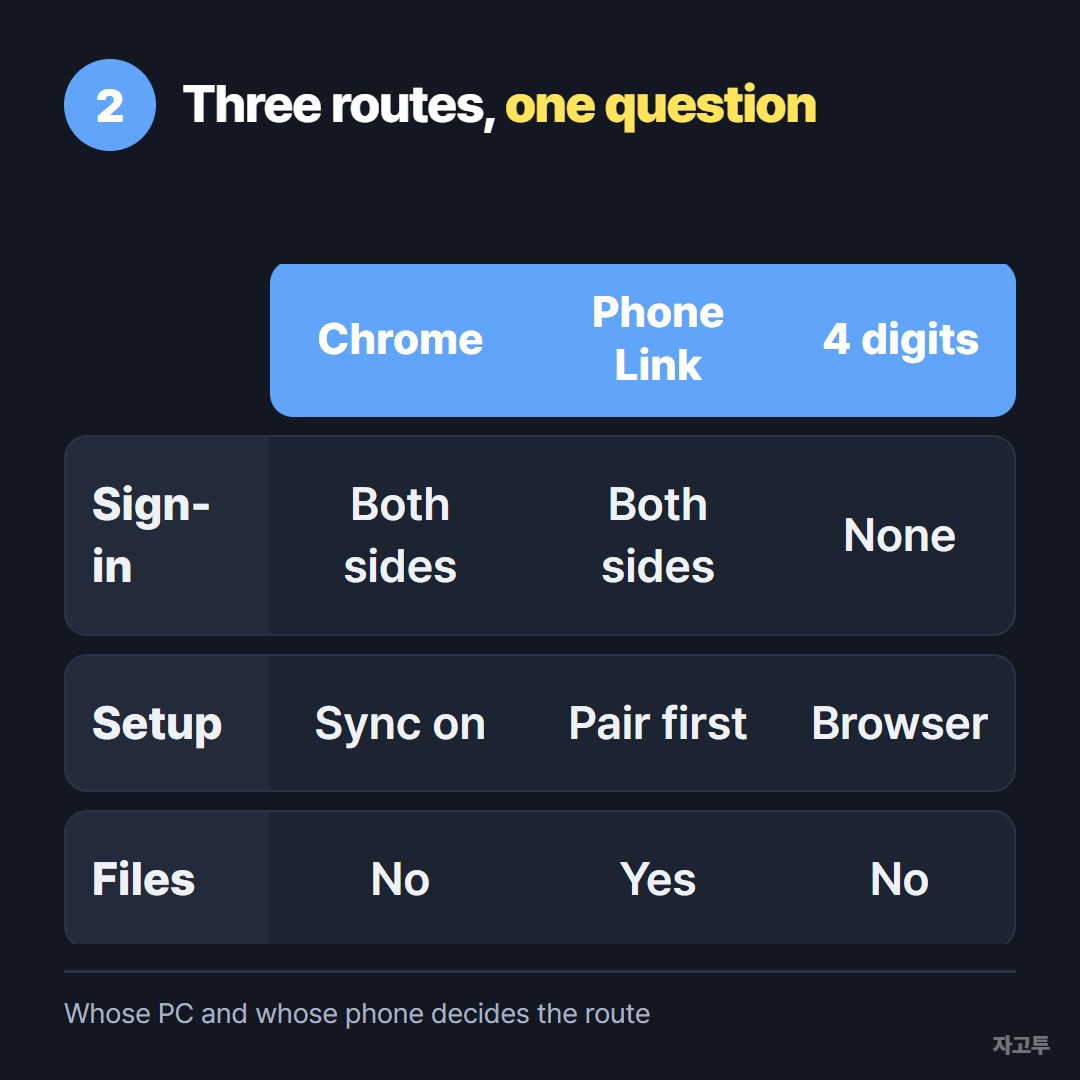
▲ The first two need your own accounts on both ends
Windows has Phone Link, which pairs the PC with the Link to Windows app on Android. Its main job is photos, messages and notifications. For files, it is the right tool.
On many Samsung Galaxy phones and some other models, Phone Link also offers cross-device copy and paste.
Turn it on in the Phone Link settings, and a link you copy on the PC can be pasted on the phone.
Support depends on the phone model, so check the settings screen before you rely on it.
Both routes share one requirement: your account, on both devices, set up ahead of time.
3. When the PC or the phone is not yours
This is where most people get stuck. A library computer, a work PC that blocks personal sign-ins, a friend's phone you are helping set up.
Signing your Google account into someone else's browser just to move one link is the step you want to skip.
ZAGO.TO handles that small job. Paste the link at zago.to on the PC and you get a 4-digit code.
Open zago.to on the Android phone, type the four digits, and the link appears, ready to tap. Neither side signs in or installs anything.
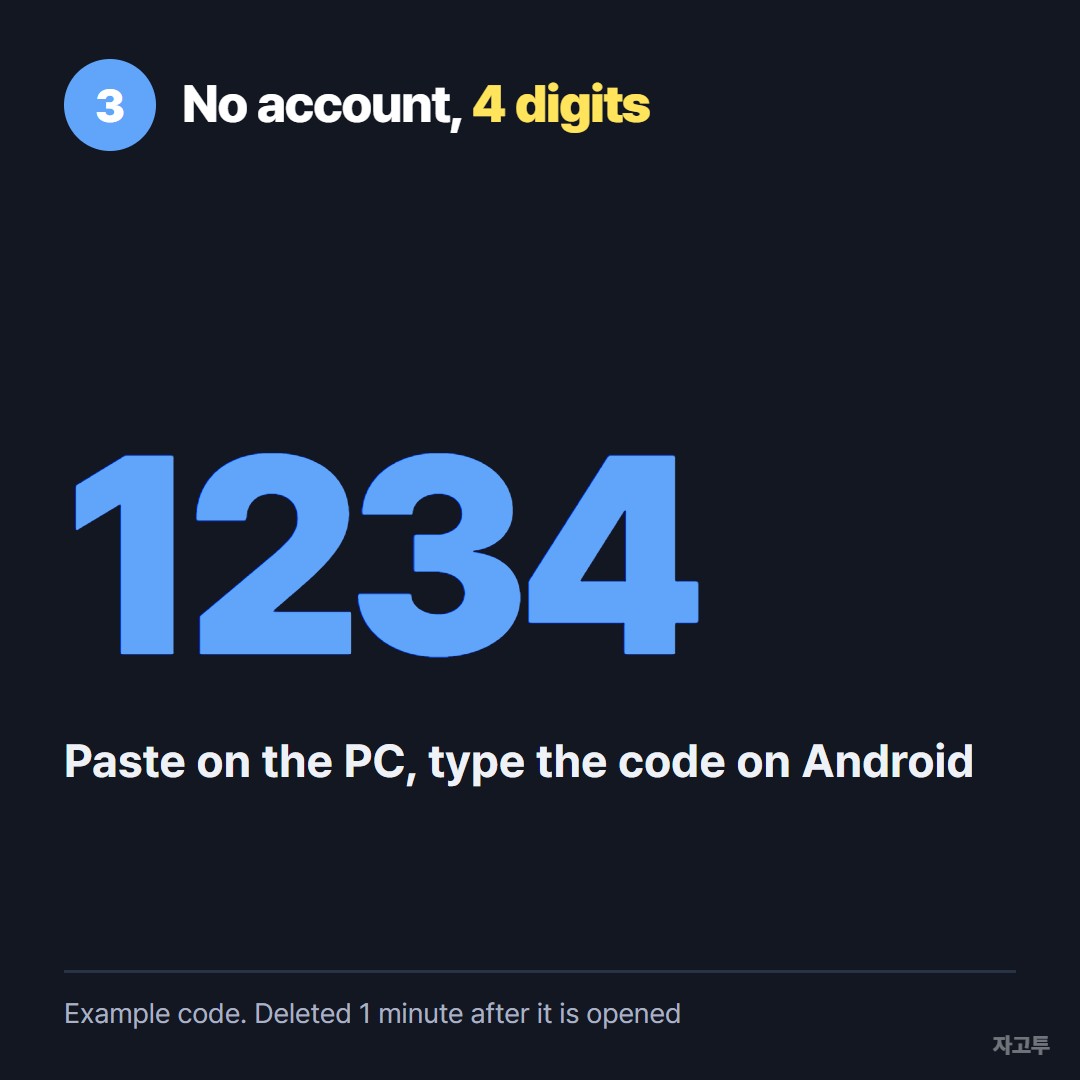
▲ An example code. Real codes are random every time
Know its limits first. If nobody opens the code, the text is deleted after 1 minute. Once opened, it stays for 1 minute and is gone, so you cannot come back to it.
It carries text only, up to 10,000 characters, and no files. There is no in-browser encryption yet, so our server can read what you send. Do not send passwords this way.
If the other phone is an iPhone, the routes change. How to send a link from a PC to an iPhone covers them.
For a long URL that keeps breaking when pasted, see Sending a long URL to your own phone, unshortened.
Which one, in one line
Your accounts on both devices: send the tab in Chrome, or turn on Phone Link copy and paste.
Anyone else's PC or phone: move the link with four digits through ZAGO.TO, and let it disappear a minute later.