How to send something from a work computer to your phone, and what IT can see
2026-10-15
This post contains affiliate links. As an Amazon Associate, ZAGO.TO earns from qualifying purchases.
It is ten past five. A tracking number, a parking address or a recipe link is sitting on your work computer, and you need it on your phone before you leave the building.
If you are wondering how to send something from a work computer to your phone without breaking a rule, the answer depends on what the something is, not on which app is fastest.
Work files and personal snippets take different roads. Mixing them up is where people get into trouble.
1. Sort it first: work material or a personal line?
▲ Decide what you are moving before you decide how
- Work material: a document, a spreadsheet, a client email, anything that belongs to the company
- A personal line: an address, a delivery code, a link to a shop, a note to yourself that has nothing to do with work
The first kind is governed by your employer's data rules. The second kind is usually fine to move, as long as the route itself is allowed.
2. For work material, use the company's own tools
If your company gives you Outlook, Teams, Slack or OneDrive, the mobile apps for those tools are the intended route.
Send it to yourself in Teams, open the file from OneDrive on your phone, or flag the email and read it in Outlook mobile.
These routes are logged and approved, which is exactly why they are safe for you. Nobody has to ask later why a contract left the building.
How a chat with yourself works inside Teams, and what the company keeps from it, is covered in Teams chat with yourself.
Forwarding a work file to your personal Gmail or uploading it to a personal Dropbox is the classic mistake. Many data loss prevention tools flag exactly that pattern.
3. What IT can usually see
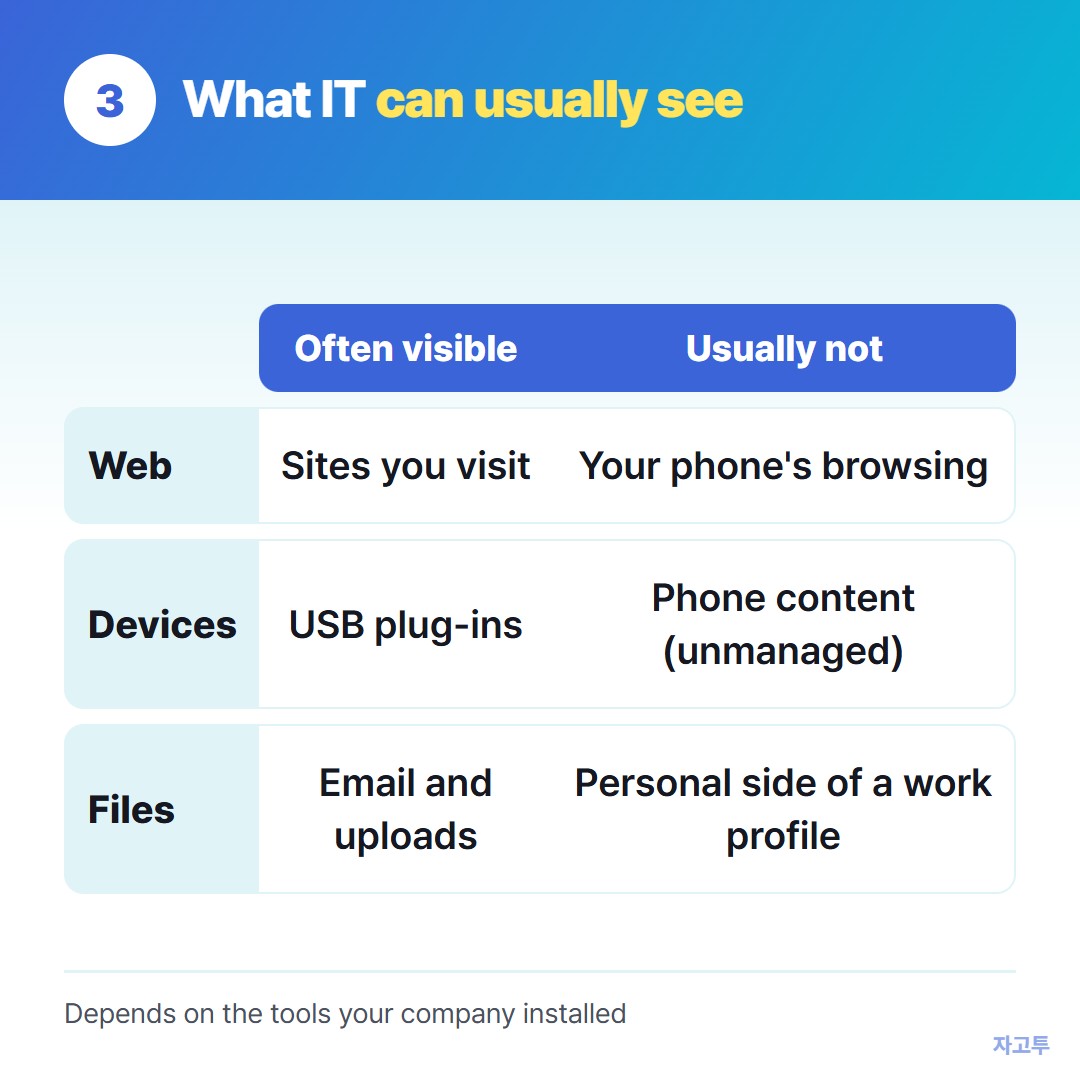
▲ It depends on the tools your company installed, so treat this as a rough map
On a managed work computer, IT can often see which websites you visit, which USB devices you plug in, and which files leave through email or upload.
Some setups also capture screenshots or keystrokes, though that is less common.
What they usually cannot see is the content on your own phone, unless the phone is enrolled in company management.
If your personal phone has a work profile, the work side is theirs and the personal side is mostly yours.
Plugging your phone in by USB is often the noisiest option. Many companies stop the phone from showing up as a drive and log the attempt, even if you only wanted to charge.
4. For a personal line, skip the cable
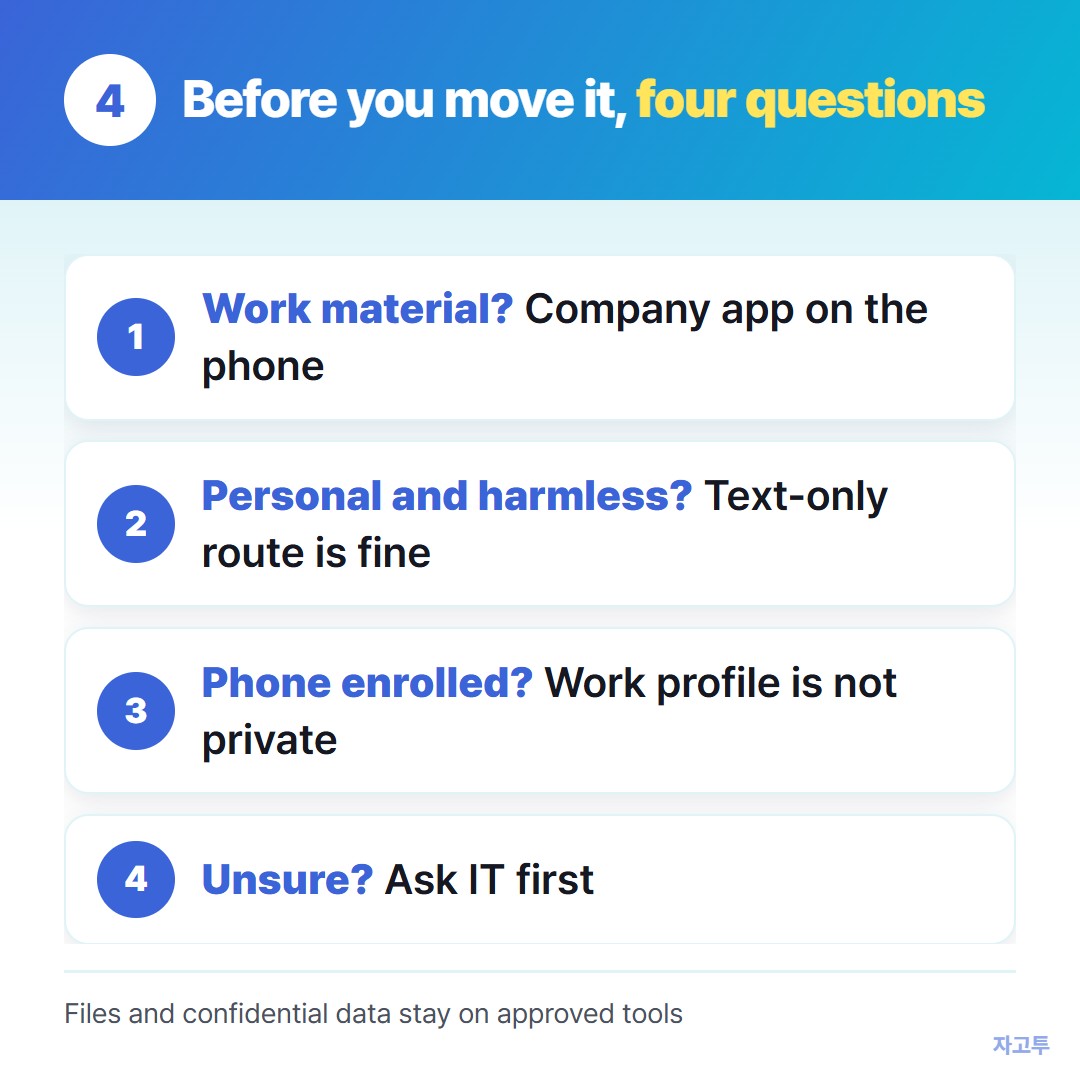
▲ Four questions, in this order
For a personal snippet, the lightest route is a web page that both devices can open. ZAGO.TO works that way.
Paste text on the work computer and you get 4 digits, type the digits on your phone and the text appears. No login and no install, so nothing of yours stays signed in on the work machine.
It has clear limits. It moves text only, not files.
An unopened message is deleted after 1 minute, and an opened one 1 minute later, and it cannot be opened again.
The server can read what you send, so client data, passwords and anything confidential do not belong there.
If your company blocks outside websites for pasting text, ZAGO.TO falls under that rule like any other site.
When an app like WhatsApp is blocked on the work machine, blocked by work policy explains what is usually going on.
5. Checklist
- Is it work material? Use the company's own app on your phone
- Is it personal and harmless? A text-only web route or a message to yourself is fine
- Is your phone enrolled in company management? Then the work profile is not private
- Not sure about the rule? One short question to IT is cheaper than an explanation later