PowerShell copy to clipboard: Set-Clipboard, clip, and getting output off the machine
2026-10-17
This post contains affiliate links. As an Amazon Associate, ZAGO.TO earns from qualifying purchases.

You ran a command, the answer is sitting in the console, and now you need it in an email, a ticket, or a chat.
Dragging across forty lines of a PowerShell window is slow and usually grabs the wrong thing. PowerShell copy to clipboard takes one pipe instead.
There are two tools for it, and they behave differently with non-English text. Here is which one to reach for.
1. Set-Clipboard, the PowerShell way

▲ One pipe at the end of the command, and the output is ready to paste
Add `| Set-Clipboard` to the end of any command:
`Get-Date | Set-Clipboard`
The short alias is `scb`, and its partner `Get-Clipboard` (alias `gcb`) reads the clipboard back, so `$text = Get-Clipboard` puts whatever you copied into a variable.
A few switches worth knowing:
- -Append adds to what is already on the clipboard instead of replacing it
- A file's contents: `Get-Content .\notes.txt -Raw | Set-Clipboard` copies the file as one block, line breaks intact
- On Windows it is built in. PowerShell 7 on Linux needs xclip installed before it works
2. Why the copied output looks wrong
Pipe `Get-Process` straight into Set-Clipboard and you may paste a column of `System.Diagnostics.Process (...)` instead of the table you saw.
That happens because PowerShell hands over objects, and Set-Clipboard turns each object into a plain string rather than the formatted table. Add `Out-String` in between:
`Get-Process | Select-Object -First 10 | Out-String | Set-Clipboard`
Now you get exactly what the console would have printed. When the paste looks like type names, Out-String is almost always the fix.
3. clip.exe, and when to avoid it
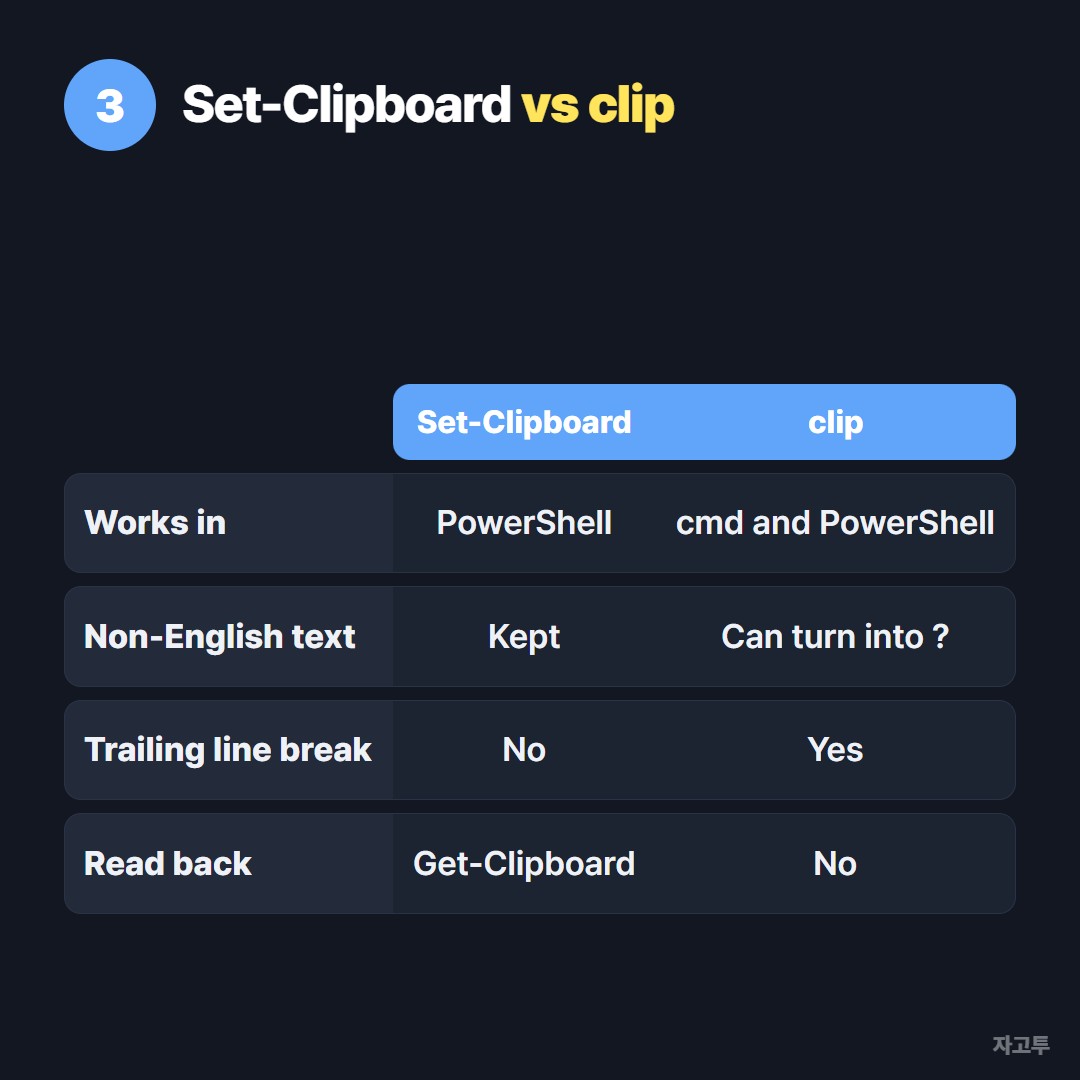
▲ Both work for plain English output. They part ways on everything else
`clip` is the older Windows command, and `ipconfig | clip` still works from both cmd and PowerShell. It is handy on machines where you are stuck in cmd.
The catch is encoding.
When PowerShell pipes text into an outside program like clip, it converts it with an older text encoding first. Accented letters, Korean, or emoji can come out as question marks.
Set-Clipboard does not go through that step.
clip also adds a trailing line break, which matters if you paste into a password field or a single-line form.
4. Getting the output to another computer
The clipboard stays on the machine you copied on. Remote Desktop can share it with your own PC; WSL copy paste covers the Linux side of the same Windows box.
When the other computer is not connected at all, you can paste the output into ZAGO.TO, get a 4-digit code, and type that code on the other screen. No login or install on either side.
Know the limits first. It is text only, up to 10,000 characters, and it is gone 1 minute after opening, or after 1 minute if nobody opens it. There is no reopening it.
The server can read what you paste, so treat it like an email.
5. Never copy secrets this way

▲ What goes on the clipboard can be pasted anywhere
API keys and connection strings do not belong on the clipboard.
With clipboard history turned on, Windows keeps recent copies under Win+V, and synced history can send them to your other devices.
If a script has to print a token, read it on screen instead of piping it anywhere.
If it did land on the clipboard, delete it from the Win+V list too, since copying something else over it does not remove the history entry.
For moving keys between servers, see the notes in SSH copy paste, and use a password manager or the server's own tools rather than ZAGO.TO.
Quick answers
How do I copy command output to clipboard in PowerShell? End the command with `| Set-Clipboard`, or `| Out-String | Set-Clipboard` for tables.
Is `clip` the same thing? Close, but it can garble non-English text and adds a line break.
How do I paste from the clipboard in a script? `Get-Clipboard`, or `gcb` for short.