WSL copy paste: the shortcuts, the clipboard commands, and why it stops working
2026-10-10
This post contains affiliate links. As an Amazon Associate, ZAGO.TO earns from qualifying purchases.

Short version: in Windows Terminal, copy with Ctrl+Shift+C and paste with Ctrl+Shift+V. From a WSL command, pipe to clip.exe to copy and run powershell.exe Get-Clipboard to paste.
You press Ctrl+C on a line in your Ubuntu terminal and nothing gets copied. Worse, the command you were running stops.
WSL copy paste works fine once you know that Ctrl+C belongs to Linux.
The terminal window, the Linux shell and the Windows clipboard each have their own keys, and most trouble comes from mixing them up.
1. The keyboard shortcuts
▲ Ctrl+C means "stop" to Linux before it means "copy" to Windows
In Windows Terminal, the default terminal on Windows 11:
- Copy: select text with the mouse, then Ctrl+Shift+C
- Paste: Ctrl+Shift+V
- Right-click: in most setups it copies a selection, or pastes when nothing is selected
Plain Ctrl+V usually pastes too, but plain Ctrl+C is sent to Linux as an interrupt. That is why the running command stops instead of copying.
In the older console window (the one with a plain black frame), right-click the title bar, open Properties, and tick Use Ctrl+Shift+C/V as Copy/Paste.
Until then, select with the mouse and press Enter to copy.
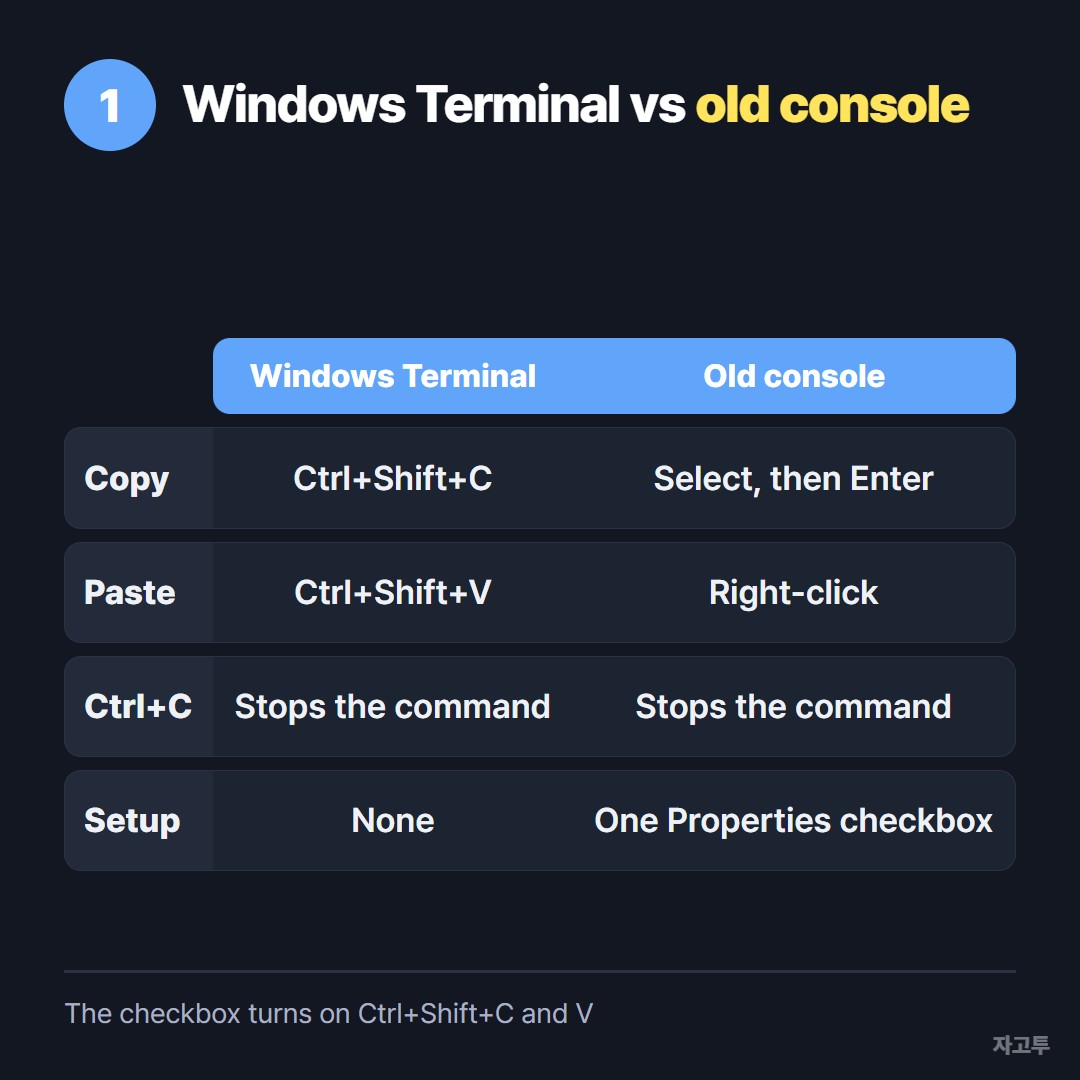
▲ Windows Terminal needs no setup, the old console needs one checkbox
2. Copy and paste from the command line
Sometimes the text is the output of a command, and selecting it with a mouse is slow. Windows tools can be run straight from WSL.
Copy to the Windows clipboard: pipe into clip.exe.
`cat notes.txt | clip.exe`
Paste from the Windows clipboard: ask PowerShell for it.
`powershell.exe -c Get-Clipboard | tr -d '\r'`
The `tr` part removes the Windows line endings, which otherwise show up as stray `^M` characters in Linux files.
One catch with clip.exe: non-English characters can come out garbled, because it does not read the text as UTF-8. For plain English text it is reliable.
3. Vim and Neovim inside WSL
Vim in WSL is often built without clipboard support, so `"+y` does nothing. The quickest workaround is to send a selection to clip.exe.
Select lines in visual mode, then type `:'<,'>w !clip.exe` and press Enter.
Neovim looks for a clipboard provider. Many WSL users install `win32yank.exe` on the Windows side so that `"+y` and `"+p` reach the Windows clipboard.
4. Why WSL copy paste stops working
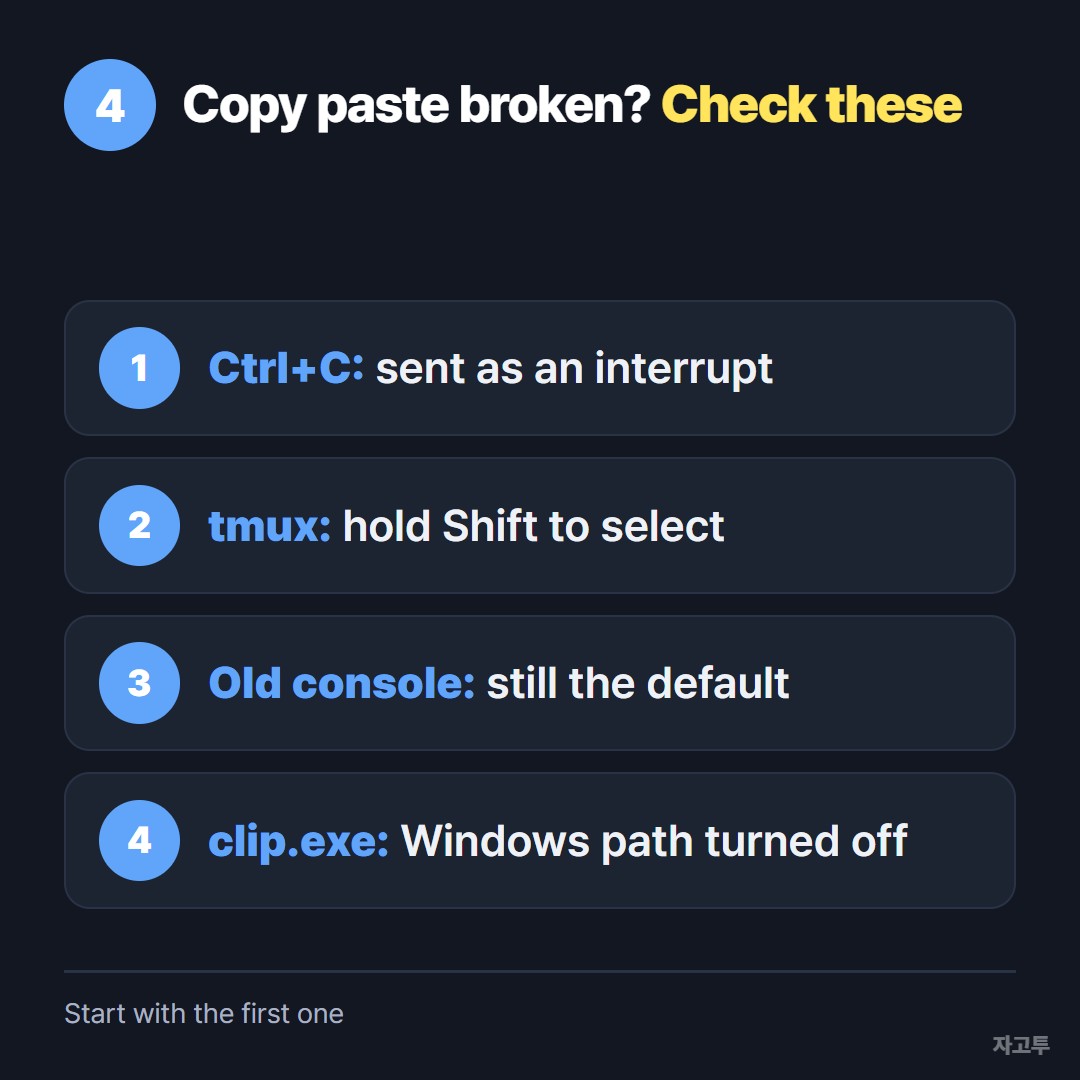
▲ Most cases are one of these four
- Ctrl+C instead of Ctrl+Shift+C. The shell gets an interrupt, the clipboard gets nothing.
- tmux or a mouse-aware app grabbed the selection. Hold Shift while dragging to select at the terminal level instead.
- The old console is still the default. Set Windows Terminal as the default terminal app in Windows settings.
- clip.exe is not found. Windows paths may be turned off in `/etc/wsl.conf` (`appendWindowsPath = false`). Call it by full path, `/mnt/c/Windows/System32/clip.exe`.
On Windows 11, Linux apps with a window (gedit and the like) share the clipboard through WSLg, so copy and paste there work the usual way.
5. When the command has to go to another machine
The clipboard is local. A command you built in WSL that has to run on a server you reach from a different laptop, or a config snippet for a colleague's PC, needs another road.
Git or a shared note is the right home for anything you will keep. For a one-off, ZAGO.TO moves up to 10,000 characters of text to any device with a browser using 4 digits.
Copy the command with Ctrl+Shift+C, paste it there, and type the digits on the other machine.
It is short-lived by design. The text is deleted if nobody opens it within 1 minute, or 1 minute after it is opened.
It carries text only, never files. There is no in-browser encryption yet, so our server can read what you send. Keep tokens and passwords out of it.
If the other end is a virtual machine rather than a laptop, VirtualBox shared clipboard covers that clipboard instead.