VirtualBox shared clipboard not working? Four checks before you reinstall anything
2026-10-07
This post contains affiliate links. As an Amazon Associate, ZAGO.TO earns from qualifying purchases.
You turned on the VirtualBox shared clipboard, copied a line on your host, clicked into the virtual machine and pressed paste. Nothing.
Almost every case comes down to four things, and three of them take under a minute to check.
1. Is the VirtualBox shared clipboard set to Bidirectional?
▲ The setting is easy to change in the wrong place
VirtualBox has two places for this, and people often change only one.
- While the VM is running: the VM window menu, then Devices, then Shared Clipboard, then Bidirectional
- While it is off: Settings, then General, then Advanced, then Shared Clipboard
"Host to Guest" only works one way. If you can paste into the VM but not back out, that is usually the reason.
2. Are Guest Additions installed, and the right version?
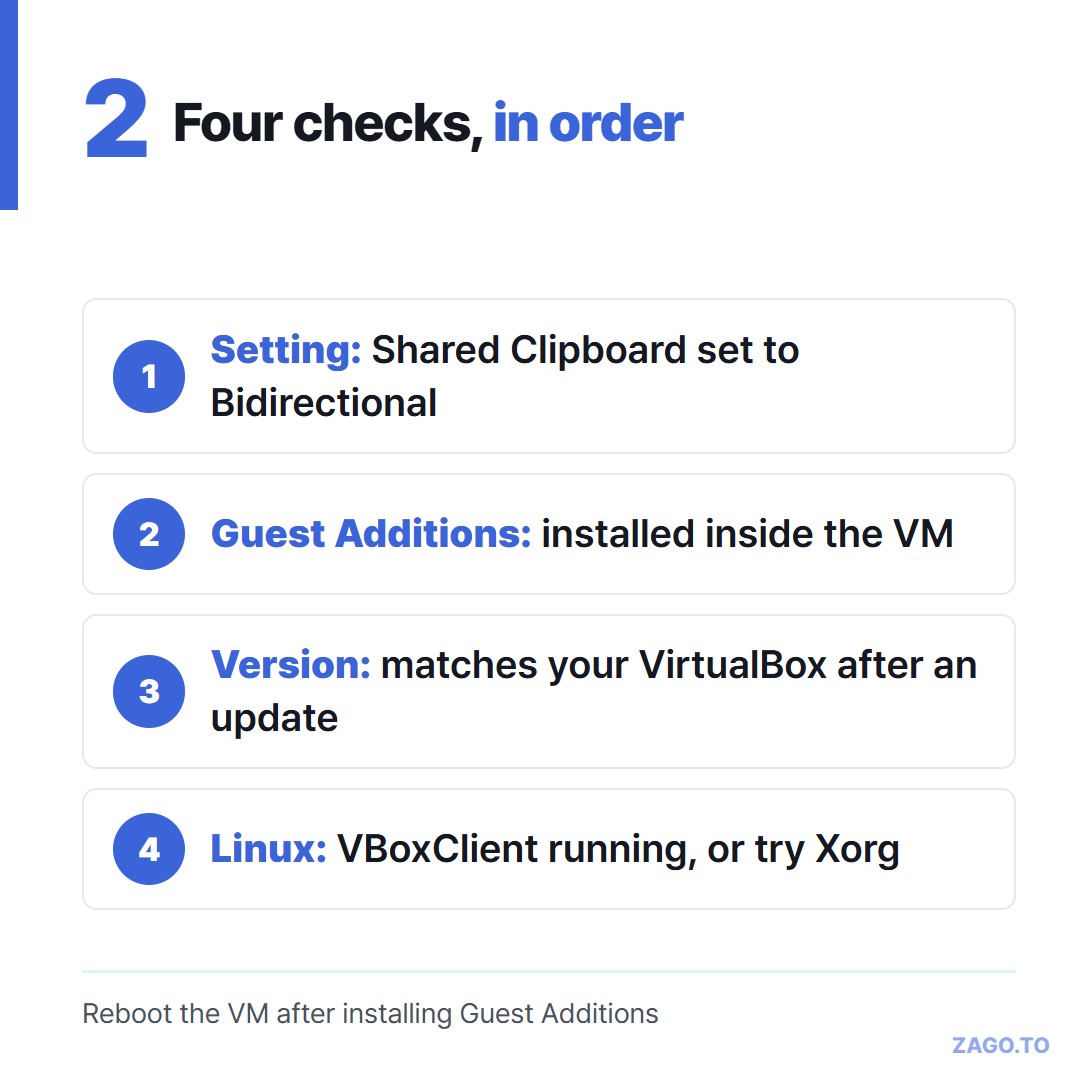
▲ Most fixes are at step two
The clipboard setting does nothing on its own. The guest needs Guest Additions, the small set of drivers that lets the VM talk to the host.
From the VM menu choose Devices, then Insert Guest Additions CD image.
- Windows guest: open the CD drive and run VBoxWindowsAdditions, then restart
- Ubuntu or Debian guest: install build-essential, dkms and the kernel headers first, then run `sudo sh ./VBoxLinuxAdditions.run` from the CD and reboot
- Kali: the packaged virtualbox-guest-x11 is usually the simpler route
If you updated VirtualBox on the host last week, the Guest Additions inside the VM are probably older. Reinstall them from the new CD image. A version mismatch is a quiet, common cause.
3. On Linux, is the clipboard helper running?
On Linux guests the clipboard is carried by a small process started at login. If it died, run `VBoxClient --clipboard` in a terminal and try again.
On Ubuntu 22.04 and 24.04, the default Wayland session has been the source of many reports on older VirtualBox versions.
At the login screen, the gear icon lets you choose Ubuntu on Xorg. If the clipboard works there, you have found the cause.
4. When you only need one line across
Sometimes it is late, the Guest Additions build fails on a fresh kernel, and you only need to move one command or one URL.
If both sides have a browser, paste the line into ZAGO.TO on the host, get a 4-digit code, then open ZAGO.TO inside the VM and type the code. The line opens there.
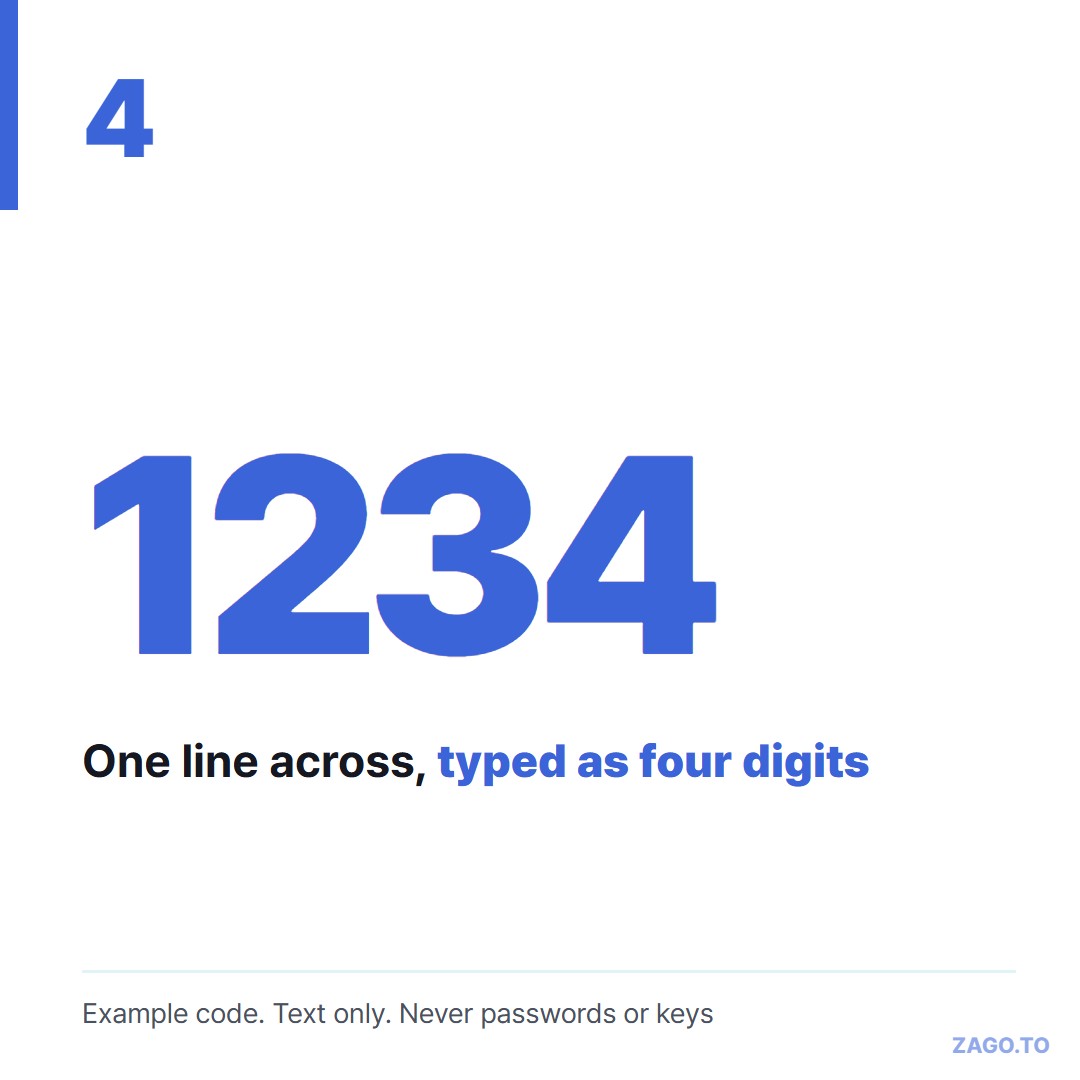
▲ An example code. Each real one is new
Know the limits before you use it:
- Text only, up to 10,000 characters. No files, so a shared folder is still the tool for those
- Unopened text is deleted after 1 minute. Opened text stays for 1 more minute, then it is gone and cannot be opened again
- Do not move passwords or private keys this way. Our server can read the text while it holds it, for up to 2 minutes
What never to move with a code explains that last rule.
For text between your own phone and computer, see Copy and paste between devices online.
In short
Set Bidirectional, reinstall Guest Additions to match your VirtualBox version, and on Linux restart the clipboard helper or try an Xorg session. That fixes most cases.
Long text, in 4 digits.