SSH copy paste: why Ctrl+V does nothing in the terminal
2026-10-11
This post contains affiliate links. As an Amazon Associate, ZAGO.TO earns from qualifying purchases.
You copied a long command from the docs, clicked into your SSH session, pressed Ctrl+V, and the cursor just sat there. Maybe a strange ^V appeared.
Nothing is broken. SSH copy paste depends on the terminal window on your own computer, not on the server, and each terminal picked different keys.
1. Why Ctrl+V does nothing

▲ The shortcut belongs to the window, not to the server
In a terminal, Ctrl and a letter are usually sent to the remote shell as a control character. To bash, Ctrl+V means "insert the next key literally", so nothing visible happens.
Ctrl+C is worse. It does not copy, it stops whatever is running. If you press it out of habit during a long job, the job ends.
So the terminal app moves copy and paste to other keys or to the mouse.
2. The keys, terminal by terminal
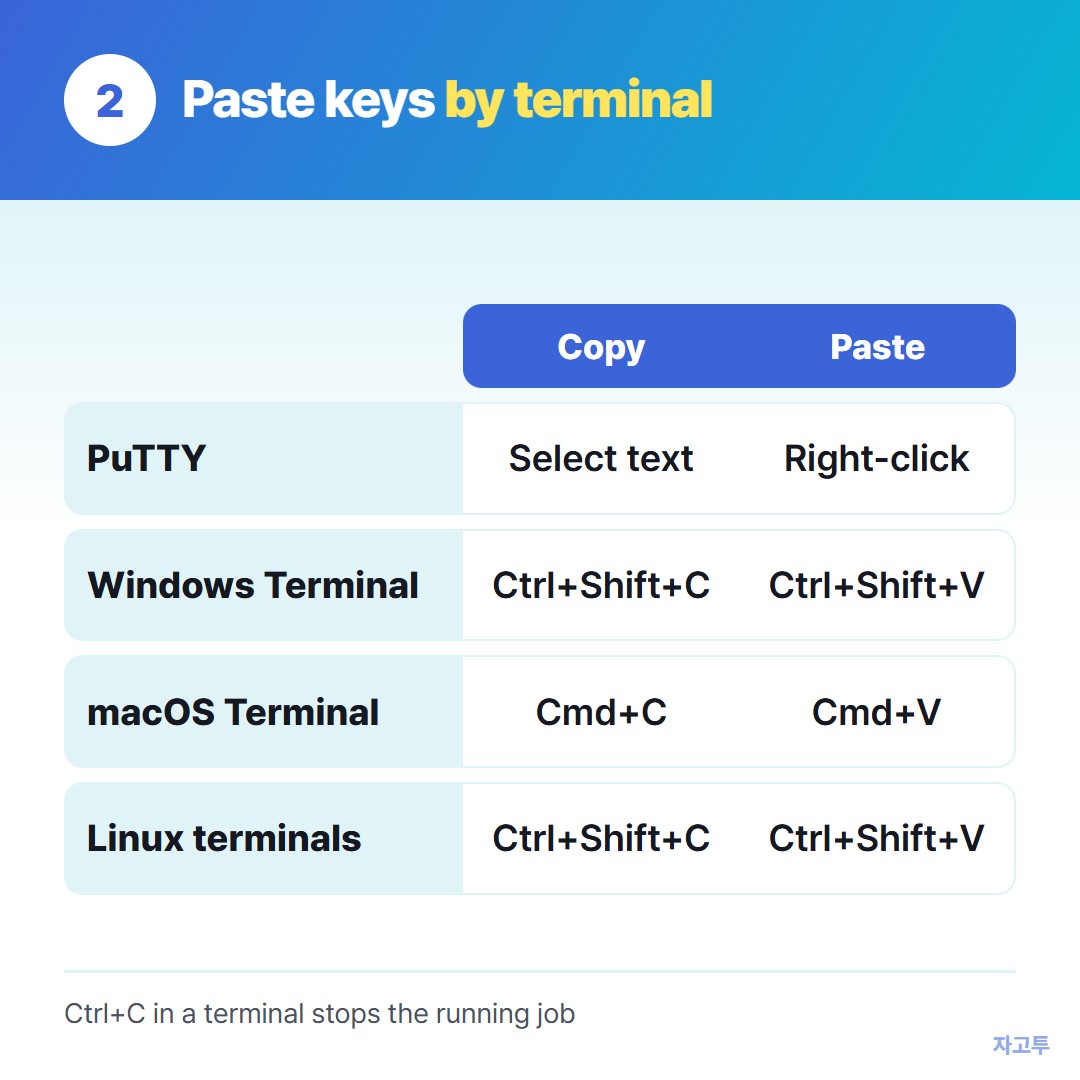
▲ Find your window in the left column
- PuTTY: selecting text with the mouse copies it at once. A right-click pastes. Shift+Insert also pastes.
- Windows Terminal and PowerShell: Ctrl+Shift+C and Ctrl+Shift+V. Recent versions also accept Ctrl+V, and a right-click can paste depending on settings.
- macOS Terminal and iTerm2: Cmd+C and Cmd+V, because Cmd never goes to the server.
- Most Linux terminals: Ctrl+Shift+C and Ctrl+Shift+V. Selecting text and middle-clicking also pastes.
If the session runs inside tmux or vim with mouse mode on, the mouse selection is caught by them. Hold Shift while you drag to let your terminal select instead.
3. Copying from the server to your own clipboard
Text you see in the session can be copied the same way, by selecting it in your terminal window. You are copying pixels on your screen, so nothing special happens on the server.
What does not work is a copy command typed on the server, like pbcopy or xclip. Those put text on the server's own clipboard, which you cannot reach.
Some terminals support a feature called OSC 52 that bridges this, but it is off in many setups.
Before pasting a multi-line command, read it once. A newline at the end runs it immediately.
4. When the command lives on another device
Sometimes the long command is on your phone, in a chat or a note, and the terminal is on a laptop you cannot sign in to anything on.
For a plain command, ZAGO.TO carries it: paste on the phone, get a 4-digit code, type the code in a browser on the laptop and copy the text from there.
ZAGO.TO deletes the text after 1 minute if no one opens it, or 1 minute after it is opened.
It has no in-browser encryption yet, so our server can read the text. Never send SSH keys, passwords or tokens that way, or through any text site.
Longer snippets between your own machines are covered in Paste code online to move a snippet between your own machines.
5. In one line
Find your terminal in the list above, use its keys instead of Ctrl+V, and keep Ctrl+C for stopping things.