Paste code online to move a snippet between your own machines, and what never to paste
2026-10-07
This post contains affiliate links. As an Amazon Associate, ZAGO.TO earns from qualifying purchases.

You have a 180-character command on your laptop. It needs to run on the other machine: the lab desktop, the fresh test laptop, the Raspberry Pi on the shelf.
Retyping it means one wrong flag and ten minutes of confusion. So you go looking for a place to paste code online and pick it up on the other side.
Contents
- Which tool fits which job
- The one rule: no secrets
- Moving a command between your own machines
- Why pasted code breaks, and how to check it
- Bottom line
1. Which tool fits which job

▲ Most snippet moves are between two machines the same person is sitting at
Search results for "share code snippet online" mix three different jobs. It helps to separate them first, because the right tool is different for each.
- Sharing with other people, and keeping it: GitHub Gist is the usual answer, with syntax highlighting, revisions and a link for an issue. Pastebin-style sites need less setup
- Working on code together, live: VS Code Live Share lets two people edit the same files at once. Most popular videos on this topic are about it, and for pair work it is right
- Moving a snippet to your own other machine, once: this is the job this post is about. You do not need a link that lives for months. You need the text on the other screen now
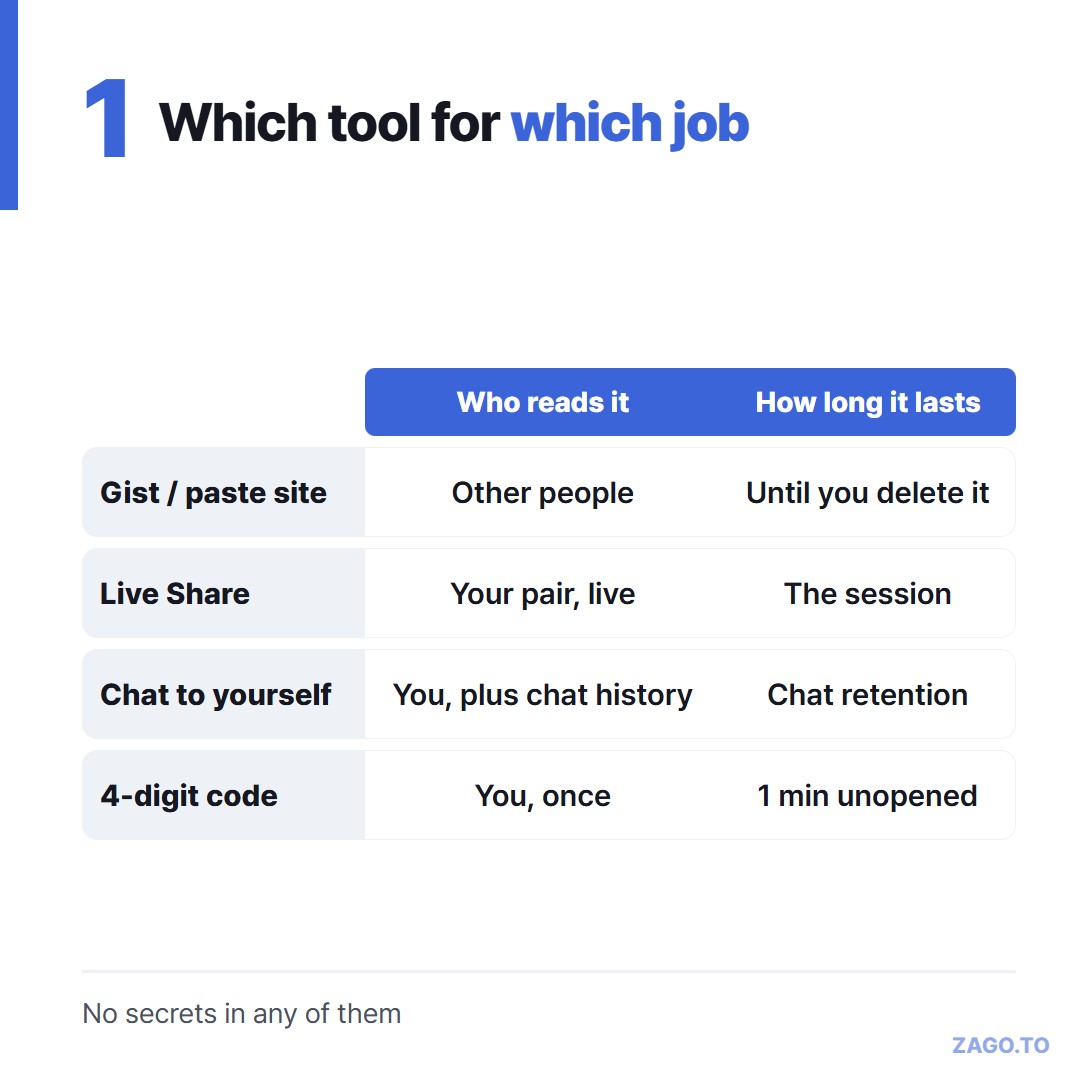
▲ Pick by who reads it and how long it should last
People often use a tool from the first two rows for the third job. A secret gist or a private paste works, but it stays online after the move unless you remember to delete it.
Messaging yourself on Slack or Teams works too, but the snippet becomes part of a chat history your employer may keep.
None of these are wrong. They just keep the text longer than a one-time move needs.
2. The one rule: no secrets
Before any tool, decide what is in the snippet.
API keys, tokens, passwords, private keys, connection strings and the contents of a `.env` file should not go through any paste site, chat or short-lived text service. That includes ours.
The reason is simple. A paste service has to receive the text to pass it on. Even a service that deletes quickly can read the text while it holds it.
Ours can, for up to two minutes, and there is no browser-side protection in front of it yet.
For secrets there are better routes:
- A password manager that both machines are signed into
- The platform's own secret store, such as repository or CI secrets, so the value never leaves that system
- SSH or scp between the two machines, if one can already reach the other
If you are unsure where the line sits, we wrote a longer list in What you should never move between devices.
Strip the secret out, leave a placeholder like `YOUR_TOKEN_HERE`, and move the rest. The command structure is the long, typo-prone part anyway.
3. Moving a command between your own machines
Here are the common situations, roughly from most to least convenient.
Both machines can reach each other over SSH. Then you do not need a website at all.
Paste into your terminal session on the remote machine, or copy the file across with scp. This is the cleanest path.
One machine is a VM. VirtualBox and VMware can share a clipboard once the guest tools are installed.
If they are not installed yet, which is exactly when you need to paste install commands, you are stuck typing.
The other machine has a browser but no shared account. A lab PC, a borrowed laptop, a test machine you just wiped. You do not want to sign into GitHub or your chat app there just to grab one line.
This last case is where a 4-digit code fits. Paste the command on ZAGO.TO, get four digits, then open zago.to on the other machine and type them.
The text appears, and you copy it into the terminal.
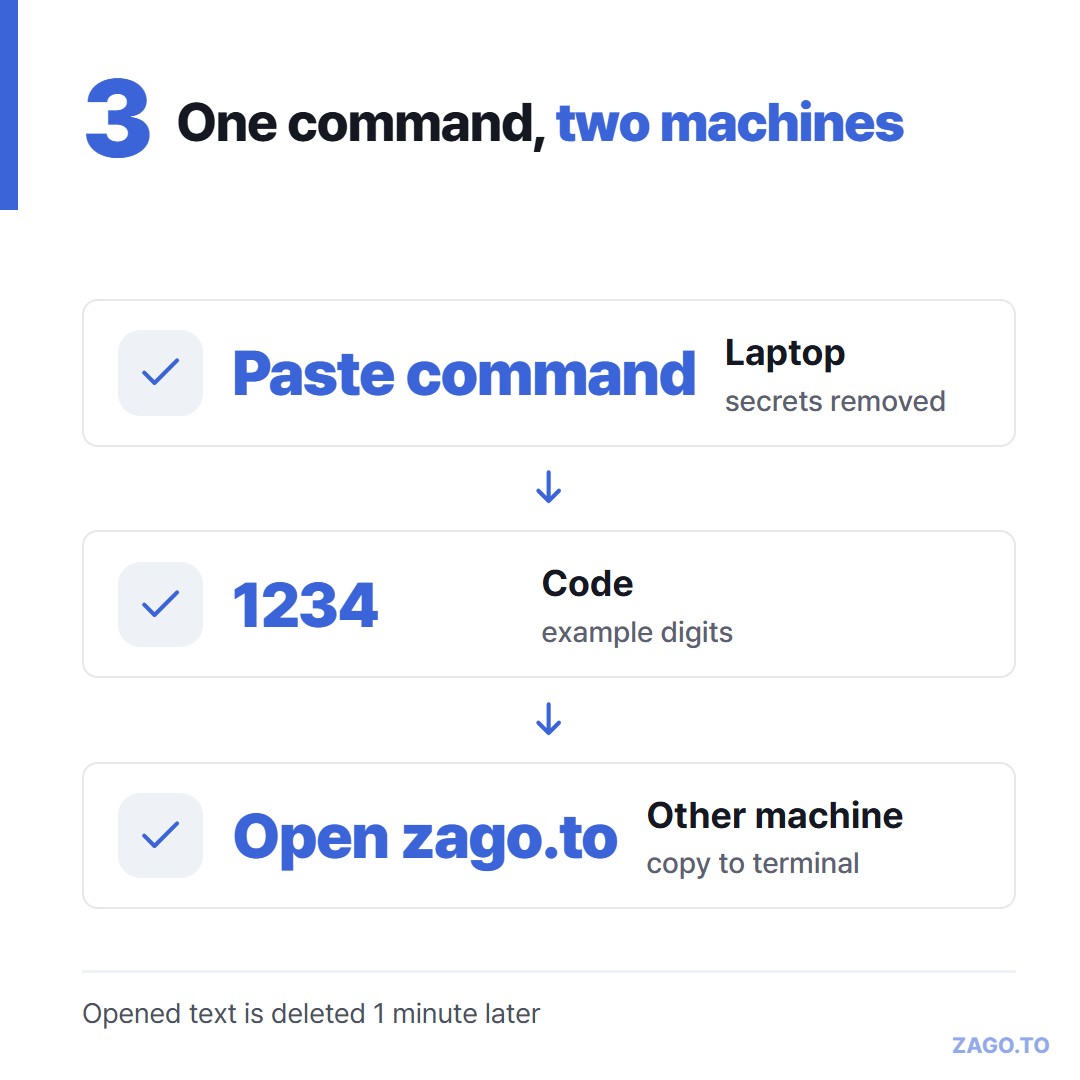
▲ The code is an example. A real one is picked at random each time
The limits are tight on purpose:
- If nobody opens it, it is deleted after 1 minute
- Once opened, it is shown for 1 minute and then deleted, and it cannot be opened again
- Up to 10,000 characters of text, which covers most scripts and config blocks, but no attachments
- The receiving side needs a browser. A bare server console with no browser still needs SSH or typing
For long-lived snippets you want to find next week, a gist is simply better. The code route is for the move, not for keeping.
4. Why pasted code breaks, and how to check it
Moving the text is half the job. The other half is making sure it arrives exactly as sent.
Smart quotes. Word processors, some note apps and some chat apps turn straight quotes into curly ones.
A shell sees `“` as a different character from `"`, and the command fails with a confusing error.
Line breaks. A long command split with backslashes can lose them, or gain Windows line endings. A script with `\r\n` endings often fails on Linux with "bad interpreter" or odd syntax errors.
Indentation. YAML and Python care about spaces. Some editors convert tabs, and some chat apps trim leading spaces from each line.
Invisible characters. Non-breaking spaces copied from web pages look like normal spaces but are not. They break flags and file paths.
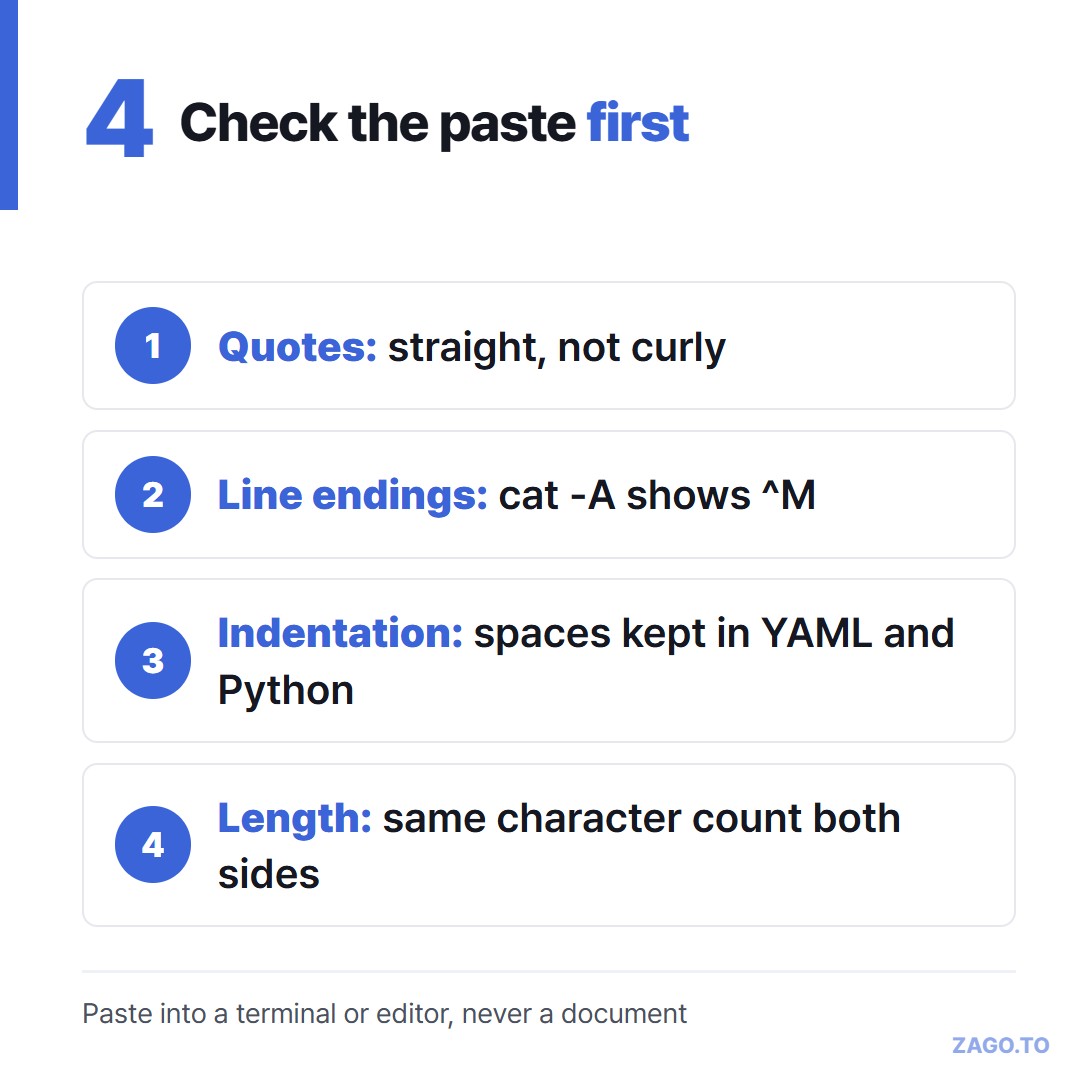
▲ A ten-second check saves a ten-minute debugging session
Here is what that looks like in practice. You paste a `curl` command and get `curl: (3) URL rejected: Bad hostname`.
The URL looks fine on screen. It is not fine. A curly quote slipped in at the start.
Or a Python file runs on your laptop and fails on the other machine with `IndentationError`. The spaces looked identical. One line had a tab.
These errors waste time because the text looks right. Your eyes cannot see the difference, so you need a tool that can.
A few quick checks catch most of this:
- Run `cat -A file` on Linux to see line endings (`^M`) and tabs (`^I`)
- Use `dos2unix` on a script that came from Windows
- Paste into a plain terminal or a code editor first, never into a document
- For long commands, compare the character count on both sides
- Run `file script.sh` to see whether it reports CRLF line terminators
- Pipe a suspicious line through `od -c | head` to spot odd bytes
Plain-text routes, such as SSH, a gist viewed as raw, or a text-only service, tend to keep code intact because nothing tries to make it pretty on the way.
5. Bottom line
Share with people through a gist, collaborate through Live Share, and move secrets through a password manager or the platform's secret store.
For a one-time, non-secret snippet between your own machines, pick the route that leaves the least behind, then check the paste before you press Enter.
If you want to know exactly what a short-lived text service sees on its side, What our server can see walks through it line by line.