Office Depot print email: how to print from your phone with a release code
2026-10-17
This post contains affiliate links. As an Amazon Associate, ZAGO.TO earns from qualifying purchases.

What is the Office Depot print email, and why does a code come back instead of a printout?
The store's self-service printers take jobs by email, hold them, and release them only when you type the code at the machine. That code is the whole trick.
Below is how to print at Office Depot from your phone that way, what to check when the email seems to vanish, and where photos fit in.
1. Send it, get a code, release it
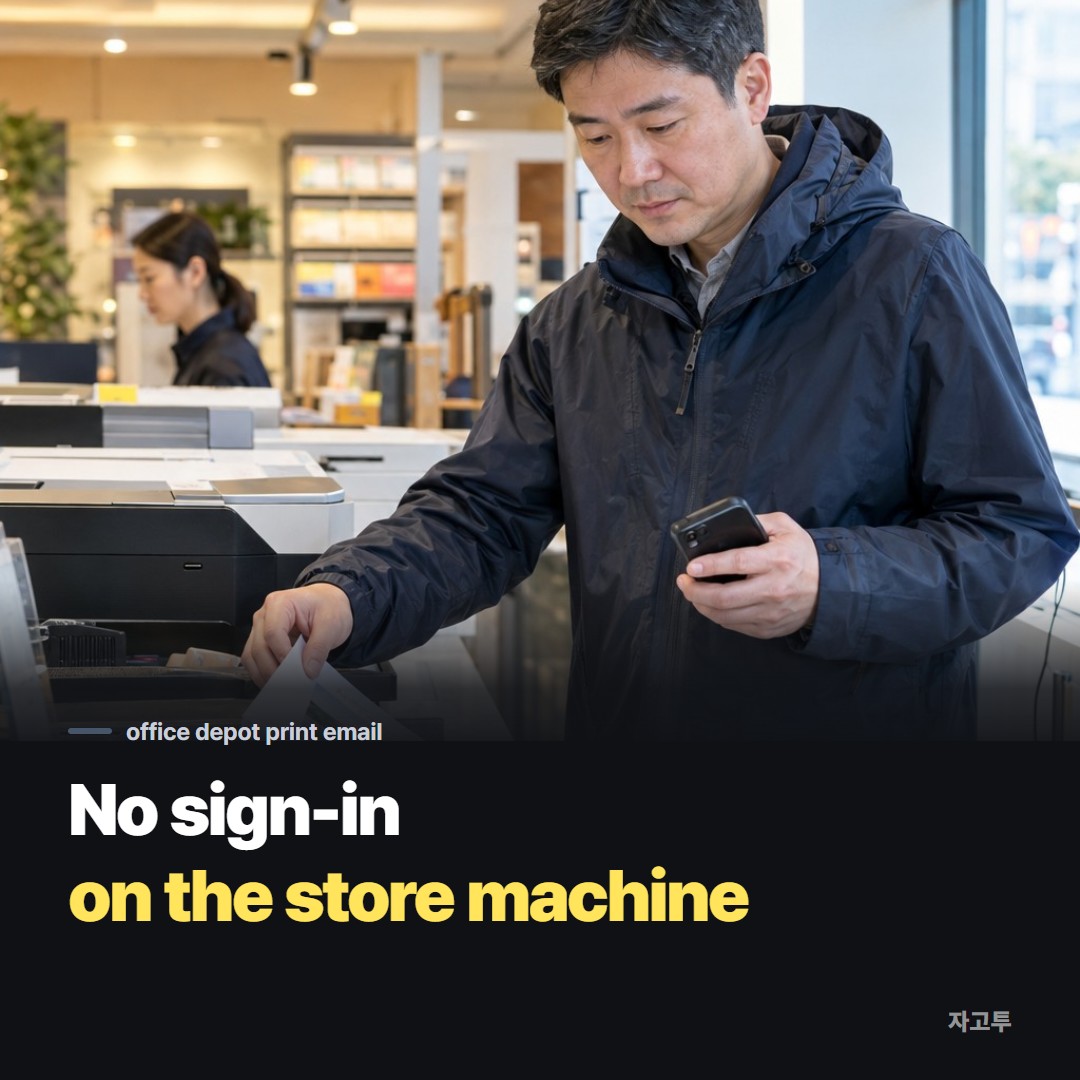
▲ The file travels by email, so nothing on your phone touches the store machine
Office Depot and OfficeMax stores with self-service printing post the print email address at the machine and on their print and copy pages.
It is a shared address used by the print service, not a person's inbox.
From your phone's mail app, attach the file and send it there. Put nothing important in the subject or body, the service only cares about the attachment.
A reply arrives within a minute or two with a release code. At the self-service printer, choose the option for printing by code, enter it, check the preview and pay at the machine.
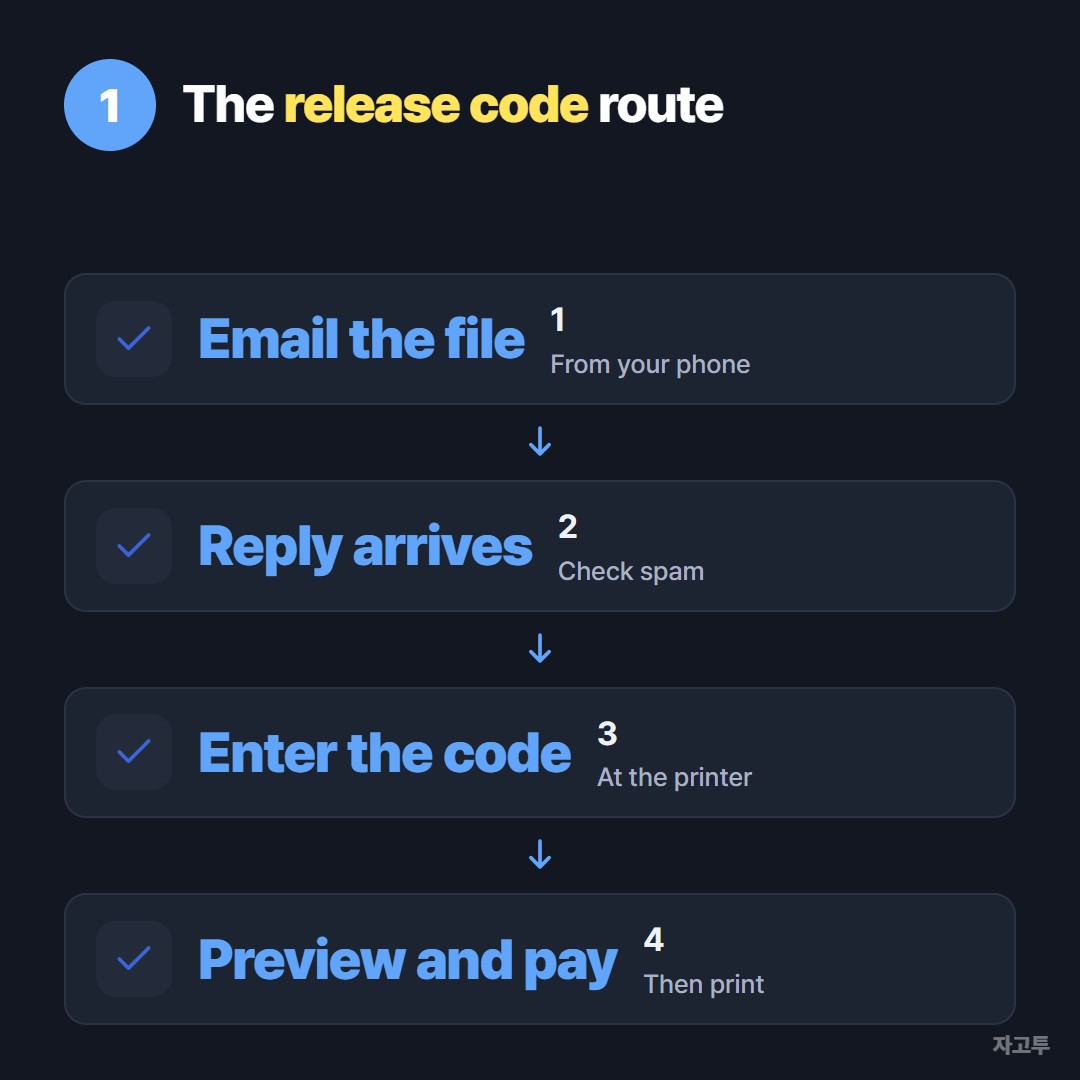
▲ Email, reply, code, print. The code is what links you to your job
Read the preview before paying. A document sent straight from a notes app can arrive with odd margins, and a PDF holds its layout far better.
2. When the Office Depot print email is not working
Most failures come from one of four places.
- Spam folder. The reply comes from an automated address, so it often lands there.
- File type. PDF, Word and common images are safe. A link to a cloud file is not an attachment, so nothing prints.
- Size. Very large scans can be refused. Send fewer pages per email.
- Waiting too long. Jobs are held for a limited time. Send it when you are near the store, not the night before.
If none of these is the cause, the staff at the copy counter can take the file another way, and they deal with this every day.
3. Printing pictures from your phone
Photos can go through the same email route, and the printer treats them as images on a page.
For real photo prints, glossy paper and set sizes, order through the Office Depot website or app and choose store pickup instead.
That route also suits posters, binding and anything with more than a few pages.
The FedEx side of the same question is in How to print at FedEx from your phone.
The UPS Store version is in How to print at the UPS Store from your phone.
4. When the store screen wants a line of text
Sometimes the problem is not a file but a line: a coupon code from an email, an order number, or a long link to a form you need to open on a store computer.
Typing it from your phone screen letter by letter is where mistakes slip in. If the store screen has a web browser, ZAGO.TO can carry that line over.

▲ An example code. Real codes are random
Paste the line on your phone, get 4 digits, and type those digits on the other screen. The text appears there, ready to copy.
The limits are real. Files and photos cannot go through it, only text up to 10,000 characters.
Unopened text is deleted after 1 minute and opened text 1 minute after opening, and it cannot be opened again.
Nothing is encrypted in the browser yet, so our server can read what you paste. A coupon code is fine, a password is not.
Questions people ask
Can I print at Office Depot from my iPhone? Yes. The email route works from any phone with a mail app, iPhone or Android.
Do I need an Office Depot account? Not for the email route. You need one for online orders with pickup.
Where do I pay? At the self-service printer when you enter the release code, or at the counter for online orders.