How to print at FedEx from your phone, without signing in on the store computer
2026-10-14
This post contains affiliate links. As an Amazon Associate, ZAGO.TO earns from qualifying purchases.
Short answer: send the file to FedEx from your phone first, then use the retrieval code at the self-serve printer. You never have to open your email on the store computer.
You are standing in a FedEx Office with a document on your phone. A lease to sign, a ticket, a form someone wants on paper by noon.
The self-serve computer in front of you has a browser, and the easy move is to log in to your email on it. That is the move worth skipping.
Here is how to print at FedEx from your phone, three ways, and which one fits your moment.
Contents
- Print at FedEx from your phone: three routes
- Email to print, then the retrieval code
- Upload and pick up at the counter
- Shipping labels are a separate thing
- The small text bits
- Summary
1. Print at FedEx from your phone: three routes
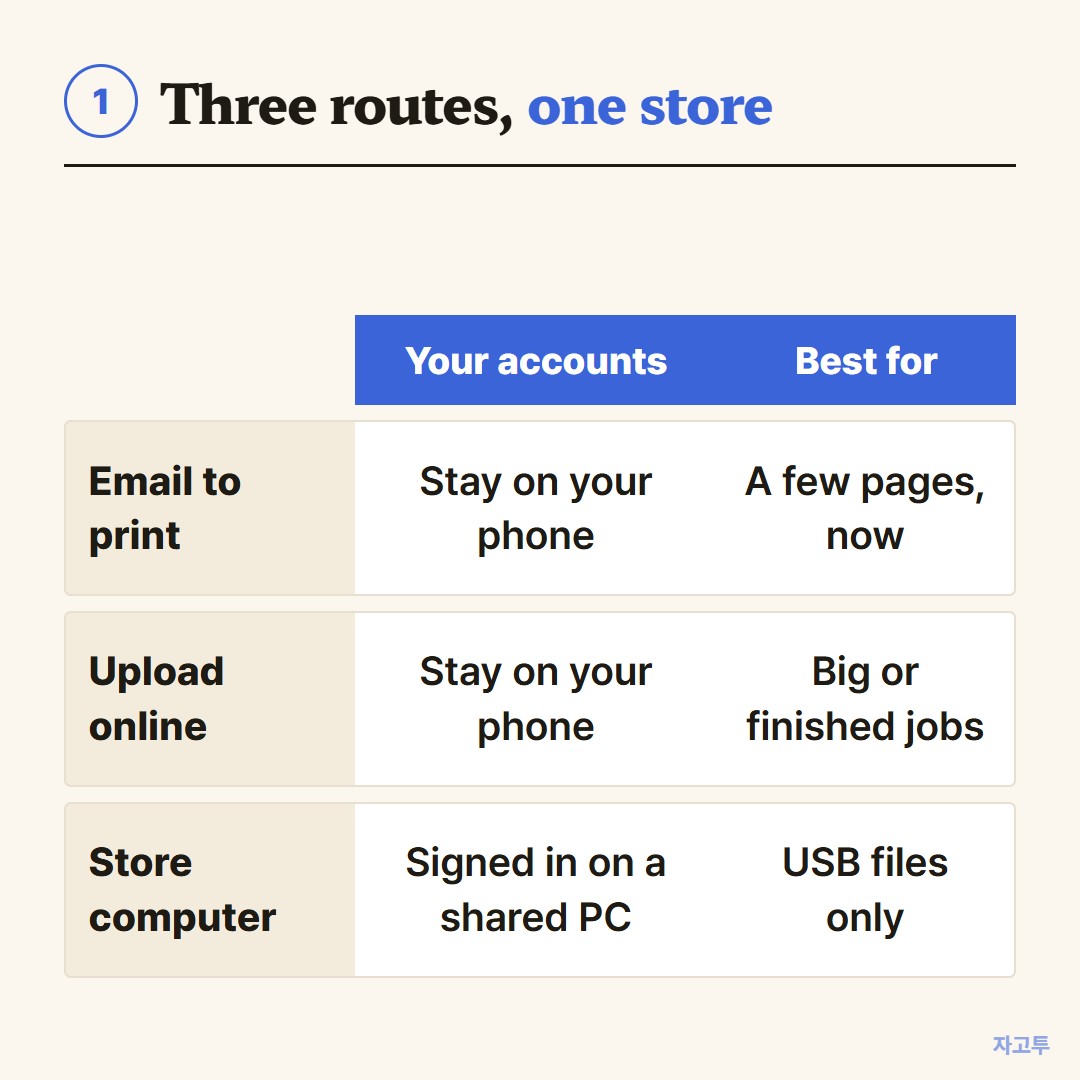
▲ Pick by how soon you need the paper and how many pages
The routes differ mostly by where the file waits before it reaches paper.
- Email to print: you email the file to FedEx's print address, get a retrieval code back, and enter it at the self-serve printer.
- Upload online: you upload on the FedEx Office site or app, choose options, and pick it up at the counter.
- Store computer: you plug in a USB drive or sign in to a cloud account on the store machine.
The first two keep your accounts off the shared computer. The third is the one people regret when they forget to sign out.
2. Email to print, then the retrieval code
This is the route most of the popular videos show, and it is the quickest for a few pages.
FedEx lists its print email address on its Print & Go page. Attach the document in your phone's mail app and send it there.
A reply arrives with a retrieval code. At the self-serve printer, choose the option to print with a code, type it in, check the settings and pay at the machine.
▲ The retrieval code replaces signing in on the shared machine
Check the preview on the printer screen before you pay. Phone files sometimes arrive with odd margins, and PDF keeps the layout better than a document straight from a notes app.
If the reply does not arrive, look in spam, and check that the attachment was a common file type.
3. Upload and pick up at the counter
For many pages, binding, or a specific paper, upload the file on the FedEx Office website or app instead.
You choose the store, the paper and the finish, and the staff print it for pickup. It costs more time up front, but nothing waits on you at the machine.
This is also the route if you want a person to check the job before it prints.
4. Shipping labels are a separate thing
Many searches for printing at FedEx from a phone are really about shipping labels.
A label created in the FedEx app or website usually comes with a QR code or barcode. At the counter, staff scan it and print the label for you. You do not need the self-serve computer at all.
5. The small text bits
Sometimes the thing you need is not a file but a few lines of text. A confirmation number, an address to print on an envelope, a link to a form the clerk needs to open.
Emailing yourself a single line and opening the mail on the store computer brings back the sign-in problem.
ZAGO.TO is made for that small piece. Paste the text on zago.to on your phone and you get a 4-digit code.
On the store computer, open zago.to and type the code. The text appears, ready to copy.
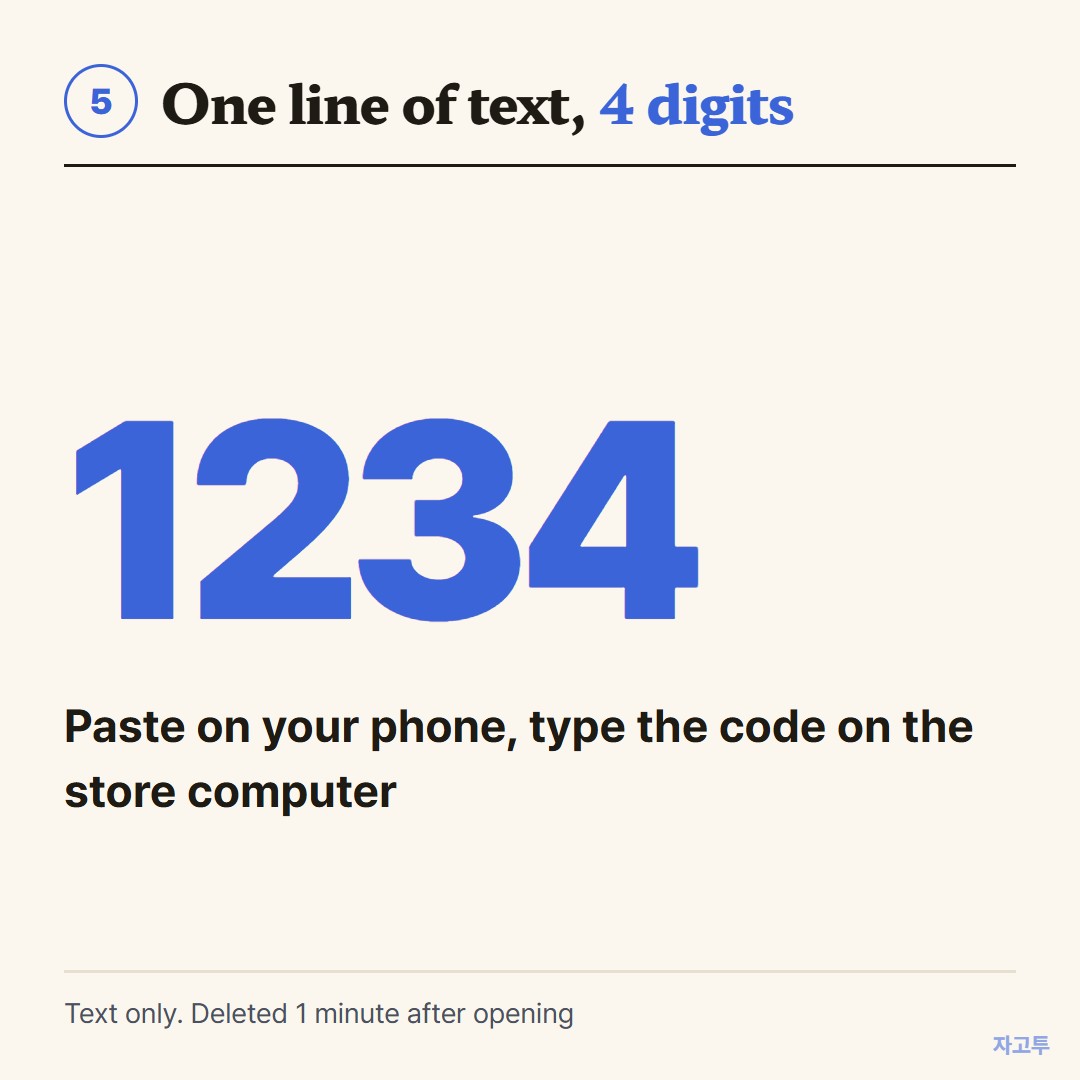
▲ An example code. Real codes are random
Know where ZAGO.TO stops. It carries text only, up to 10,000 characters, so the document itself still goes by email or upload.
Unopened text is deleted after 1 minute, opened text 1 minute after opening, and it cannot be opened twice.
There is no in-browser encryption yet, so our server can read what you send. A tracking number is fine. A password is not.
If you do end up signing in on that machine, how to use a public computer safely has the checklist for afterward.
Other stores work in a similar way, as in Walgreens print documents.
6. Summary
- For a few pages, email the file to FedEx's print address and enter the retrieval code at the self-serve printer.
- For bigger or finished jobs, upload on the FedEx Office site or app and pick up at the counter.
- Keep your email off the store computer. For a single line of text, a 4-digit code is shorter than signing in.