How to use a public computer safely: a checklist for before, during and after
2026-10-12
This post contains affiliate links. As an Amazon Associate, ZAGO.TO earns from qualifying purchases.
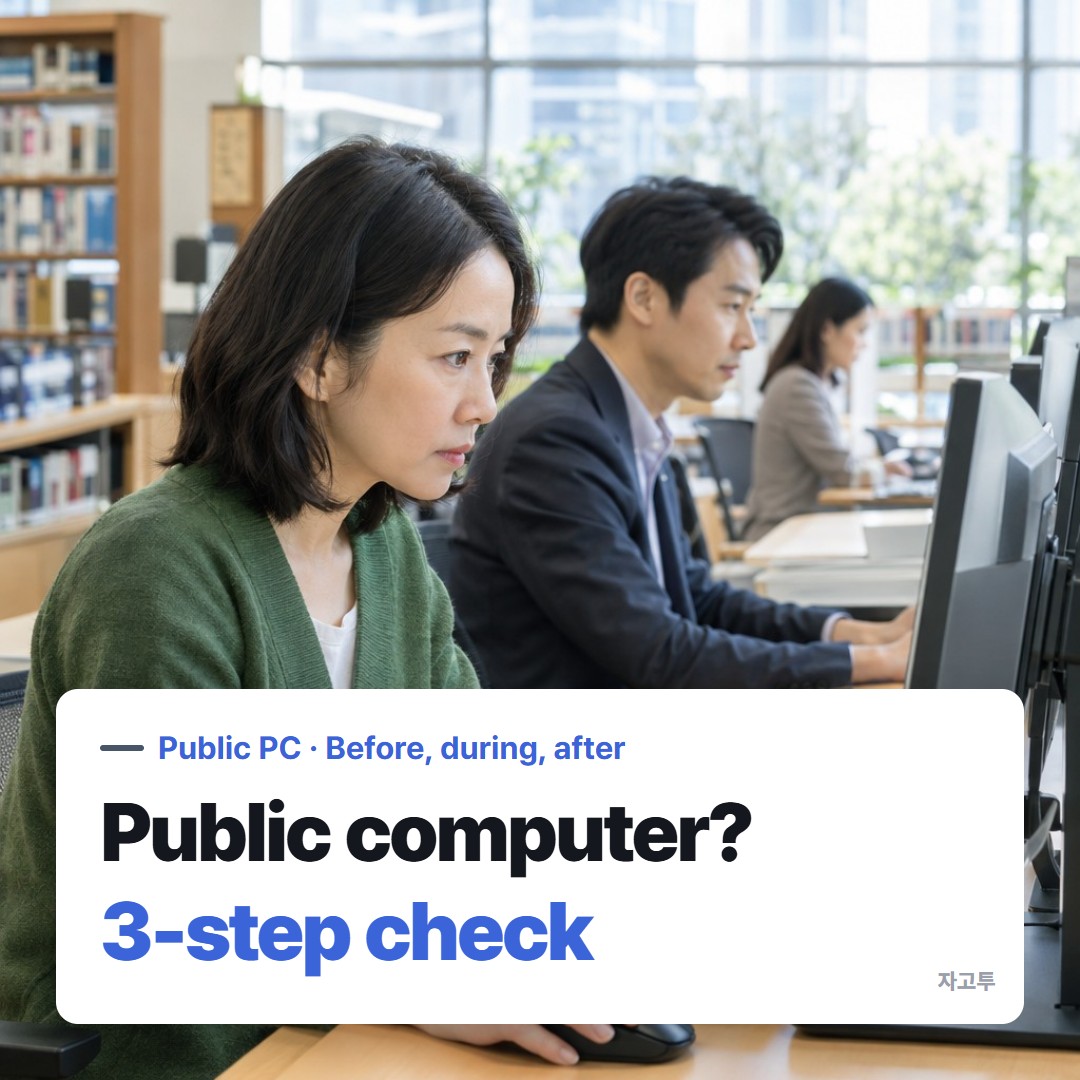
Do you really need to sign in to check that one booking on the library computer? Sometimes you do.
Most of the risk on a shared machine comes from small things people skip in a hurry, not from dramatic hacking.
This is how to use a public computer safely in three short passes: what to do before you start, while you work, and in the two minutes before you walk away.
Contents
- How to use a public computer safely from the first click
- While you work: sign in as little as possible
- Before you leave: the two-minute sweep
- Getting text on and off without signing in
1. How to use a public computer safely from the first click
▲ The first thirty seconds decide what the machine keeps
Open a private window. In Chrome it is called Incognito, in Edge InPrivate, in Firefox a Private Window.
It stops the browser from keeping your history, cookies and form entries after you close it.
Know what it does not do. A private window does not hide anything from the computer itself. A keylogger, a screen recorder or the network admin can still see what you type.
Look at the machine for a moment. A small plug between the keyboard cable and the computer is a reason to pick another seat.
So is a browser already signed in to someone else's account, or a strange toolbar.
Check who can see the screen. Shoulder surfing is the oldest trick there is. Angle the monitor, and do not type a password while someone stands behind you.
2. While you work: sign in as little as possible
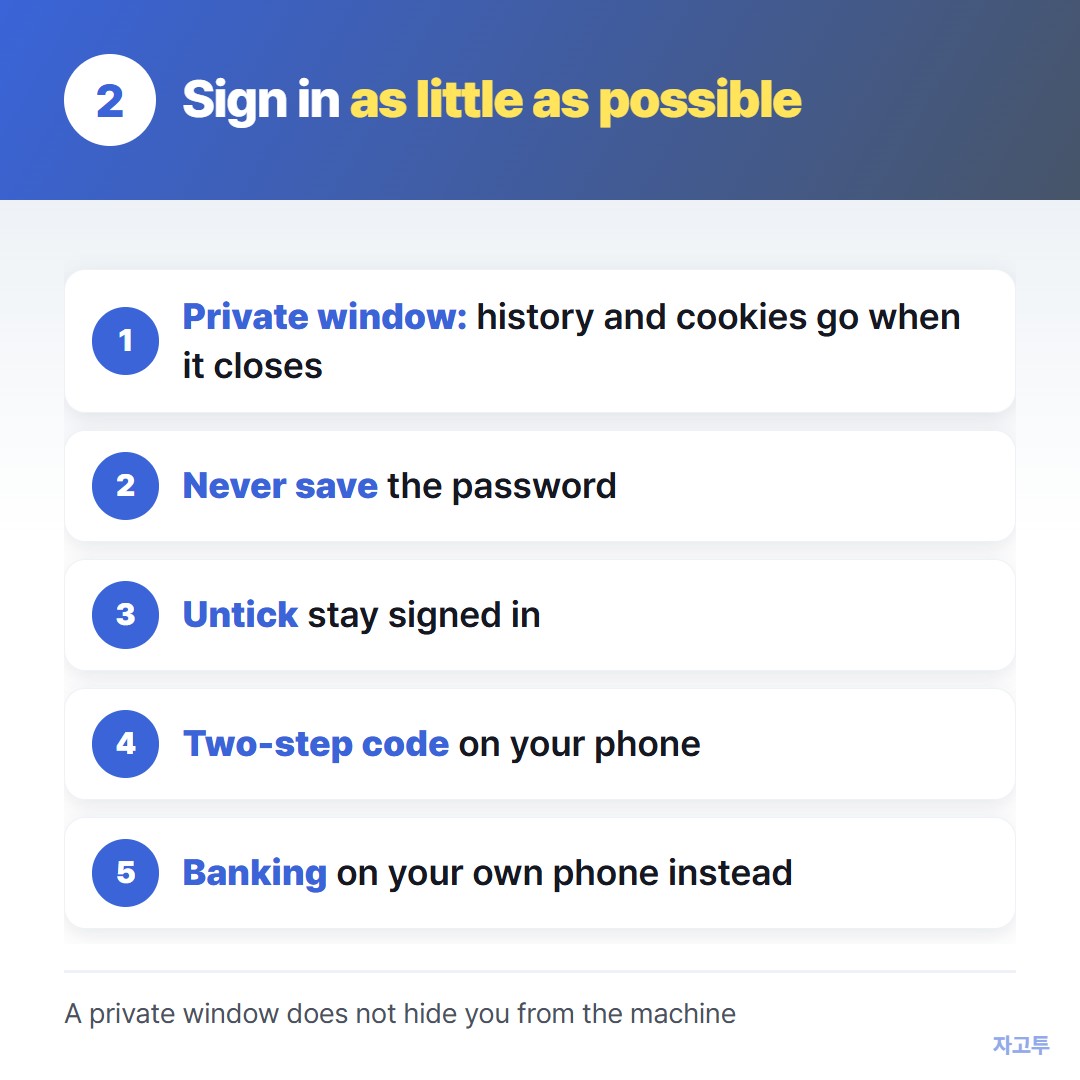
▲ Every sign-in you skip is one you cannot forget to undo
The safest account on a public computer is the one you never open there. If the task can be done without signing in, do it that way.
When you must sign in:
- Never let the browser save the password. Click "Never" or "Not now" on the prompt.
- Untick "Stay signed in" or "Keep me signed in" on the login page.
- Expect the code on your phone. Two-step sign-in is your friend here, because a stolen password alone will not get in later.
- Skip banking and password managers on a shared machine if you have any other option. Your own phone on mobile data is a better place for those.
Downloads are the quiet leak. A boarding pass PDF or a scanned ID lands in the Downloads folder and stays there after the private window closes.
3. Before you leave: the two-minute sweep
Signing out and closing the window are two different steps. Do both.
- Sign out of every account you opened, from the account menu, not just by closing the tab.
- Close every browser window, private ones included. A private session lasts until the last private window closes.
- Delete anything you downloaded and empty the Recycle Bin or Trash if the machine lets you.
- Check the printer. If a print job is stuck in the queue, cancel it or ask staff, so your document does not come out for the next person.
Many library and hotel computers wipe themselves when the session ends or the machine restarts. Treat that as a backup, not a plan.
Already walked away and only now remember the account? What actually stays behind on a public computer covers signing out remotely.
4. Getting text on and off without signing in
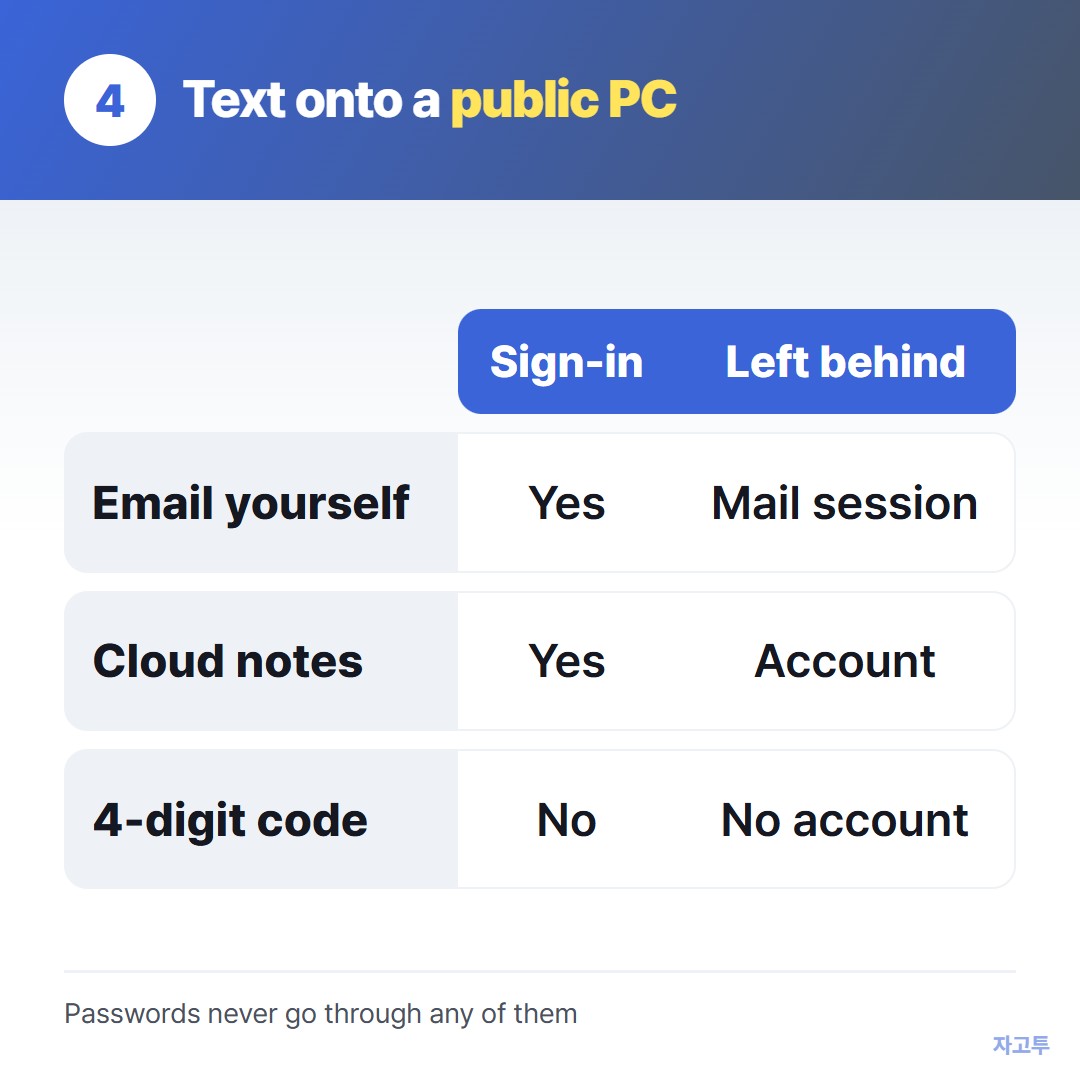
▲ The less you sign in, the less you have to clean up
Often the only reason people sign in is to move something small: a confirmation number from their phone, an address, a few lines to paste into a form.
Emailing it to yourself means opening your email on the public machine, which is the one account you most want to keep off it.
ZAGO.TO is one way around that. Paste the text on your phone and you get a 4-digit code.
Type the code on the public computer and the text appears, up to 10,000 characters, with no account on either side.
It has clear limits. The text is deleted 1 minute after it is created if nobody opens it, and 1 minute after it is opened. It cannot be opened twice, and it moves text only, not files.
There is no in-browser encryption yet, so the ZAGO.TO server can read what you send. A booking number is fine. A password is not.
For a longer walkthrough of library and hotel machines specifically, see Using a library or hotel computer without signing into anything.
Summary
- Start in a private window, and remember it only hides your session from the browser, not from the machine.
- Sign in only when you must, never save the password, and untick stay signed in.
- Sign out, close every window, delete downloads and check the printer before you stand up.