How to print at the UPS Store from your phone, without signing in on their computer
2026-10-13
This post contains affiliate links. As an Amazon Associate, ZAGO.TO earns from qualifying purchases.
Is the file on your phone and the printer at the UPS Store? Then you have three ways in, and only one of them involves the store's computer.
How to print at the UPS Store from your phone comes down to one choice: send the file to the store before you touch anything there. The shared computer is the fallback, not the start.
1. Email it to the store
▲ The document is on the phone, the counter has the printer
Most UPS Store locations accept print jobs by email. The address is usually on that store's own page on the UPS Store website, under printing services.
Attach the PDF or document, write your name and what you need in the message, for example "2 copies, black and white, single sided", and send it.
At the counter, give your name. Staff find the email, print it and charge you. Prices are set per location, so the same page can cost a little more or less from one store to the next.
This route suits forms, tickets and résumés. You never log into anything at the store.
2. Upload it online and pick it up
The UPS Store also takes print orders through its website. On your phone, open the print section, upload the file, choose paper and copies, then pick the store and a pickup time.
This is the better choice for anything bigger than a few pages, or when you want it ready when you walk in. Ordering ahead means no queue at the counter.
Bring the order number. If it is in an email, screenshot it, because store Wi-Fi is not always quick.
3. When the store computer is the only way
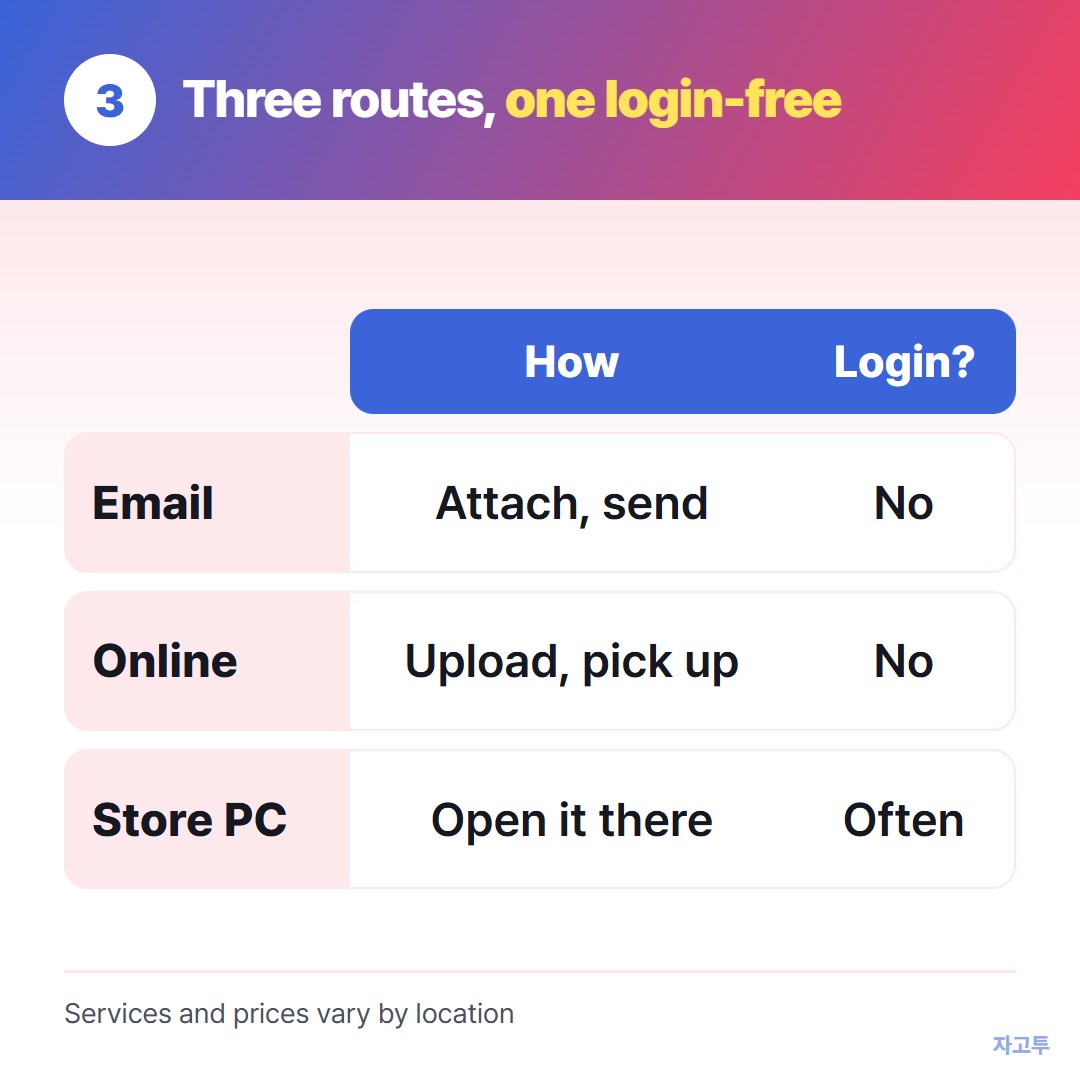
▲ Email and online orders keep you off the shared computer
Some locations have a self-service computer, and sometimes the file you need is behind a website login. If you end up there, three habits protect you.
- Download, do not sign in, when you can. A link opened in the browser is better than logging into your email to find an attachment.
- Check the downloads folder after printing. Delete what you saved, then empty the bin if the computer lets you.
- Sign out of every site and close the browser. Closing a tab is not signing out.
Often the job is smaller than a whole document. A booking number, a tracking number, a return code, or one link to open on the store computer.
4. One line from your phone to the counter computer
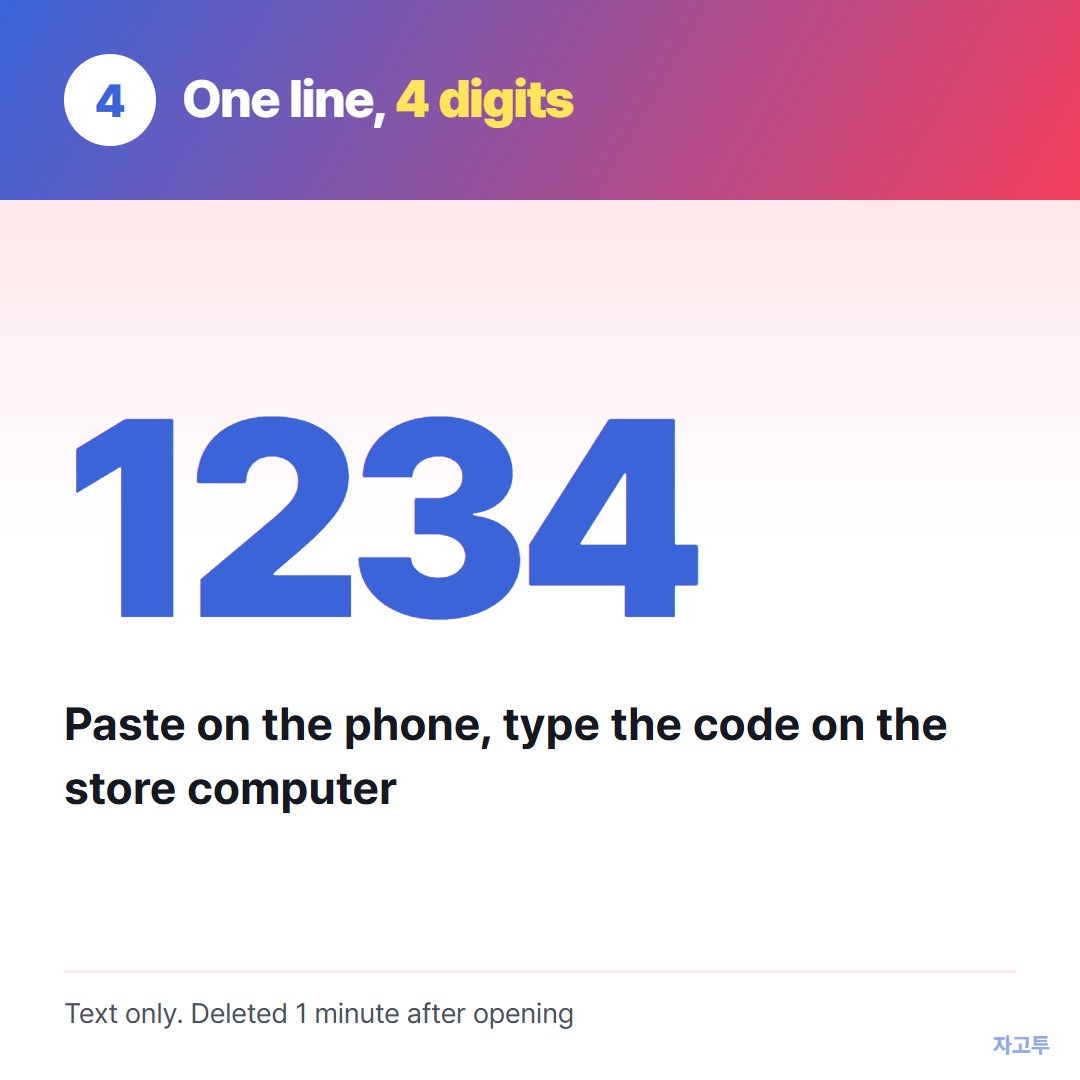
▲ An example code. Each real code is random
For that single line, signing into email on a shared computer is the heavy way. ZAGO.TO is the light one.
Paste the link or number on your phone at zago.to and you get a 4-digit code. Open zago.to on the store computer, type the four digits, and the text is there to copy or click.
Unopened, it is deleted after 1 minute. Opened, it stays 1 minute and then it is gone, and it cannot be reopened.
Know the limits before you rely on it. ZAGO.TO moves text only, up to 10,000 characters, so it cannot carry the PDF itself.
There is no in-browser encryption yet, so our server can read what you send. A tracking number is fine. A password is not.
At the library the same problem looks a little different: How to print from your phone at the library.
At the airport, you may not need paper at all: How to print a boarding pass from your phone.
Before you walk in
- File on the phone as a PDF if possible, since layouts move less
- Email sent to the store, or online order placed, with the number saved
- Copies, color and sides decided, so the counter takes one minute
- If you must use their computer, nothing left in downloads and every site signed out