How to print a boarding pass from your phone, and when you do not need to
2026-10-05
This post contains affiliate links. As an Amazon Associate, ZAGO.TO earns from qualifying purchases.
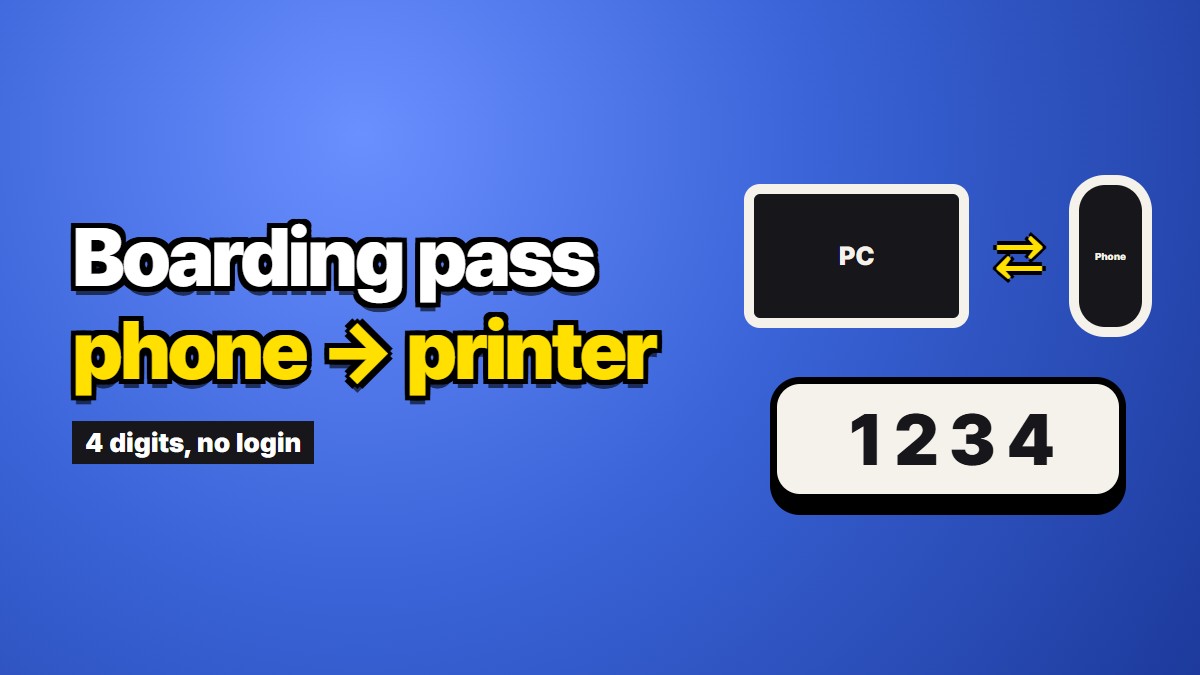
You checked in on your phone the night before. The airline app shows a QR code, the confirmation email has a PDF attached, and somewhere in the back of your mind is a question: will they want paper? People search for how to print a boarding pass from a phone mostly at that moment, a day or a few hours before the flight. This piece goes through it in the order that saves the most time: first whether you need paper at all, then the ways to print straight from the phone, then the airport, then a borrowed computer.
Do you need to print your boarding pass at all
For most flights today, no. The pass on your phone is accepted at security and at the gate, either in the airline app or added to Apple Wallet or Google Wallet. Some low-cost airlines have gone further and moved to app-only passes, while others have charged for printing at the airport in the past. Rules change, and they differ by airline and by airport, so the airline's own check-in page is the place to confirm.
Paper still earns its place in a few situations:
- Some routes and airports. A few airports and destinations still ask for a printed pass, or the airline cannot issue a mobile one for that route.
- Separate tickets. If your trip is two bookings with different airlines, the second one may need its own check-in and its own pass.
- A phone you cannot trust. An old battery, a cracked screen, or a trip with no roaming data. A paper copy is a cheap backup.
- Someone else's pass. If you are travelling with a parent who does not use a smartphone, printing theirs is easier than sharing a screen.
If none of these apply, save the pass to your wallet app, take a screenshot as a second copy, and skip the printer. The screenshot matters more than people think. Airline apps sometimes ask you to sign in again at exactly the wrong moment.
Printing straight from the phone
If you do want paper and there is a printer nearby, start by getting the pass as a PDF. Most airlines offer a download or "send to email" button next to the boarding pass. A PDF prints at the right size. A screenshot of the app usually prints too small or cuts off the barcode.
Then print it the way your phone already knows:
- iPhone. Open the PDF, tap Share, then Print. Any printer that supports AirPrint on the same Wi-Fi shows up in the list.
- Android. Open the PDF, tap the menu or Share, then Print. Most home printers appear through the built-in print service, sometimes after you install the printer maker's plugin.
At a friend's house or an office, this is often all you need. Join their Wi-Fi, print, done. Check that the barcode is sharp and not cropped before you leave.
Where do you print a boarding pass at the airport
If you are already on the way, the airport is usually simpler than finding a printer. After checking in online, most airports let you print the pass at a self-service kiosk or at the bag drop desk. The kiosk typically asks for your booking reference or a scan of your passport. Arrive with enough time, because kiosks are shared and sometimes out of paper.
The one case to plan around is an airline that charges for desk printing. If yours does, print before you leave or rely on the mobile pass.
When the only printer is attached to someone else's computer
Hotels, libraries and copy shops often have a printer but no way to print from your phone. You end up at their computer, and the boarding pass is on your phone.
The cleanest route is the airline's website. Open "manage booking" in a private window, type the booking reference and your last name, and print from there. No email login needed. If the page wants a long link instead, such as a check-in link from the confirmation email, retyping it on a shared keyboard is where it goes wrong.
For that one link, ZAGO.TO gives you four digits. Paste the link on your phone, open the site on the computer, type the code, and the link appears ready to click. Text nobody opens is deleted after a minute, and opened text stays for one more minute. It carries text only, so a PDF still needs the airline site or an email to the print shop. And there is no scrambling in the browser yet, so our server can read the link while it is held. A check-in link is fine. A passport number is not something to send through any shared machine.
What to clear from the computer afterwards, including the Downloads folder and the print queue, is in What actually stays behind on a public computer. For libraries specifically, see Using a library or hotel computer without signing into anything.
Long text, in 4 digits.