How to print from your phone at the library, step by step
2026-10-09
This post contains affiliate links. As an Amazon Associate, ZAGO.TO earns from qualifying purchases.
Short answer: most public libraries run a mobile print service. You send the file from your phone by app, web upload or email, then release and pay at the library printer. Only when the job is one link or a booking number does a library PC need to get involved.
You are standing by the library printer with a ticket, a form or a cover letter on your phone. The printer has no cable for it, and the library computers want a card number before they do anything.
How to print from your phone at the library depends less on the phone and more on the library. Here is the usual order.
1. Find the library's mobile print service
▲ The file is on the phone, the paper comes out of the library printer
Search your library's website for "mobile printing" or "wireless printing". Most systems publish one page with the exact steps.
Many libraries use a print service that works three ways:
- Print app: install the service's app, pick your library location and send the document
- Web upload: open the library's print page in the phone browser and upload a PDF, Word file or photo
- Email to print: attach the file and send it to the library's print address
All three work from Android or iPhone. For a real document, this service is the right tool. It keeps the formatting and you never sign into a shared computer.
2. Release and pay at the printer
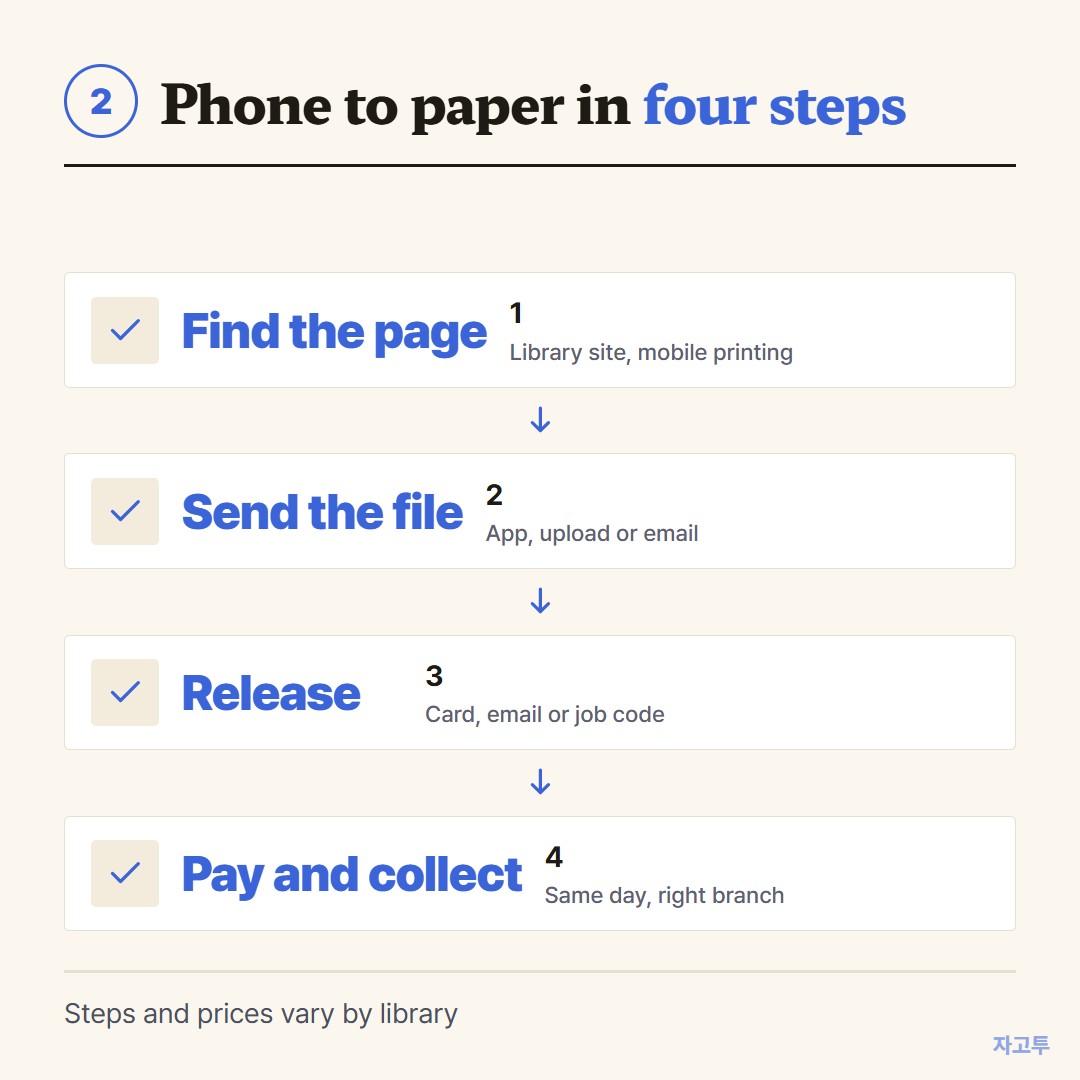
▲ Sending the job is only half of it. Nothing prints until you release it
The job usually waits in a queue instead of printing at once. At the release station or kiosk you identify yourself, usually with your library card, the email you sent from, or a job code.
Then you pay. Libraries set their own prices per page and take card, coins or a print balance. Some give a few free pages a day, so ask at the desk.
Jobs often expire after a few hours, so send it when you are close to the library rather than the night before.
If the printer says nothing is waiting, check that you chose the right branch. That is the most common slip with multi-branch systems.
3. When it is one link, not a document
Sometimes there is no file. You need a booking number typed into a website on the library PC, a link to a form, a confirmation page you want to print from the browser.
Emailing yourself means signing into your mail on a public computer. That is the step worth skipping.
ZAGO.TO moves that one piece of text instead. Paste the link on your phone at zago.to and you get a 4-digit code.
Open zago.to on the library PC, type the four digits, and the text appears there, ready to open and print.
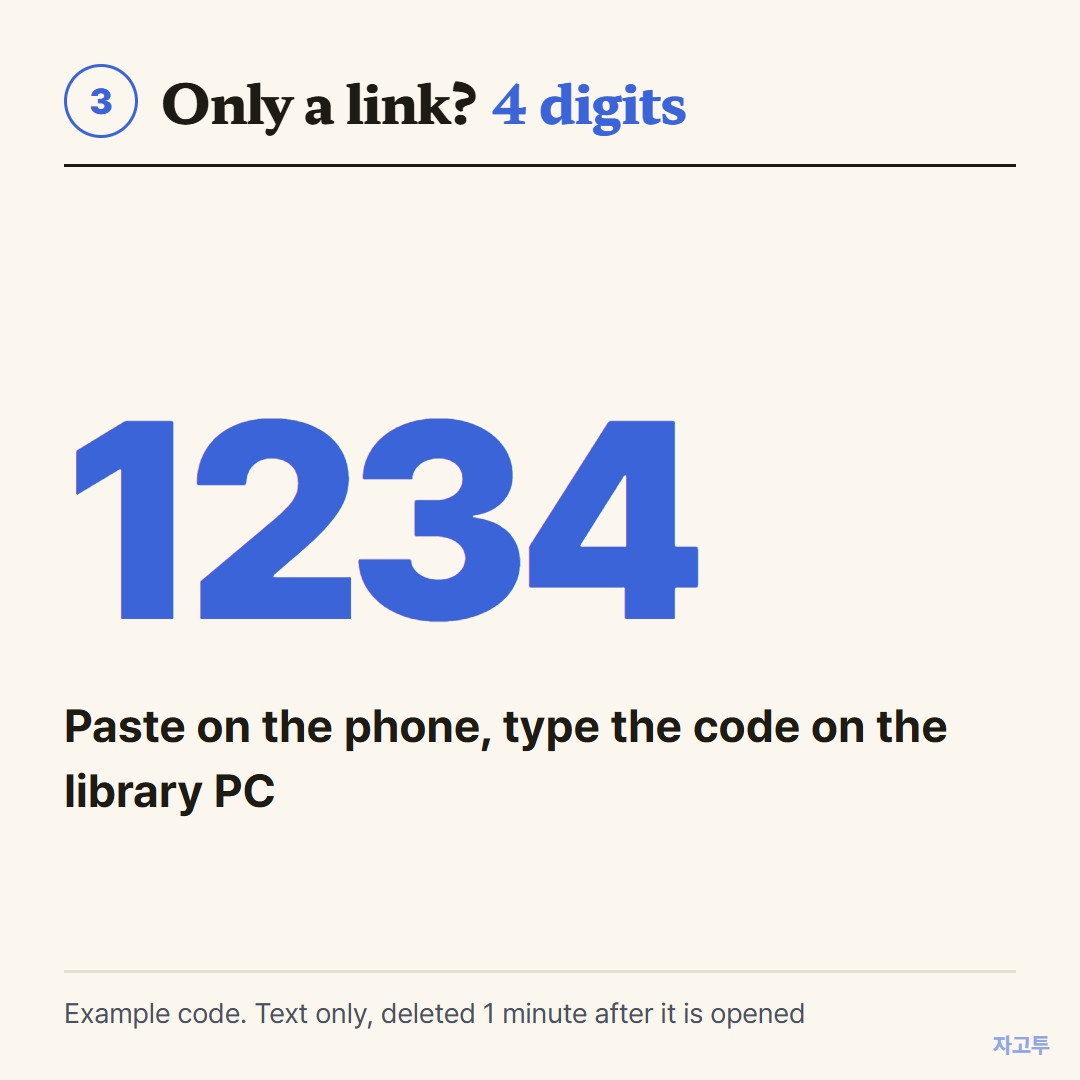
▲ An example code. Each real code is random
Know where it stops. It carries text only, up to 10,000 characters, so it cannot print a PDF or a photo for you.
Unopened text is deleted after 1 minute. Once opened, it stays for 1 minute and then it is gone.
There is no in-browser encryption yet, so our server can read what you send. Keep passwords out of it.
More on using a shared computer without signing in is in Using a library or hotel computer without signing into anything.
If the paper you need is a boarding pass, How to print a boarding pass from your phone covers when you can skip printing entirely.
In three lines
- Look up your library's mobile print page and send the file by app, upload or email.
- Release and pay at the printer the same day, from the right branch.
- If it is only a link or a number for the library PC, carry it over with a 4-digit code instead of signing in.