Nearpod join code: how students enter it on a phone or Chromebook
2026-10-18
This post contains affiliate links. As an Amazon Associate, ZAGO.TO earns from qualifying purchases.
The slide on the board says "Join at nearpod.com" and shows five letters. Half the class types them into the Google search bar instead.
A Nearpod join code is short, but where it goes, and how long it lasts, depends on which kind of lesson the teacher launched. That one detail explains most "it says the code is invalid" moments.
1. Where students type the code

▲ The code goes into Nearpod's own join box, not a search bar
Students open a browser and go to join.nearpod.com, or nearpod.com and choose the option to join a lesson. Then they type the 5 letter code and press join.
On a phone or iPad, the Nearpod app has the same join box on its first screen. The browser works just as well, so nobody needs to install anything for one lesson.
After the code, students usually type a name. If the teacher requires sign-in, they log in with the school's Google or Microsoft account first.
The code is letters only, so a student who types a zero has misread an O. Similar shapes are easy to mix up on a far screen. Reading the code out loud saves a round of hands.
2. Live lesson or student-paced: the code works differently
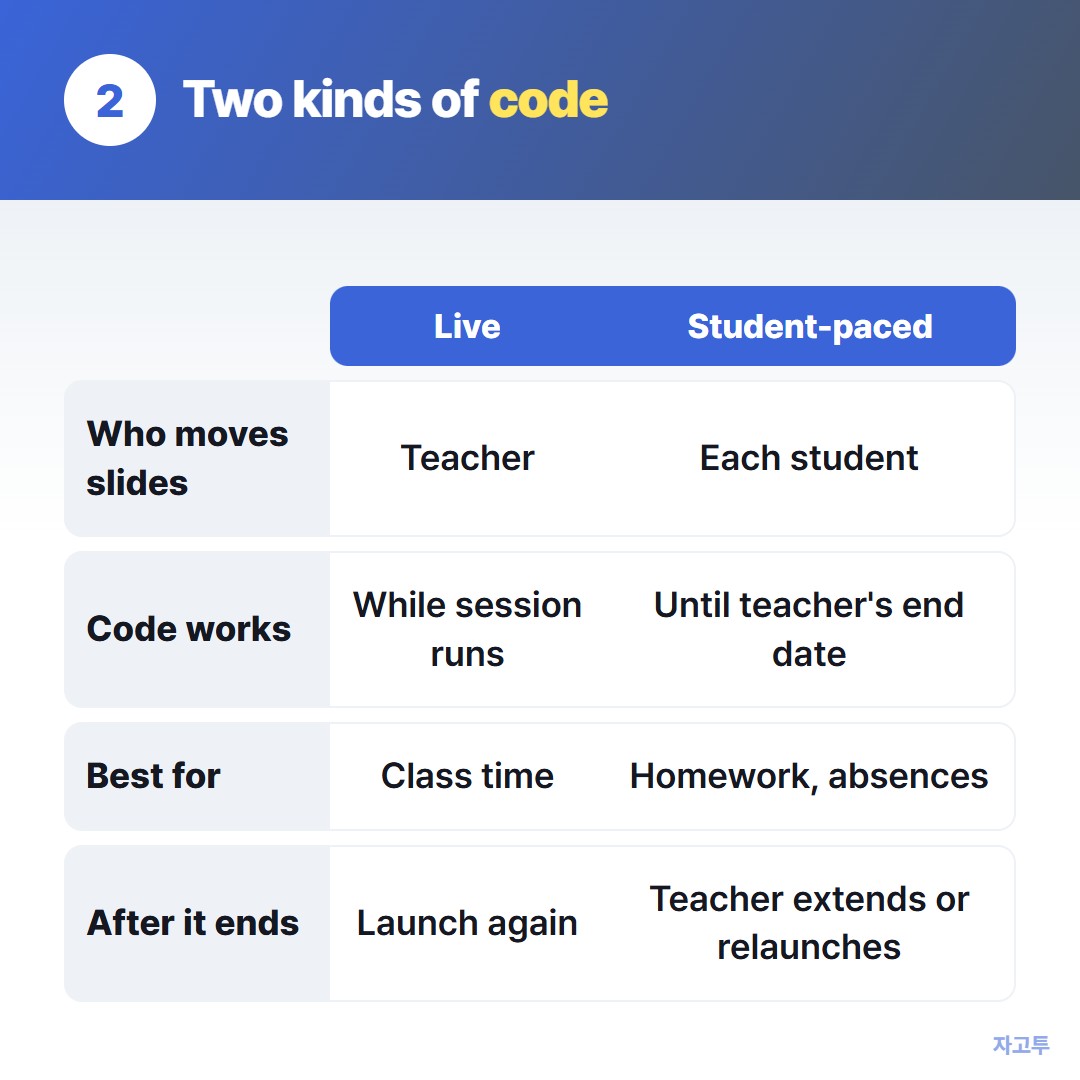
▲ Same lesson, two ways to launch it, two kinds of code
This is the part people miss. A teacher can launch the same lesson in two modes, and each one gets its own code.
- Live participation. The teacher moves the slides and every screen follows. The code works only while that session is running. When the teacher ends it, the code stops working
- Student-paced. Students move through the lesson on their own. The code stays open for a period the teacher sets, so it suits homework and absent students
If a code worked this morning and fails now, the live session most likely ended. The teacher needs to launch again, which gives a new code.
A student who missed class should get the student-paced code, not the live one from the slide.
3. Sharing the code beyond the board
Teachers can share the lesson directly to Google Classroom and other class platforms from the launch screen. Students then click instead of typing.
For a class page, posting the full join link with the code inside is clearer than posting five letters alone. The steps in How to share a link on Google Classroom apply to a Nearpod link the same way.
Quiz games follow similar rules with different screens. If your class also plays Gimkit, see Gimkit join code.
4. When the link is on your phone and the classroom PC is blank
This happens to teachers more than students. You copy the lesson link at home, then stand at a shared classroom computer that is signed in to nothing.
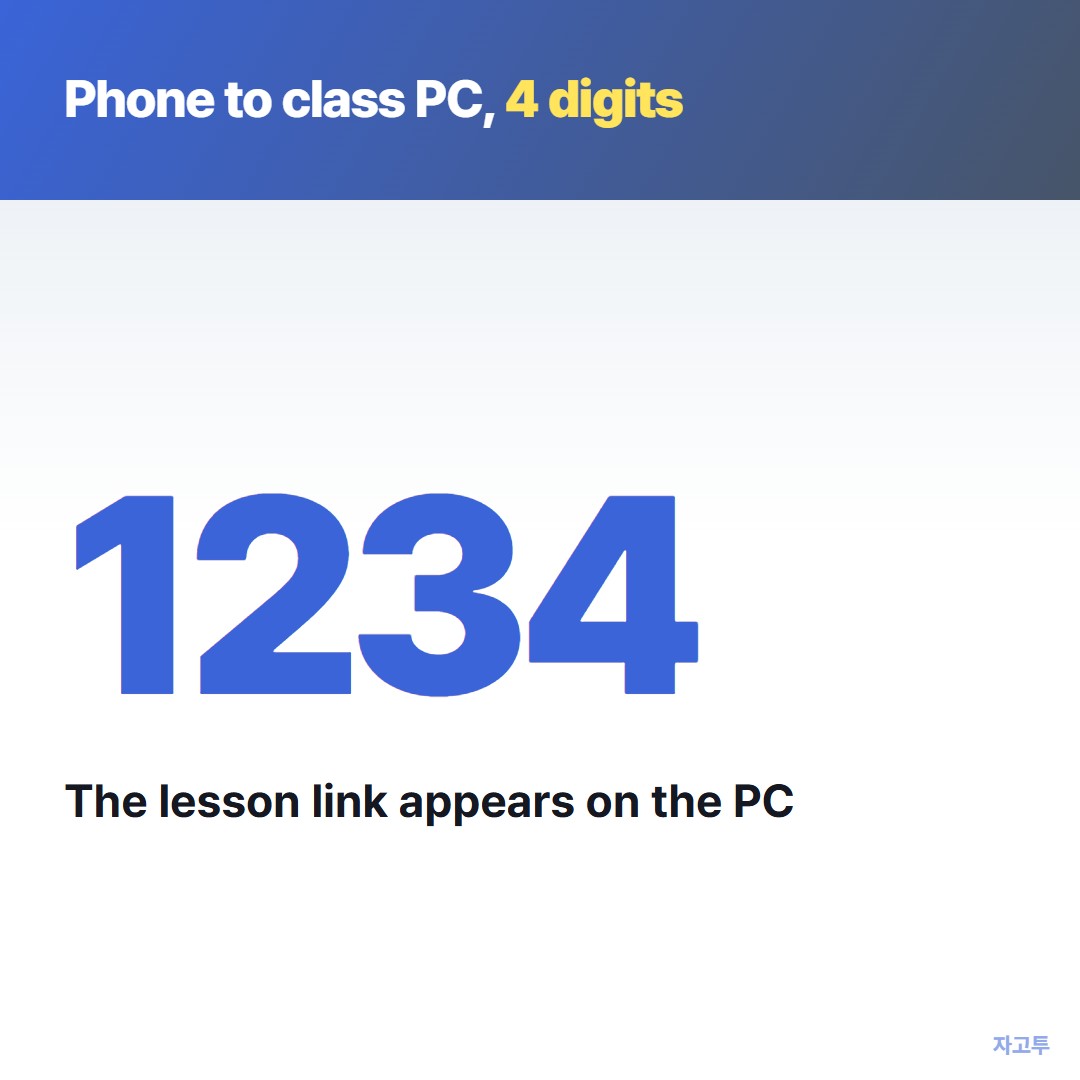
▲ An example code. Real codes are random
ZAGO.TO handles that one step. Paste the link on your phone, get a 4-digit code, and type those digits at zago.to on the PC. The link shows up there, ready to click.
It is deliberately small. Text only, no files. The text is deleted 1 minute after it is opened, or after 1 minute if nobody opens it, and it cannot be opened again.
There is no in-browser encryption yet, so the server can read what you send. A lesson link is fine. Your school password is not.
Questions students ask
Is the Nearpod join code free for students? Yes. Joining a lesson costs students nothing. Accounts and plans are on the teacher's side.
Can I join from a phone? Yes, through the browser or the app. Some activities, like drawing, are easier on a larger screen.
Why does it ask me to log in? The teacher turned on sign-in for that lesson, usually to track who submitted what.