How to share a link on Google Classroom, as a teacher or as a student
2026-10-08
This post contains affiliate links. As an Amazon Associate, ZAGO.TO earns from qualifying purchases.
It is ten minutes before class and you want one web address in front of thirty students.
Here is how to share a link on Google Classroom from a laptop or a phone, and what to do about the few who are not in the class yet.
The steps differ a little depending on whether you are the teacher or a student, so both are below.
1. Post the link to the Stream (teacher, laptop)
The Stream is the class feed. A link posted there shows up at the top for everyone already enrolled.
- Open the class and click Announce something to your class.
- Click the link icon (it looks like a chain), paste the address and press Add link.
- Pick which classes or which students should see it, then press Post.
The link appears as a small card with the page title. Students click the card, not the text you typed above it.
If the link is part of a task, put it in Classwork instead.
Choose Create, then Material or Assignment, and use Add and Link. It then stays filed under the topic rather than sliding down the Stream.
2. The same thing from the Classroom app on a phone
On a phone the buttons move but the idea is the same.
- Stream: tap the box that says to announce something, then the paperclip or attach icon, then Link.
- Classwork: tap the plus button, choose Material or Assignment, then attach a link.
Copy the address in the phone's browser first. Typing a long address with your thumbs on the bus is where most broken links come from.
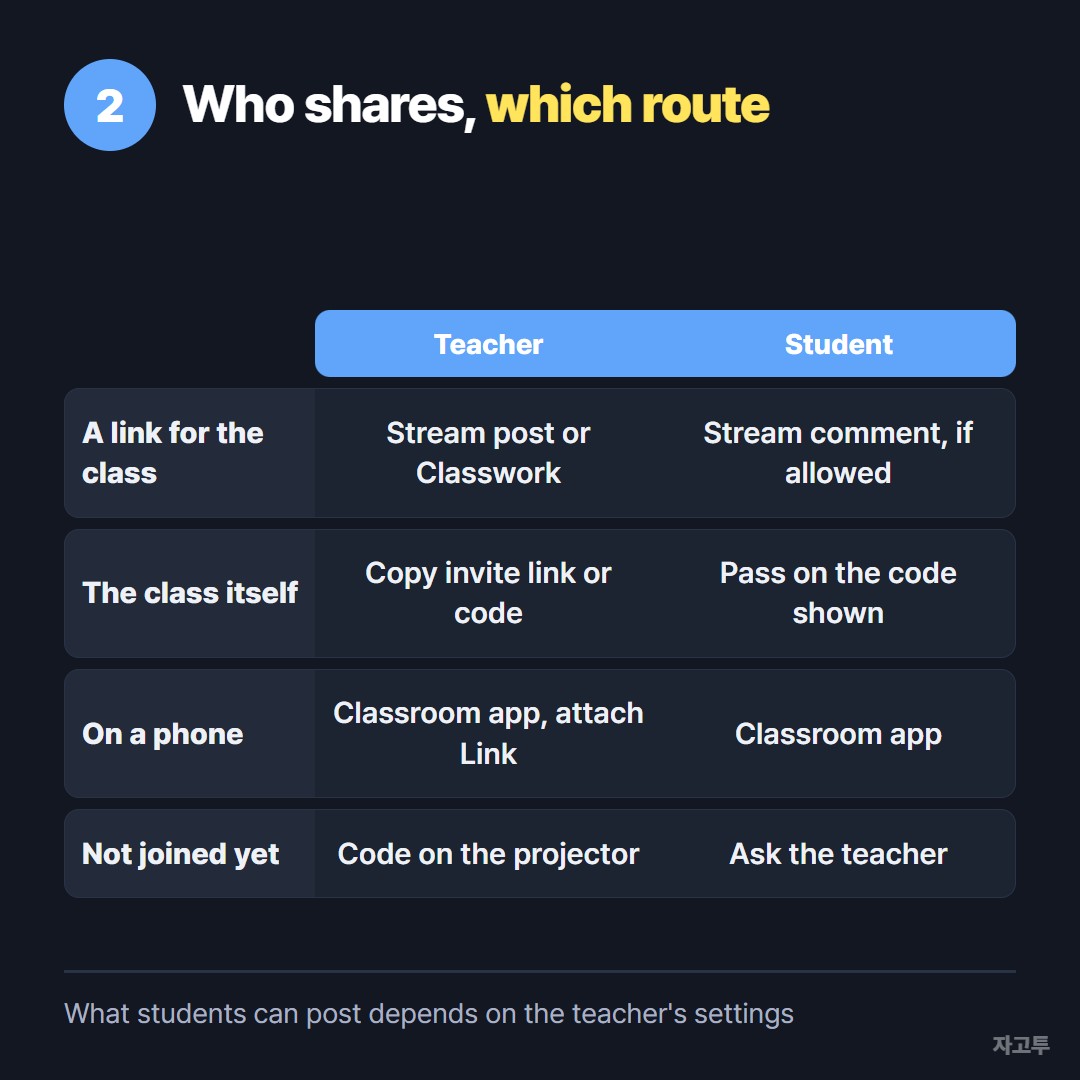
▲ The route depends on who you are and whether the student has joined
3. Sharing the class itself, not a link inside it
Some searches mean something else: how to share the Google Classroom link so a new person can join.
- Teacher: in the class header, open the class code menu and choose to copy the class invite link. You can also show the code full screen for the projector.
- Student: you can pass on the class code if the teacher shows it to the class. Whether a friend can actually join is up to the teacher's settings and the school's account rules.
Many school accounts only let people from the same school join. A classmate signed in with a personal Gmail address will often be refused, and that is the school's setting working as intended.
4. The first day, when half the room is not in yet
On the first day a Stream post reaches only the students who already joined. The rest are still finding their password.
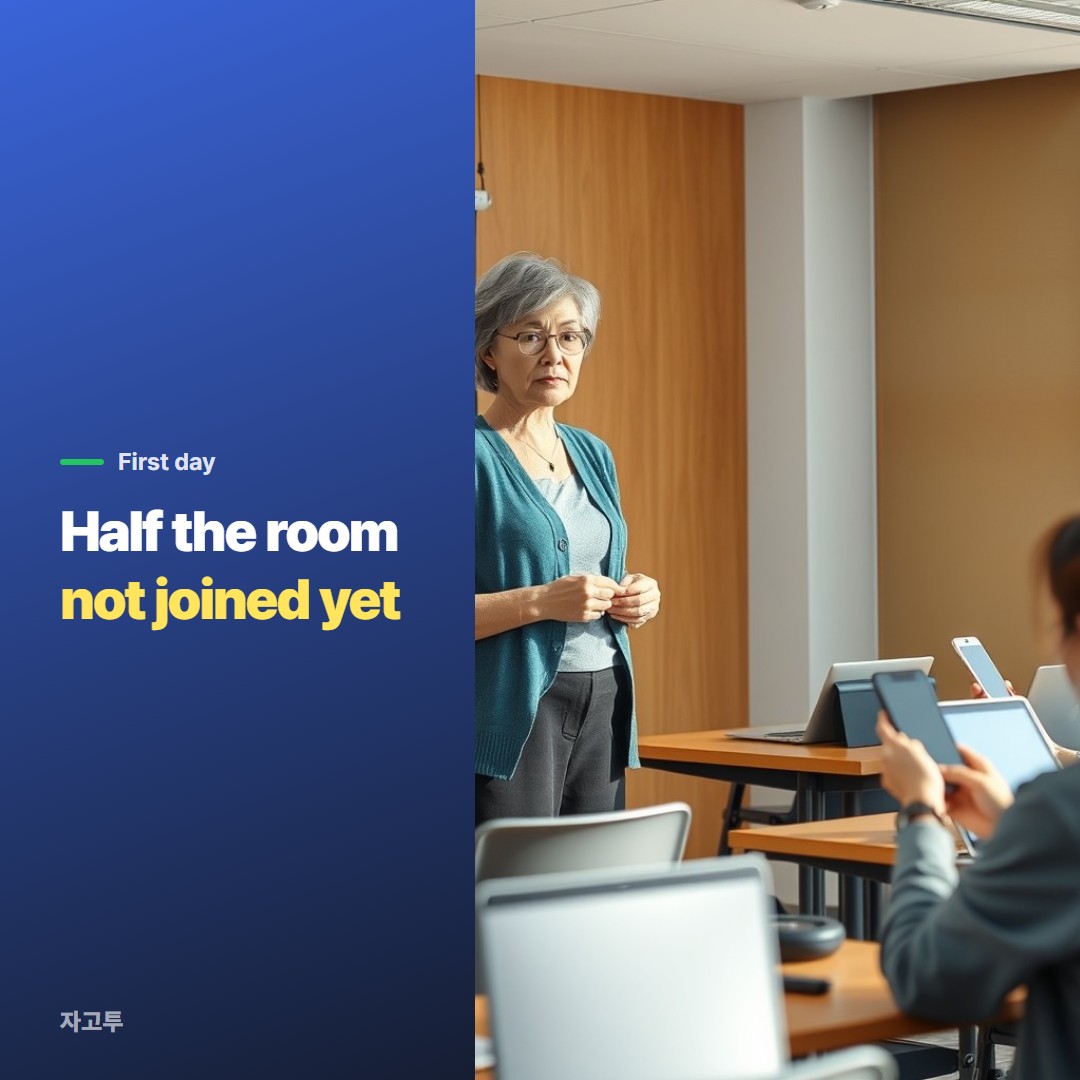
▲ A post reaches the ones who joined; the projector reaches everyone
For that gap, put something on the projector that works without signing in. A short link or a QR code both work.
A third option is ZAGO.TO: paste the link, and the room types four digits at zago.to to open it.
Know the limits before you rely on it in a lesson.
The code is deleted 1 minute after it is made if nobody opens it, and once opened the text stays for 1 more minute. That is fine for a room that types at once, and poor for a student who arrives late.
It carries text only, up to 10,000 characters, and our server can read what you paste. A class link is fine. Student names and grades are not.
The wider version of this problem, with other tools, is in How to share a link with students when half the class is not logged in.
Checklist before the bell
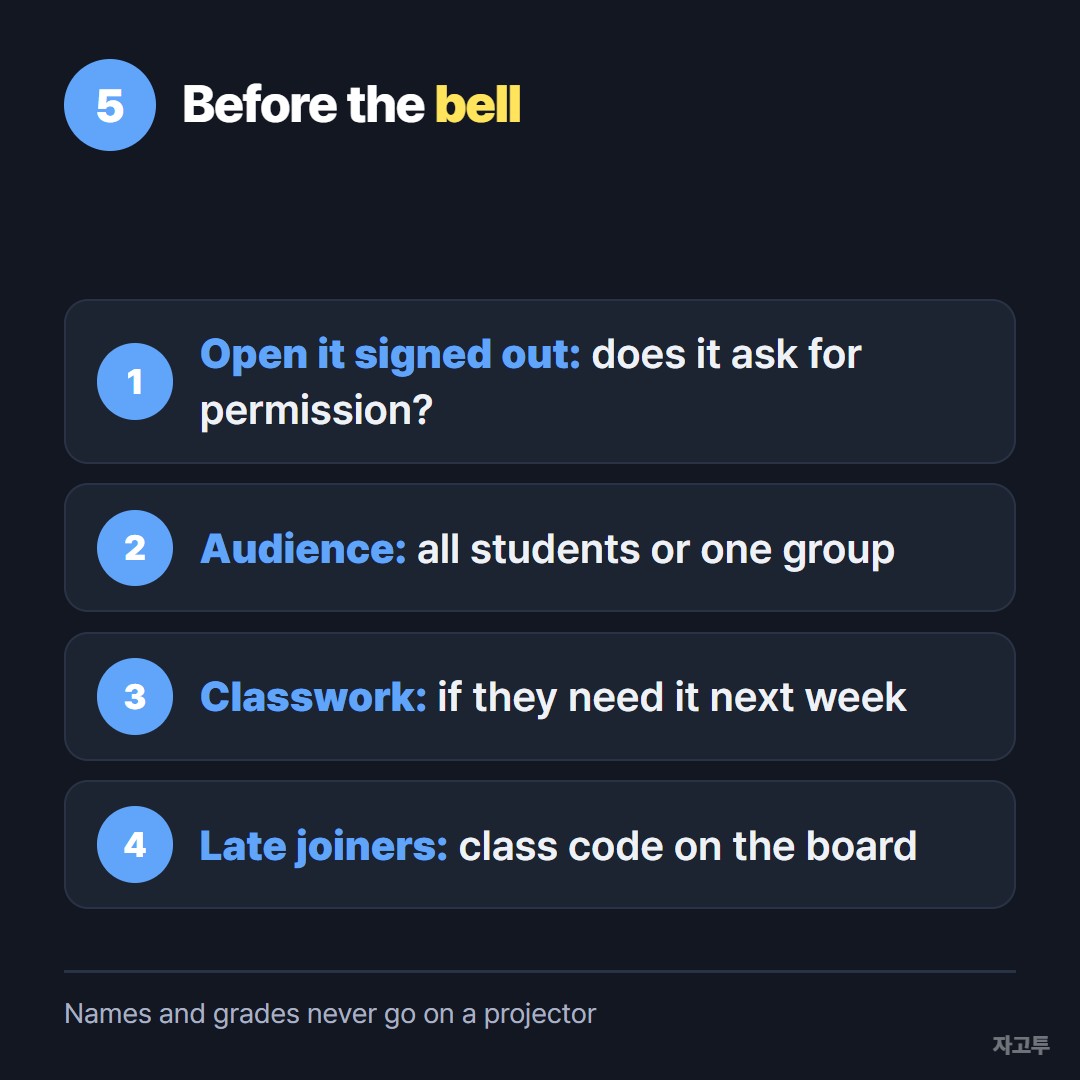
▲ Two minutes before class saves ten during it
- Open the link yourself in a private window, signed out. If it asks for permission, students will see the same.
- Check who can see the post. All students, or one group.
- Put it in Classwork if they will need it next week.
- Have a plan for late joiners: the class code on the board, and the link again once they are in.
A posted link that half the class cannot reach is not shared yet. The two minutes spent checking it first are usually the two minutes you save in class.