How to share a link with students when half the class is not logged in yet
2026-10-05
This post contains affiliate links. As an Amazon Associate, ZAGO.TO earns from qualifying purchases.
Every teacher who has tried to share a link with students knows the first five minutes of the lesson can disappear into it. Someone's Chromebook is still updating. Two students are not in the Google Classroom yet. One is on a phone, one is on a school laptop, and the link you wrote on the board has a capital letter that the back row keeps misreading. This piece is about getting one link to a whole room quickly, and about which method fits which kind of link.
The short version: the tools you already use have mostly solved this, and you should lean on them first. The gaps are smaller than they feel in the moment, and they are specific.
Start with the join codes your tools already have
A lot of classroom software was built around exactly this problem, which is why so many of them never ask students to type a link at all.
Kahoot, Quizizz, Nearpod, Blooket and similar. Students go to the tool's short join page and type a game PIN or class code. If you searched for how to share a Kahoot link with students, the honest answer is that you mostly should not. Put the PIN on the projector and let them type it. It is shorter than any link and it was designed to be read from across a room.
Padlet. The share panel gives you a link, a QR code, and an option to post it to Google Classroom. For a board students will come back to all term, posting it to Classroom is the strongest choice, because the link then lives somewhere they can find again next week.
Canva. Pay attention to which link you copy. A view-only link lets students look. A template link gives each student their own copy to edit. Sending the wrong one is the most common Canva mix-up, and it is a choice of link, not a problem of delivery.
Edpuzzle, Pear Deck and other assignment tools. These usually work best when the assignment is attached to your class in the learning platform, so the link arrives with the assignment instead of on the board.
If the thing you are sharing comes from one of these tools, use its own code or its own Classroom button. Nothing below beats that.
Share link with students through Google Classroom, and when it fails
Posting to the class stream or attaching to an assignment is the default for a reason. Every enrolled student sees it, it is clickable, and it stays there for the student who was absent.
It fails in three predictable situations.
Students who are not enrolled yet. The first week of term, a new student who joined today, a substitute class you are covering. They do not see the stream, and getting them enrolled takes longer than the activity.
Links that are not from your class tools. An article you found during the lesson, a museum page, a public spreadsheet. Posting it works, but writing an announcement mid-lesson and waiting for thirty devices to refresh feels slow when you only need it for ten minutes.
Devices that are not signed in. Shared carts of laptops, a computer lab where students log in as guests, a library machine. The stream is one sign-in away and that sign-in is the obstacle.
The quick options for a one-off link
For a link you need in the room right now, these are the usual choices, roughly from best to worst.
A QR code on the projector. Excellent when students have phones out and the activity happens on the phone. Most phone cameras read QR codes without any app. It is much less useful when students are on laptops or Chromebooks, where scanning a code on a wall is awkward and the link then has to make its way from phone to laptop.
A short link with a readable ending. Link shorteners let you choose the ending, so a long document address becomes something like a site name plus "period3-poem". Choose lowercase, avoid letters that look like numbers, and say it out loud as you write it. This works for any device and can be reused next year, which is its quiet advantage.
Reading the full link aloud. Fine for a site name. Painful for anything with slashes, mixed case or a long random string. Thirty people retyping a random string will produce several different mistakes, and you will walk around fixing each one.
Asking students to email you so you can reply with the link. Collects addresses you probably do not need and arrives after the moment has passed.
We wrote about the more general version of this problem, for workshops and meetings rather than classes, in Getting the same text to a room of people who share no app. That piece covers the whiteboard and slide options in more detail, so this one stays with the classroom specifics.
Four digits on the projector, and the catches in a classroom
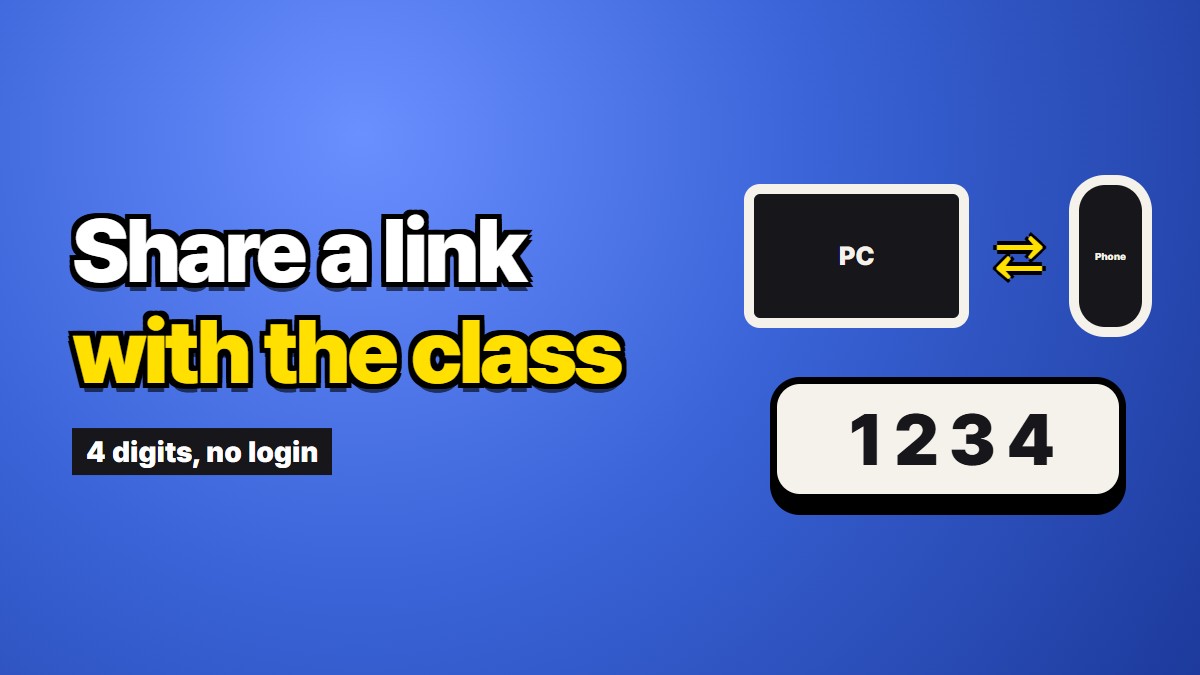
ZAGO.TO is one more option, and it is ours, so weigh what follows with that in mind. You paste the link and get a 4-digit code. Students open the site, type the four digits, and the link appears on their screen to tap. Digits are easy to read from the back row and easy to type on any device, signed in or not. We explained why we chose digits over a link in Why a 4-digit code and not a link.
It has real catches in a room of thirty, and they matter more here than anywhere else.
The clock is short. If nobody opens the code, the text is deleted after one minute. Once the first student opens it, it stays visible for one more minute, and anyone can open it during that minute. After that it is gone. So the order matters: have every student open the site and wait on the code screen first, then make the code and put it on the board. A student who arrives late will not get it, and you will need a new code.
A school network can trip the limits. To slow down guessing, the service blocks an address after more than ten wrong codes in ten minutes. On a school network, a whole class often shares one outgoing address. A room of students mistyping can add up to ten quickly, and then the room is blocked for a while. Read the four digits out once as you write them, and ask students to check before pressing enter.
Nothing is kept. It is the wrong tool for anything students need again. If the link matters after today, post it to Classroom as well.
It is text only, and readable by our server. It carries text up to 10,000 characters, never files. There is no scrambling in the browser yet, so our server can read the text for the minute or two it exists. That is fine for a public article link and not fine for anything private about a student.
A simple order of choice
If the activity comes from a tool with a join code, use the join code. If every student is enrolled and signed in, post it to Classroom. If students are on phones, a QR code. If you want it reusable and readable, a short link with a chosen ending. And if half the room is on unsigned laptops and you need one link on every screen in the next minute, put four digits from ZAGO.TO on the projector after everyone is ready.
Long text, in 4 digits.