Internet browser on Roku: there isn't one built in, so here are four ways to open a website anyway
2026-10-25
This post contains affiliate links. As an Amazon Associate, ZAGO.TO earns from qualifying purchases.
A recipe page is open on your phone and you want it on the big screen in the kitchen.
You scroll through every menu on the Roku and find streaming channels, settings and a search box that only searches shows.
That is not you missing something. There is no internet browser on Roku in the way there is one on a Samsung or LG TV. Roku OS was built around channels, and a general web page is not a channel.
So the real question is which workaround fits the page you want. There are four, and they suit different jobs.
1. Why the internet browser on Roku is missing
▲ The page is on the phone. The TV only knows channels
Roku keeps its system small so it runs on cheap sticks with little memory. A full browser needs far more, and keeping it safe needs constant updates.
The result is that Roku never shipped one. Every route below puts the browser somewhere else, on your phone or laptop, and sends the picture to the TV.
The videos promising a hidden menu that unlocks a browser are pointing at Roku's secret screens. Those exist for diagnostics, network details and resets. None of them installs a browser.
2. Four ways to get a website onto a Roku TV
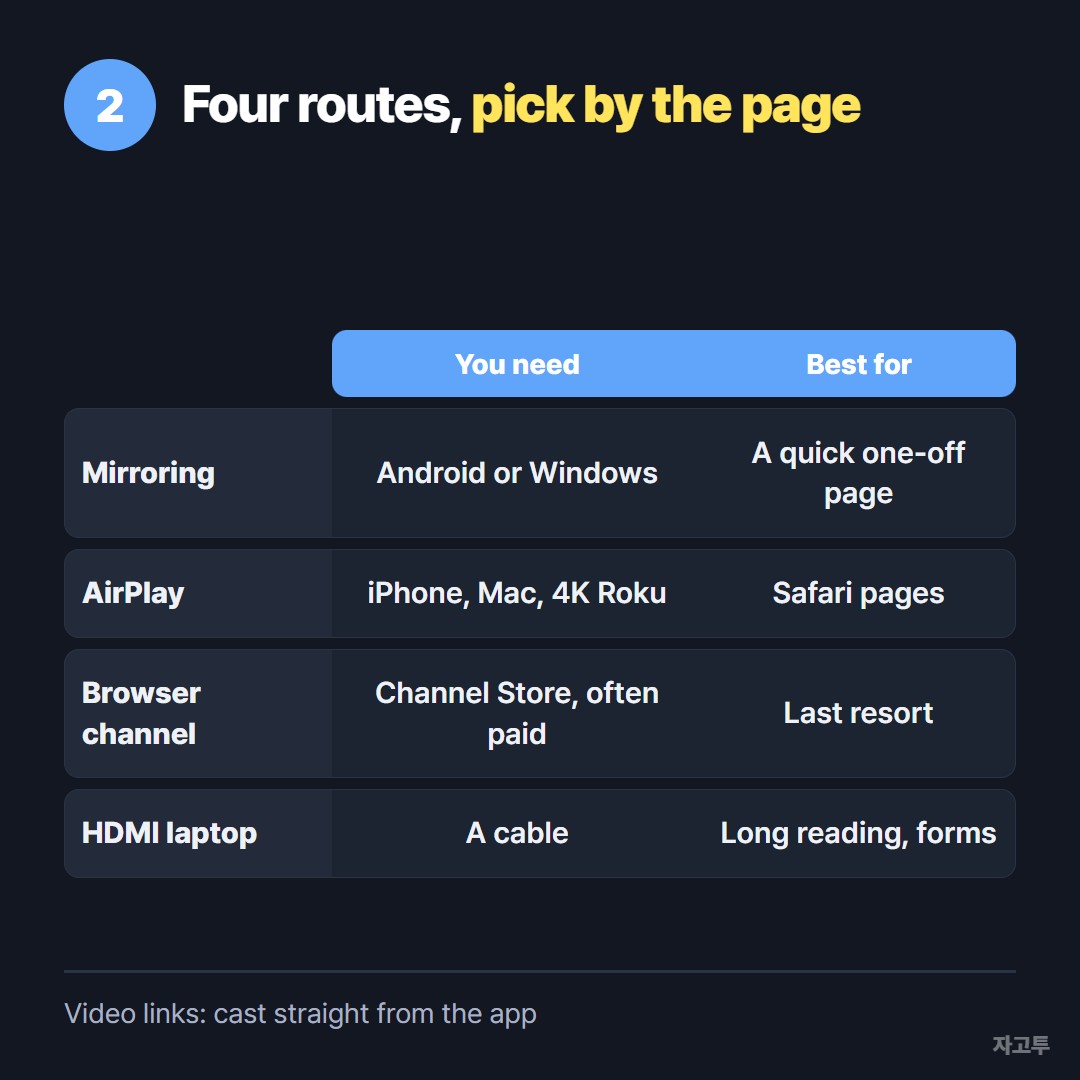
▲ Pick by what the page is, not by which sounds easiest
- Screen mirroring from Android or Windows: On the Roku, open Settings, System, Screen mirroring and set it to Prompt or Always allow. The whole screen goes to the TV, browser included
- Starting the mirror: On Android, use Smart View, Cast or Screen cast from quick settings. On Windows, press Win + K
- AirPlay from an iPhone or Mac: Many 4K Roku models accept AirPlay. Open the page in Safari, tap Share, then AirPlay, or use Screen Mirroring in Control Center
- A web browser channel: Search the Roku Channel Store for "web browser" and you will find a few third-party channels. They are limited and often paid. Read the latest reviews first
- An HDMI cable from a laptop: The least clever and the most reliable. Switch the TV input and you have a full desktop browser on the big screen
Mirroring sends exactly what your phone shows. Notifications pop up on the TV too, so turn on Do Not Disturb first.
If the link is a YouTube or Netflix video, skip all of this.
Those apps cast to Roku directly, which is covered in Send link to TV from your phone: pick the method by the kind of link.
3. When the address is on your phone but the laptop is plugged in
The HDMI route has one annoying step. The laptop is now the browser, but the address you want is still sitting in a chat on your phone.
Typing a long recipe URL with tracking codes into a laptop balanced on the counter is slow. Signing into a messenger on that laptop just for one link is slower.
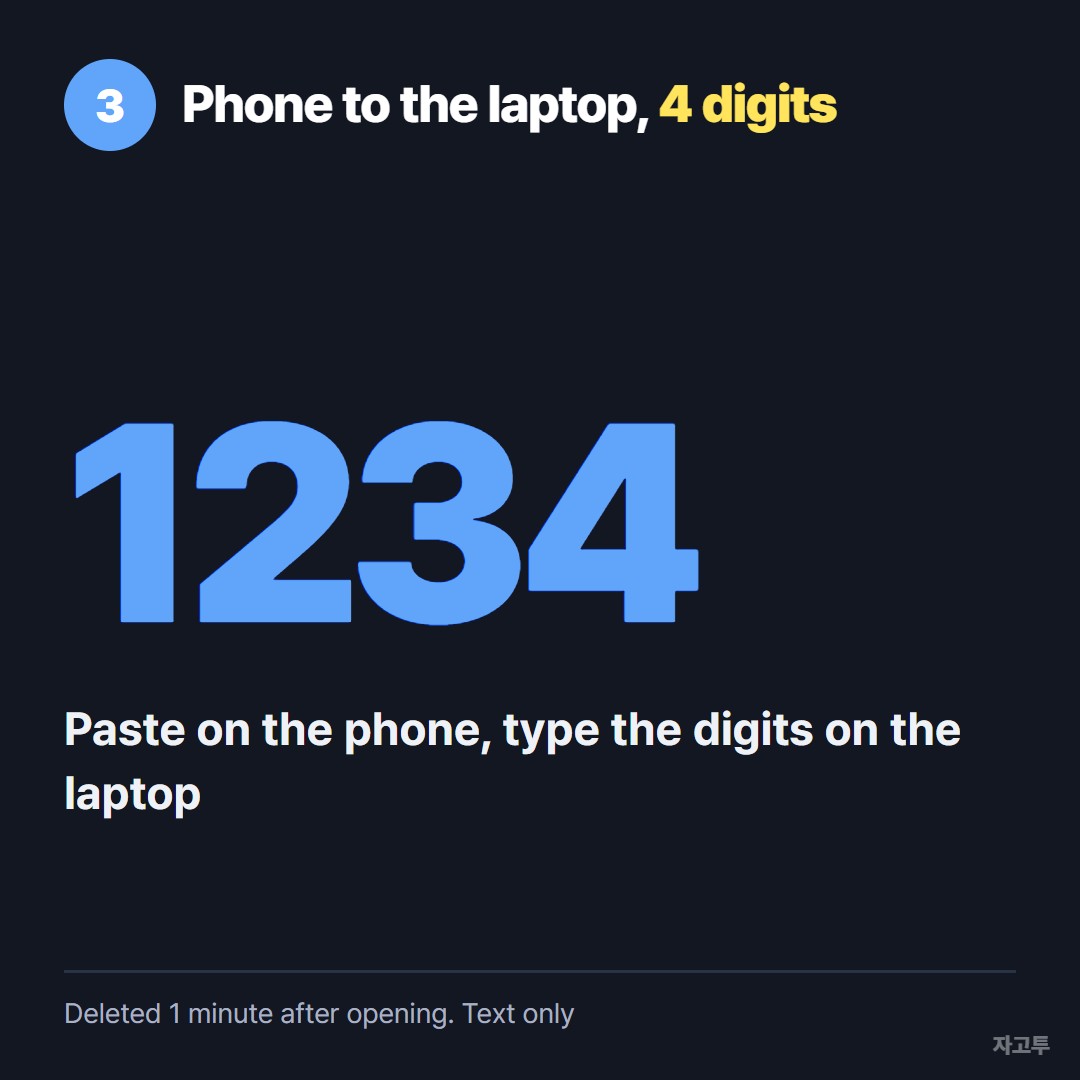
▲ The address goes to the laptop, and the laptop goes to the TV
ZAGO.TO moves that one line of text.
Paste the address into zago.to on your phone and you get 4 digits. Type those digits into zago.to in the laptop browser and the address appears, ready to click.
It is deleted 1 minute after opening, or after 1 minute if nobody opens it, and it cannot be opened again. It carries text only, so the recipe photos stay on the phone.
There is no in-browser encryption yet, so the server can read the text during that minute. Keep passwords out of it.
And ZAGO.TO cannot open anything on the Roku itself, because the Roku has nowhere to type it.
For typing a search into Roku channels, How to type on a Roku TV without the on-screen keyboard covers the phone app keyboard.
In short
For a one-off page, mirror your phone. For anything you will scroll through for an hour, plug in a laptop. For video links, cast from the app. A browser channel is the last resort, not the first.
 Days until Christmas
 Word Counter
 Age Calculator
 Wheel Spinner