How to share a Zoom link with someone, and how to get it from the laptop to your phone
2026-10-06
This post contains affiliate links. As an Amazon Associate, ZAGO.TO earns from qualifying purchases.

Short answer: Copy Invitation for the full details, Copy Invite Link for one tap, and the meeting ID when you are reading it aloud.
Learning how to share a Zoom link takes about a minute, because Zoom puts a copy button in several places.
The harder part comes later. The link is sitting on one screen, and the person or device that needs it is somewhere else. This post covers both, in the order they happen.
Contents
- Before the meeting: where the link lives
- During the meeting: Invite and the info icon
- Link, meeting ID, or WhatsApp
- Leaving the desk: the link is on the wrong device
- In three lines
1. Before the meeting: where the link lives
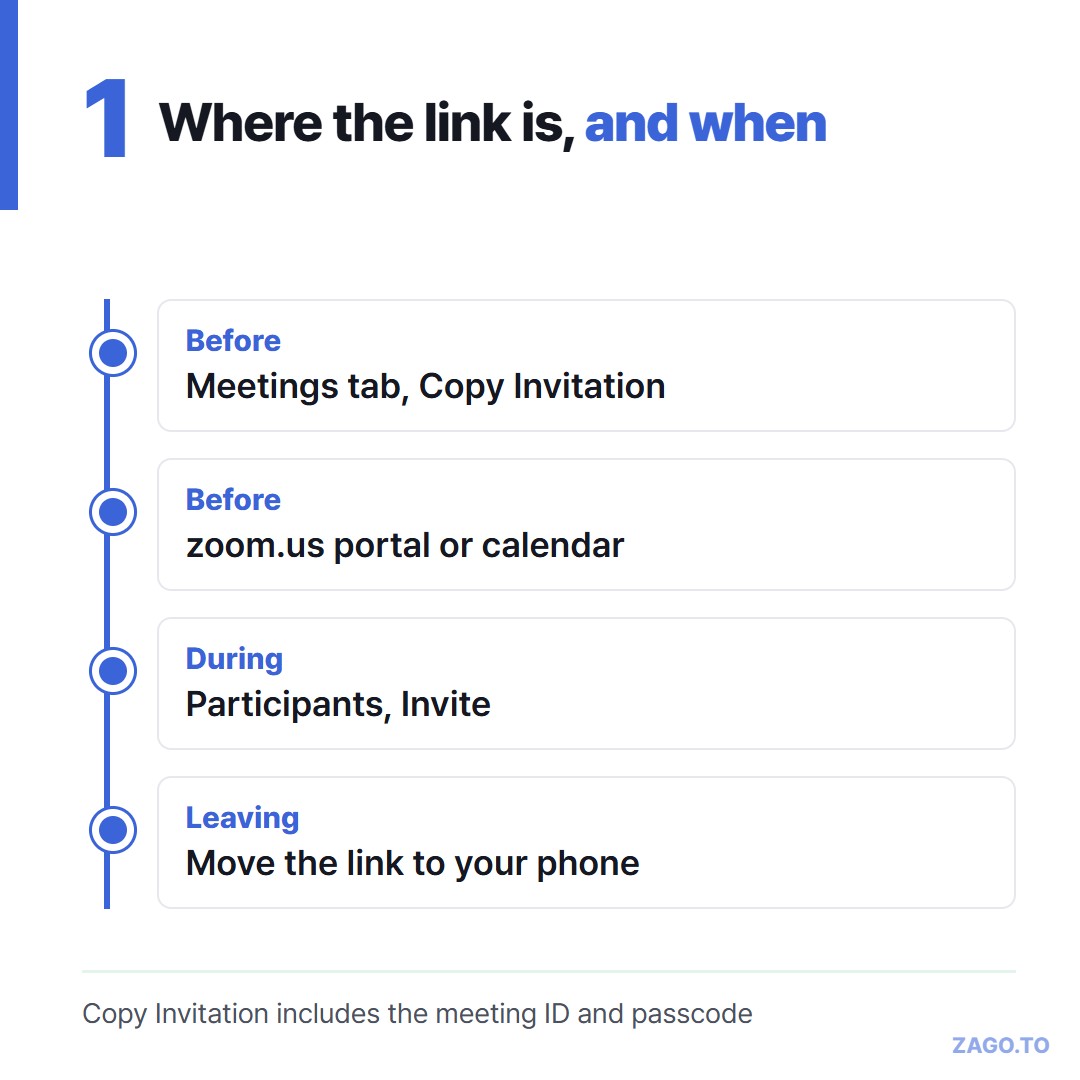
▲ The copy button moves depending on when you look for it
In the desktop app. Open the Meetings tab, pick the meeting, and use Copy Invitation.
That copies the full invitation: the link, the meeting ID, the passcode and the dial-in numbers. If you only want the link, paste it somewhere and take the first line.
In the web portal. Sign in at zoom.us, open Meetings, and click the meeting title. The invite link is shown on that page with its own copy option.
In your calendar. If you scheduled from Outlook or Google Calendar with the Zoom add-on, the link is in the event body.
The calendar is often the fastest place to grab it from a phone.
2. During the meeting: Invite and the info icon
Once the meeting is running, open Participants and choose Invite.
On a computer you get Copy Invite Link and Copy Invitation. On the phone app, Invite offers to send by message or email, or to copy the link.
On most versions there is also a small info icon at the top left of the meeting window. It shows the link with a copy button.
3. Link, meeting ID, or WhatsApp
The link is easiest when the other person can tap it. It usually carries the passcode inside, so one tap is enough.
The meeting ID and passcode are better when they are joining from a device you cannot send anything to, such as a meeting room console. They also suit a phone call.
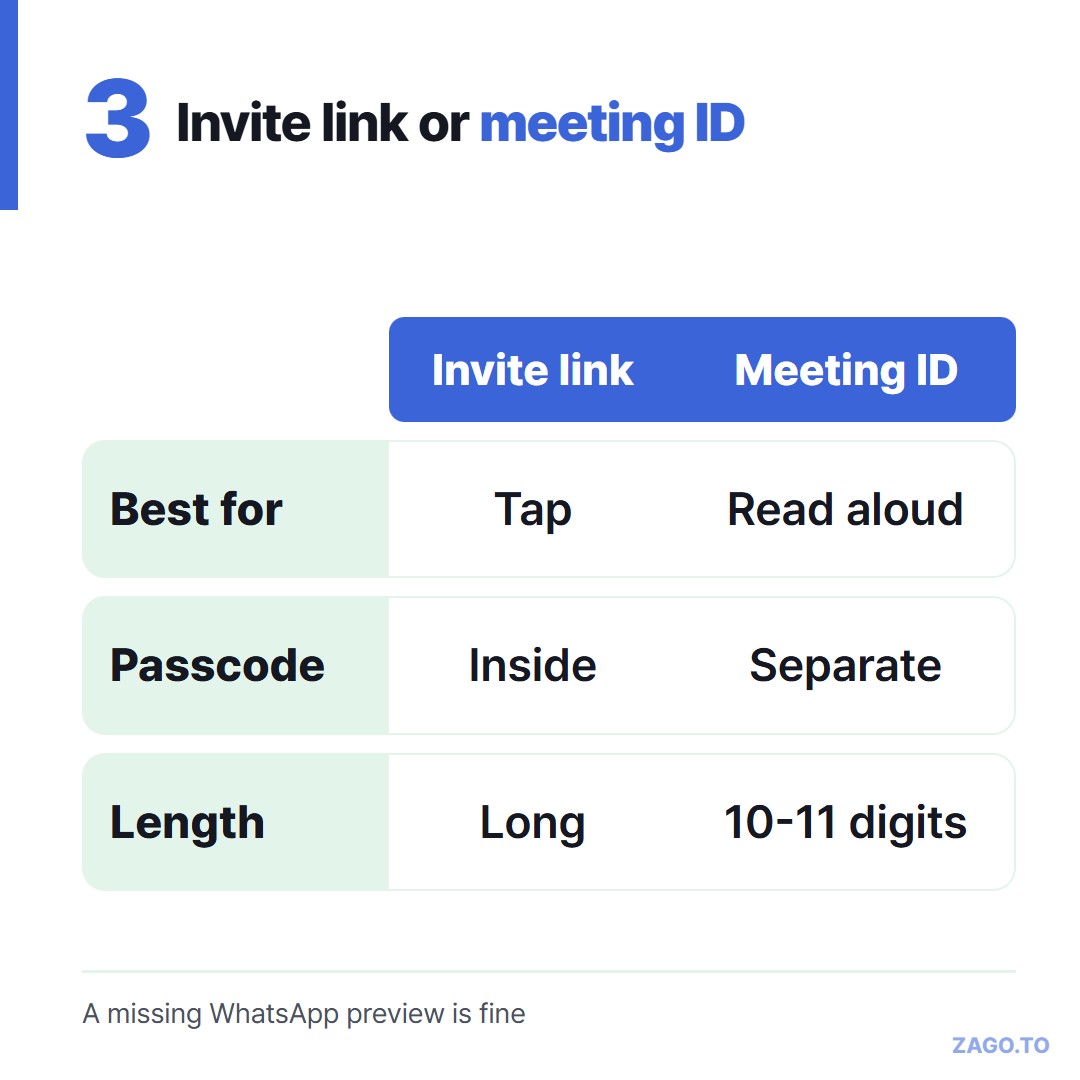
▲ Tap it or read it out, the choice depends on the other end
A meeting ID of ten or eleven digits and a short passcode are easy to read out. A long link is not.
Sharing it on WhatsApp. Copy the link, open the chat, paste. From a laptop, WhatsApp Web or the desktop app does the same.
If the preview does not appear, the link still works. Previews are fetched separately and sometimes fail.
4. Leaving the desk: the link is on the wrong device
Here is the gap Zoom does not cover.

▲ The meeting starts in ten minutes and the link is still on the laptop
The link is on your laptop, and you need it on your own phone because you are about to leave the desk and join from the train.
Or the link is on the room's shared screen, and three people want it on their phones.
Zoom will happily email it to you. That works, but it adds another message to an inbox you already skim past.
On a train, digging through email for the invite while the meeting starts is the moment this goes wrong. The link needs to be on the phone before you stand up.
For your own phone, there are a few short routes covered in How to send a link from a PC to an iPhone.
For a room full of people with no shared chat, Getting the same text to a room of people who share no app goes through the options.
One of those routes is ZAGO.TO. Paste the link on the laptop, get a 4-digit code, open the site on the phone and type it. The link appears, ready to tap.
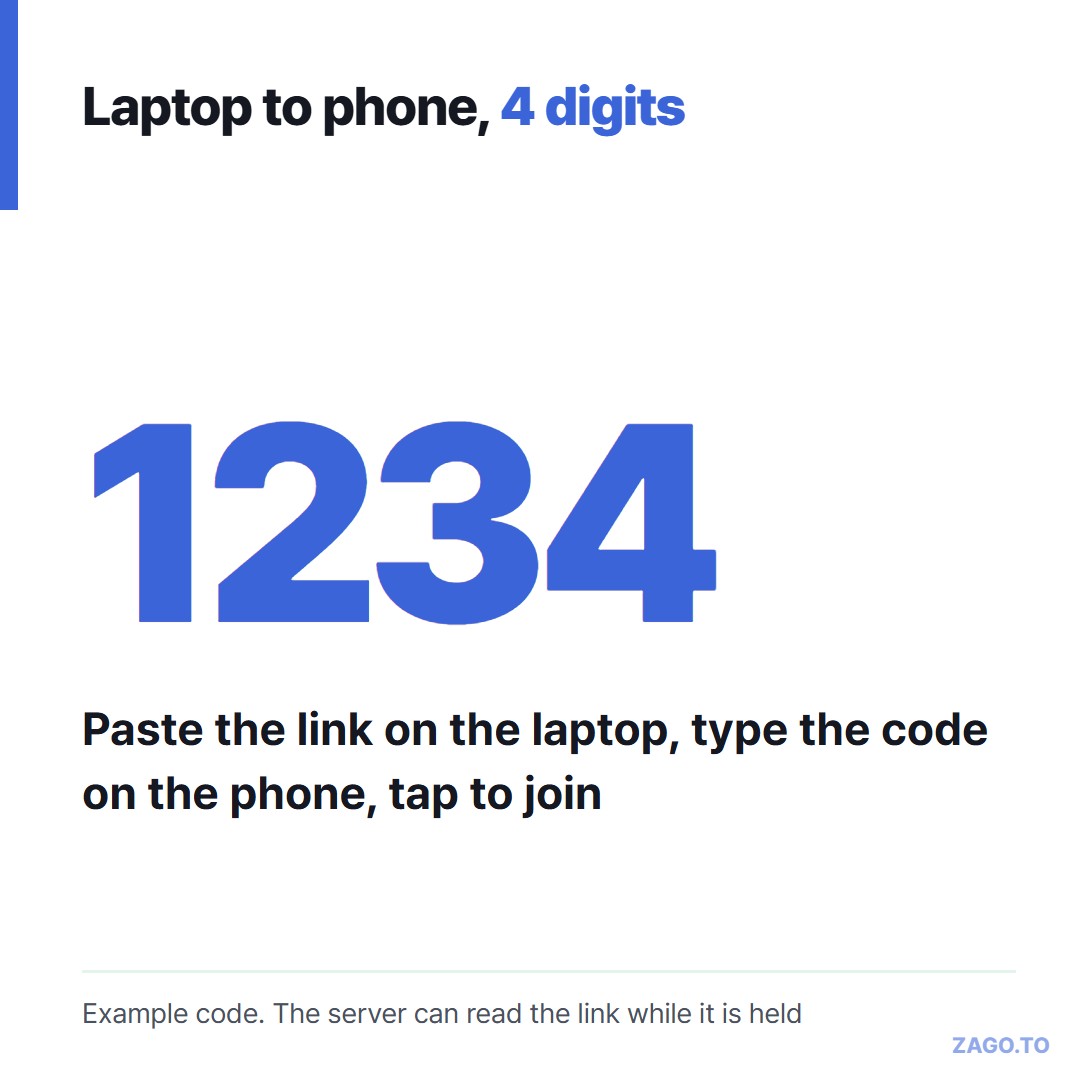
▲ An example code. The real one is random each time
Unopened, it is deleted after 1 minute. Opened, it stays 1 minute more, then it is gone and cannot be opened again.
The limits matter here. There is no browser-side encryption yet, so our server can read the text, including a passcode inside the link.
For a private meeting, the meeting ID read aloud may be the better choice. It also moves text only, up to 10,000 characters.
In a room it is built for one quick handoff, not for a link people will come back to next week.
5. In three lines
- Copy Invitation for the full details, Copy Invite Link for one tap.
- Read the meeting ID aloud when you cannot send anything.
- When the link is simply on the wrong screen, move the text across once rather than mailing it to yourself.
Long text, in 4 digits.