How to share a link on Canvas so students can actually open it
2026-10-10
This post contains affiliate links. As an Amazon Associate, ZAGO.TO earns from qualifying purchases.
Short version: put the link in a Module as an External URL, tick "Load in a new tab", and publish the item. Use an Announcement when you also want students notified.
How to share a link on Canvas looks like a one-click job. Then a student emails you saying the link "does nothing", and another says they cannot see the module at all.
Most of those problems come from where the link sits and whether it is published, not from the link itself.
Here are the three places to put it, and what to do in the class where Canvas is not the right road.
One note first. If you searched for Canva, the design tool, that is a different product: open your design, press Share and copy the link. This post is about Canvas, the course site.
1. Where should the link go?
▲ Where the link lives decides who sees it and when
A Module item is the best home for a link students will come back to. It sits in the course order, next to the reading or the quiz it belongs to.
A Page or Assignment works when the link needs explanation around it, like "read sections 2 and 3 before Friday".
An Announcement is for links that matter this week. Students get a notification, which a quiet Module item does not send.
2. How do I add a link to a Module?
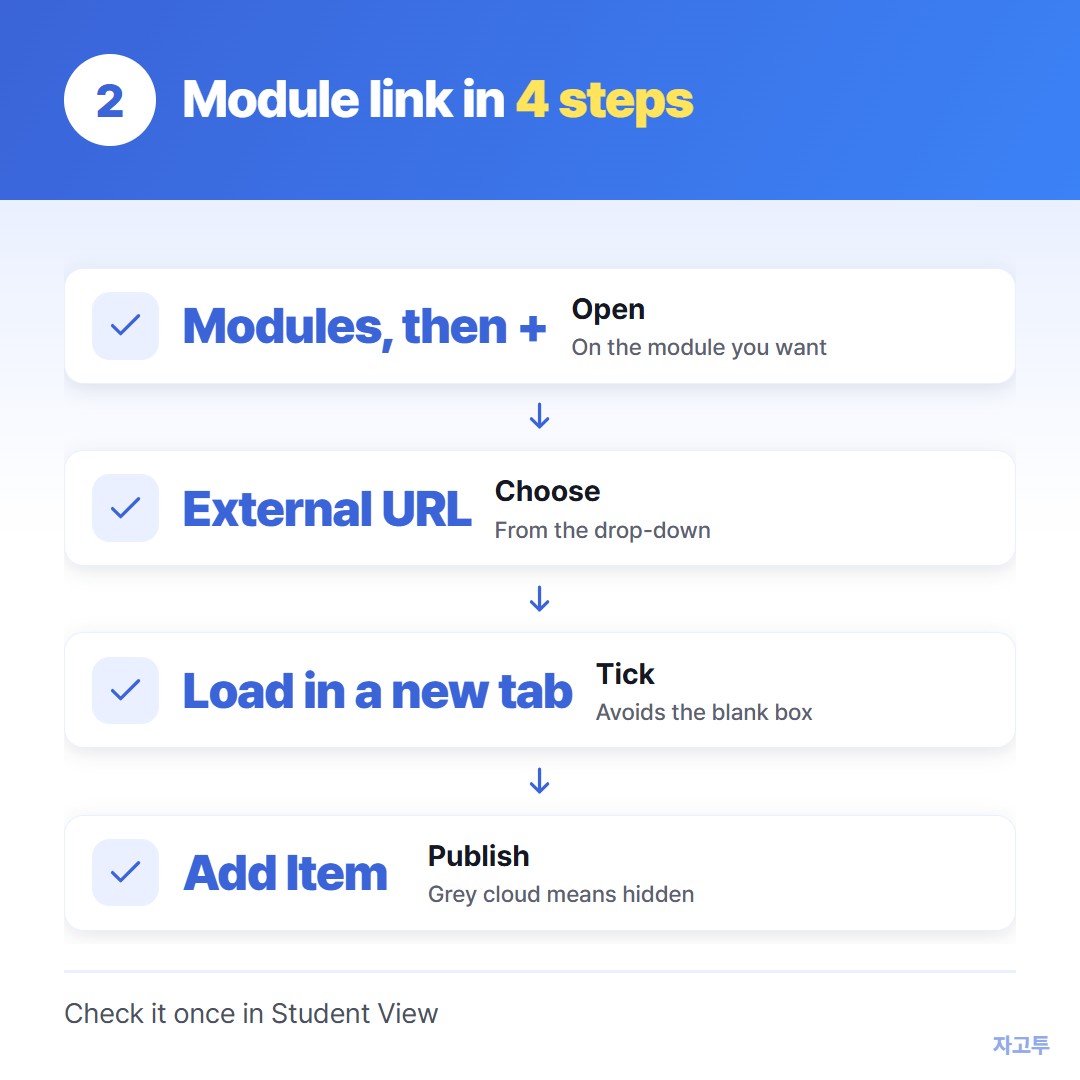
▲ The new tab box saves you most of the "it does nothing" emails
- Open Modules and click the + on the module you want
- Choose External URL from the drop-down
- Paste the link, type a name students will recognise, and tick Load in a new tab
- Click Add Item, then publish it
The new tab box matters more than it looks. Many sites refuse to open inside another site's frame.
Inside Canvas that shows up as a blank box. Opening in a new tab avoids it.
3. How do I post a hyperlink in a Page or Announcement?
In the editor, type the words students should click, highlight them, and choose the link icon, then External Link. Paste the address and save.
Pasting a bare URL also works, since the editor usually turns it into a link. Descriptive words read better, though, especially for screen reader users who hear every character of a long address.
Before you leave, open Student View from the course settings and click the link yourself. It is the fastest way to catch an unpublished item.
4. Why can't my students see the link?
- The item or the module is unpublished. Students see nothing that has a grey cloud next to it.
- The course itself is not published yet. Early in term this catches everyone.
- The student is not enrolled yet. Add-drop week means some of the room has no access at all.
- The link points to a file only you can open. A shared drive link with private permissions opens for you and fails for them.
5. When the link is only for today
Some links do not belong in the course at all. A poll for the next ten minutes, a guest speaker's slides, a form for students who are not enrolled yet.
For those, a projector and a QR code work well. QR code for a link covers making one in your browser.
When half the room is not signed in, How to share a link with students when half the class is not logged in yet goes through the other options.
Another short road is ZAGO.TO. Paste the link on your laptop and you get 4 digits. Write them on the board, students open zago.to and type them, and the link appears.
ZAGO.TO is built for a quick handoff, and that shapes what it cannot do. If nobody opens it within 1 minute it is deleted, and once opened it stays only 1 minute more.
So it suits one person or a few quick hands, not a room that trickles in over ten minutes.
It carries text only, up to 10,000 characters, never files. There is no in-browser encryption yet, so our server can read what you send. Keep student details out of it.
Checklist before you leave the page
- Link added as an External URL, with Load in a new tab ticked
- Item and module both published
- Clicked once in Student View
- Today-only links shared on the board instead of in the course