How to share a Google Slides link so it opens for students, viewers or a projector PC
2026-10-14
This post contains affiliate links. As an Amazon Associate, ZAGO.TO earns from qualifying purchases.
The deck is finished.
Now you need the link to land in the right place: a class of thirty students, one colleague who should only look, or the computer bolted to the projector at the front of the room.
How to share a Google Slides link sounds like one button. It is one button plus one setting, and the setting is where most "I can't open it" messages come from.
Here is the order that avoids them.
Contents
- Pick who can open it
- Pick what they can do
- Change the end of the Google Slides link
- Get the link onto the room PC
- Questions people ask
1. Pick who can open it
▲ Most broken links are an access setting, not a broken file
Open the presentation and select Share in the top right corner. At the bottom of the box is General access.
- Restricted: only people you add by email can open it. Anyone else sees a request access page.
- Your school or company: anyone signed in to the same Google Workspace domain can open it.
- Anyone with the link: no sign-in needed. Whoever has the address can open it.
For a class where every student signs in with a school account, the domain option is usually right.
For a guest speaker, parents, or a shared room computer, Anyone with the link is the one that actually opens.
2. Pick what they can do
Next to the access setting is the role: Viewer, Commenter or Editor.
Viewer is the safe default for a lesson or a pitch. Commenter suits peer review. Editor is for a group project, and it lets anyone with the link change or delete slides.
If you post an Editor link in a class stream, assume someone will move a slide by accident. Give editing to named people instead, by typing their email in the same Share box.
Then select Copy link.
3. Change the end of the Google Slides link
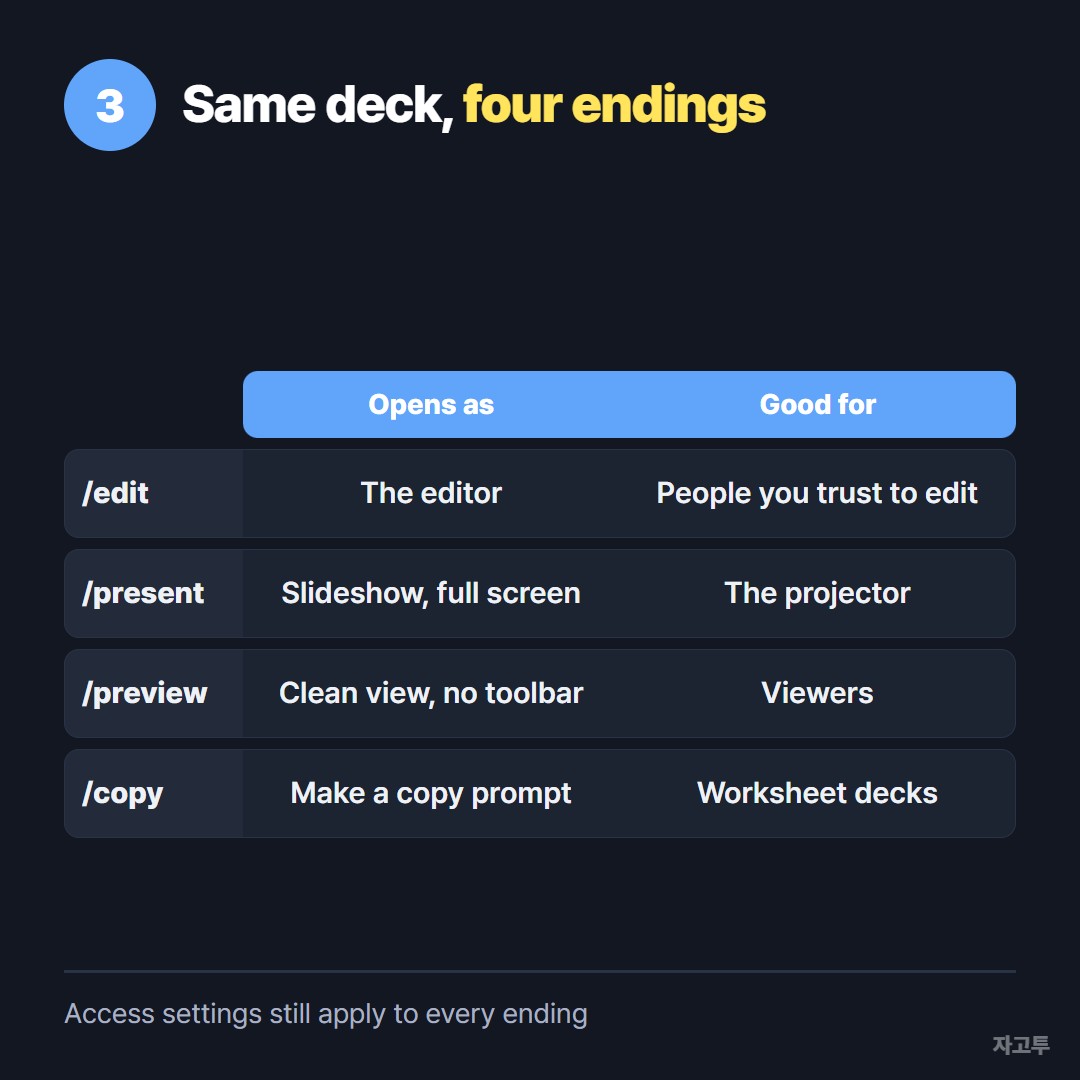
▲ The same deck, opened four different ways
A Slides link normally ends in /edit followed by a few characters. Replace that ending and the same file opens differently.
- /present opens straight into the slideshow, full screen.
- /preview opens a clean view without the editing toolbar.
- /copy asks the person to make their own copy, which is handy for a worksheet deck.
- /template/preview shows a preview with a "Use template" button.
The access setting from step 1 still applies. A /present link to a Restricted deck still asks for permission.
For a whole class in Google Classroom, attaching the file from Drive and choosing Make a copy for each student does the /copy job for you.
Our guide on how to share a link on Google Classroom covers the students who are not in the class yet.
4. Get the link onto the room PC
The awkward moment comes at the front of the room.
The deck link is on your phone or laptop, and the projector computer is a shared machine where you do not want to sign in to your Google account.
You can email it to yourself and open your mail on that computer, but then you are signed in on a shared machine and have to remember to sign out.
A shorter way for the link itself: open ZAGO.TO on your laptop or phone, paste the /present link, and you get a 4-digit code.
On the room PC, go to zago.to and type the code. The link appears, ready to click.
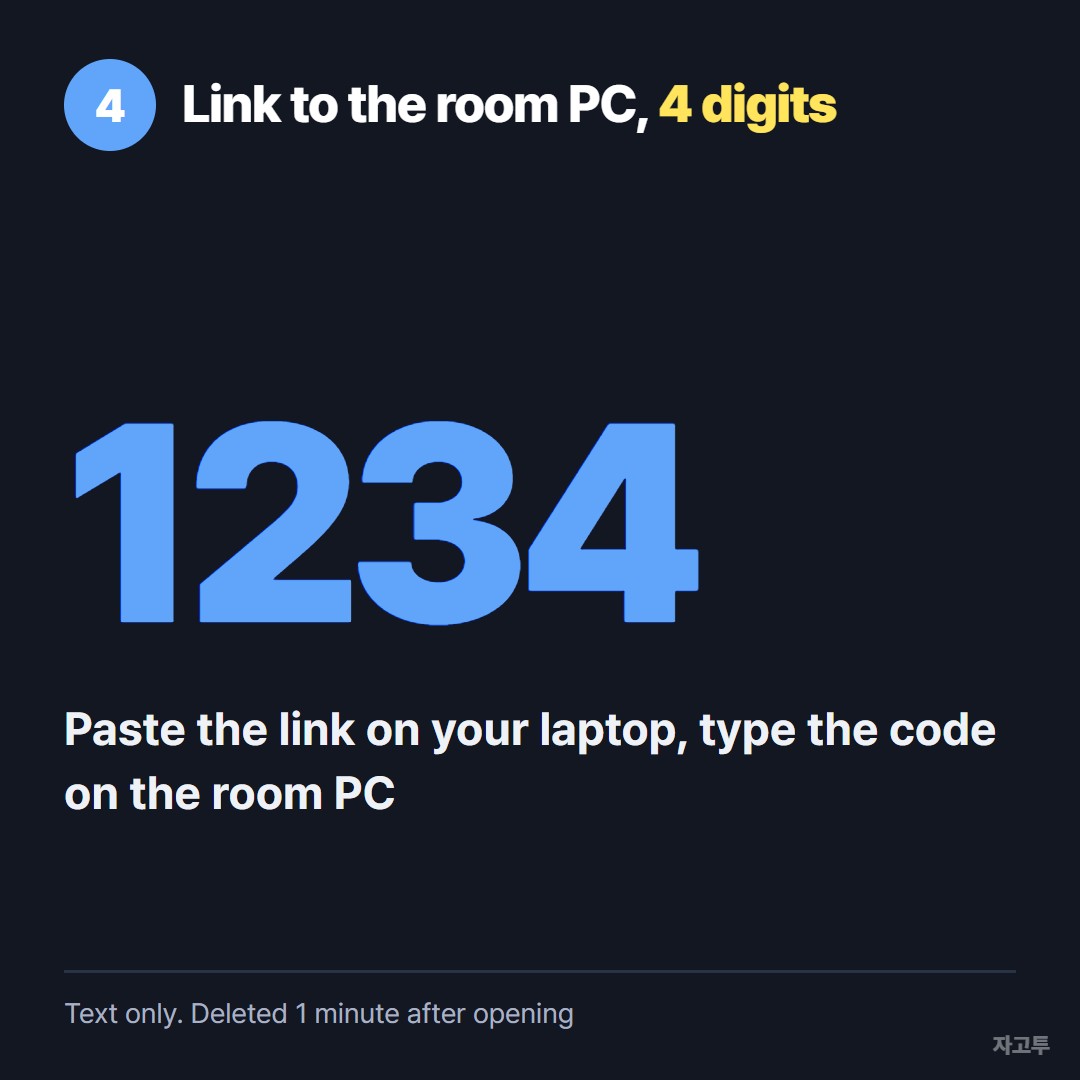
▲ An example code. Real codes are random
Before you rely on ZAGO.TO in front of a class, know the limits. It carries text only, up to 10,000 characters, never the file itself.
Unopened text is deleted after 1 minute, and opened text 1 minute after opening, so it cannot be opened twice.
There is no in-browser encryption yet, so our server can read what you send. A view-only Slides link is fine. A link with Editor access to a sensitive deck is better sent another way.
If students need the link on their own devices, sharing a link with a room full of students compares the options for a whole class.
5. Questions people ask
Why do people see "You need access"? General access is still Restricted, or they are signed in with a personal account instead of their school one.
Can I share only one slide? Not as a link to a single slide inside the shared file. Copy that slide into a new deck and share the new deck.
How do I share it so it opens in present mode only? Use the /present ending with Viewer access. They can still exit the slideshow, but they cannot edit.
Can I stop sharing later? Yes. Set General access back to Restricted. Old links stop working for anyone not added by email.