How to share a Google Form link so people can actually open it
2026-10-07
This post contains affiliate links. As an Amazon Associate, ZAGO.TO earns from qualifying purchases.
You built the form, pasted the link into the group chat, and the first reply is "it says I need access."
Knowing how to share a Google Form link is mostly knowing which link you copied. The address in your browser bar is the editor's link, not the one people should fill in.
This guide covers the right link, four ways to hand it out, and what to check when it will not open.
Contents
- Publish first, then copy the responder link
- Four ways to hand it out
- When the link will not open
- A room with no shared chat
1. Publish first, then copy the responder link

▲ The link in the address bar is for editing, not for answering
Google Forms changed how sharing works. In current versions, a new form is a draft until you press Publish at the top right. Until then, nobody else can fill it in.
After publishing, open the link menu next to the Publish button and choose Copy responder link. That link ends in `/viewform`.
If your account still shows the older Send button, use that instead. Click Send, pick the chain-link tab, and copy the link from there.
The link that ends in `/edit` lets people ask to edit your form. Do not paste that one into a chat.
2. Four ways to hand it out
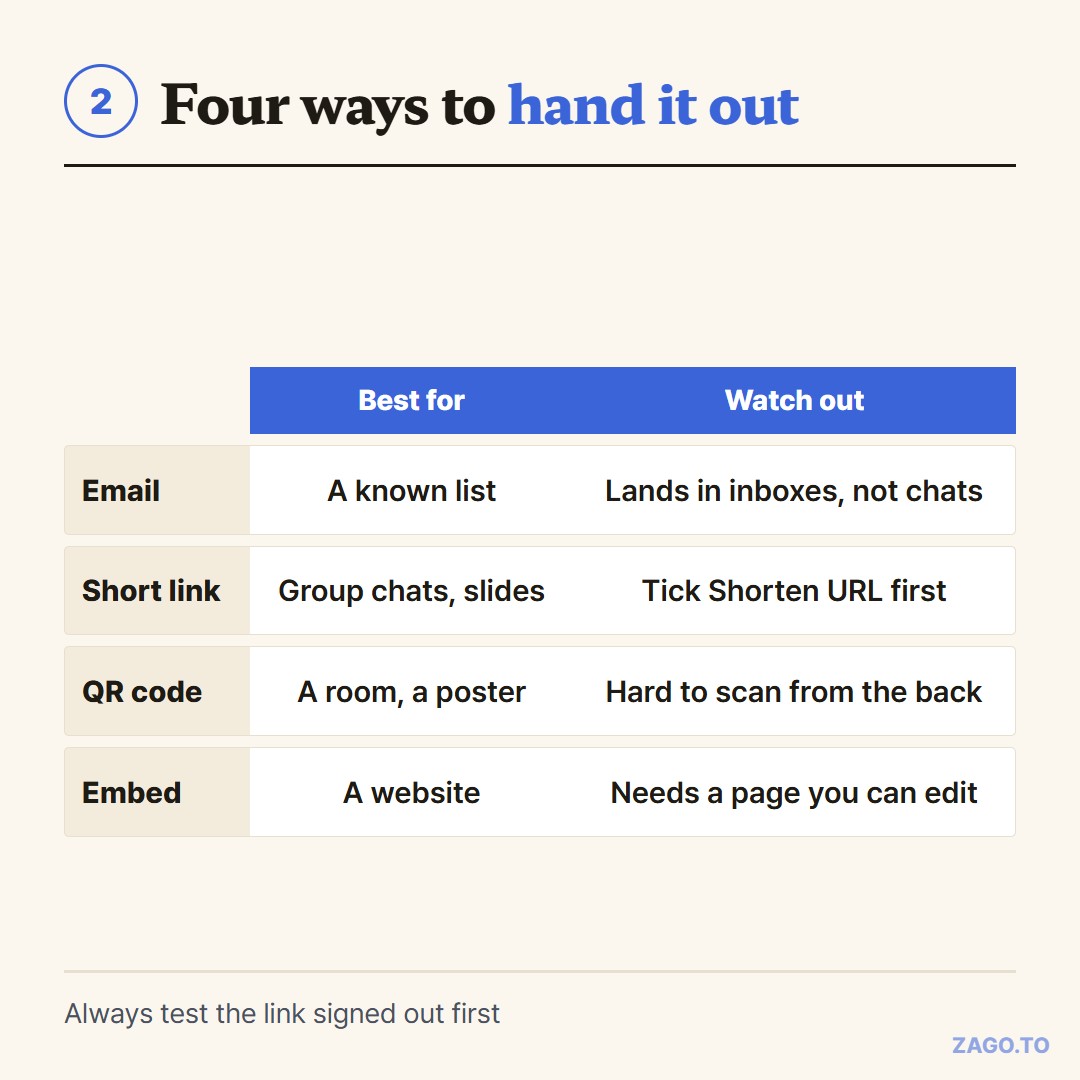
▲ Pick by where your people are
- Email: the Send dialog can email the form directly. Good for a known list, because each person gets it in their inbox
- Short link: in the Send dialog, tick Shorten URL to get a forms.gle address. This is what you paste into WhatsApp, Slack or a slide
- QR code: open the responder link in Chrome, click the share icon in the address bar and choose Create QR code. Put it on a slide or a printed sheet
- Embed: the angle-bracket tab gives HTML for a website or Google Sites page
For a short survey in a group chat, the short link is usually enough. For a poster or a room, the QR code saves everyone from typing.
3. When the link will not open
Most "I can't open it" replies come from four settings:
- Not published yet. Draft forms do not accept answers
- Responses are off. On the Responses tab, check that the form is still accepting responses
- Restricted to your organization. School and work accounts often limit forms to people in the same domain. Outsiders get a sign-in wall
- Limit to 1 response. This needs everyone to sign in to a Google account, which some people on phones do not expect
If the link "doesn't work on WhatsApp," it is usually one of these, not WhatsApp itself. Test it in a private browser window, signed out, before you send it.
4. A room with no shared chat
A new class, a workshop, a parents' evening. Everyone has a phone, but there is no group to paste the link into.
The QR code is the first answer, and it works well when the screen is big and the room is small.
When the back row cannot scan it, a short code is easier to read aloud.
Paste the responder link into ZAGO.TO and you get a 4-digit code. Write it on the board or say it out loud, and people type it at zago.to to get the full link.
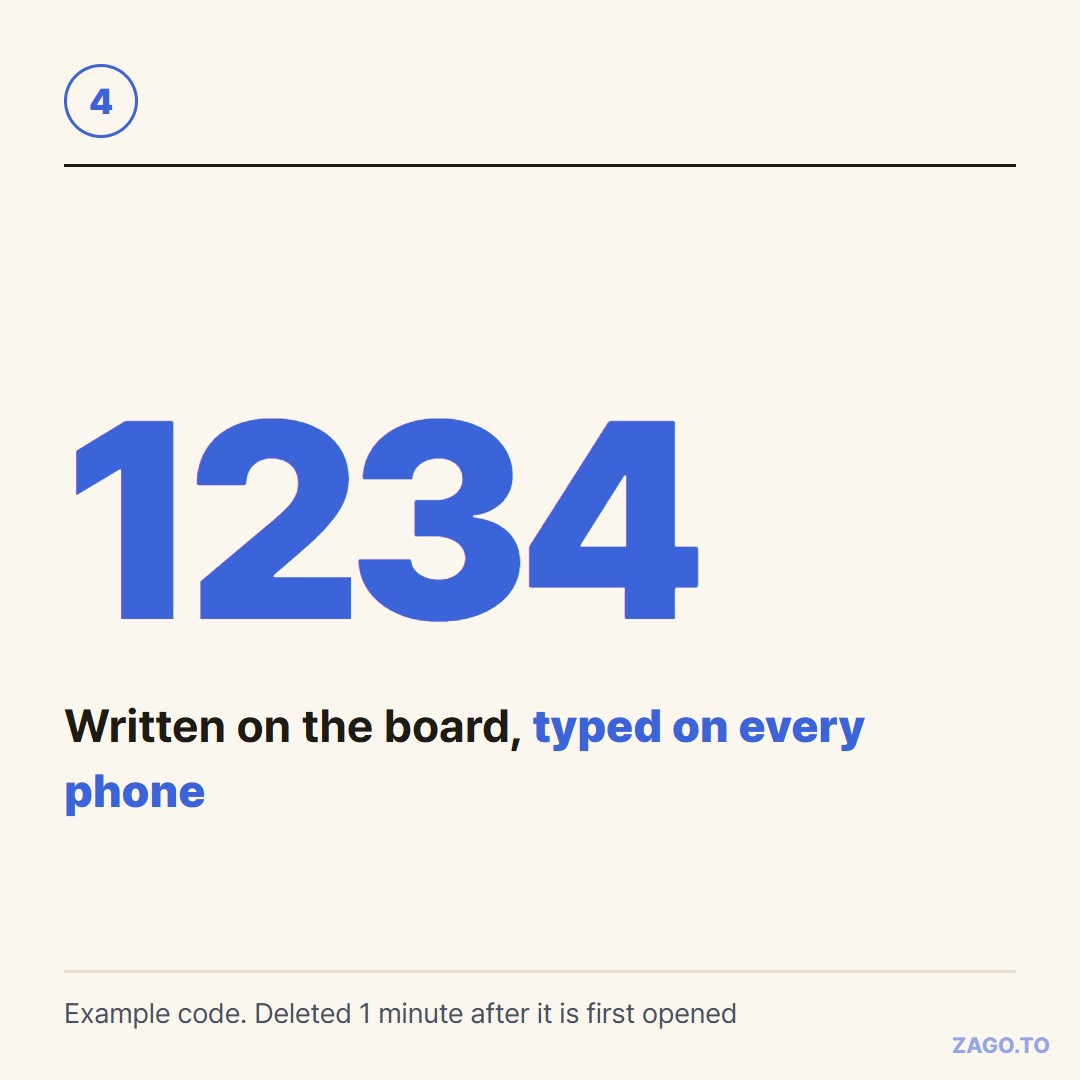
▲ An example code. Each real one is new
The limits matter in a classroom:
- It is short-lived on purpose. Unopened, the link is deleted after 1 minute. Once someone opens it, everyone has 1 more minute to open the same code, then it is gone and cannot be opened again
- Make the code when the room is ready, not before the lesson. If time runs out, just make a new one
- Our server can read the text while it holds it, for at most 2 minutes. A form link is fine. Student names and grades are not
ZAGO.TO moves text only, so the form itself still lives in Google Forms.
For more on getting a link onto many screens at once, see Getting the same text to a room of people who share no app.
For a class that is not logged in yet, read how to share a link with students.
In three lines
- Publish, then copy the responder link ending in `/viewform`, never the `/edit` one
- Use the short link for chats, a QR code for rooms, and email for known lists
- If it will not open, check publishing, responses, domain limits and sign-in rules
Long text, in 4 digits.