How to share a Canva link so people can view, edit or present it
2026-10-15
This post contains affiliate links. As an Amazon Associate, ZAGO.TO earns from qualifying purchases.
Canva gives you at least three different links for one design, and they do very different things.
If you are wondering how to share a Canva link without handing someone the power to rewrite your slides, the answer is to pick the right one before you press Copy.
Contents
- The Share button and the collaboration link
- View only, comment or edit
- The public view link and the template link
- When the link has to reach a classroom or projector PC
1. How to share a Canva link: start at the Share button

▲ Every Canva link starts in the same Share panel
Open the design and click Share at the top right. The panel has two parts.
The top part adds people by email. They get access tied to their own Canva account.
Below it sits the collaboration link. By default it is set so only the people you added can open it. Change it to anyone with the link when you want to paste it into a chat or an email.
The collaboration link opens the design inside Canva, so the other person usually needs to sign in.
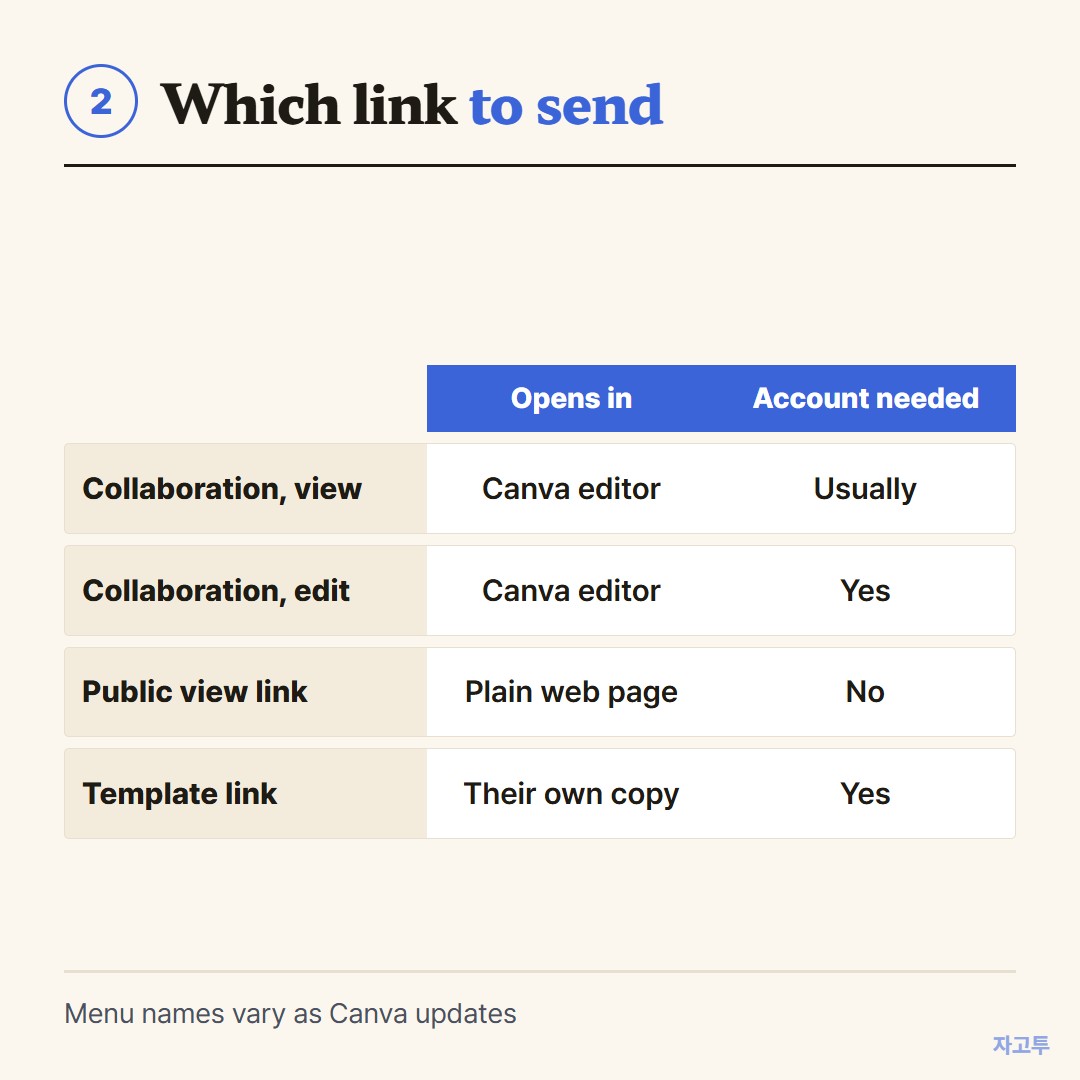
2. View only, comment or edit
Next to the collaboration link setting is a second choice: what people with the link can do.
- Can view: they see the design and cannot change it
- Can comment: they can leave notes but not move anything
- Can edit: they can change your actual design
▲ Pick the link by what the other person should be able to do
Edit is the one people regret. An edit link pasted into a group chat lets everyone in that chat change your original. For feedback, comment is usually enough.
3. The public view link and the template link
In the Share panel, open the option that shows more ways to share. Two links live there.
The public view link opens the design in a plain web page. The viewer does not need a Canva account.
This is the one teachers use for students, and the one to send to people who will never sign up.
The template link gives each person their own copy to edit. Your original stays untouched. It suits worksheets, forms and anything you want others to fill in for themselves.
For a presentation, Canva also has a presenting option that plays the slides full screen. Run it from the computer that is connected to the screen.
4. When the link has to reach a classroom or projector PC
The design was made on your phone, and the projector is connected to a school PC that is not signed in to your account.
Signing in to Canva or your mail on that machine works, but then you have to remember to sign out before the next class walks in.
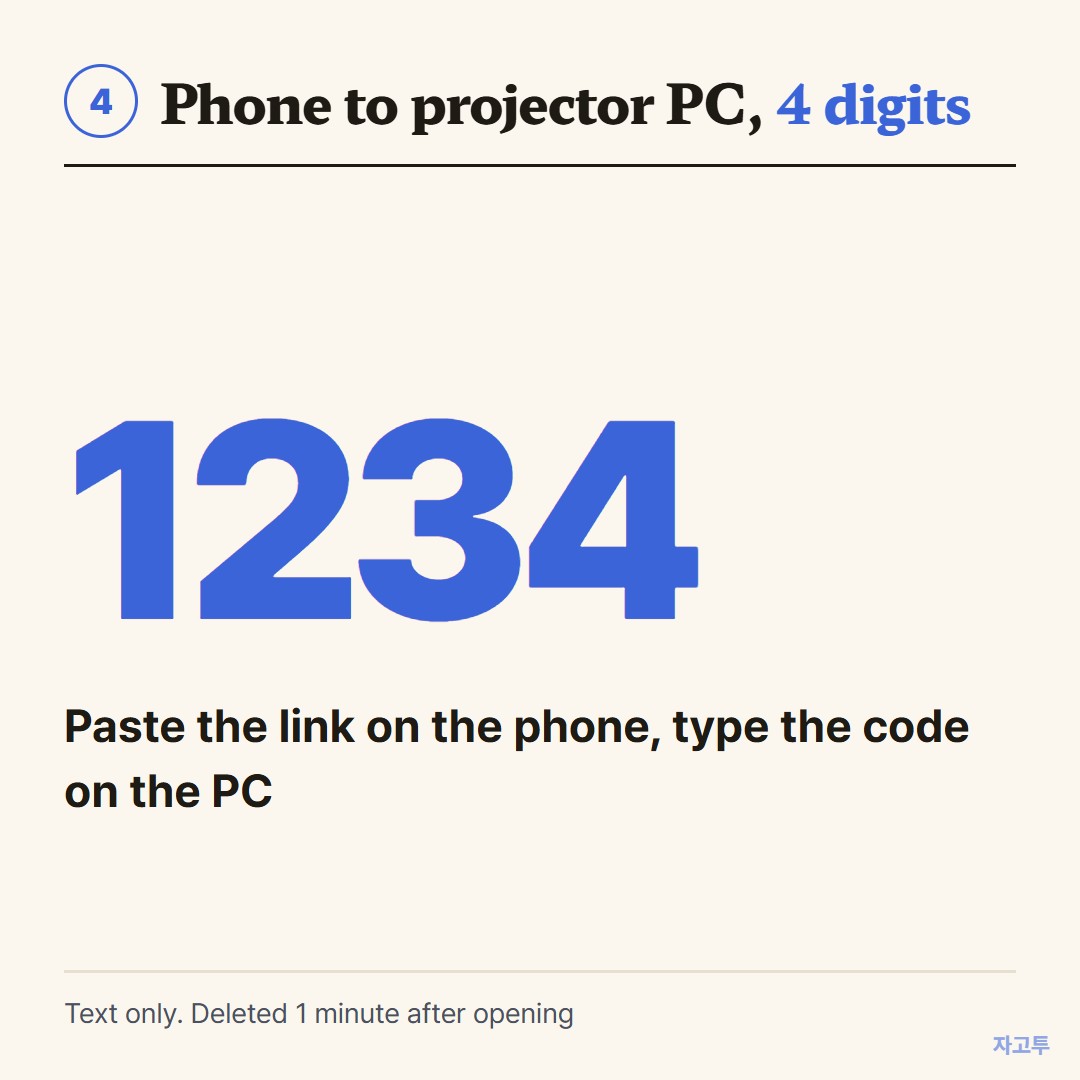
Another route for a single link is ZAGO.TO. On the phone, drop the public view link into zago.to and you get a 4-digit code.
On the classroom PC, open zago.to, enter the digits, and click the link that shows up.
▲ An example code. Real codes are random
Only text goes through, 10,000 characters at most, so the design file itself stays in Canva.
A code nobody enters expires after 1 minute, and once entered the link stays for 1 more minute and cannot be pulled up again.
Our server can read what passes through, because in-browser encryption is not built yet. A public lesson link is fine. Keep edit links to private work on another channel.
Doing the same with Google Slides? See How to share a Google Slides link.
For a class page, see How to share a link on Google Classroom.
The one thing to remember
Send a view or public view link to most people, a template link when they should make their own copy, and an edit link only to the people you would let touch the original.