How to send an address to someone so it opens in their maps app
2026-10-08
This post contains affiliate links. As an Amazon Associate, ZAGO.TO earns from qualifying purchases.
Why does the address you typed out so carefully end up as a screenshot, retyped letter by letter into someone else's phone?
Usually because it went as words, not as a place.
If you want to know how to send an address to someone so they can tap it and start driving, the answer is almost always send a map link or a pin, not the text.
Below are the ways that work on an iPhone, on Android and in WhatsApp, and the two situations where none of them fit well.
1. How to send an address to someone: the place, not the words
A typed address leaves the other person to copy it into their maps app. A misspelled street, a missing unit number or a postcode in the wrong order can send them to the wrong block.
A map link carries the exact point on the map. They tap it and their phone opens directions.
- Google Maps, any phone: search the address, tap the place card, then Share. You get a short maps.app.goo.gl link to paste into any chat.
- Apple Maps on iPhone: search the address, tap the share icon on the place card and pick Messages or any other app.
- A spot with no address: press and hold on the map to drop a pin, then share the pin the same way. This is how to send a location pin for a car park entrance or a back gate.
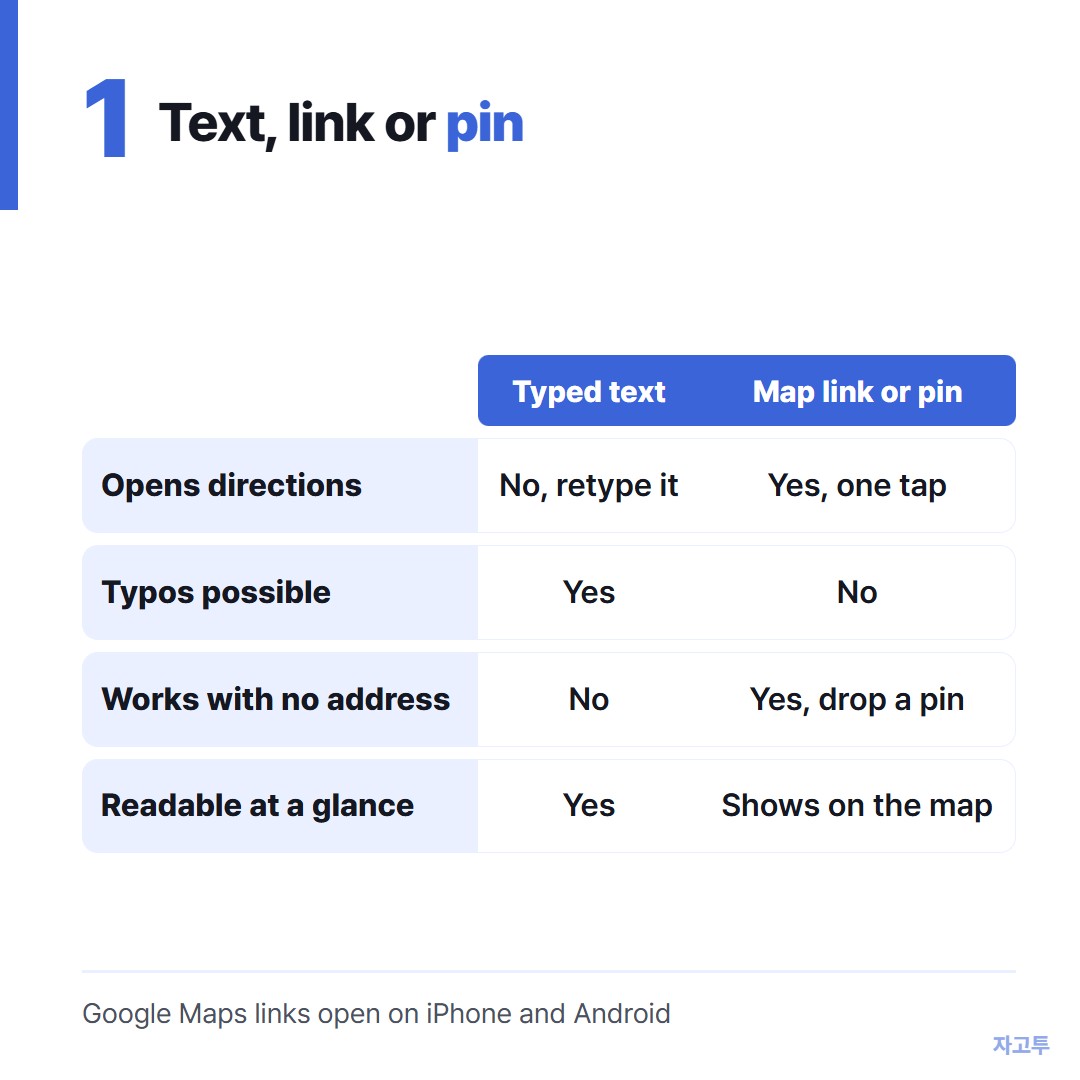
▲ The text is readable, the link is tappable, the pin is exact
2. How to send an address on WhatsApp and iMessage
WhatsApp has location sharing built in. Open the chat, tap the attachment icon, choose Location, then search for the place or send your current position.
Do not confuse that with live location, which keeps updating for a set time. For an address, you want a single fixed place.
iMessage can share where you are right now from the plus menu. For any other address, sharing from Maps is the cleaner route.
Check which maps app the other person uses.
A Google Maps link opens on both iPhone and Android. An Apple Maps link sent to an Android phone opens in the browser instead of a maps app, which still works but is one step clumsier.
3. When the address is on your laptop, or in a script you cannot type
▲ The address is on the big screen, the navigation is on the small one
Two situations come up often.
You found it on a computer. A booking confirmation, an email signature, a venue page. If you are signed into Google Maps on both, its Send to your phone option works well.
The address is in a script you cannot type, like a hotel address in Japanese or Korean on a trip. Do not try to retype it.
Paste it into Google Maps on the device where you can copy it, then share the resulting pin. Taxi drivers can read the original script off your screen.
When the laptop is a work machine or a shared one and you do not want to sign in, there is also ZAGO.TO. Paste the address or the map link, and type the 4-digit code at zago.to on your phone.
It has limits worth knowing.
If nobody opens it within 1 minute, it is deleted, and once opened it stays for only 1 minute more.
It carries text only, up to 10,000 characters, and our server can read it while it holds it. A hotel address is fine.
For a longer link that keeps getting cut, Sending a long URL to your own phone, unshortened covers more options.
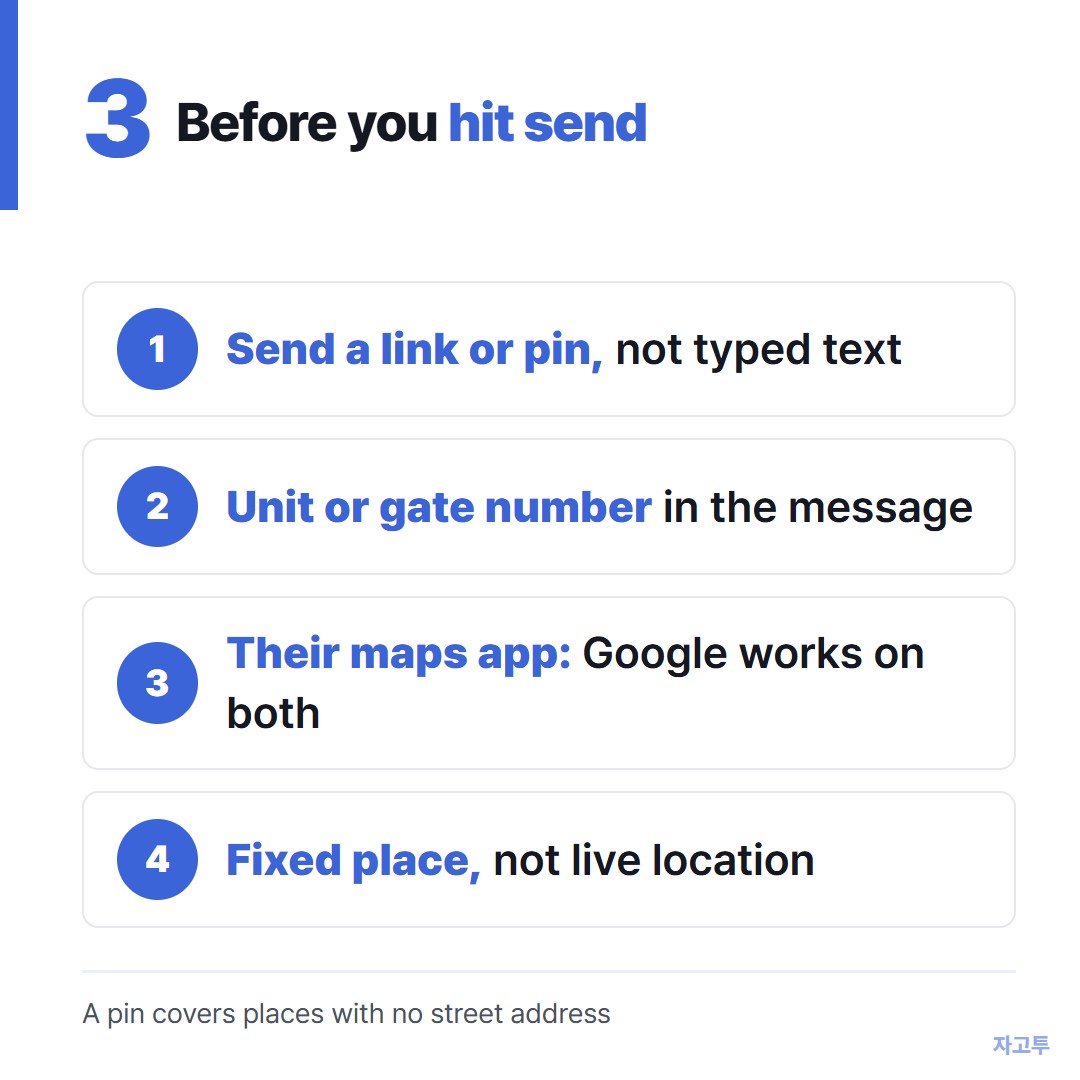
▲ Four checks before you hit send
The bottom line
Send a map link or a pin, not typed words. Use the app you both already have, Google Maps if you are not sure.
And when the address sits on a computer you would rather not sign into, the PC to iPhone link options and ZAGO.TO both get it to your phone without retyping.