How to scan a QR code on a laptop, including one that is on the laptop screen
2026-10-19
This post contains affiliate links. As an Amazon Associate, ZAGO.TO earns from qualifying purchases.
A laptop can read a QR code two ways: hold the code up to the webcam, or let the browser read a code that is already on your screen. Which one you need depends on where the code is.
So here is how to scan a QR code on a laptop for both cases, plus the Wi-Fi code on the back of a router and the opposite problem, when the text you need is sitting on your phone.
Contents
- A code on paper or a phone: use the webcam
- A code on your laptop screen
- The Wi-Fi QR code
- When the phone has the text instead
1. A code on paper or a phone: use the webcam
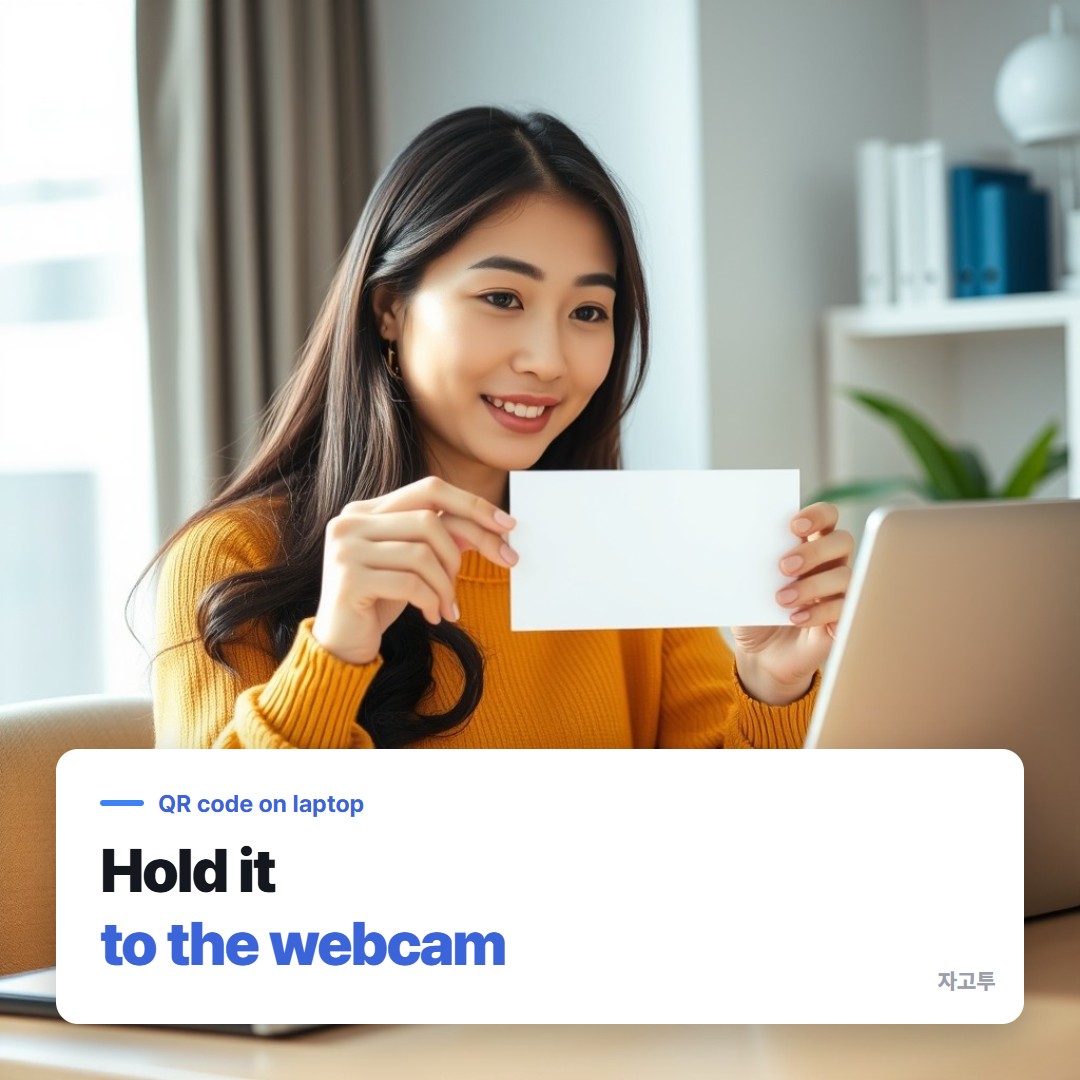
▲ Hold the code steady, about a hand's length from the camera
On Windows 11, open the built-in Camera app. Recent versions have a barcode mode next to photo and video.
If you do not see it, look in the app's settings for the option to scan barcodes and QR codes.
Hold the code flat in front of the webcam until a link or text box pops up, then click it.
On a Mac, the Camera and Photo Booth apps do not read QR codes.
You can install a scanner app from the App Store, but for most people the next section is faster: take a photo of the code with your phone, or open the page that shows the code, and read it on screen.
Webcams struggle with glare and small codes. Tilt the paper away from the ceiling light and move closer until the code fills about a third of the picture.
2. A code on your laptop screen
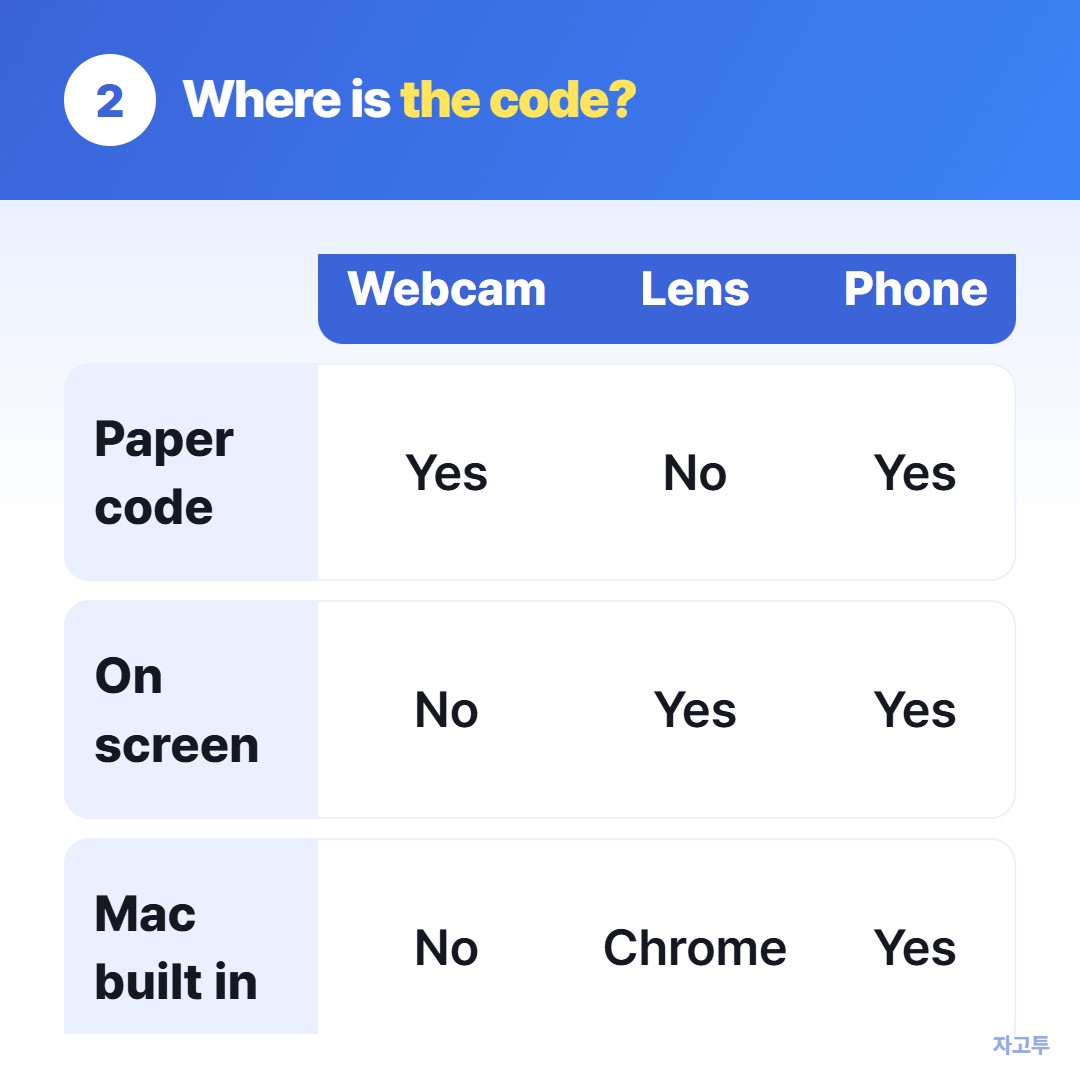
▲ Webcam for paper, Lens for the screen, phone for everything else
This is the case the webcam cannot handle, because the camera faces you, not the screen.
- Chrome: right-click the page and choose Search with Google Lens, then drag a box around the code. The link appears in the side panel.
- A screenshot: save the code as an image, then open it in Chrome and use Lens the same way.
- Your phone: point the phone camera at the laptop screen. It works on Windows 10, Windows 11 and Mac alike.
If the code turns out to be a link you made yourself, our guide to making a QR code for a link explains where those codes stop working.
3. The Wi-Fi QR code
The most watched videos on this topic are all about Wi-Fi codes, and with good reason: the code holds the network name and password as plain text.
A laptop rarely needs to scan it. Scan the router code with your phone instead, and the phone shows or joins the network. Then type the password on the laptop.
Android phones show the password right under the share code, and iPhones can show it in the Wi-Fi settings.
The steps for getting it onto a Windows laptop are in sharing a Wi-Fi password from an Android phone to a laptop.
4. When the phone has the text instead
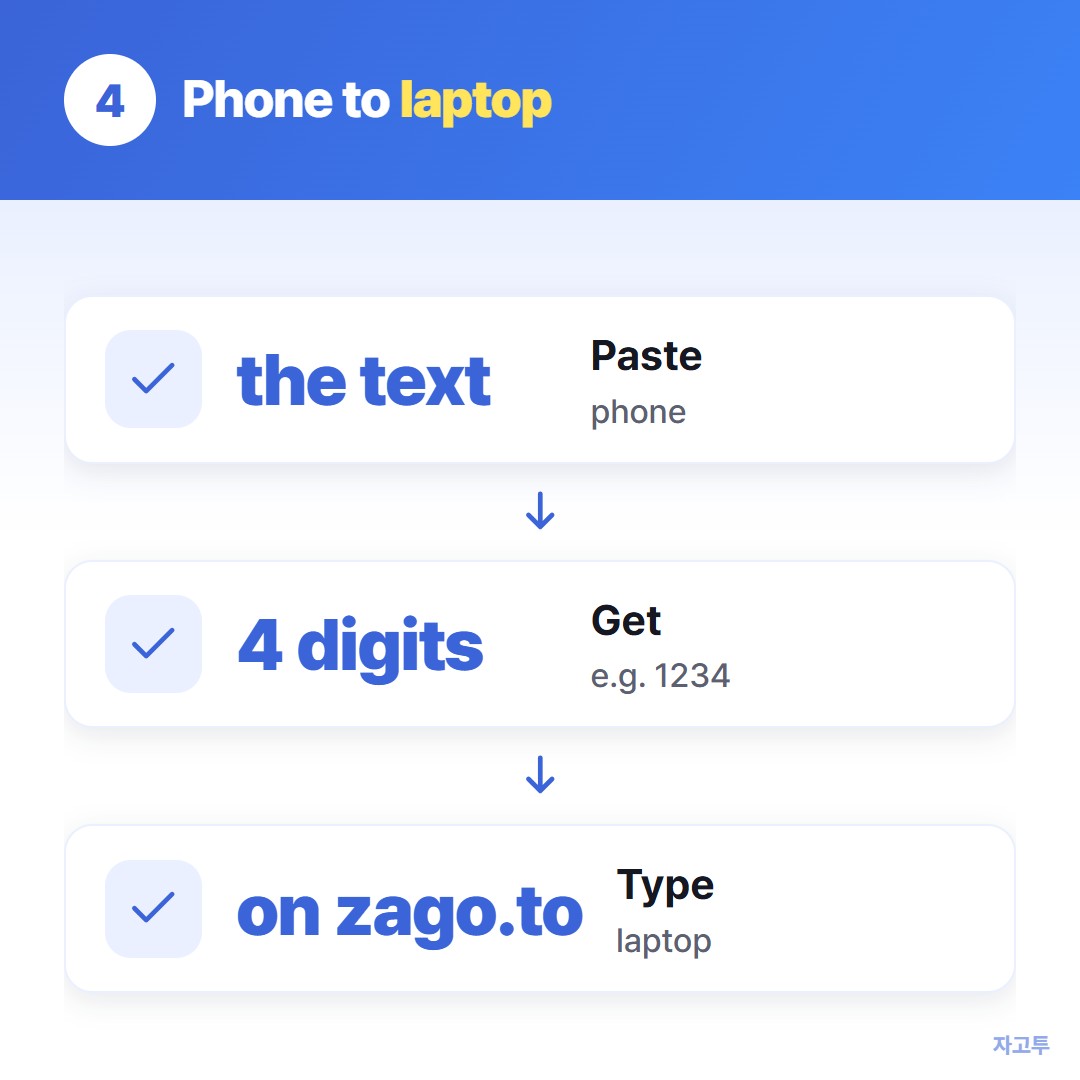
▲ No camera needed in this direction
Sometimes the scan already happened on the phone, and what you need on the laptop is the long link or the paragraph it opened.
ZAGO.TO handles that direction. Paste the text on the phone, get a 4-digit code, and type the code on zago.to in the laptop browser. It takes up to 10,000 characters of text, no files.
It is gone 1 minute after opening, or after 1 minute if nobody opens it, and it cannot be opened again.
Our server can read the text because in-browser encryption is not built yet, so a Wi-Fi password is fine to type by hand, but keep account passwords out of ZAGO.TO.
One-line answer
Paper code: webcam. Screen code: Google Lens in Chrome, or your phone. Text on the phone: four digits.