How to transfer a Wi-Fi password from your Android phone to a laptop
2026-10-10
This post contains affiliate links. As an Amazon Associate, ZAGO.TO earns from qualifying purchases.
Your Android phone joined the Wi-Fi months ago. Now a laptop needs it, nobody remembers the password, and the router is behind the TV.
To transfer a Wi-Fi password from your phone to a laptop, the phone first has to show it to you. Android does that in about ten seconds. The part that takes thought is getting it onto the laptop.
Contents
- How to see the Wi-Fi password on Android
- Getting it onto a Windows laptop
- Getting it onto a Chromebook
- Where web tools stop helping
- Quick answers
1. How to see the Wi-Fi password on Android
▲ The phone already knows the password, it just has to show it
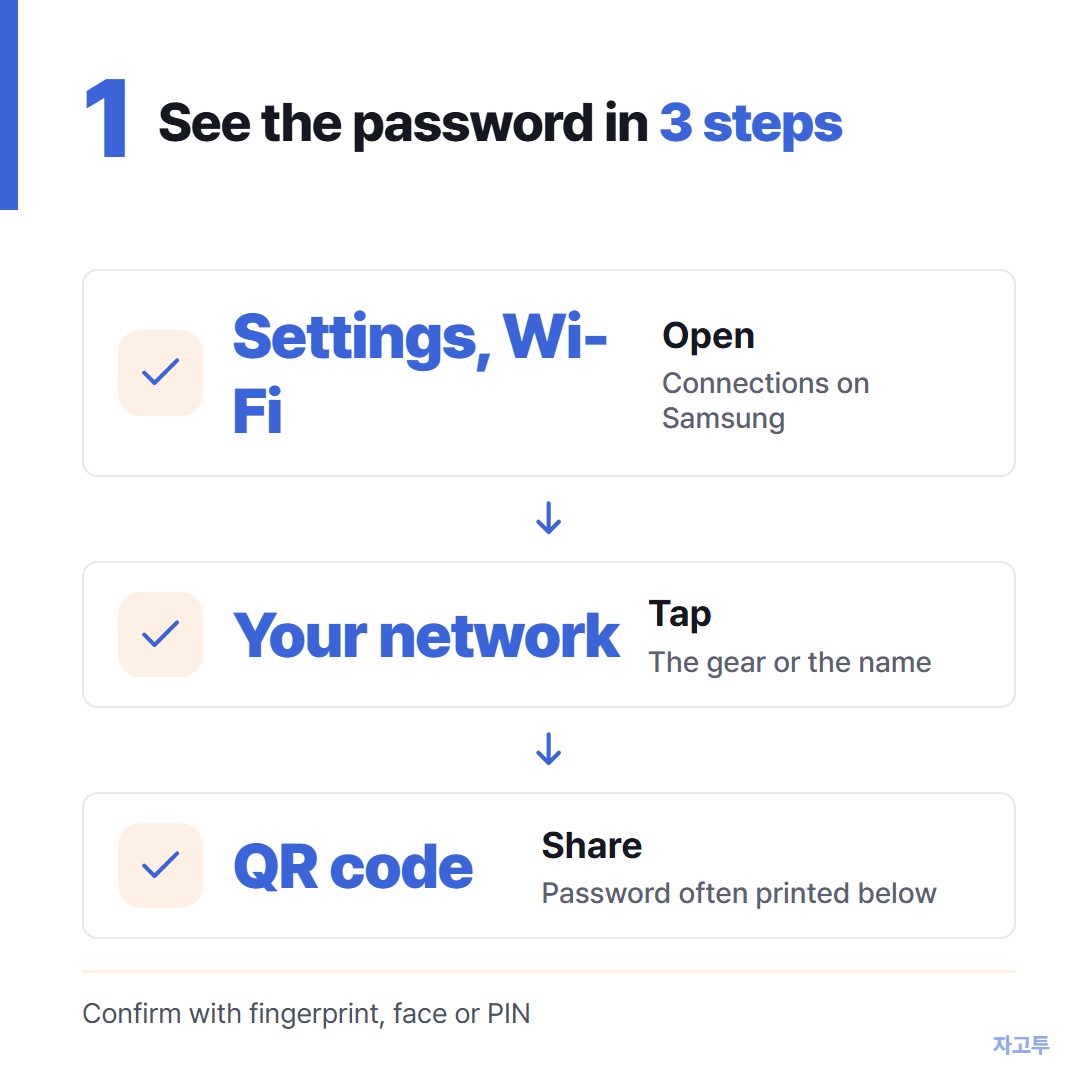
On most Android phones from Android 10 on, the steps look like this:
- Open Settings, then Network & internet (on Samsung, Connections), then Wi-Fi
- Tap the gear or the name of the network you are connected to
- Tap Share or QR code, and confirm with your fingerprint, face or PIN
A QR code appears. On many phones the password is printed in plain text right under it.
Some Samsung models show only the QR code. Newer ones add a View password option on the network's settings page.
If yours has neither, scan the QR code with another phone's camera or Google Lens, and the password appears as text.
▲ The menu names differ by maker, the order does not
2. Getting it onto a Windows laptop
Windows has no built-in way to pull Wi-Fi details from an Android phone. So the choice is between typing and scanning.
Type it. For a normal home password, read it off the phone and type it into the laptop's Wi-Fi box.
Zoom the phone screen if the password mixes a capital I and a lowercase l, or a zero and a capital O.
Scan it. Recent Windows 11 laptops have a barcode mode in the Camera app. Point the laptop's webcam at the QR code on your phone.
On some machines Windows offers to join the network directly. Whether that appears depends on the camera and the app version, so keep typing as the backup.
Read the router. If the factory password was never changed, it is on the sticker under the router, sometimes with its own QR code.
3. Getting it onto a Chromebook
Here Android has a real advantage. A Chromebook linked to your Android phone through Phone Hub can use Wi-Fi Sync, which shares saved networks between the two.
Turn it on under the Chromebook's Settings, Connected devices, with your phone selected. After that, networks the phone knows can show up on the Chromebook without anyone typing.
It needs the same Google account on both, and it takes a few minutes to set up. For a friend's Chromebook, typing is still faster.
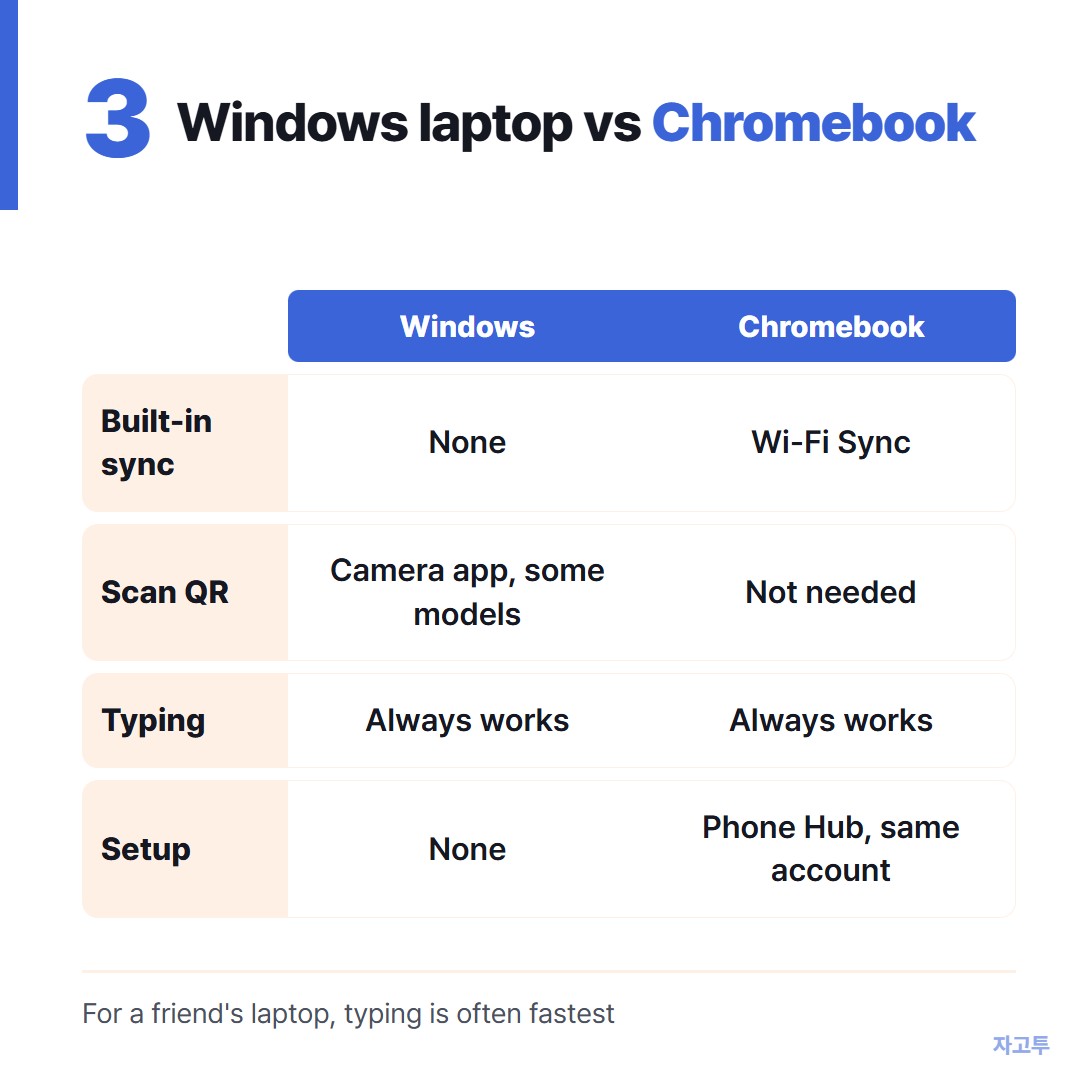
▲ Only the Chromebook has a built-in bridge to Android
4. Where web tools stop helping
This catches people every time. A laptop that is not on Wi-Fi yet cannot open any website, so no web service can carry the password to it.
That includes ZAGO.TO, which moves a piece of text to another device with 4 digits.
The iPhone version of this question, in How to share a Wi-Fi password from an iPhone to a laptop, runs into the same wall.
Once the laptop is online, short-lived text is where 4 digits fit: a router admin address, a guest network name for a visitor, a booking number.
ZAGO.TO deletes the text if nobody opens it within 1 minute, or 1 minute after it is opened.
It carries text only, never files. There is no in-browser encryption yet, so our server can read what you send.
A home Wi-Fi password lasts for months, so keep it on the phone screen and the keyboard, not on any server.
5. Quick answers
Can I share Wi-Fi from Android to a laptop by tapping, like phones do? Not to Windows.
Android phones can share with each other through Quick Share or the QR code, but a Windows laptop needs the password typed or scanned.
Why does my phone ask for my fingerprint first? Because showing the password is the same as giving it away. The lock stops someone who picks up your phone from reading it.
The QR code will not scan on the laptop. Turn the phone's brightness up, hold it about a hand's length from the webcam, and try the Camera app's barcode mode rather than photo mode.
There is no Share button at all. Work and school networks that use a sign-in page have no single password to share. Ask whoever runs the network.