How to share a Wi-Fi password from an iPhone to a laptop that is not a Mac
2026-10-06
This post contains affiliate links. As an Amazon Associate, ZAGO.TO earns from qualifying purchases.
Why does the share prompt never appear when you hold your iPhone next to a friend's Windows laptop?
Because tap-to-share only works between Apple devices. Here is what does work for a Windows laptop or a Chromebook, quickest first.
Contents
- Why the share prompt never shows up
- See the Wi-Fi password on the iPhone
- Get it onto the laptop
- What does not work, and why we say so
- Bottom line
1. Why the share prompt never shows up
▲ Holding the phone closer changes nothing for a Windows laptop
The prompt appears when another Apple device tries to join a network your iPhone already knows. That device has to be signed in to an Apple Account that is in your contacts.
A Mac gets it. An iPad gets it.
A Windows laptop, a Chromebook or an Android phone does not, no matter how close you hold them. Bluetooth on, both unlocked, moving closer: none of that changes it.
So for a laptop that is not a Mac, the question becomes how to get the password itself across.
2. See the Wi-Fi password on the iPhone
On recent versions of iOS the password is no longer hidden from you.
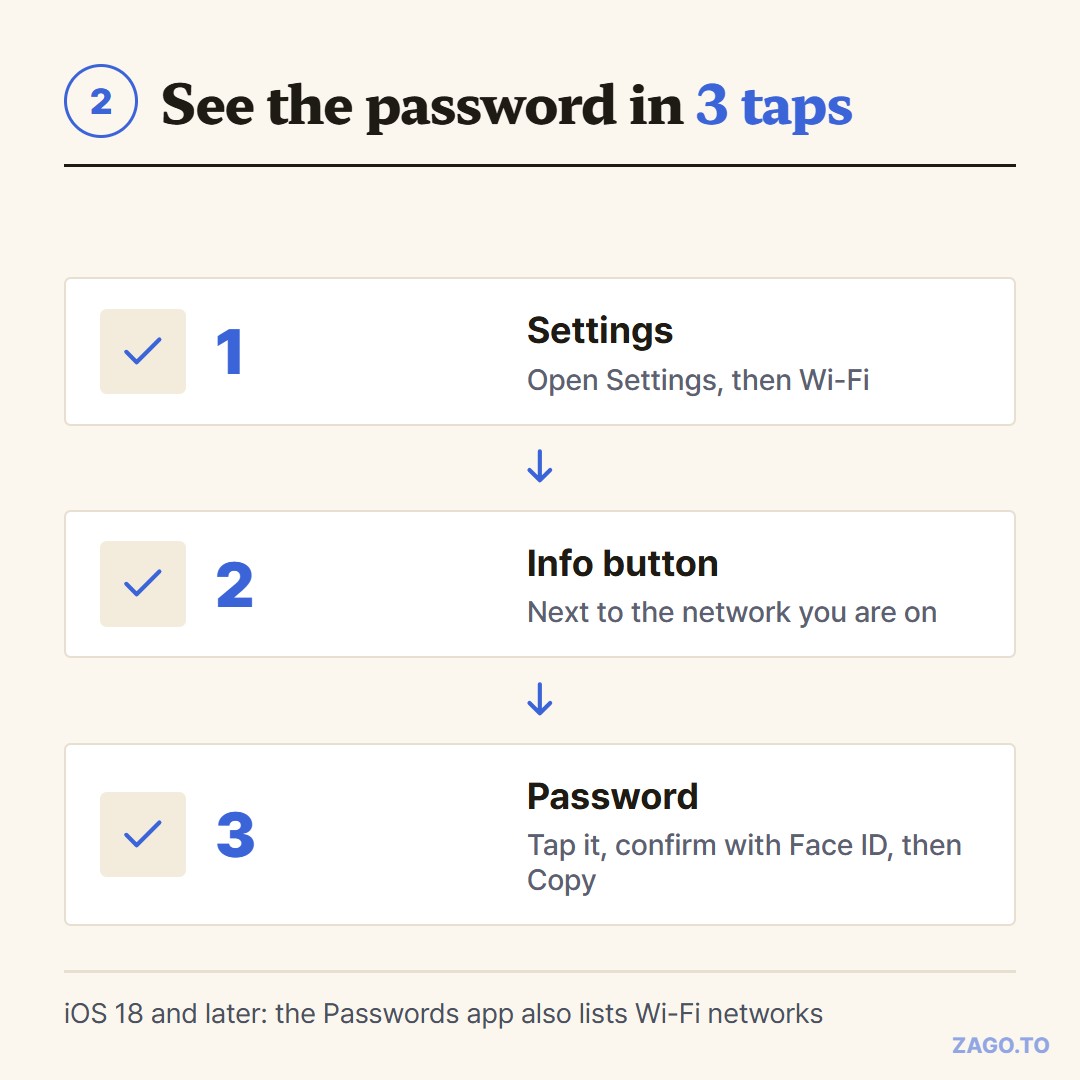
▲ Face ID, Touch ID or your passcode unlocks the field
- Open Settings, then Wi-Fi
- Tap the small info button next to the network you are connected to
- Tap the Password field and confirm with Face ID, Touch ID or your passcode
The password appears, and you can tap Copy. On iOS 18 and later, the Passwords app also has a Wi-Fi section that lists networks your phone has joined.
No Password field at all? The network may be a work or school network that uses a sign-in page instead of a single password.
3. Get it onto the laptop
Type it. For most home passwords this is the honest answer. Read it off the iPhone screen and type it on the laptop.
Some passwords are long and full of look-alikes, a lowercase l next to a capital I, a zero next to an O. Zoom the iPhone screen, or read it aloud slowly while the other person types.
Show a QR code. In the iOS 18 Passwords app, open the network under Wi-Fi and choose to show the network QR code. An Android phone can scan it and join directly.
Some Windows 11 laptops can scan it with the Camera app's barcode mode. That depends on the camera and the app version, so treat it as a bonus rather than the plan.
Use the router sticker. If nobody changed the factory password, it is printed on the router, often with its own QR code. That can be faster than unlocking anything.
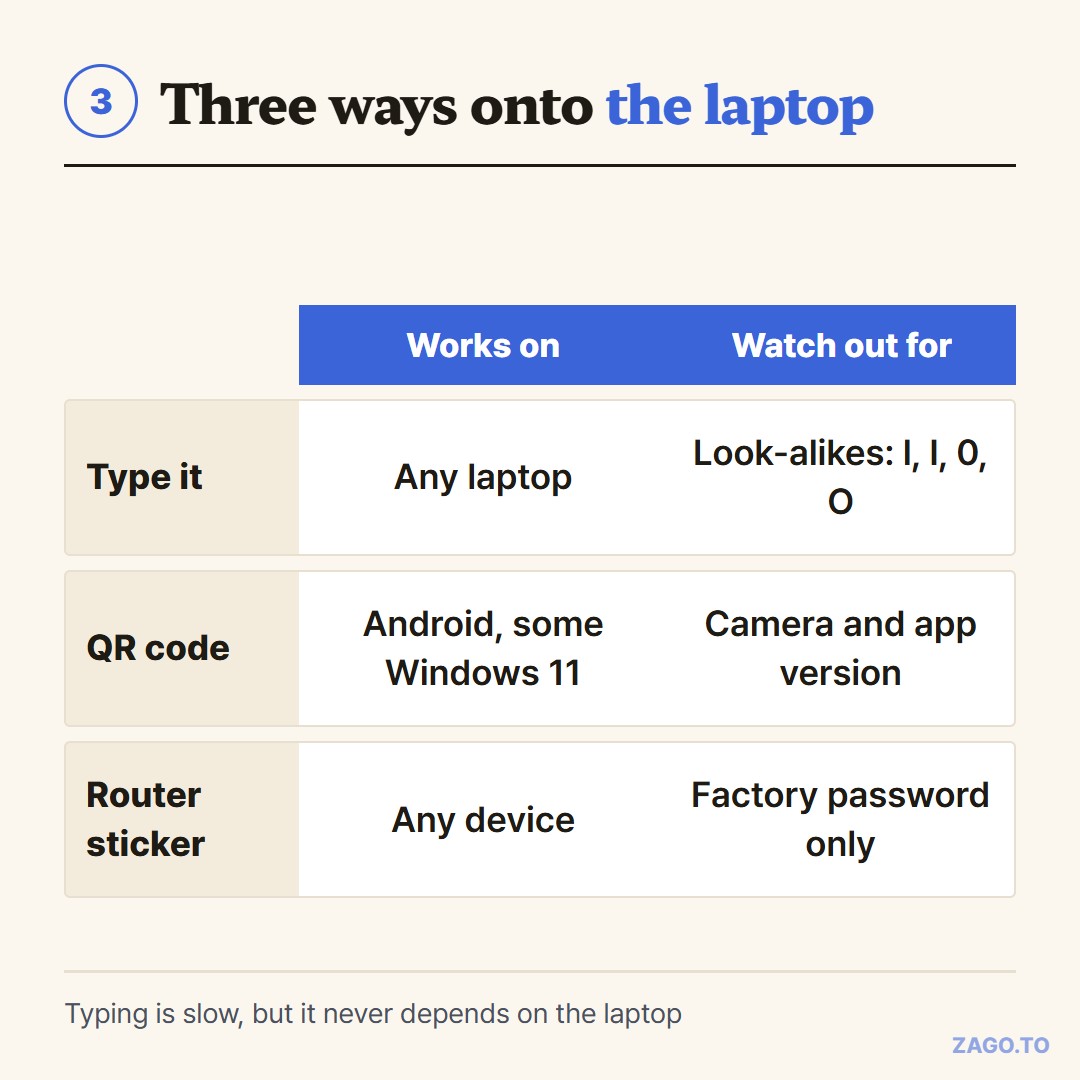
▲ Typing is slow, but it works on every laptop
4. What does not work, and why we say so
This is the part that trips people up. A laptop that is not on Wi-Fi yet cannot open any website.
▲ Every web tool needs the connection you are trying to set up
That includes ZAGO.TO, the service we run for moving a long piece of text to another device with four digits. You cannot send the password through a page the laptop cannot reach.
Messaging apps, email and cloud notes have the same problem. They only help if the laptop is already online some other way, like a wired cable or a phone hotspot.
And even when the laptop is online, a home Wi-Fi password is not something we would route through our own service.
There is no in-browser protection on our side yet, so the server can read text while it is held, for up to two minutes.
For a password that opens your home network for months, typing it is the better trade.
We wrote about this plainly in What our server can see.
Four digits do help after the laptop is connected. Think of the long guest-portal link your router app shows, the address of a shared photo album, or a booking reference your friend needs.
For that kind of short-lived text, copying between devices online covers the options.
5. Bottom line
The iPhone shows the password after Face ID. Type it on the laptop or show a QR code, and keep home passwords away from any server that can read text.
Long text, in 4 digits.