How to print at CVS from your phone: photos are easy, documents need a phone call first
2026-10-17
This post contains affiliate links. As an Amazon Associate, ZAGO.TO earns from qualifying purchases.
Can you print at CVS straight from your phone? For photos, yes, and it is one of the smoothest phone-to-paper routes around. For documents, the answer depends on the store.
Here is how to print at CVS from phone photos, what happens with a PDF, and what to do when the store screen wants a long order number.
1. Photos from the CVS app, picked up later
▲ The photo counter is built for exactly this trip
Open the CVS app and look for the photo section. You choose prints, pick pictures from your camera roll, set sizes and choose the store.
Small orders are often ready within the hour, while big ones or odd sizes can take a day. You get a notice in the app when the envelope is waiting.
This route works the same on iPhone and Android. Give the app access to your photos when it asks, or it will only show an empty album.
- Prints, cards, posters. All of them go through the same order screen.
- Passport photos. Staff take these at the counter, so an upload from home does not help.
- Coupons. Photo coupons show up often, so check before you pay.
2. The kiosk in the store
Many CVS locations have a self-service photo kiosk next to the counter. It can pull pictures from a phone, either through its own app or a direct connection the screen walks you through.
The kiosk is the faster choice when you are already standing in the store. The app is better when you want to order from the couch and walk in only to collect.
If the kiosk will not see your phone, check that Bluetooth or Wi-Fi is on and that the photos are saved on the phone, not only in a cloud album.
3. How to print documents at CVS from your phone
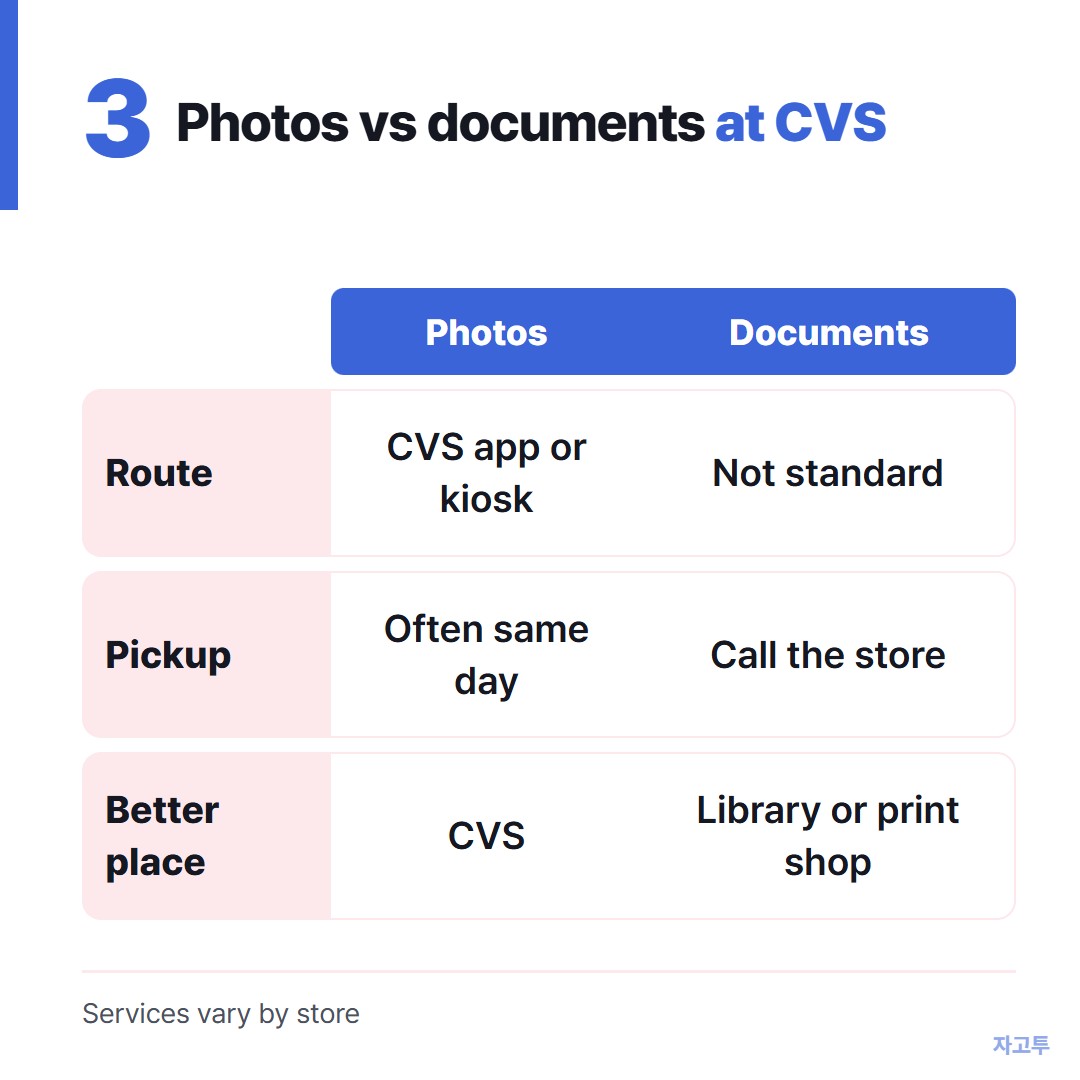
▲ Photos have a clear road, pages do not
This is where most searches come from, and the honest answer is short. CVS photo services are designed for pictures, and printing a PDF is not a standard service at most stores.
Some kiosks can print an image, so a screenshot of a one-page form sometimes works. It will not look like a proper document, and small text can blur.
Ring the store and ask the photo desk directly. A quick yes or no beats driving over with a PDF nobody can print.
When they say no, public libraries, office supply chains and pack and ship shops all print PDFs from a phone as a normal job.
How to print from your phone at the library covers the cheapest of those.
The Walgreens side of the same question is in Walgreens print documents.
4. Getting a coupon code or order number onto the kiosk
Kiosks and photo websites often ask you to enter something: a promo code from an email, an order number, or a shared album link a relative sent you.
Squinting at your phone and pecking it into a touchscreen is slow, and one swapped letter means the coupon fails at checkout.
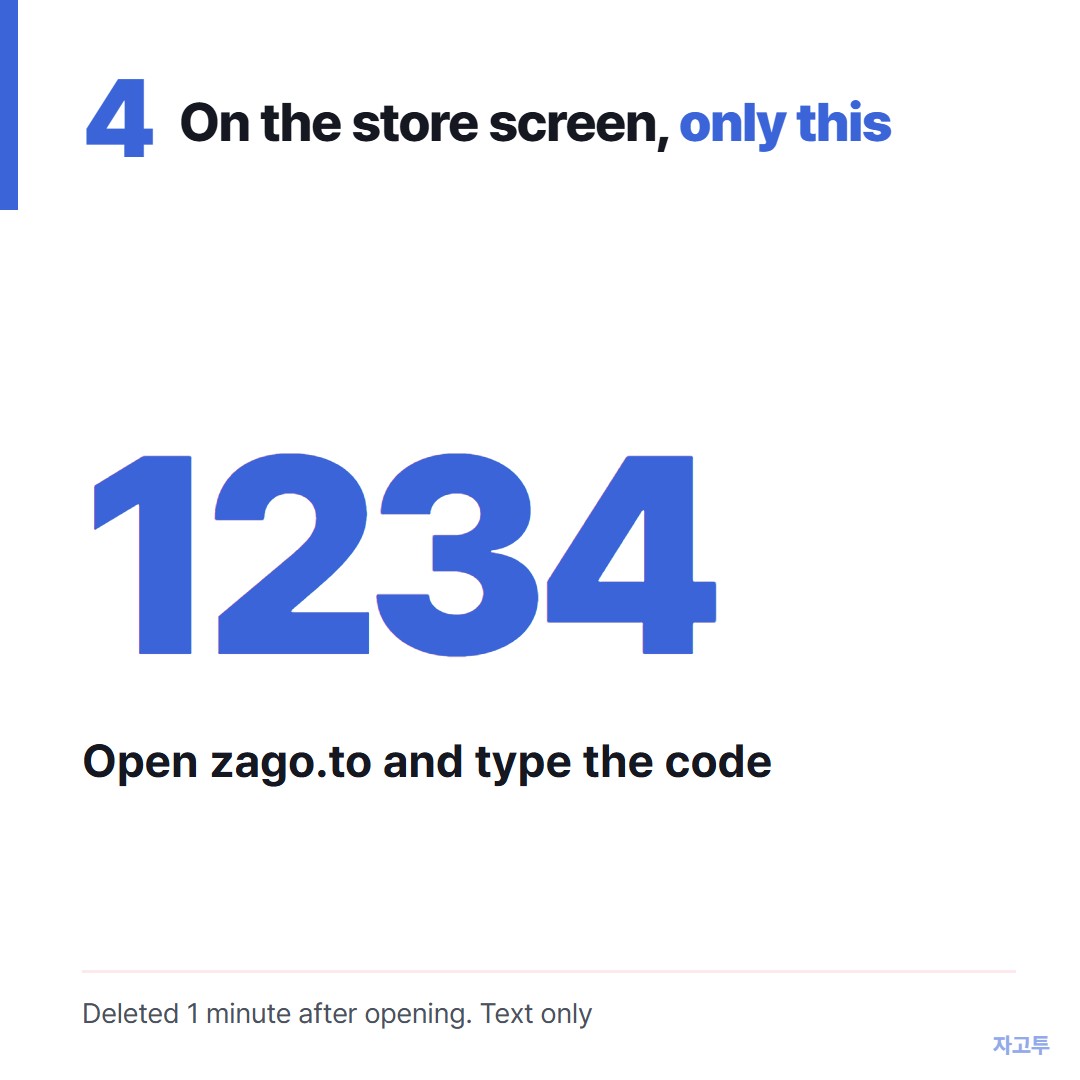
▲ An example code. Real codes are random
If the screen you are typing on can open a web page, ZAGO.TO shortens that step.
You paste the line on your phone and get 4 digits, then type those digits on the other screen to get the line back, ready to copy.
Plenty of kiosks have no browser at all. In that case, typing it carefully is still the answer.
The limits matter here. Pictures and PDFs cannot go through it, only text up to 10,000 characters.
Unopened text disappears after 1 minute, opened text 1 minute after opening, and nobody can open it twice.
Nothing is encrypted in the browser yet, so our server can read what you paste. A coupon code is fine. Card details are not.
In short
- Photos: order in the CVS app or use the kiosk, and pick up the same day at most stores.
- Documents: not a standard CVS service, so call ahead or go to a library or print shop.
- A coupon code or order number can reach a screen with a browser as text through ZAGO.TO.