How to post a link on Schoology, as a teacher or when you submit one
2026-10-11
This post contains affiliate links. As an Amazon Associate, ZAGO.TO earns from qualifying purchases.
In one line: teachers add a link as a material or inside an update, students paste a link into the assignment's submission. The link only reaches the students who are already in that course or section.
How to post a link on Schoology depends on which side of the course you are on. A teacher wants it to show up where students look. A student wants it to count as a submission.
Both go wrong in small, specific places. Here is each one, then the class that has not joined yet.
1. Teacher: three places a link can live

▲ Where you put the link decides where students find it
As a material. In the course, open Materials, then Add Materials, then Add File/Link/External Tool, and choose Link. Paste the address and give it a title students will recognise.
This is the right home for anything they will open more than once, such as a reading or a class website. It stays in the course list, in the folder you choose.
In an update. Post an update on the course page and paste the address in the text. It shows in the course feed and in students' home feeds.
Good for "open this today". It scrolls away by next week.
Inside an assignment. When you create the assignment, add the link in its description or attach it. Students see it right where they submit.
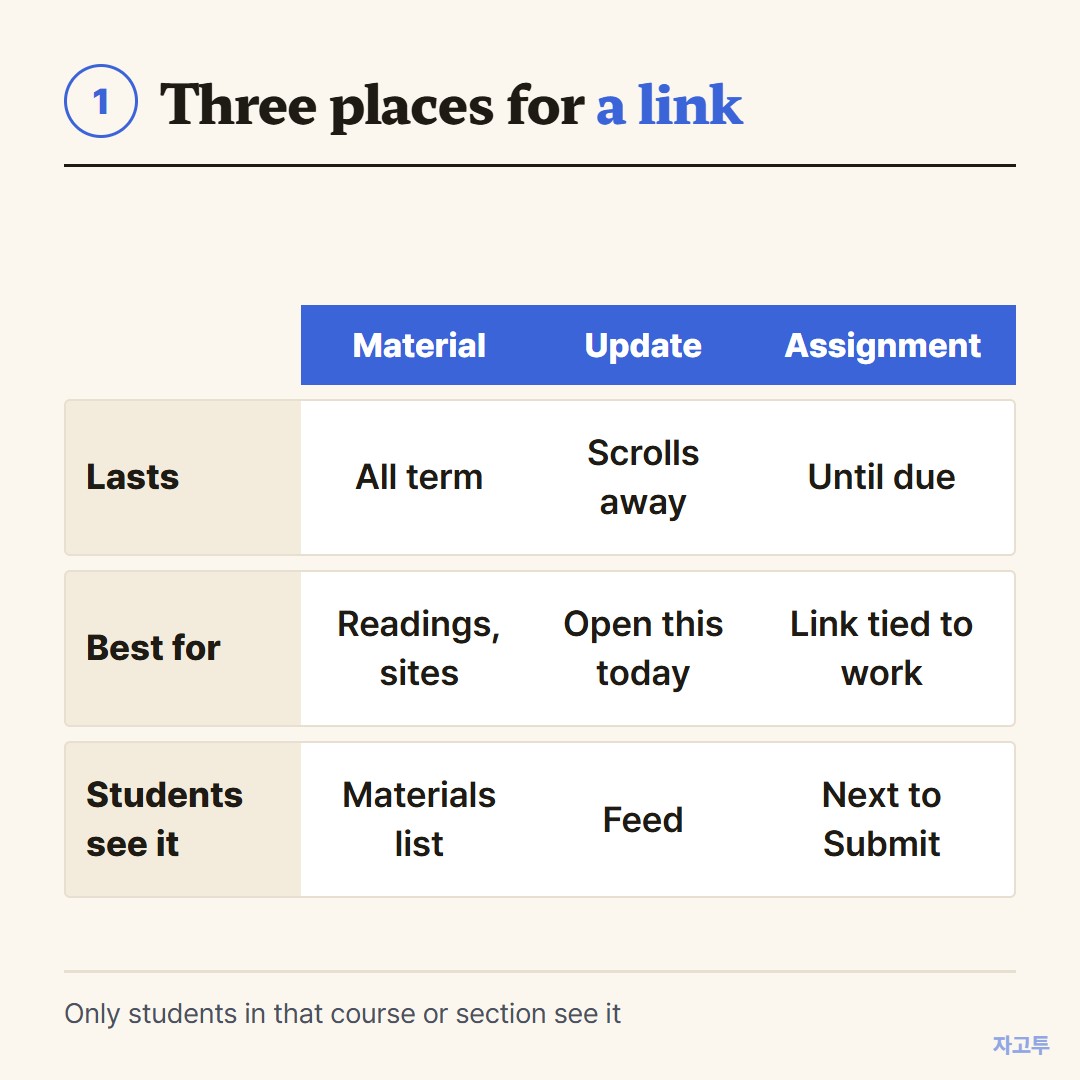
▲ Pick by how long students need the link
2. Student: submitting a link that counts
The most watched how-to video on this topic is about students, not teachers. The usual slip is pasting the link into a comment instead of the submission.
- Open the assignment and choose Submit Assignment.
- Use the option that lets you type text, often labelled Create, and paste the address there.
- Press Submit, then check that the assignment now shows your submission.
If the link is to a Google Doc or a slide deck, set its sharing so your teacher can open it before you submit. A link nobody can open is graded like an empty page.
3. Course or section, and the class that is not in yet
Schoology can have several sections of the same course. A material added in one section stays there unless your sections are linked or you copy it across.
So when one period sees the link and the next does not, check which section you posted in first.
Then there is the first week. Students who have not joined the course with its access code see nothing you post, however well you place it.
For that gap, the board still works. Write the address up, or use a short code. ZAGO.TO turns a link of up to 10,000 characters into 4 digits for students to type on their own phones.
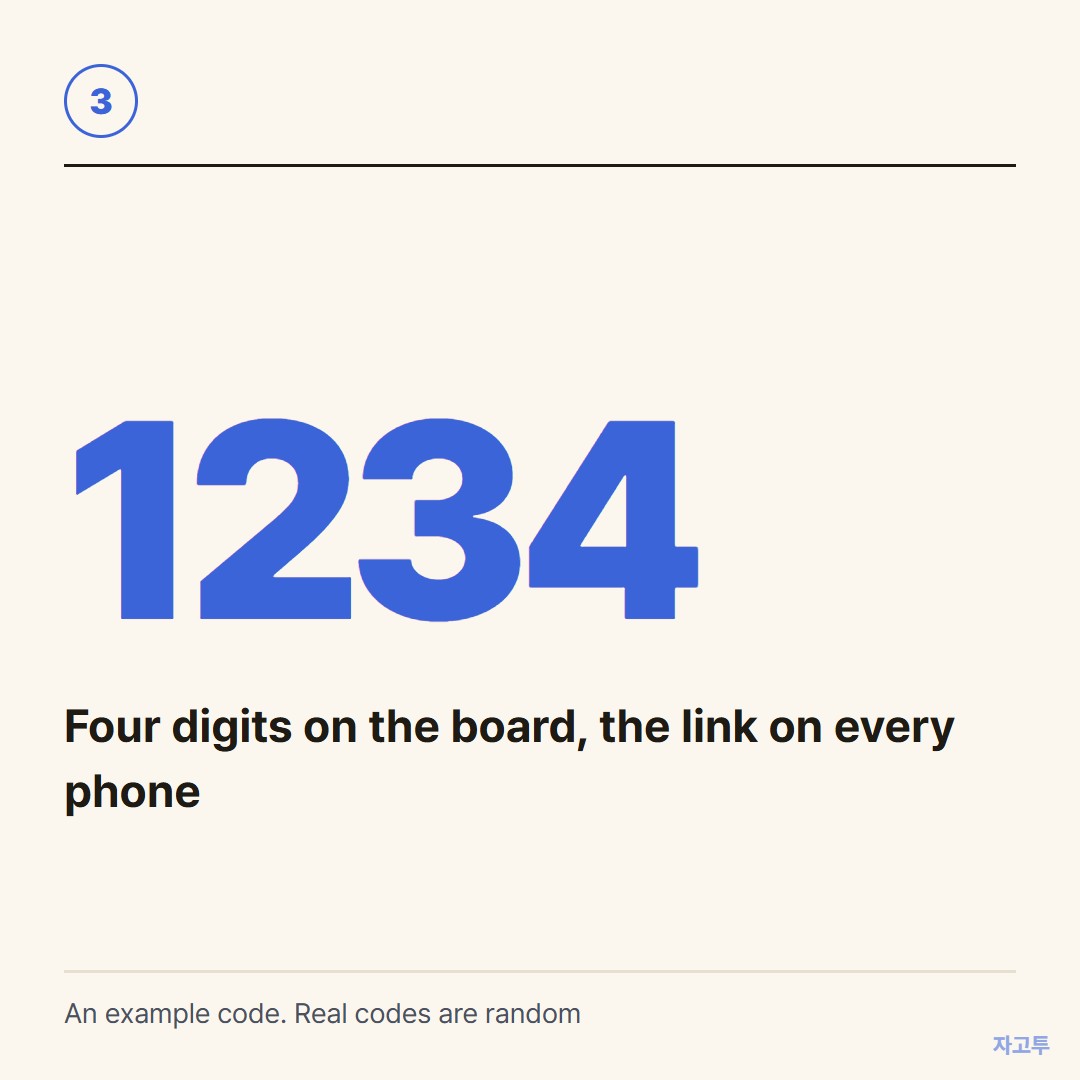
▲ An example code. Real codes are random
A ZAGO.TO code lasts 1 minute if unopened, and the text is deleted 1 minute after it is opened.
It carries text only, no files, and our server can read it, so use it for public links, not grades or logins.
The wider version of this problem is in How to share a link with students when half the class is not logged in yet.
If your school uses Google instead, see How to share a link on Google Classroom.
In three lines
- Teachers: material for links that stay, update for today, assignment for links tied to work.
- Students: paste the link into the submission itself, and open its sharing first.
- One section missing it? Check where you posted. Students not enrolled yet? Use the board or a short code.