How to copy text from a PDF on iPhone, including scanned pages that will not select
2026-10-17
This post contains affiliate links. As an Amazon Associate, ZAGO.TO earns from qualifying purchases.
A boarding confirmation, a lease clause, a reference number buried on page six. You open the PDF on your phone, press on the words, and either a blue handle appears or nothing happens at all.
Which one you get tells you what kind of PDF it is. That is the whole trick to how to copy text from a PDF on iPhone: figure out the kind first, then pick the route.
Two kinds of PDF, two routes

▲ Same file icon, very different insides
Most PDFs made on a computer carry real text. You can select it, search it, and copy it.
A scanned PDF is a picture of a page. It looks like text, but to your iPhone it is an image, so press-and-hold just zooms or does nothing.
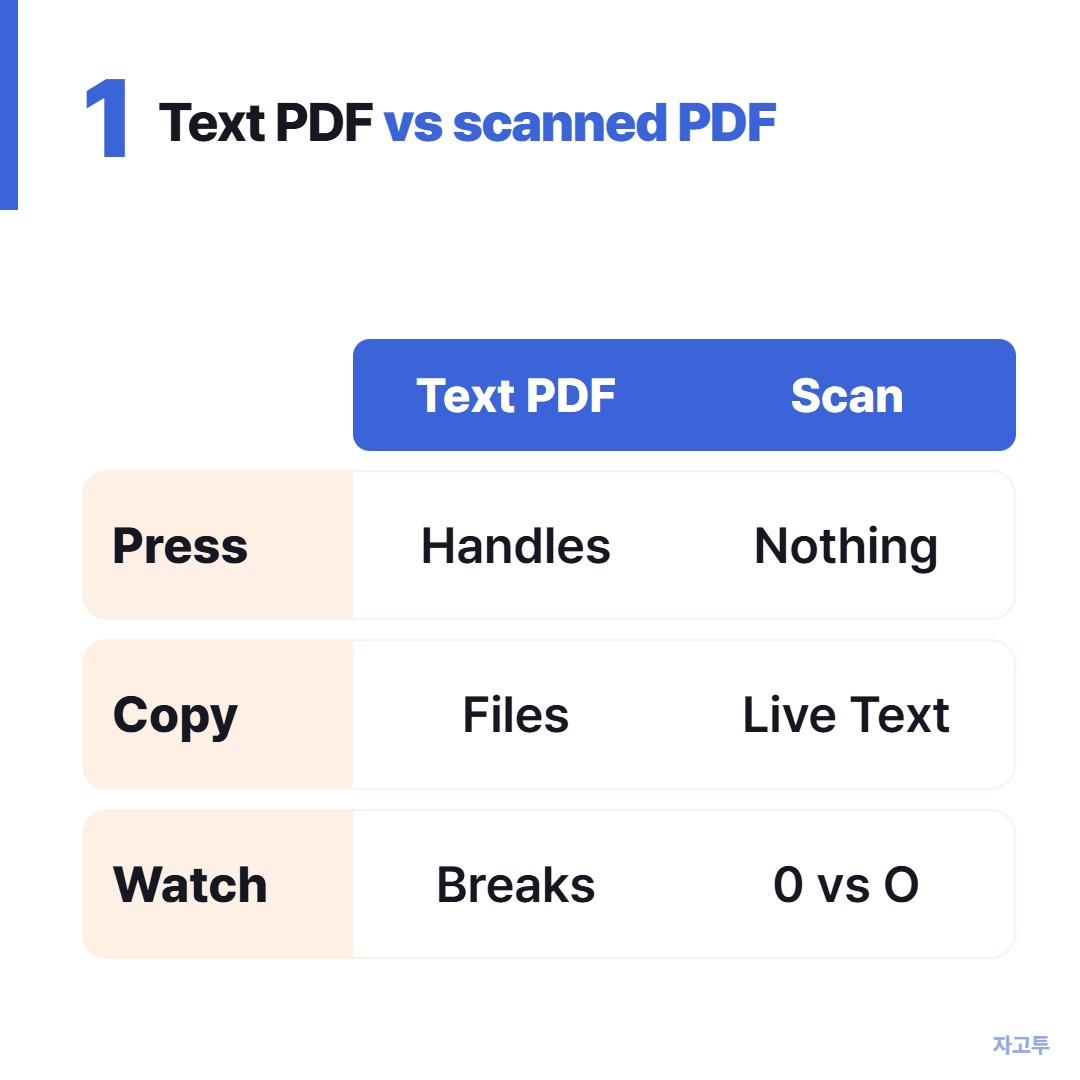
▲ Try one long press. The result tells you which column you are in
Copy text from a PDF on iPhone when the text is real
Open the PDF in Files, Safari, or Books. Press and hold on the first word until it highlights, then drag the handles to the end of what you need. Tap Copy in the bar that pops up.
A few things go wrong here:
- The selection jumps across columns. Two-column layouts confuse the selector. Copy one column at a time
- Copy is missing from the menu. Some PDFs are locked against copying by whoever made them. The scanned-page route below still works, since it reads the screen instead of the file
- Line breaks come along. Text copied from a PDF often has a hard break at the end of every printed line. Paste it into Notes first and tidy it there
When the page is a scan
Take a screenshot of the page, then open the screenshot in Photos.
If your iPhone supports Live Text, a small text icon shows in the corner. Tap it, and the words on the picture become selectable. Copy as usual.
Check numbers and names character by character. Live Text reads the image, and a smudged 0 can come out as an O.
Getting the copied text onto your computer
Once it is on the clipboard, the next question is usually how to get it onto a laptop. On a Mac signed into the same Apple ID, Universal Clipboard lets you paste straight away.
How to see the clipboard on an iPhone explains why you cannot browse what you copied earlier.
On a Windows PC or someone else's computer, you can paste the text into ZAGO.TO, get a 4-digit code, and type that code on the other screen.
It is text only, up to 10,000 characters, and it is gone 1 minute after opening, or after 1 minute if nobody opens it. There is no going back to it after that.
The server can read what you paste, so leave out passwords and anything you would not email. Getting text from an iPhone onto a Windows PC without emailing yourself compares the other routes.
One last check
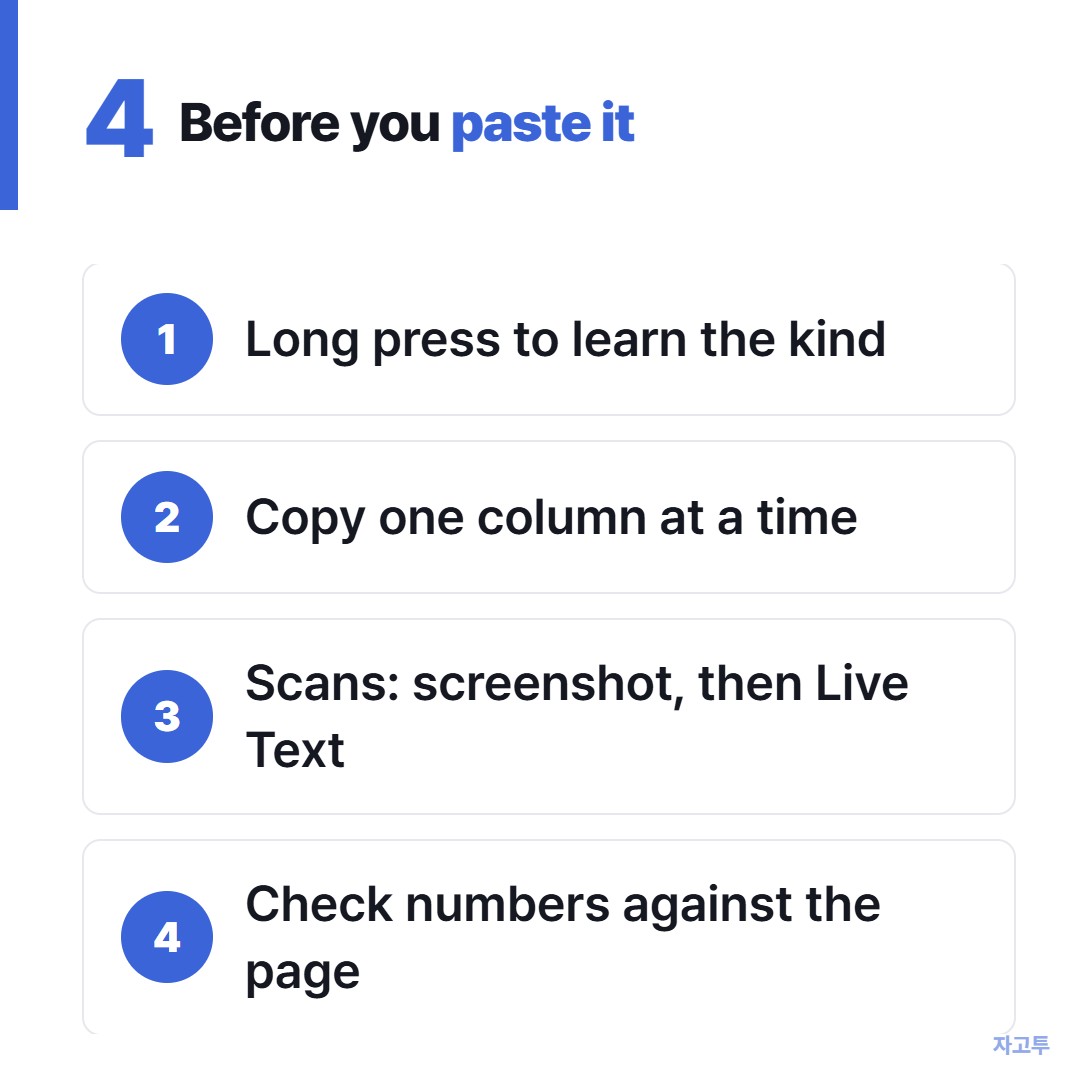
▲ Four habits that save a second try
- Long press first, to learn which kind of PDF you have
- Real text: select in Files, copy one column at a time
- Scan or locked file: screenshot, then Live Text in Photos
- Compare numbers against the page before you use them
- Pasting on a Windows PC: ZAGO.TO and a 4-digit code