How to see the clipboard on an iPhone, when there is no screen for it
2026-10-09
This post contains affiliate links. As an Amazon Associate, ZAGO.TO earns from qualifying purchases.
Clipboard, on iPhone: the invisible spot that holds the one thing you copied last. There is no app for it and no history. You see it by pasting it somewhere.
You copied something a minute ago and you are not sure what it was. You open Settings, then the app library, looking for a clipboard. Nothing.
How to see the clipboard on an iPhone is the same answer on an iPhone 11, 13, 16 or 17: you look at it by pasting it. Here are the ways to do that without sending it anywhere by mistake.
Why there is nothing to open

▲ The clipboard is real, it just has no window
iOS keeps exactly one copied item. Copy something new and the old one is replaced on the spot.
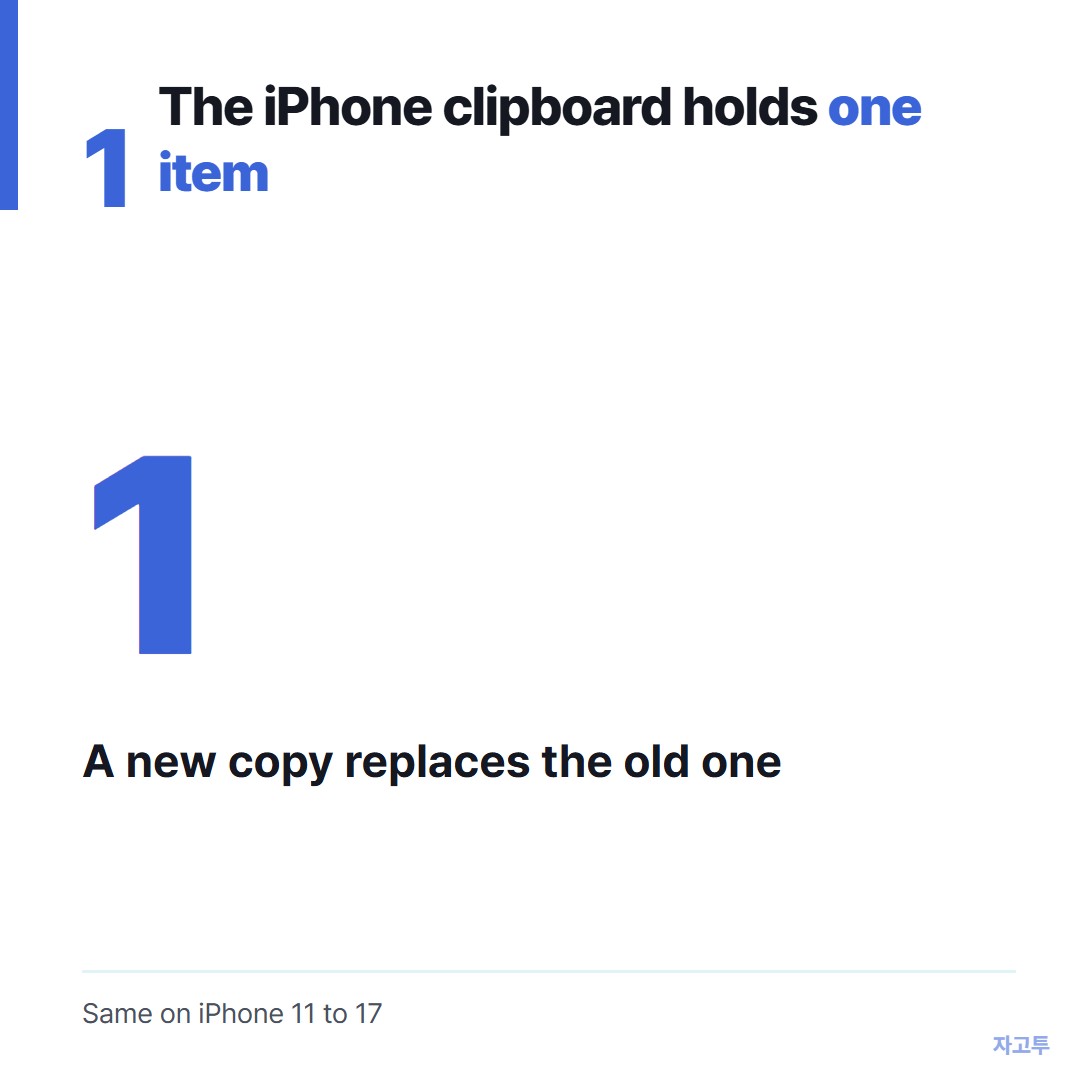
▲ The iPhone keeps the last copy only
That is why searches for iPhone clipboard history come up empty on the built-in keyboard. There is no list to scroll back through.
Four ways to see what is on it
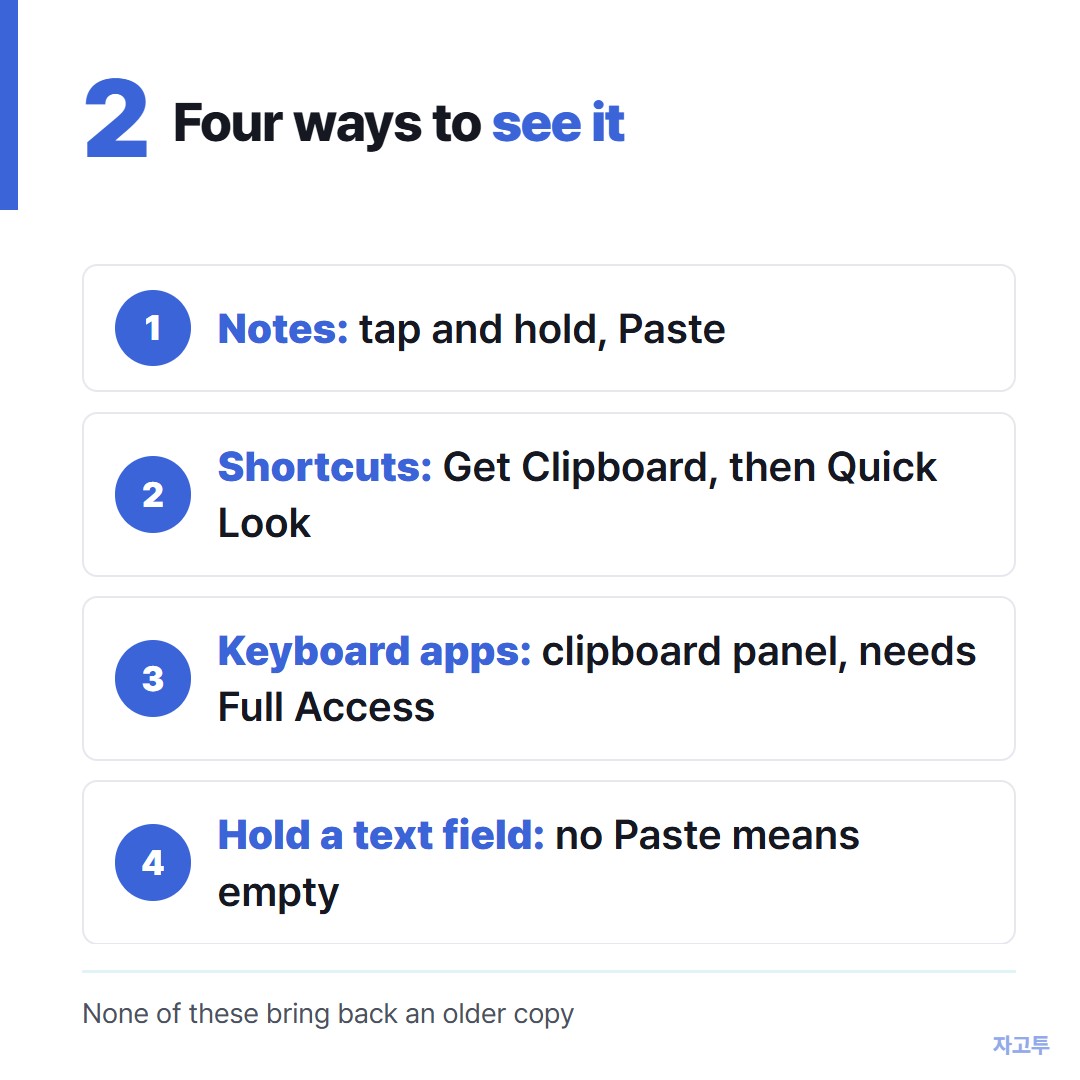
▲ None of them bring back an older copy
- Paste into Notes. Open a new note, tap and hold, choose Paste. This is the plainest way and it sends nothing.
- A Shortcuts button. In the Shortcuts app, make a new shortcut with the Get Clipboard action, then Quick Look. Run it and the content shows on screen. You can add it to the Home Screen.
- A keyboard with a clipboard panel. Some third-party keyboards keep recent copies. They ask for Full Access first.
- Press and hold the text field you are in. If Paste shows up, something is on the clipboard. If it does not, the clipboard is empty.
On option 3, decide whether you want a keyboard reading what you type before granting Full Access.
Which apps can look at it
Since iOS 16, an app has to ask before it reads what you copied from another app. That is the small Allow Paste box you sometimes see.
You can set this per app. Go to Settings, tap the app, then Paste from Other Apps, and choose Ask, Deny or Allow.
Ask is a sensible default. You see the box, and you decide each time.
Clearing it
Searches for deleting clipboard history are common too. Since there is only one item, clearing it is simple: copy something harmless, like a single space.
That is worth doing after copying an address or a code you would not want pasted into the wrong chat later.
Moving the copy to a Windows PC
Seeing the clipboard is one thing. Getting that copy onto a computer outside Apple's world is the next question people ask.
Our short route is ZAGO.TO. On the iPhone, paste into zago.to and note the 4-digit code. On the PC, enter those digits on the same site and copy the text out.
Limits first: text only, up to 10,000 characters, deleted 1 minute after it is opened, or after 1 minute if nobody opens it.
Our server can read what you send, since there is no in-browser encryption yet. So no passwords.
The basics of what a clipboard is, on any device, are in What is a clipboard on a computer or a phone.
In short
There is no clipboard screen on an iPhone. Paste into Notes to see it, make a Shortcuts button if you check often, set Paste from Other Apps to Ask, and copy a space to clear it.