How to copy text from a picture on iPhone, then get it onto your computer
2026-10-16
This post contains affiliate links. As an Amazon Associate, ZAGO.TO earns from qualifying purchases.
A screenshot of an order number. A scanned PDF from your landlord. A product photo on a shopping site with the model code printed on the box.
How to copy text from a picture on iPhone is mostly a question of where the picture is. And once it is copied, the real work is often on a computer.
Contents
- Which iPhones and settings it needs
- How to copy text from a picture on iPhone, app by app
- When nothing can be selected
- Move the copied text to your computer
1. Which iPhones and settings it needs
Apple calls it Live Text. It needs an iPhone XS, XR or any later model, on iOS 15 or newer. An iPhone X or 8 cannot do it, whatever settings you change.
The switch lives under Settings, General, Language & Region, Live Text. On iOS 15 it sat in the Camera settings instead, as "Show Detected Text".

▲ Live Text reads the picture wherever it is shown
2. How to copy text from a picture on iPhone, app by app
The gesture is the same everywhere: press and hold on the words, adjust the handles, tap Copy. What changes is which apps let you do it.
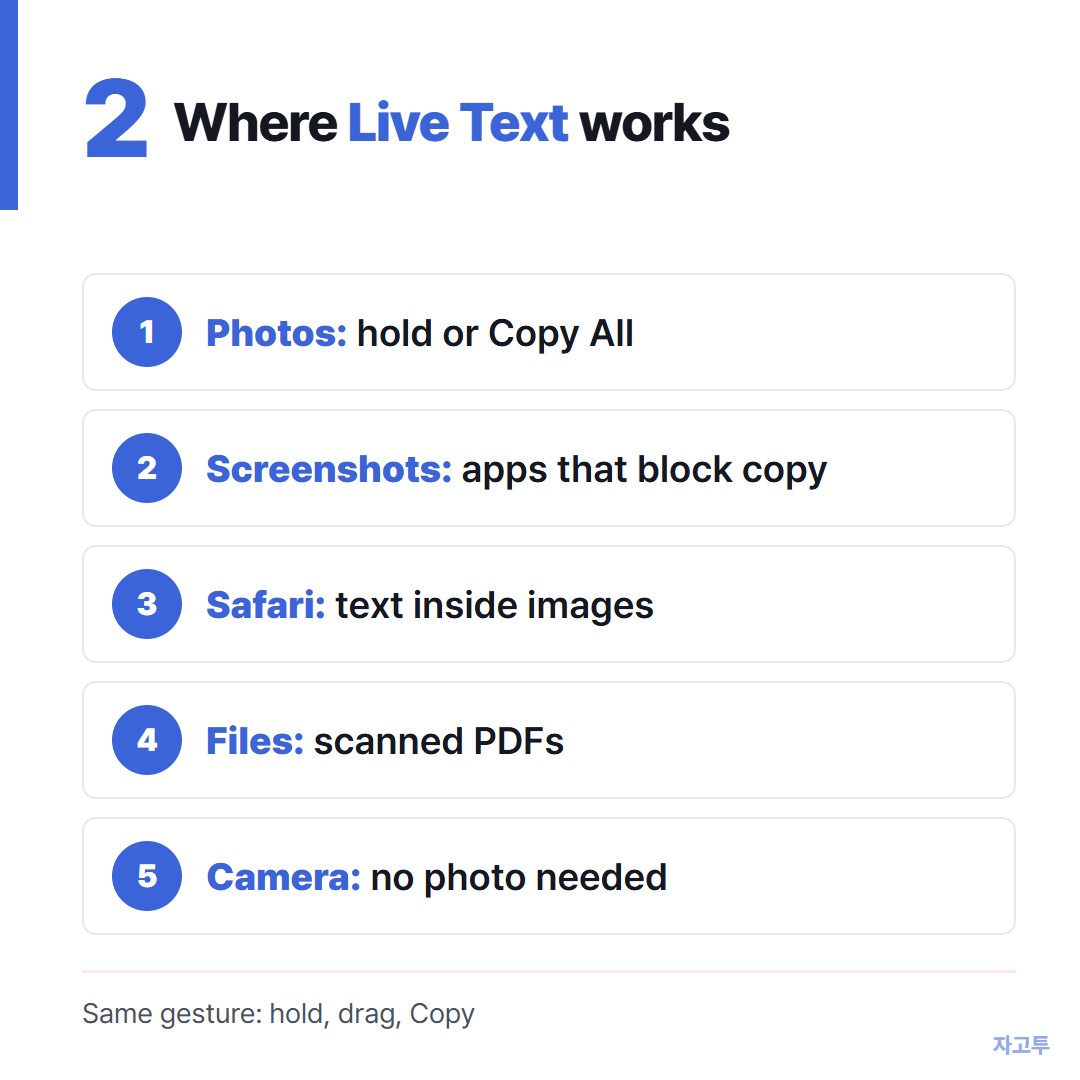
▲ Not only Photos
- Photos and screenshots: hold on the text, or tap the Live Text icon to highlight every block and choose Copy All.
- Safari: hold on text inside an image on a web page. Useful for a code printed in a product photo.
- Files and Quick Look: a scanned PDF or image opened from Files can be selected the same way.
- Camera: copy from the viewfinder without saving a photo at all.
A screenshot is the trick for apps that block selection. Take one, open it, and copy the words from the picture.
3. When nothing can be selected
- Model or iOS: check those first, since no setting fixes an unsupported phone.
- Switch off: a work profile or a reset may have turned Live Text off.
- Language: only a set of languages is read. Text in others is skipped.
- Tiny or soft text: zoom in and take a fresh screenshot of just that part.
Read the result once. Codes and model numbers are where one wrong character costs you.
4. Move the copied text to your computer
The words are now on the iPhone clipboard. Whether they follow you depends on the computer.
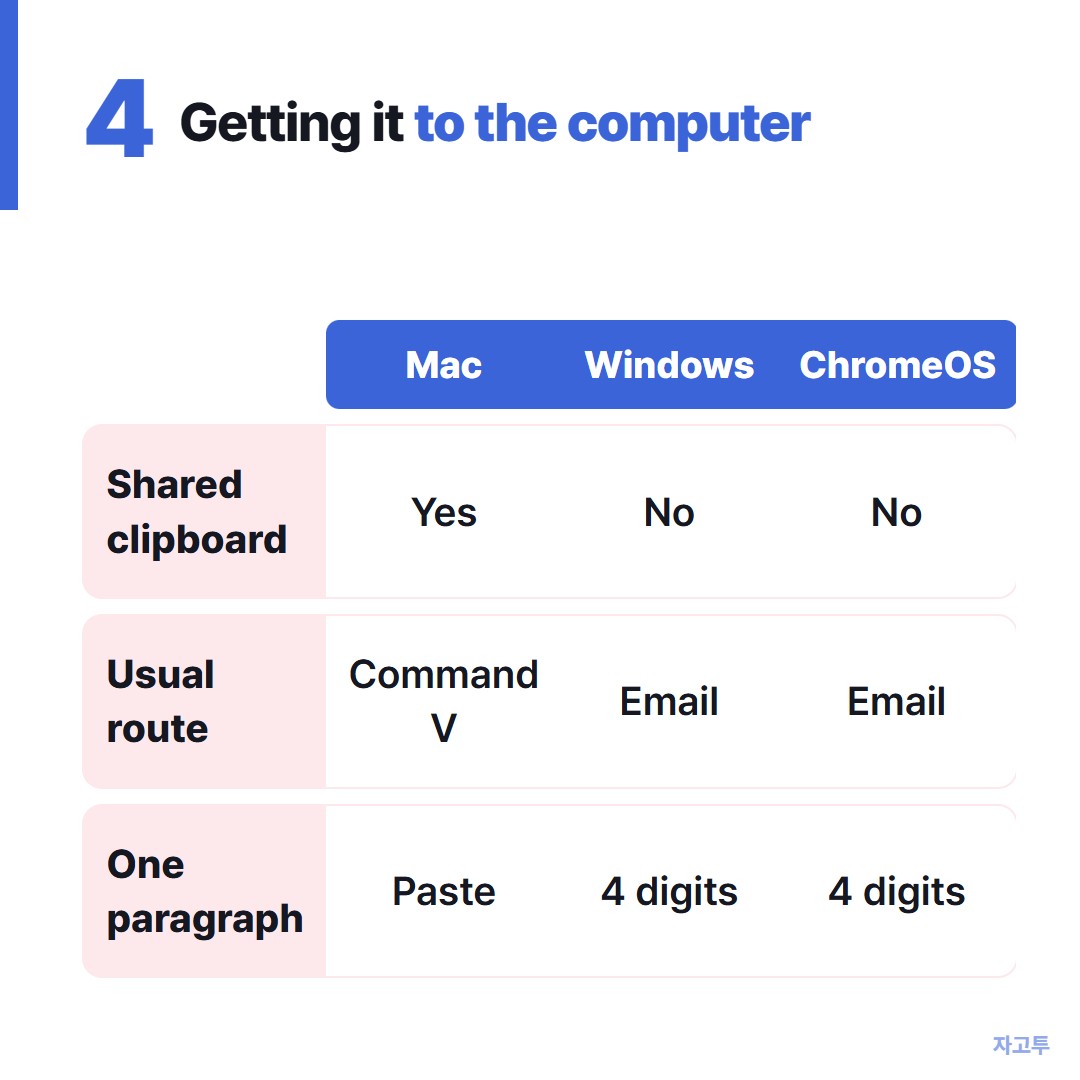
▲ Pick the route by the computer you are sitting at
A Mac on the same Apple ID usually takes it with Command and V, through Universal Clipboard.
A Windows PC does not share a clipboard with an iPhone. The usual fixes and their trade-offs are in getting text from an iPhone onto a Windows PC.
A Chromebook has the same gap, covered in how to connect iPhone to Chromebook.
For one order number or paragraph, ZAGO.TO is a shorter route. Paste the text on zago.to in Safari and you get a 4-digit code.
Type the code on the same site on the computer, and the text appears ready to copy.
It is deleted 1 minute after it is opened, or after 1 minute if no one opens it, and it cannot be opened again.
ZAGO.TO moves text only, up to 10,000 characters, not the picture.
There is no in-browser encryption yet, so the server can read what you send. An order number is fine. A password is better typed by hand.
Summary in three lines
- Live Text needs an iPhone XS or newer, iOS 15 or later, and the setting on.
- It works in Photos, Safari images, Files and the Camera, and a screenshot gets around apps that block selection.
- A Mac takes the copy directly; for Windows or a Chromebook, send the text across.