How to connect iPhone to Chromebook: a cable for photos, something else for text
2026-10-09
This post contains affiliate links. As an Amazon Associate, ZAGO.TO earns from qualifying purchases.
The Chromebook is the school one, the phone is an iPhone, and the paragraph you need is in the iPhone's Notes app. You look for a Connect button. There is not one.
How to connect iPhone to Chromebook depends on what you are moving. Photos and videos have a real route. A paragraph of text does not, so it needs a small workaround.
Contents
- What actually connects
- Photos, hotspot and screen
- Copying text from iPhone to Chromebook
- When the Chromebook is not yours
1. What actually connects
Chromebooks have Phone Hub, which links a phone to the laptop for messages, tabs and notifications. Phone Hub only works with Android phones.
Apple's Universal Clipboard, the feature that lets you copy on an iPhone and paste on a Mac, only works between Apple devices.
So an iPhone and a Chromebook have no shared clipboard and no built-in link. Each route below goes around that gap.
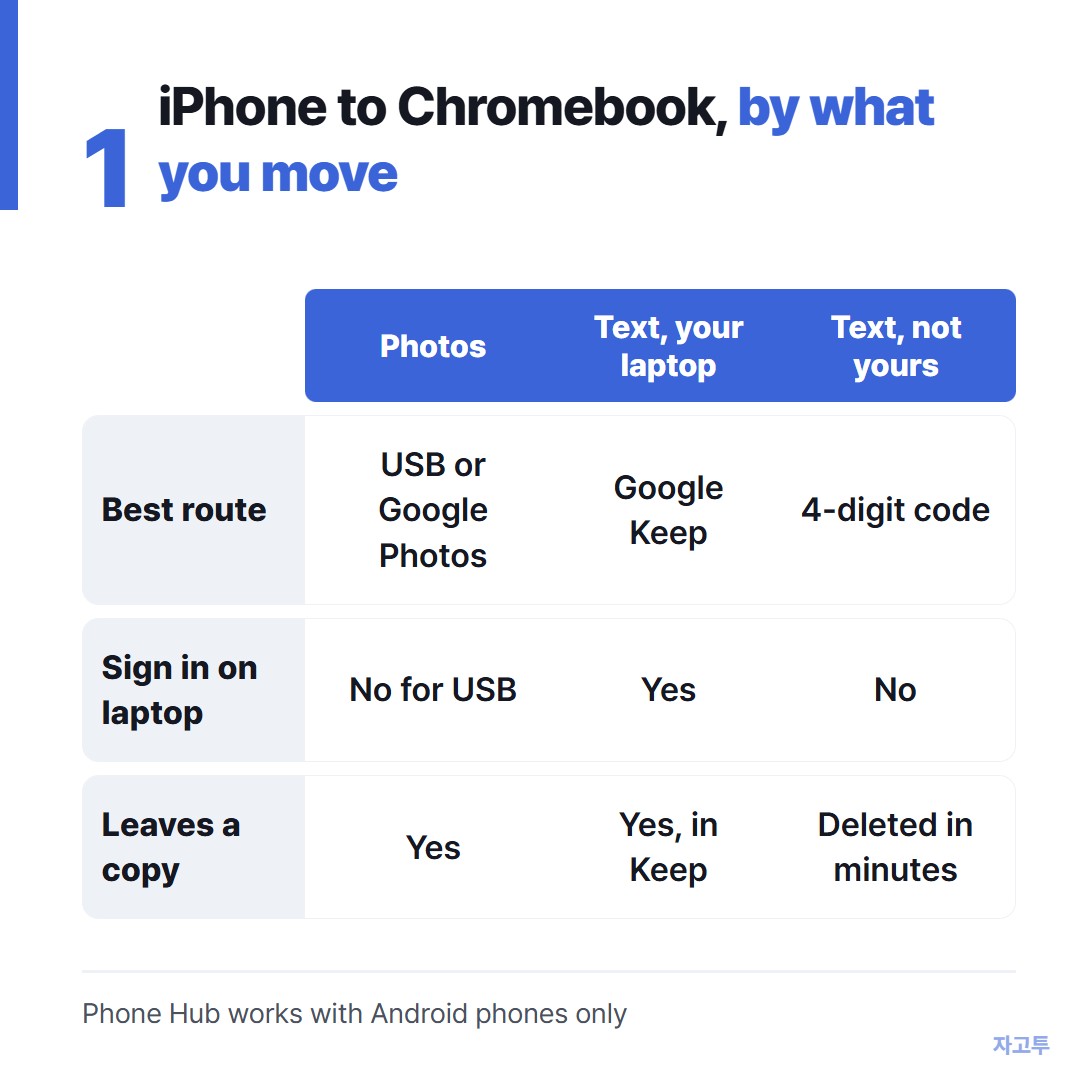
▲ The cable wins for photos. For text, pick by whose Chromebook it is
2. Photos, hotspot and screen
Most people searching this want their photos. That part is well covered.
- USB cable: plug the iPhone in, tap Trust on the phone, and the Chromebook's Files app can import photos and videos.
- Google Photos: turn on backup in the iPhone app and the pictures appear at photos.google.com on the Chromebook.
- Hotspot: the iPhone's Personal Hotspot works for a Chromebook like any Wi-Fi network.
- Screen mirroring: there is no built-in way. Third-party apps exist, with their own accounts and limits.
Bluetooth will pair the two for headphones-style uses, but it does not move files or copied text between them.
3. Copying text from iPhone to Chromebook
▲ The text is on the phone. The essay is on the laptop
If the Chromebook is signed in to your own Google account, use Google's apps on the iPhone as the bridge.
- Google Keep: paste the text into a note on the iPhone, open keep.google.com on the Chromebook.
- Google Docs: paste it into a doc. Good when the text is going into an assignment anyway.
- Chrome on iPhone: signed in to the same account, your open tabs show up under Recent tabs on the Chromebook. Handy for a link, not for a paragraph.
- Email yourself: Gmail works, and it leaves a copy in your inbox, which may be what you want.
All of these need you signed in on both sides. That is fine on your own laptop and awkward on anyone else's.
4. When the Chromebook is not yours
A classroom Chromebook, a library loaner or a friend's laptop is a different case. You do not want to sign in to your Google account to grab one paragraph.
For that, ZAGO.TO works in the browser on both. Paste the text on the iPhone at zago.to and you get a 4-digit code. Type the code on the Chromebook and the text appears.
The limits come with it. Text that nobody opens within 1 minute is deleted, and opened text stays 1 minute more. You cannot open it again later.
It handles text only, up to 10,000 characters, so photos still go by cable. Our server can read what it holds, so keep passwords and private messages off it.
The same problem with a Windows laptop is in Getting text from an iPhone onto a Windows PC.
Why the Apple clipboard stops at Apple devices is in When Universal Clipboard has nothing to sync with.
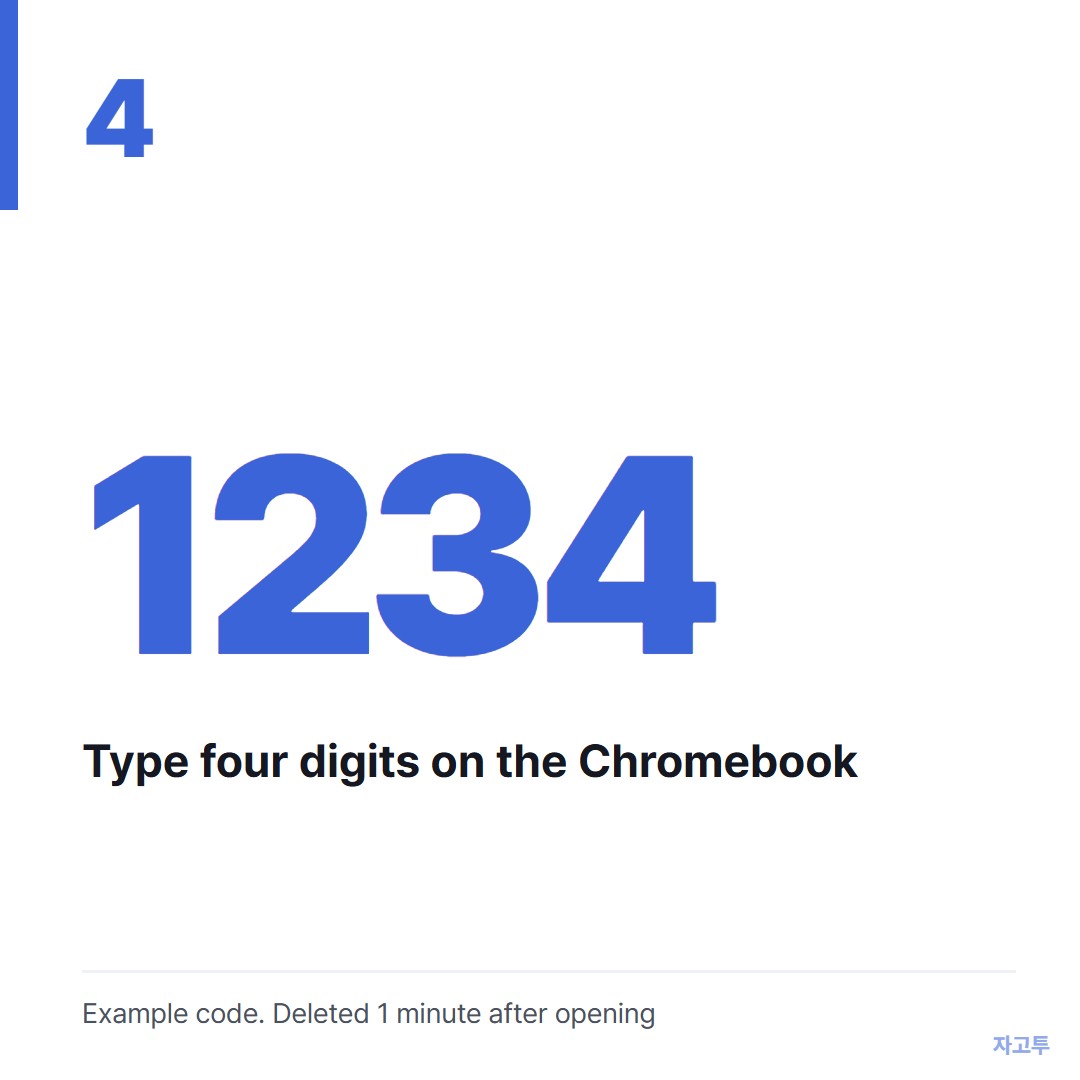
▲ An example code. Real codes are random
In three lines
- Photos: USB cable or Google Photos. Phone Hub is Android only.
- Text on your own Chromebook: Google Keep or Docs, signed in on both.
- Text on someone else's Chromebook: a short code that deletes itself, so you never sign in there.