How to copy and paste on iPad with a finger, a keyboard or an Apple Pencil
2026-10-21
This post contains affiliate links. As an Amazon Associate, ZAGO.TO earns from qualifying purchases.
Hold a finger on a word until it lifts, drag the handles, tap Copy. Then hold a finger where it should go and tap Paste. Everything else in this post is a shortcut for that.
You are showing a parent how to copy and paste on iPad, and the menu keeps vanishing before they can read it. Or you just bought a keyboard and the Ctrl key you have pressed for twenty years does nothing.
Here is the finger way first, then the keyboard, then the Pencil, then what to do when nothing pastes.
Contents
- With a finger
- With a keyboard
- With an Apple Pencil
- When copy and paste is not working
- When the text has to reach another device
- In three lines
1. How to copy and paste on iPad with a finger
▲ The hard part is the first press. Hold, do not tap
Hold a finger on one word for about a second. It highlights and two blue handles appear.
Drag the handles to cover what you want. In a long article, drag the bottom handle down and the page scrolls with it.
Tap Copy in the small black menu above the selection. If the menu disappears, tap once inside the highlighted text and it comes back.
Go where the text belongs, hold a finger on the empty spot, and tap Paste.
There is a gesture too. Pinch in with three fingers to copy, spread three fingers out to paste. It is fast once it clicks, but for someone new to the iPad the menu is easier to explain over the phone.
2. How to copy and paste on iPad with a keyboard
The autocomplete "how to copy and paste on ipad with keyboard" is mostly one confusion. The iPad has no Ctrl shortcut for this. It uses the Command key, marked with the ⌘ symbol, next to the space bar.
- Command C copies, Command V pastes, Command X cuts
- Command A selects everything in the box you are typing in
- Shift + arrow keys extend a selection one letter or one line at a time
This works the same on the Magic Keyboard, a keyboard case and a Bluetooth keyboard from any brand. On a non-Apple keyboard the Command key is usually the one with the Windows logo.
One thing still needs a finger: putting the cursor in the right text box. Tap there first, then use the keys.
3. How to copy and paste with an Apple Pencil
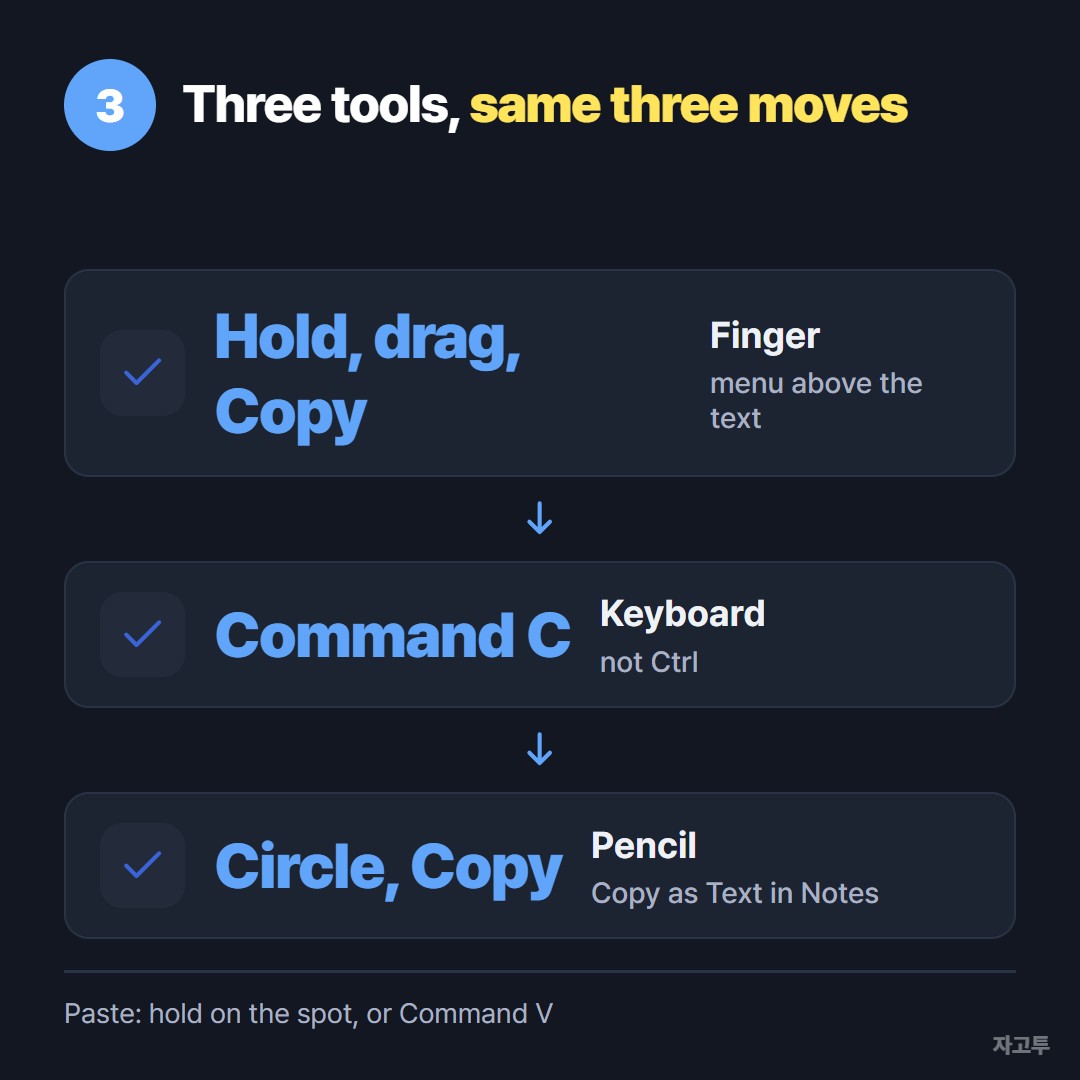
▲ Circling with the Pencil selects, the same as dragging with a finger
In Notes, circle handwritten words with the Pencil, or double tap a word with the tip, and the Copy menu appears. Tap Copy, then choose Copy as Text if you want typed text instead of your handwriting.
In a typed document, the Pencil behaves like a finger. Hold on a word, drag the handles, tap Copy.
With Scribble on, you can also write directly into any text box, so for short things it is often faster to write the words again than to copy them.
4. When copy and paste is not working on iPad
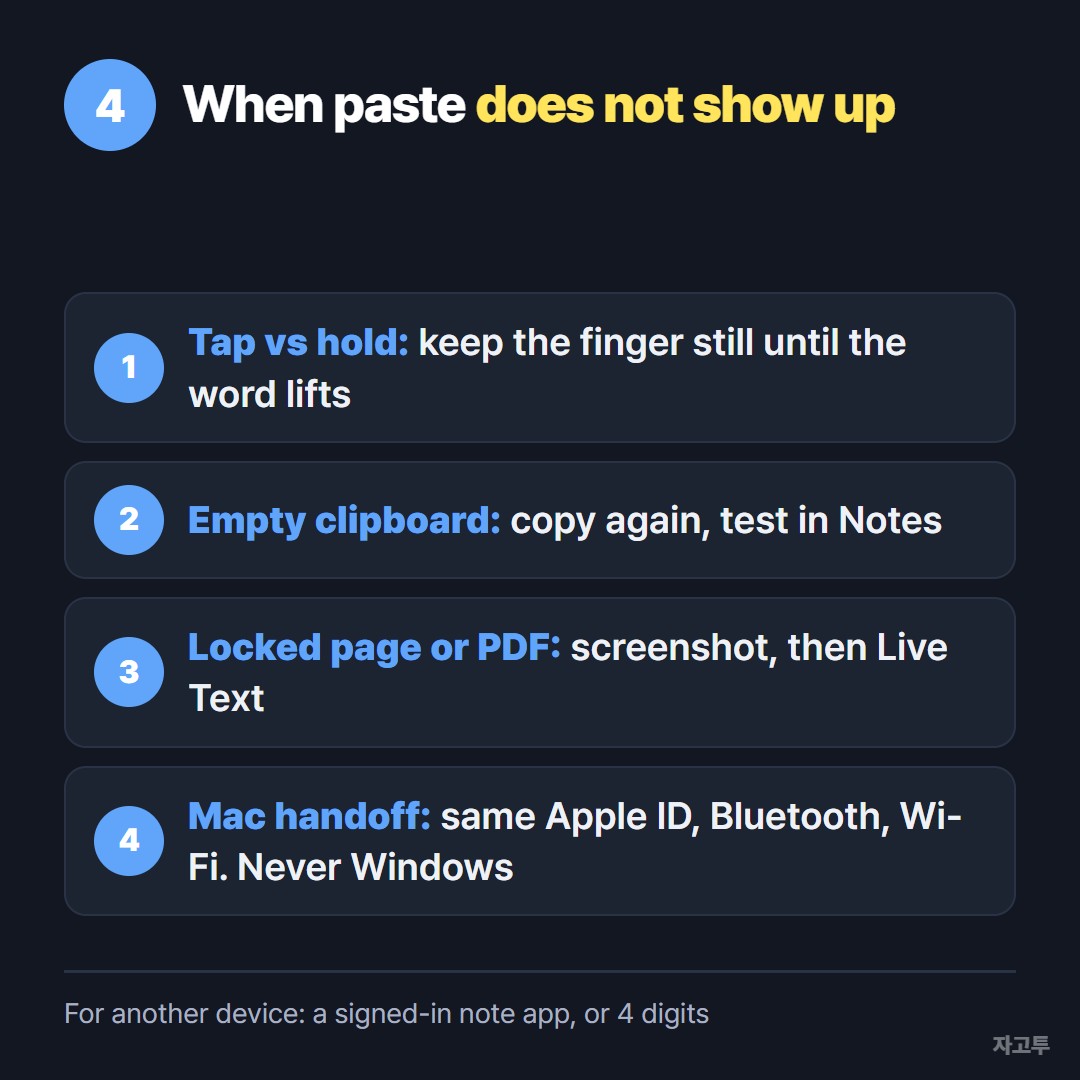
▲ Four checks, from the most common one down
- The menu never shows. You tapped instead of holding. Press and keep the finger still until the word lifts
- Paste is greyed out or missing. The clipboard is empty, or the box does not accept pasting. Copy again and try a plain Notes page
- The text came from a PDF or a locked page. Some apps block selection. Take a screenshot and use Live Text on the image instead
- Universal Clipboard with a Mac does nothing. Both devices need the same Apple ID, Bluetooth, Wi-Fi and Handoff on. It never works with a Windows PC
If the same problem happens on an iPhone, the steps in how to copy and paste on an iPhone are the same gestures on a smaller screen.
5. When the text has to reach another device
Copying on the iPad is only half of it when the paragraph belongs on a Windows laptop or on the Android phone of a relative. Paste simply has nothing to find there.
The usual bridges are a note app signed in on both sides or a message to yourself. Both are fine on your own devices. On a borrowed laptop or a parent phone, signing in just for one paragraph is the slow part.
ZAGO.TO skips the sign in. Paste the text in Safari on the iPad, get a 4-digit code, and type that code at zago.to on the other device. The text appears, ready to copy.
It has clear limits. Text only, up to 10,000 characters, no photos or files. The text is deleted 1 minute after it is opened, or 1 minute after it is sent if nobody opens it, and it cannot be opened again. There is no in-browser encryption yet, so our server can read it. Keep passwords and card numbers out of it.
The longer comparison for the Windows case is in how to copy text from an iPad to Windows.
6. In three lines
- Finger: hold a word, drag the handles, tap Copy, then hold and tap Paste where it goes
- Keyboard: Command, not Ctrl. Command C and Command V on any keyboard, with the Windows key standing in for Command
- Another device: a signed-in note app for your own devices, the 4 digits of ZAGO.TO for a borrowed one, gone a minute after opening