How to copy text from an iPad to Windows, when the iPad is where you wrote it
2026-10-05
This post contains affiliate links. As an Amazon Associate, ZAGO.TO earns from qualifying purchases.
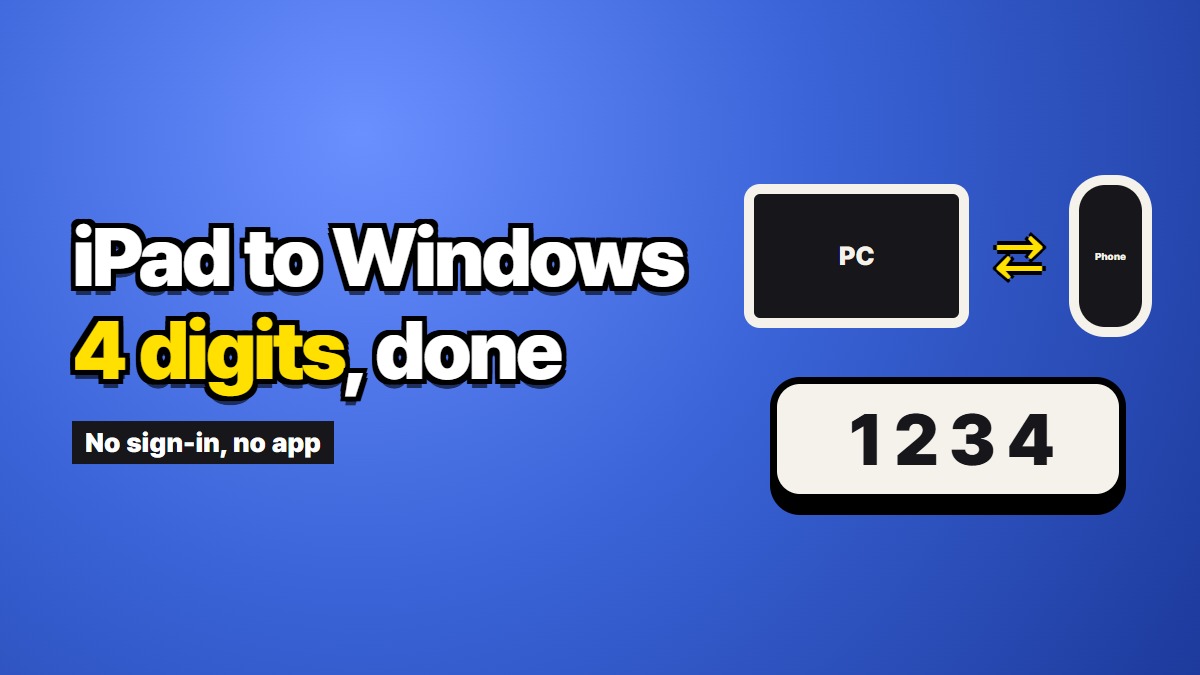
You drafted the email on the iPad, on the sofa, with the keyboard cover. Now you are at the desk and the email has to go out from the Windows PC, because that is where the work account lives. You select the draft, tap Copy, press Ctrl and V on the PC, and nothing happens. This is how to copy text from an iPad to Windows, from the setup that lasts to the shortcut for one paragraph.
Why the paste comes up empty
Copying puts text on a clipboard, and every device has its own. Apple joins the clipboards of its own devices through Universal Clipboard, which needs the same Apple Account, Bluetooth and Wi-Fi on both ends. A Windows PC cannot join that circle, so the iPad's clipboard has nowhere to go. Nothing is broken and there is no setting to flip. We went through the details in When Universal Clipboard has nothing to sync with.
Windows' own Phone Link does not help here either. It pairs with an iPhone for messages and calls, and it does not offer clipboard sharing with Apple devices.
If you move text this way every day: Notes on the web
If the iPad is where you write and the PC is where you send, it is worth one small setup. Write in the Notes app with iCloud turned on, then open icloud.com in a browser on the PC and sign in. Your notes are there, and you can copy straight out of them.
The same works with any notes app that has a web version, such as OneNote or Google Keep. The point is that the text lives somewhere both devices can read. This is the right choice for drafts you will come back to, because it keeps them.
The cost is the sign-in. On your own PC that is fine. On a shared or work machine, signing into your personal Apple Account to grab one paragraph is a heavier step than the paragraph deserves.
If you do it once in a while: email or a chat with yourself
Mailing the draft to yourself or dropping it into a self-chat works everywhere and needs nothing new. It also leaves a copy in your inbox or chat history, which is useful for some text and clutter for the rest. We covered that trade on the iPhone side in Getting text from an iPhone onto a Windows PC without emailing yourself, and it is the same on an iPad.
Copy text from iPad to PC once, without signing in
For a paragraph you will paste once and never need again, ZAGO.TO is the short path. Open zago.to in Safari on the iPad, paste the text, and you get a 4-digit code. Type those four digits into zago.to on the PC and the text appears, ready to copy. If nobody opens it, it is deleted after 1 minute; once opened, it stays for 1 minute and then goes.
What it does not do matters too. It moves text only, up to 10,000 characters, never files or photos. Once deleted, it cannot be opened again. And there is no browser-side encryption yet, so our server can read the text while it is there. Keep passwords and account numbers out of it.
Picking
Write on the iPad every day: put the notes in iCloud and open them on the web. Need a record: email it to yourself. One paragraph, once, on any PC: use a code on ZAGO.TO and let it disappear.