How to copy and paste in the Linux terminal: Ctrl+Shift+C, the middle click and nano
2026-10-16
This post contains affiliate links. As an Amazon Associate, ZAGO.TO earns from qualifying purchases.

Short answer: in most Linux terminals, copy is Ctrl+Shift+C and paste is Ctrl+Shift+V. The confusing part is that a terminal has more than one place to keep copied text, and each tool inside it may use its own.
How to copy and paste in the Linux terminal sounds like one question. In practice it is four, depending on where the text sits and where it has to go.
The four clipboards you are actually dealing with
▲ One window, several places that hold copied text
A Linux desktop session usually has these, all at the same time:
- The clipboard: what Ctrl+Shift+C and Ctrl+Shift+V use, shared with your browser and other apps.
- The primary selection: whatever you last highlighted with the mouse. A middle click pastes it, with no copy step at all.
- The shell's kill ring: text you cut on the command line with Ctrl+U, Ctrl+K or Ctrl+W. Ctrl+Y pastes it back.
- The editor's own buffer: nano and vim keep a separate store that the desktop does not see.
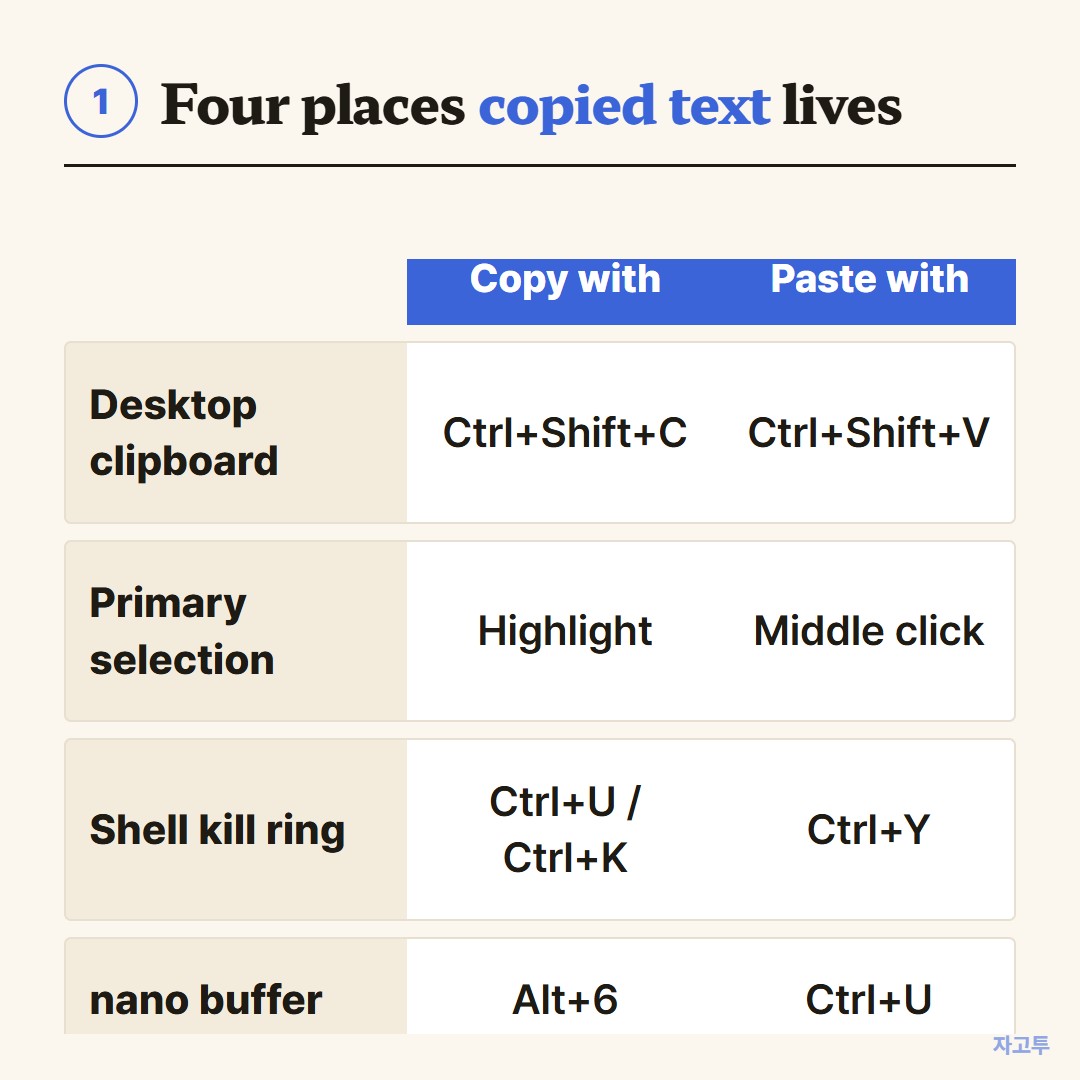
▲ Most "paste does nothing" moments are two of these mixed up
Most of the frustration comes from copying into one and pasting from another.
How to copy and paste in Linux terminal without the mouse
This is the most searched version of the question, and the honest answer is that a plain terminal is weak at it.
On the command line itself, the kill ring is your friend.
Ctrl+U cuts everything before the cursor, Ctrl+K cuts everything after it, and Ctrl+Y pastes it back. It is perfect for moving half a command to a new line.
For command output, send it to the clipboard with a small tool.
On X11 desktops that is `xclip -selection clipboard`, and on Wayland it is `wl-copy`. Pipe the output into it, then paste anywhere with Ctrl+V.
Inside tmux or screen there is a keyboard copy mode, but that layer works by its own rules.
How to copy in nano, and why it stays in nano
In nano, move to the start of the text and press Alt+A to set a mark. Move the cursor to the end, then press Alt+6 to copy or Ctrl+K to cut. Ctrl+U pastes it where the cursor is.
That copy lives in nano's buffer only. Close nano, open the browser, press Ctrl+V, and nothing from nano appears.
To get text out of nano and into another app, select it with the mouse instead and press Ctrl+Shift+C. If nano has mouse support turned on, hold Shift while you drag.
Vim has the same split. Its yank stays inside vim unless vim was built with clipboard support, in which case `"+y` copies to the desktop clipboard.
When Ctrl+Shift+V does not work
- Different terminal: xterm and some minimal terminals do not use Ctrl+Shift+V. Try Shift+Insert.
- Changed shortcut: in GNOME Terminal, check Preferences, Shortcuts. Someone may have remapped it.
- A text console: the full-screen consoles you reach with Ctrl+Alt+F3 have no desktop clipboard at all.
- A remote session: over SSH the copy happens on your own machine, not on the server. SSH copy paste goes through why.
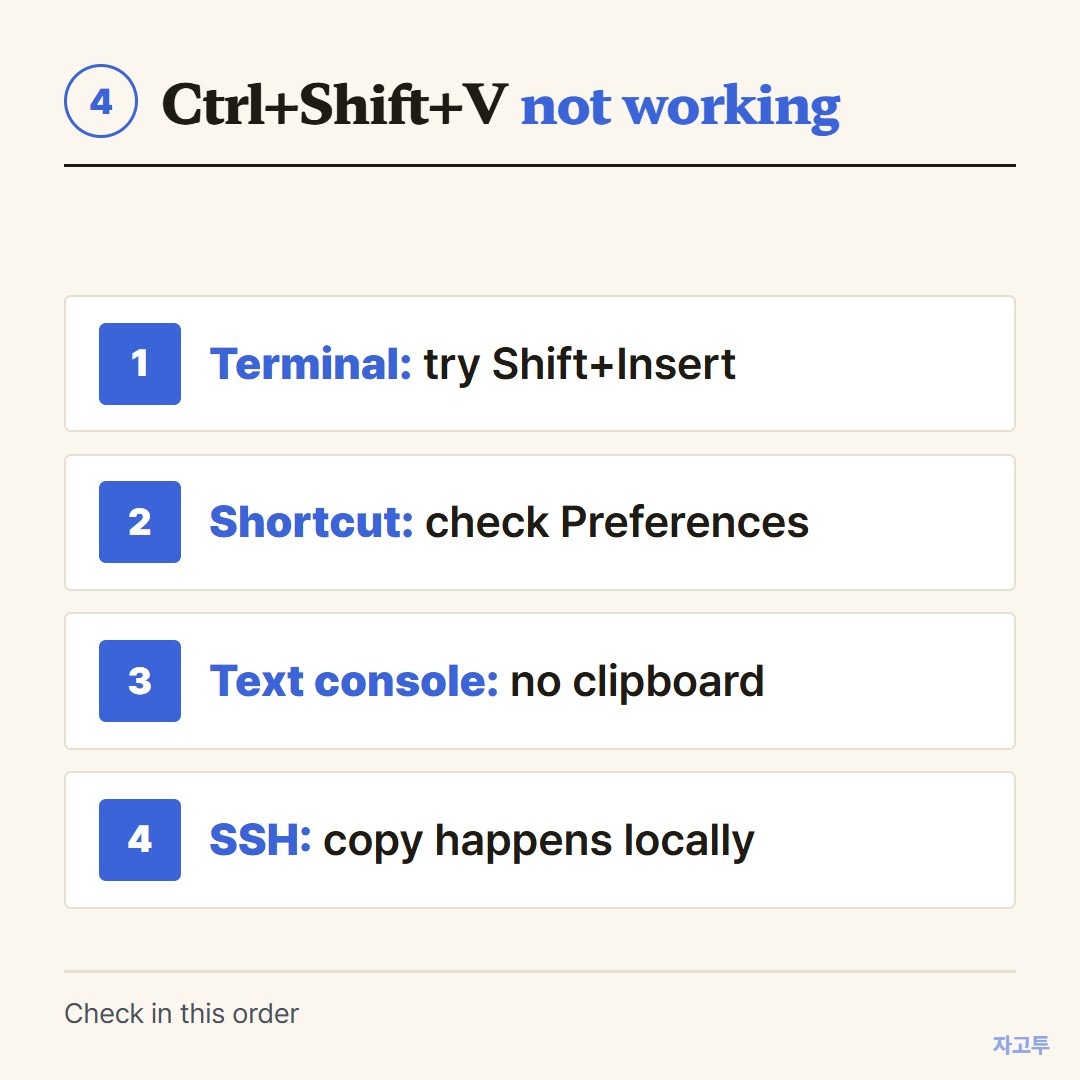
▲ Most cases are the first two
On Windows with WSL the rules shift again, covered in WSL copy paste.
When the command is on another device
Sometimes the line you need is in a guide on your phone, or on a laptop that is not the Linux box in front of you.
For a public command or a config line, ZAGO.TO is one way across. Paste the text on the other device and you get a 4-digit code.
Open zago.to on the Linux machine, type the code, select the text and press Ctrl+Shift+C, then paste it into the terminal.
It is deleted 1 minute after it is opened, or after 1 minute if no one opens it, and cannot be opened twice. Text only, up to 10,000 characters.
ZAGO.TO has no in-browser encryption yet, and its server can read what you paste.
Never move a private key, a token or a password this way. Those belong in a password manager or are copied with scp.
Bottom line
Ctrl+Shift+C and Ctrl+Shift+V cover the desktop clipboard. Ctrl+U, Ctrl+K and Ctrl+Y cover the command line, and nano keeps its own copy until you select with the mouse.