How to copy a link on a Mac, with a trackpad, a mouse or only the keyboard
2026-10-20
This post contains affiliate links. As an Amazon Associate, ZAGO.TO earns from qualifying purchases.

The page is open in Safari, someone in a chat asked for it, and the right click you would use on Windows does not seem to exist on your MacBook.
It does. It just hides behind a different gesture. Here is how to copy a link on a Mac in every way that works, then what to do when the link has to leave your Apple devices.
Contents
- The link of the page you are on
- A link inside a page
- Only the keyboard
- Sending it to a phone or PC that is not Apple
1. The link of the page you are on

▲ The address bar holds the page's link, ready to copy
The quickest way works in Safari, Chrome, Firefox and Edge alike.
- Click the address bar once. The whole address turns blue.
- Press Cmd+C. The link is now on your clipboard.
- Paste with Cmd+V in a chat, an email or a note.
In Safari the bar may show only the site name, such as apple.com. That is display only. Copying from the bar still gives you the full link.
Safari also has a Share button at the top right. Choose Copy in that menu and you get the same full address.
2. A link inside a page
A link in the middle of an article, a search result or an email is different. You want where it goes, not the page you are on.
- Trackpad: click with two fingers. That is the Mac's right click.
- Mouse: right click, or hold Control and click.
- Then choose Copy Link. Some apps call it Copy Link Address.
If two finger clicking does nothing, open System Settings, then Trackpad, and check that Secondary click is turned on. It can be set to a corner of the trackpad instead.
Copy Link takes the address behind the words, not the words you see. That is why "Click here" pastes as a long web address.
3. Only the keyboard
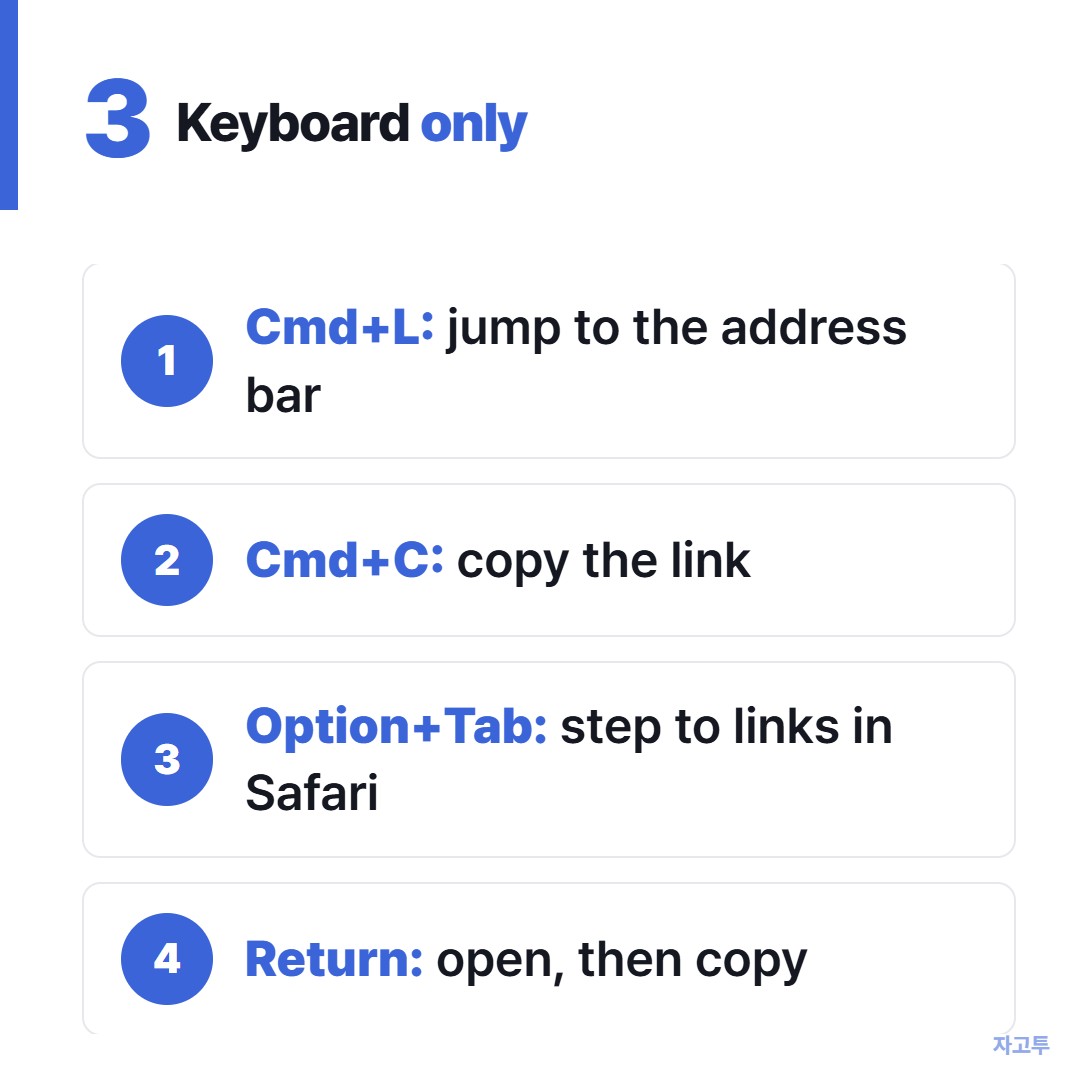
▲ Four keys cover the whole job
No mouse and a stubborn trackpad still leave you a way. Cmd+L jumps straight to the address bar, then Cmd+C copies it.
For a link inside a page, the shortest route is to open it first.
- Move to the link. In Chrome, Tab steps through links. In Safari, use Option+Tab, or turn on "Press Tab to highlight each item" in Safari's Advanced settings.
- Press Return to open it.
- Press Cmd+L, then Cmd+C. You now have that link.
It is one extra page load, but it never needs the pointer.
4. Sending it to a phone or PC that is not Apple
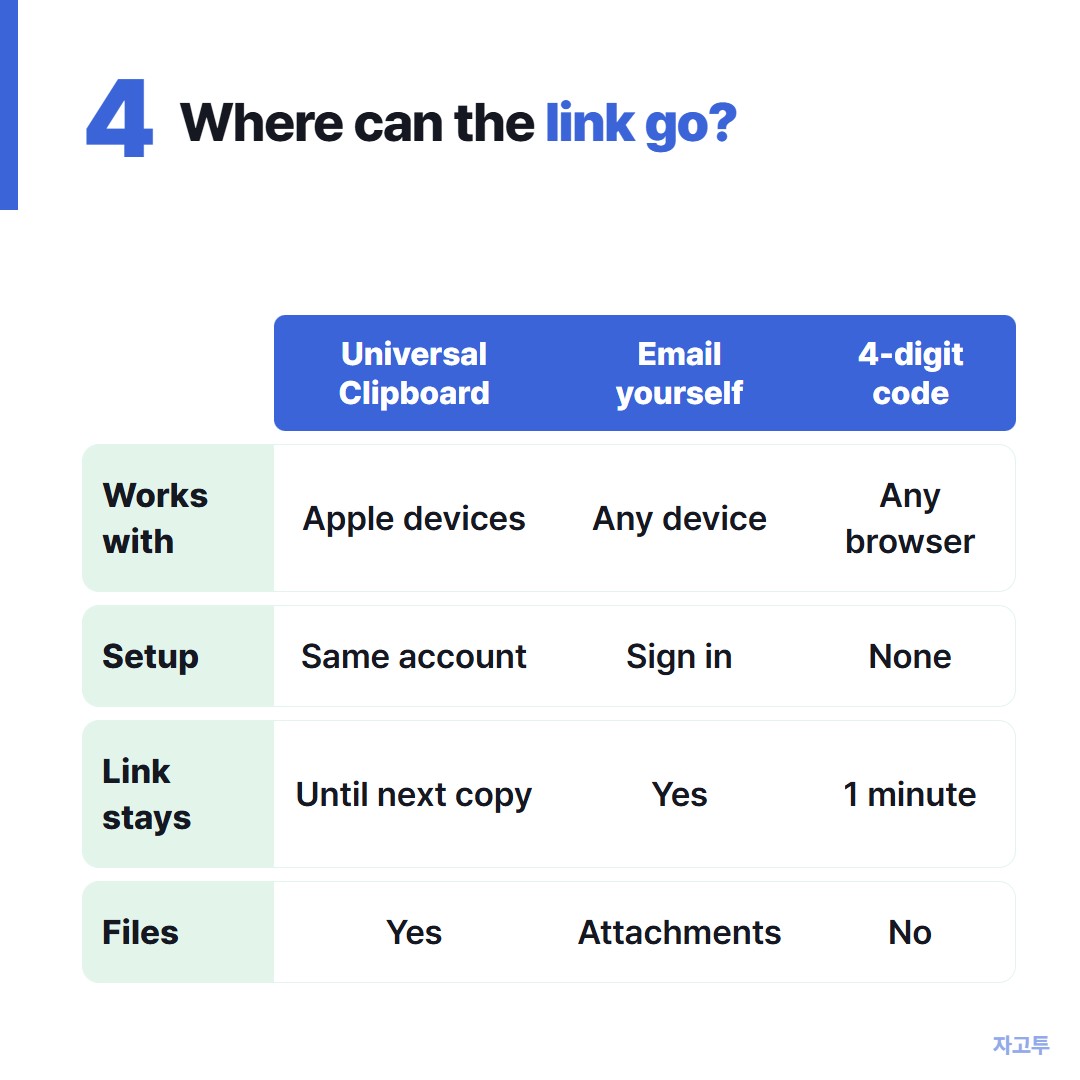
▲ Apple devices share it, everything else needs a bridge
If your iPhone is signed in to the same Apple Account, Universal Clipboard lets you paste on the phone what you copied on the Mac.
The full Apple to Apple route is in How to send a link from iPhone to Mac.
An Android phone, a Windows laptop or a work computer will not see that clipboard. You could email the link to yourself, or paste it into a chat with yourself, and those work if you want to keep it.
For one link, once, ZAGO.TO is shorter. Open zago.to on the Mac, paste the link, and you get a 4-digit code. Type the code at zago.to on the other device and the link appears, ready to tap.
It only carries text, up to 10,000 characters, never files.
Text nobody opens is deleted after 1 minute, and opened text 1 minute after it is opened, so it cannot be opened twice.
ZAGO.TO has no in-browser encryption yet, which means our server can read what you send. A shop link is fine, a password reset link is not.
Copying the link on the phone side works a little differently. See how to copy a link on Android when the next one goes the other way.
3-line summary
- The page you are on: click the address bar or press Cmd+L, then Cmd+C.
- A link inside a page: two finger click or Control click, then Copy Link.
- To a non-Apple device: paste the link at ZAGO.TO and type 4 digits on the other screen.