How to send a link from an iPhone to a Mac, four ways and when each one fails
2026-10-14
This post contains affiliate links. As an Amazon Associate, ZAGO.TO earns from qualifying purchases.

Short answer: AirDrop is the quickest, Handoff is the quietest, iCloud Tabs is the one that waits for you, and Universal Clipboard is the one you forget you have. All four need something in common, and that is where they fail.
You found the page on your iPhone, on the bus or on the couch. Now you want it on the Mac, where the screen is big enough to read it or fill in the form.
How to send a link from an iPhone to a Mac depends less on the link and more on whose Mac it is and how close you are to it.
Here are the four Apple routes, side by side, and the one case where none of them help.
1. AirDrop, the quick one

▲ The page is open on the phone, the Mac is across the room
Open the page in Safari, tap the Share button, tap AirDrop, and pick the Mac.
If the Mac is signed into your Apple ID, the link opens in Safari on the Mac right away. If it is someone else's Mac, they get a prompt to accept.
Where it fails:
- The Mac is not visible. On the Mac, open Control Center, AirDrop, and set it to Contacts Only or Everyone for 10 Minutes.
- Bluetooth or Wi-Fi is off on either side.
- A work Mac with AirDrop turned off by the company. You cannot change that one, and you should not try.
2. Handoff, the quiet one
Leave the page open in Safari on the iPhone and walk to the Mac. A Safari icon with a small phone badge appears in the Dock. Click it and the same page opens.
Handoff sends nothing until you click. That is why people miss it. It needs the same Apple ID on both, Bluetooth and Wi-Fi on, and Handoff switched on in the settings of both devices.
It is the best route when the phone and the Mac are both yours and you are about to sit down anyway.
3. iCloud Tabs, the one that waits
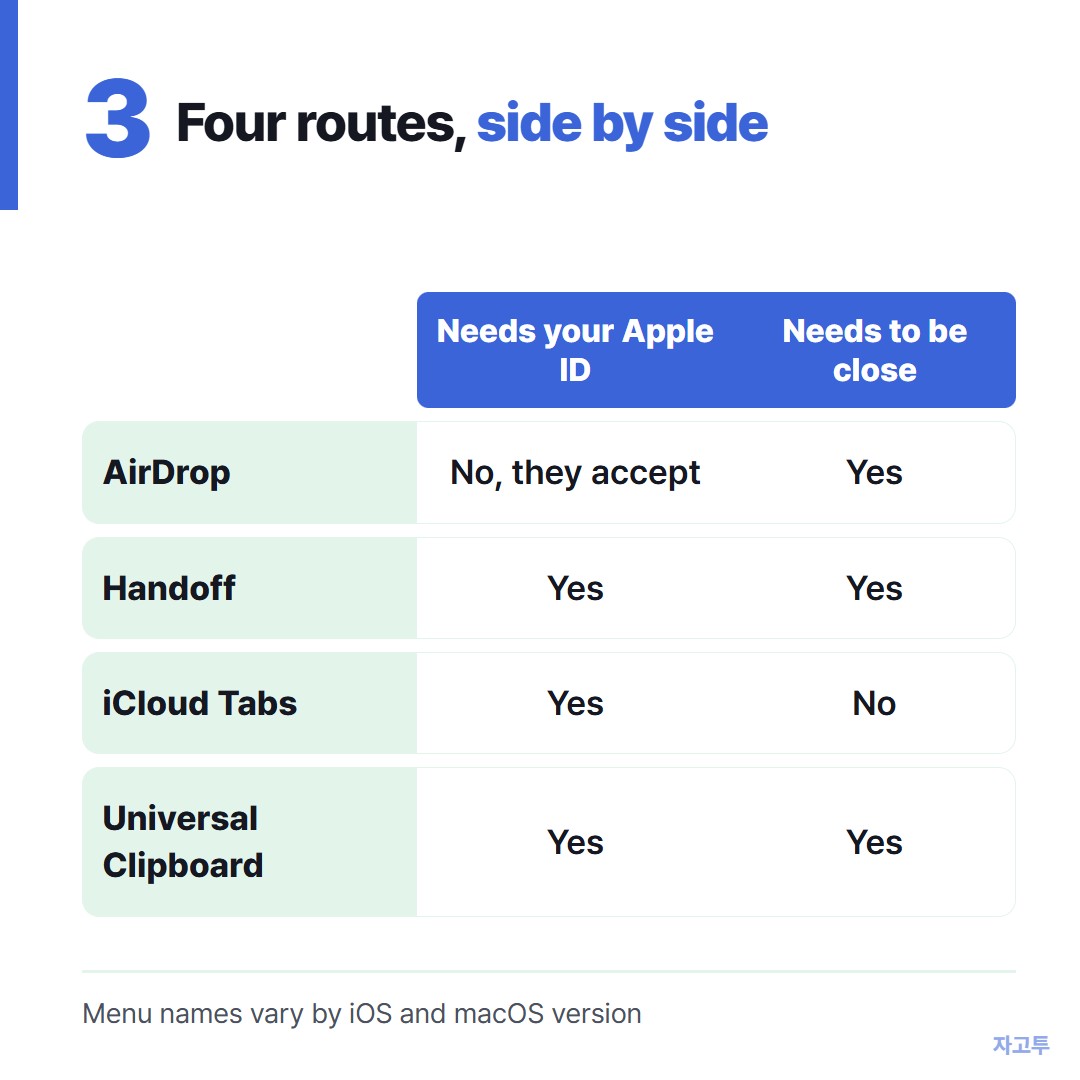
▲ Every Apple route needs your Apple ID somewhere
If Safari is turned on under iCloud on both devices, the Mac can see the tabs open on your iPhone. In Safari on the Mac, open the start page or the tab overview and look for your iPhone's name.
It does not need the devices to be close. It does need the iPhone to have synced, so a page opened ten seconds ago may not be there yet.
4. Universal Clipboard, the forgotten one
Copy the link on the iPhone. On the Mac, press Command and V. The same conditions as Handoff apply, and copied content only lasts a short time, so copy right before you paste.
This is the one to use when the link is not in Safari at all, for example inside a message or an app.
5. When the Mac is not signed into your Apple ID
A library Mac, a shared office iMac, a friend's MacBook. AirDrop may still work if they accept, but Handoff, iCloud Tabs and Universal Clipboard will not.
That is the gap ZAGO.TO is built for. Paste the link on zago.to on the iPhone, get a 4-digit code, open zago.to on the Mac and type it. The link appears, ready to click.
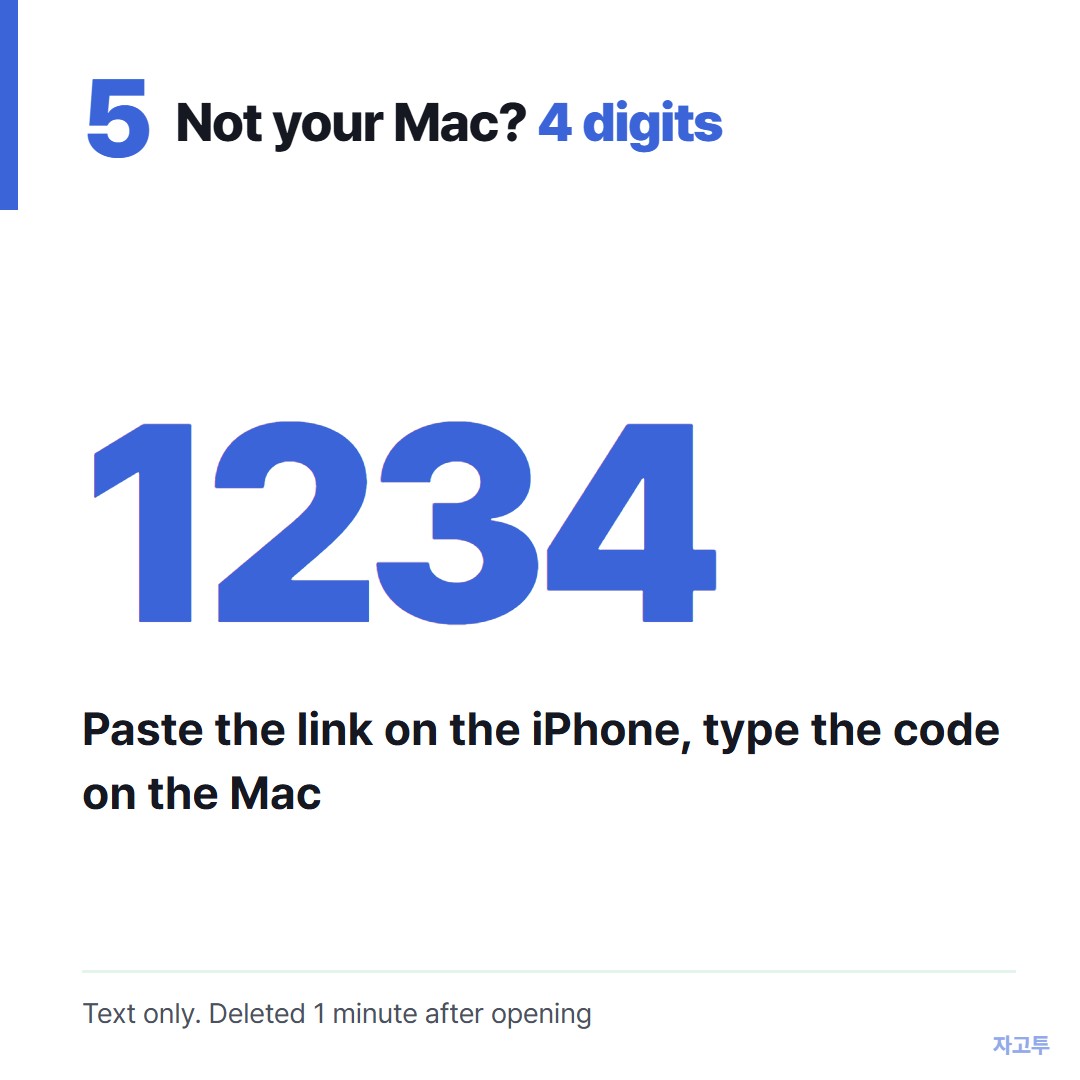
▲ An example code. Each real code is random
The limits matter here. It moves text only, up to 10,000 characters, never files.
Unopened, it is deleted after 1 minute, and opened, 1 minute later, so you cannot open it twice.
There is no in-browser encryption yet, so our server can read what you send. A public link is fine. A private sign-in link is not.
Going the other direction, from a computer to the phone, is covered in How to send a link from a PC to an iPhone.
And if the gap is between Apple and Windows or Android, see When Universal Clipboard has nothing to sync with.
Which one to use
- Your Mac, you are sitting down: Handoff.
- Your Mac, across the room: AirDrop.
- Your Mac, later today: iCloud Tabs.
- A link inside an app: Universal Clipboard.
- Someone else's Mac: AirDrop if they will accept it, or ZAGO.TO for one link.