Hisense TV web browser: whether you have one depends on which system the TV runs
2026-10-22
This post contains affiliate links. As an Amazon Associate, ZAGO.TO earns from qualifying purchases.
Hisense sells TVs on four different systems. VIDAA models have a browser built in. Roku TV models have none. Google TV and Fire TV models need one installed. Find the system first, and the rest of this page is short.
The Hisense TV web browser question gets a yes from one owner and a no from the next, and both of them are right about their own TV.
Hisense does not build one system for every screen. The same year's lineup can run VIDAA in one country and Roku in another, with Google TV and Fire TV editions beside them.
So the first job is not finding the browser. It is finding out which Hisense you have.
Contents
- Which system your Hisense runs
- Browser by system, side by side
- VIDAA: open the one that is already there
- Roku TV: no browser, so the phone does the work
- Google TV and Fire TV: install one
- A long address without the remote
- Quick answers
1. Which system your Hisense runs
▲ The home screen tells you the system before any menu does
Press Home and look at the layout.
- VIDAA: a row of apps along the bottom, with a VIDAA logo in a corner of the remote or on the boot screen.
- Roku TV: a purple grid of app tiles on the right and a menu list on the left. The remote has a purple Roku tag.
- Google TV: rows of recommended shows with a search bar on top, and a Google Assistant button on the remote.
- Fire TV Edition: an Amazon style home screen with Prime Video front and centre, and an Alexa button on the remote.
Still unsure? Settings, then About or System, names the software. The sticker on the box or the model page on the Hisense site says it too.
2. Browser by system, side by side
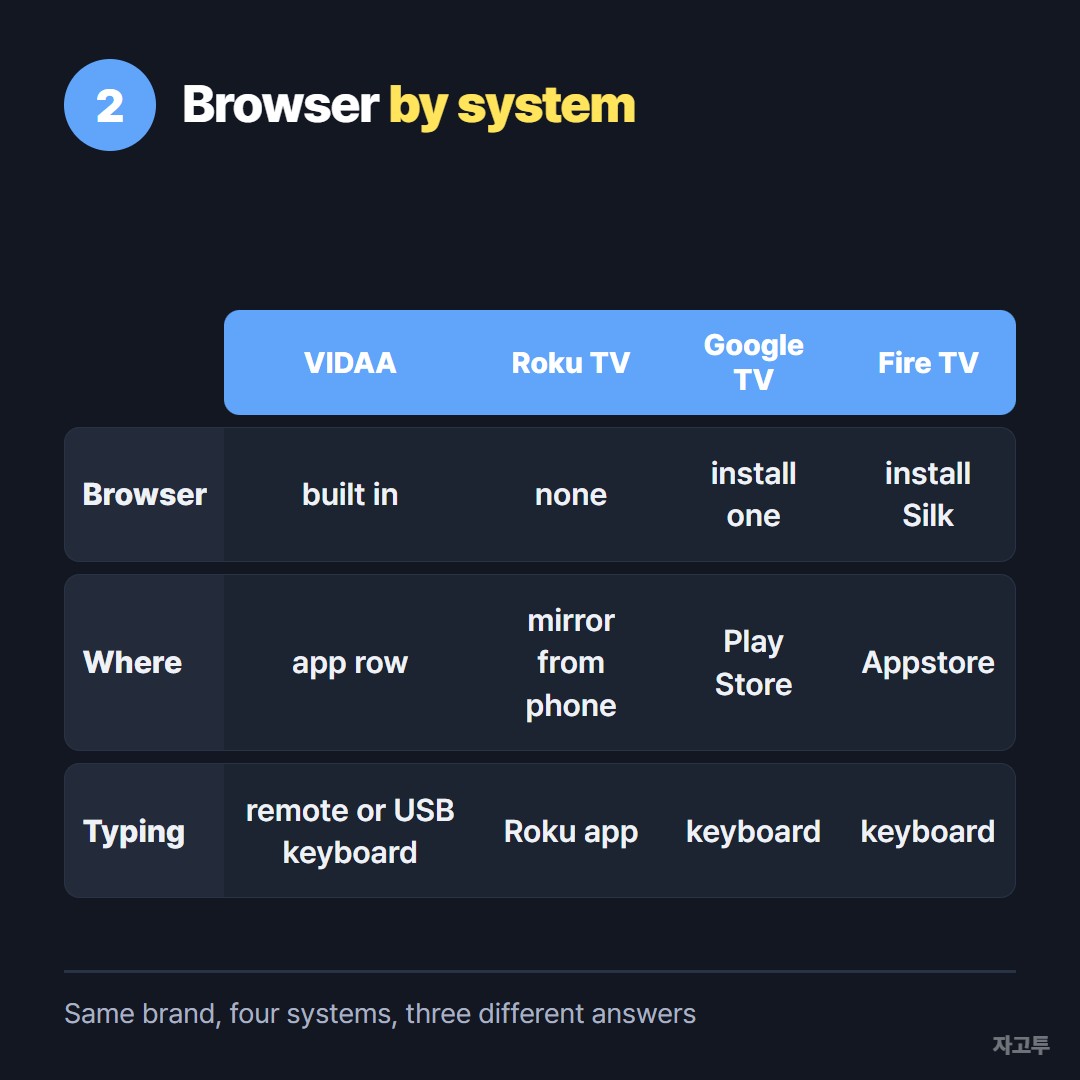
▲ Built in, missing, or install it yourself. Three different answers under one brand name
The table is the whole story. The sections below add the steps.
- VIDAA: built in. Open it from the app row.
- Roku TV: no browser app, and the Roku store does not offer a real one.
- Google TV: no browser preinstalled. Install one from the Play Store.
- Fire TV Edition: no browser preinstalled. Install Silk from the Amazon Appstore.
Does Hisense TV have a web browser, then? Only the VIDAA models do out of the box.
3. VIDAA: open the one that is already there
The Hisense VIDAA browser is a plain app called Browser. Press Home, move along the app row, and open it. If it is not in the row, open the full Apps list.
Click the address bar and an on screen keyboard appears. Type a short address with the remote's arrows, or plug a USB keyboard into the side of the TV and type normally.
The VIDAA browser cannot be replaced. There is no Chrome for it.
Sites that need a newer browser engine, or that block TV browsers, will refuse to load. A video site's own app usually works where its web page does not.
If the browser is missing after an update, restart the TV and check Settings, System, Software update. A few older VIDAA versions hid it until the update finished.
4. Roku TV: no browser, so the phone does the work
A Hisense Roku TV browser does not exist in the way people hope. Roku keeps the web off the platform.
The apps in the store that call themselves browsers show a tiny, slow page or ask for a subscription.
What works instead is screen mirroring from a phone. Turn on mirroring under Settings, System, Screen mirroring, then share the phone screen to the TV.
The page opens on the phone and the TV shows it.
For typing into Roku apps that do have a search box, the Roku mobile app's keyboard beats the remote.
The keyboard route for every Roku model is in How to type on a Roku TV without the on-screen keyboard.
5. Google TV and Fire TV: install one
A Hisense Google TV ships with no browser, but the Play Store on the TV has several. Search the store for a TV browser, install one, and open it like any app.
The Hisense Fire TV Edition gets Silk from the Amazon Appstore. Install it, open it, and use the remote's arrows as a cursor.
Both systems share one habit: the page opens as if it were on a phone or a computer, and the remote is a poor mouse. A USB or Bluetooth keyboard fixes the typing.
The Google TV route in detail, including the Chromecast with Google TV, is in Is there a Chromecast browser?
6. A long address without the remote
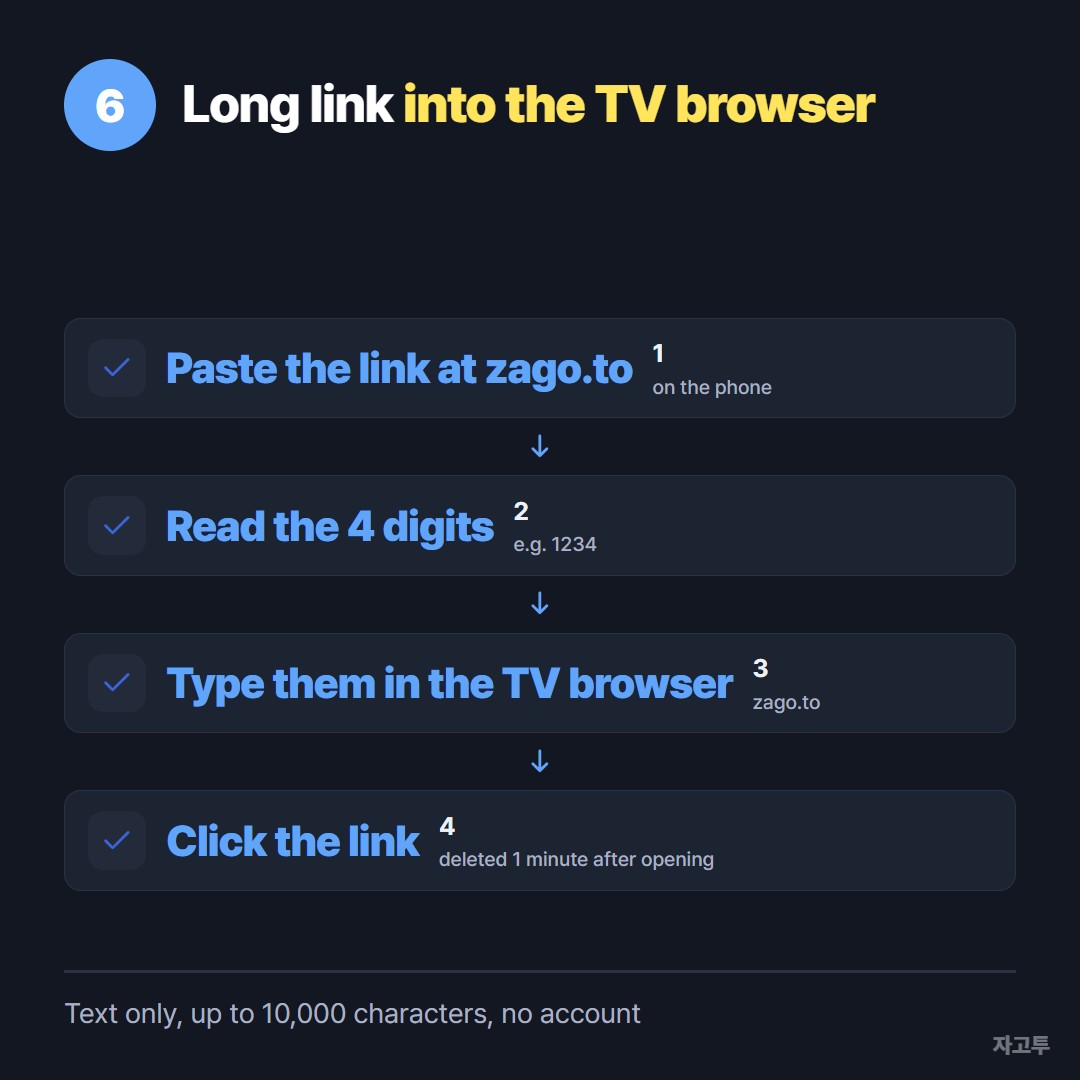
▲ Four digits are easier to aim a remote at than a ninety character link
Now you have a browser, and the page you want is a long link in a message on your phone.
Typing it with arrows is where people give up. ZAGO.TO carries the link as text instead.
Paste it at zago.to on the phone and a 4-digit code appears, something like 1234. Open zago.to in the TV browser, type the four digits, and the link is there to click.
Nothing to install on the TV and no account on either side, which matters on a TV browser that cannot add extensions. The code grows to five digits only when every four-digit code is taken.
The link is deleted one minute after it is opened, or one minute after sending if nobody opens it, and it cannot be opened twice. Have the TV browser open before you type the digits.
Two limits, plainly. ZAGO.TO moves text only, up to 10,000 characters, so a link goes through but a video file does not.
And there is no in-browser encryption yet, so our server can read what passes through. A recipe link is fine. A streaming password is not.
On a Roku or an Apple TV, where no browser exists, there is nothing to type a code into. Mirroring from the phone is the route there.
7. Quick answers
How to open the web browser on a Hisense smart TV? On VIDAA, Home, then the Browser app in the row. On Google TV or Fire TV, install one from the store first.
On Roku TV, mirror from a phone instead.
Why does the Hisense browser say a site is not supported? TV browsers run older engines, and some sites block them on purpose. Try the site's own app from the TV store.
Can I update the Hisense VIDAA browser? It updates with the TV software, under Settings, System, Software update. There is no separate browser update.
Can I use a wireless keyboard? Most Hisense models take a USB keyboard. Bluetooth keyboards work on many Google TV and Fire TV models, under Settings, Remotes and accessories.
 Days until Christmas
 Word Counter
 Age Calculator
 Wheel Spinner